Import articles from a website, Markdown or the Wiki
Bring existing help articles into your Help Center as drafts, from a public help site, a zip of Markdown files or pages in your Wiki.
5 min readUpdated 5 days ago
Before you start. Owners, Admins and Members can import. Every imported article counts toward your plan's Help Center article limit: 25 on Idea, 250 on Build, and no limit on Launch and above. Imports arrive as drafts, so readers see nothing until you publish them.
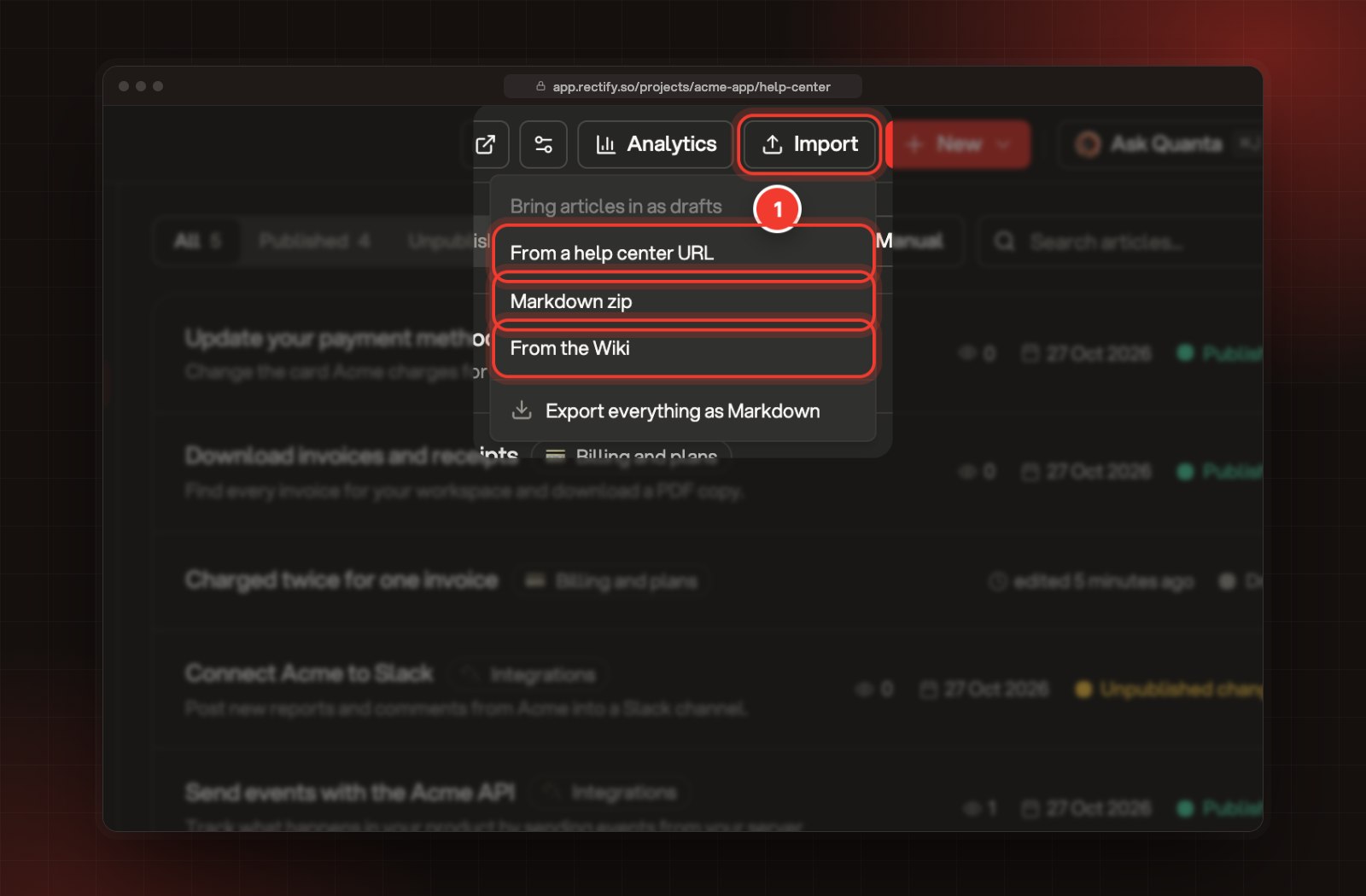
Open Help Center under Publish, select Import at the top, and pick where your articles come from.
1 Import, then one of the three sources.
Source
Best for
From a help center URL
Moving from another help center that's public on the web
Markdown zip
Docs you keep as .md files, for example in a code repository
From the Wiki
Team notes in your Wiki that customers should read too
Import from another help center
1.
Select Import, then From a help center URL.
2.
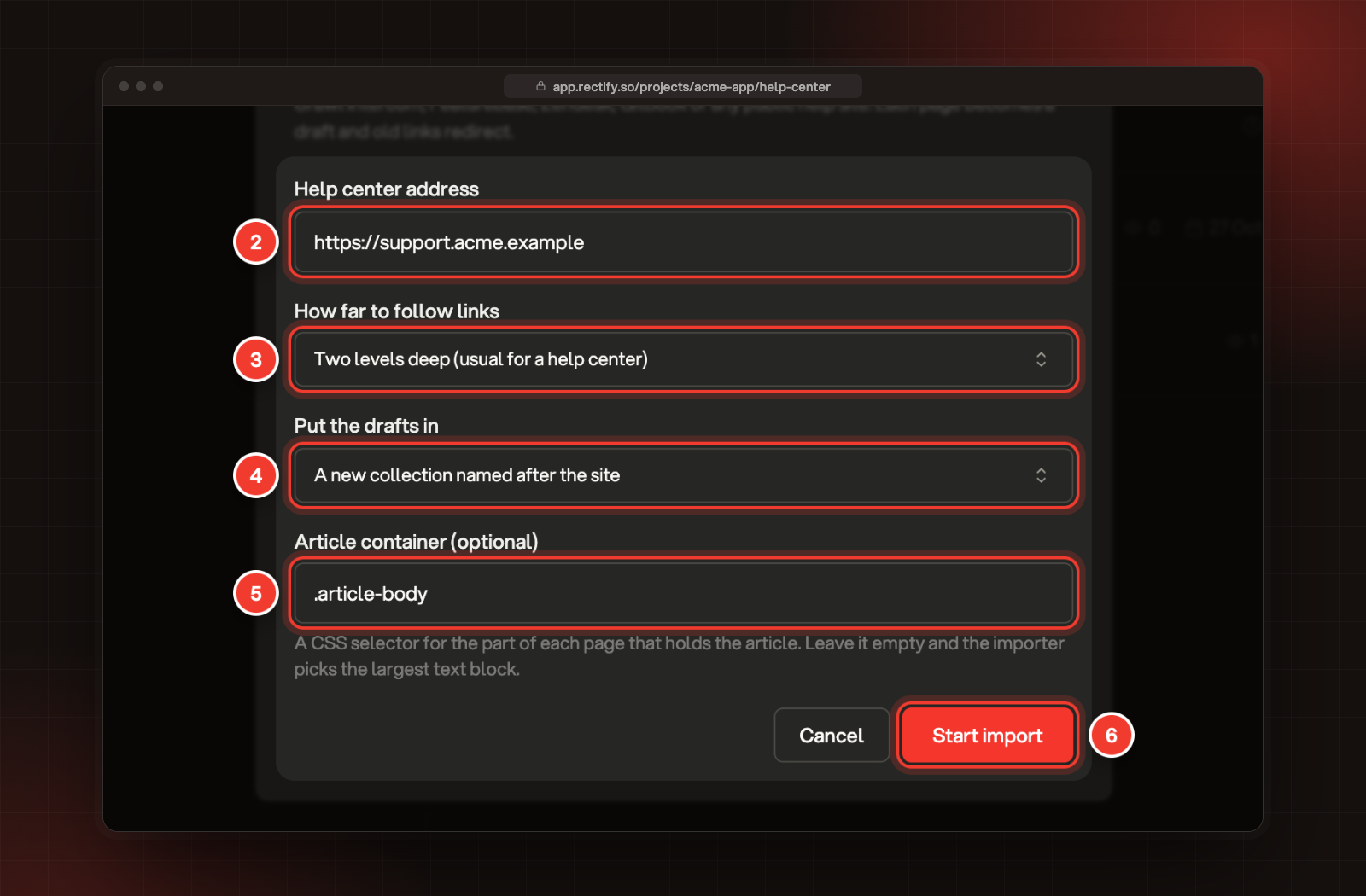
Under Help center address, enter the address of the help center's home page, starting with https://.
3.
Under How far to follow links, pick how many clicks deep Rectify should go. Two levels deep (usual for a help center) suits most help centers.
4.
Under Put the drafts in, pick a collection, or keep A new collection named after the site.
5.
Optional: under Article container, enter a CSS selector for the part of each page that holds the article, like .article-body. Leave it empty and Rectify picks the largest block of text on the page.
6.
Select Start import.
2 Help center address. 3 How far to follow links. 4 Put the drafts in. 5 Article container. 6 Start import.
Rectify reads up to 300 pages, and only pages on that same site. Each page becomes one draft: its main heading becomes the title and its meta description becomes the article's description. Pages with too little text, like category lists, are skipped.
Rectify also remembers each page's old path. If you later point your old help center's domain at your Rectify portal, links to the old pages open the new articles. Custom domains need the Launch plan or above.
Images in imported pages still load from your old site. Keep it online until you've replaced them, or add new images in the editor.
Import a zip of Markdown files
1.
Select Import, then Markdown zip.
2.
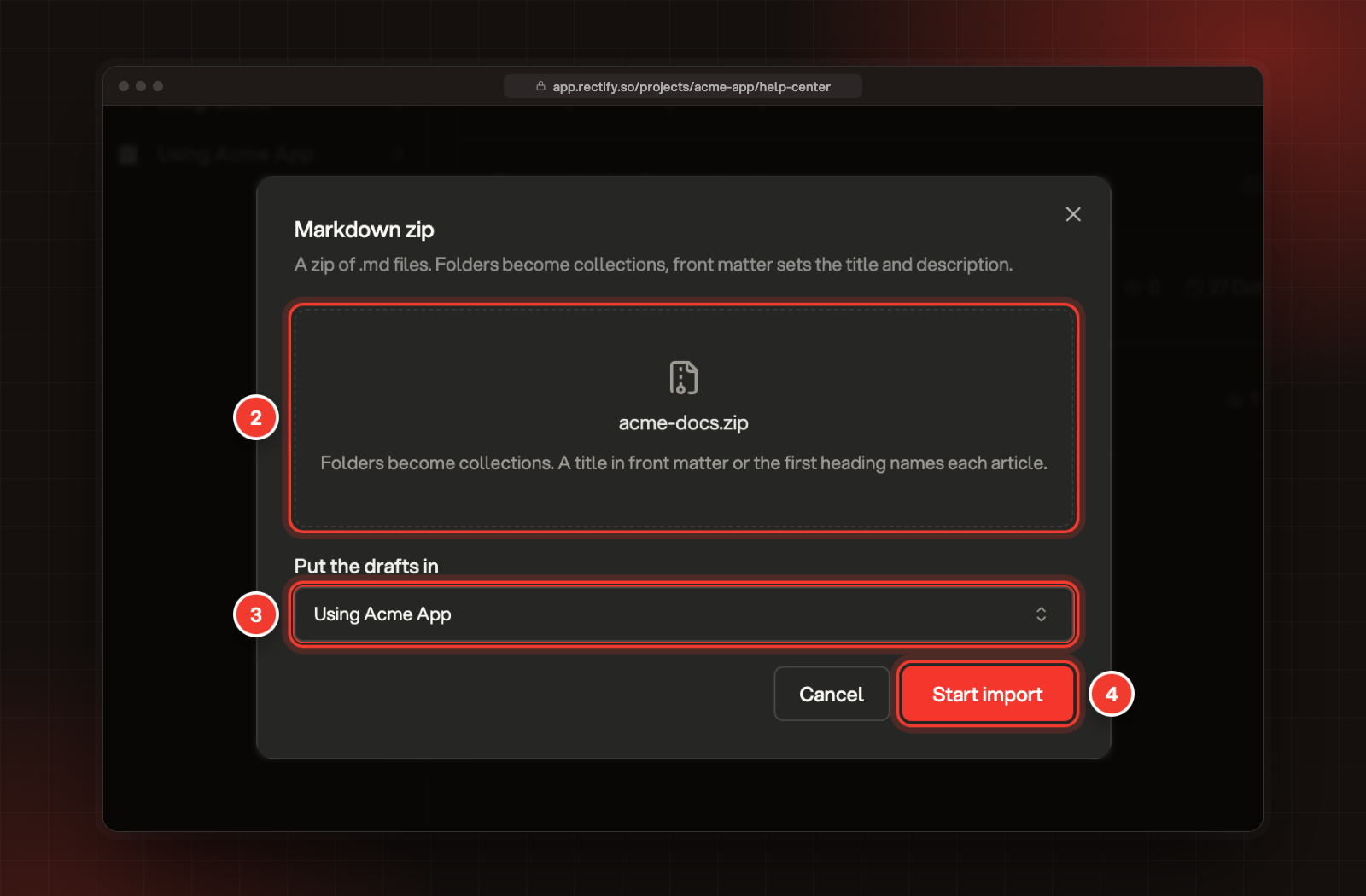
Drop your zip on the box, or click it to choose the file.
3.
Under Put the drafts in, pick the collection the articles should go into.
4.
Select Start import.
2 The zip. 3 Put the drafts in. 4 Start import.
How Rectify reads the zip:
•
Every .md, .markdown or .mdx file becomes one draft. Other files are ignored.
•
Each folder becomes a collection inside the one you picked. Collections nest up to three levels, so deeper folders are merged into the last level.
•
The title comes from title: in the file's front matter, then from a first # heading, then from the file name. description: in the front matter sets the description.
•
Image files in the zip aren't uploaded. An image written as  on its own line keeps pointing to that address.
•
A zip can hold up to 500 Markdown files and 25 MB of Markdown. Files over 1 MB are skipped.
A file like this one imports as "Export your data to CSV", with its description filled in:
Markdown
---
title: Export your data to CSV
description: Download every board, card and comment in your workspace as CSV files.
---

Workspace admins can export everything in a workspace at any time.
Copy pages from the Wiki
1.
Select Import, then From the Wiki.
2.
Tick the pages you want to copy.
3.
Under Put the drafts in, pick a collection.
4.
Select Copy with the number of pages, for example Copy 3 pages.
The pages stay in your Wiki. Later edits in the Wiki don't reach the Help Center copy, so update the article itself. You can copy up to 200 pages at a time.
Check it worked
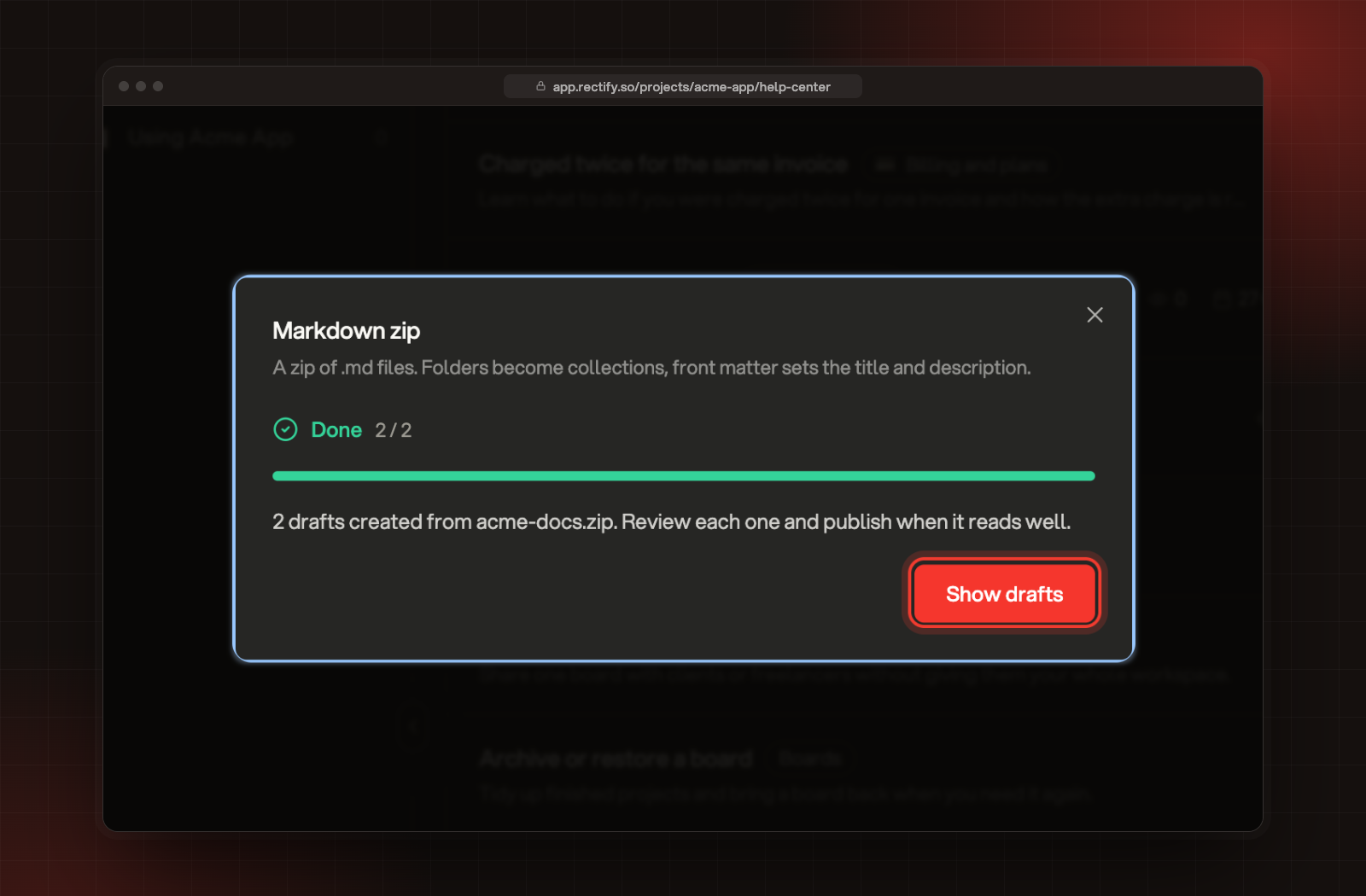
While the import runs, the window shows its progress, like Reading pages or Creating drafts, with a count. You can close it, and the import keeps going. When it says Done, select Show drafts.
Done, with the number of drafts created and Show drafts.
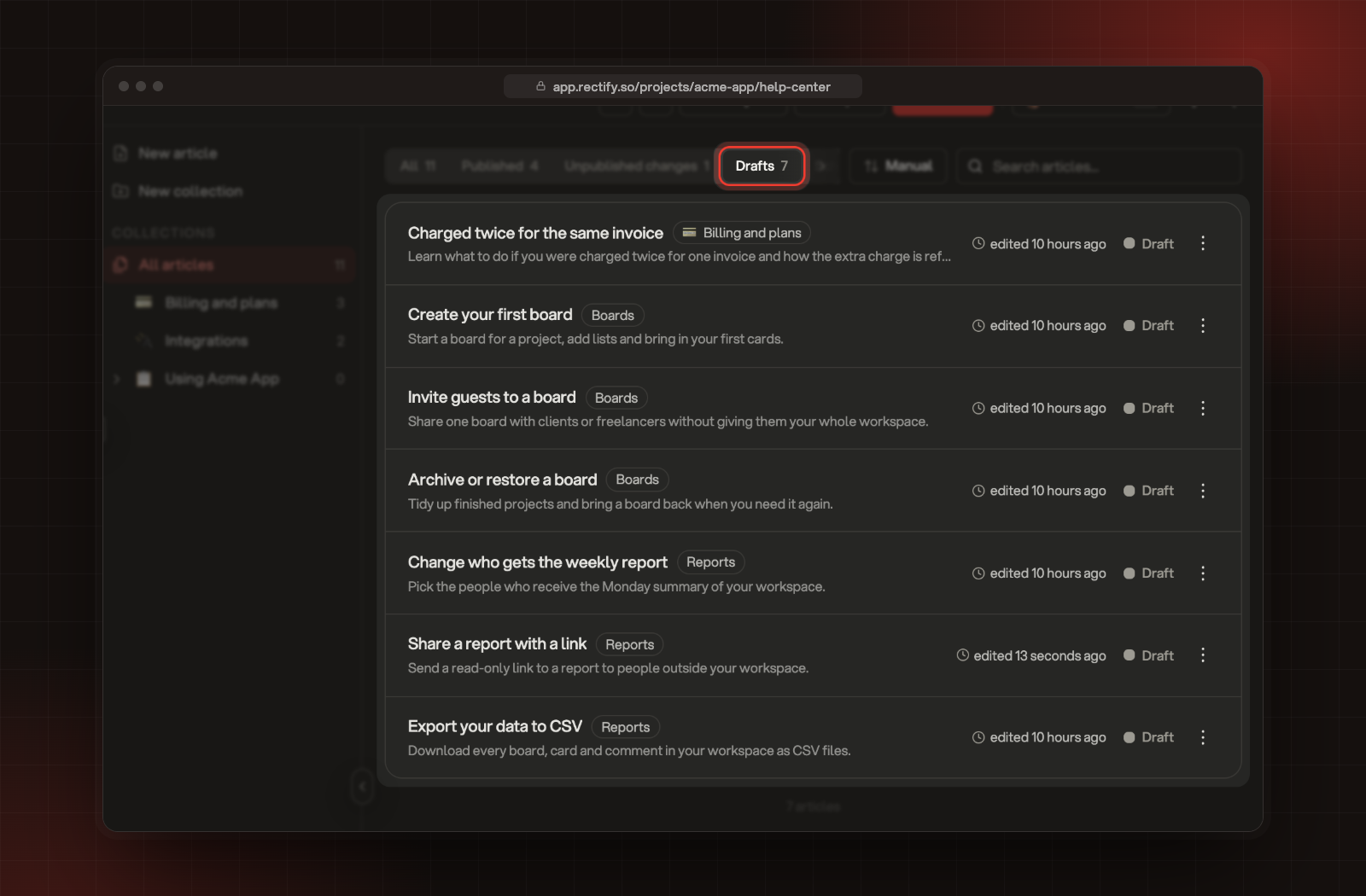
The list opens on the Drafts tab, with each new draft in the collection made from its folder.
The new drafts on the Drafts tab.
Read each draft, fix anything the import missed, and select Publish when it's ready. To write notes for your team first and share them later, see Keep team notes in the Wiki.
It says "That address is not reachable from imports"
Rectify only imports from public sites. The address must open in a private browser window without signing in, and it can't be a local or private network address.
It says "No article pages found at that address"
Rectify found no page with enough article text. Start from the help center's home page, pick a deeper level under How far to follow links, or enter the CSS selector of the article area under Article container.
Some pages are listed as "not enough article text"
Those pages, like category lists or search pages, had less than a short paragraph of text in the article area, so they were skipped. If a real article was skipped, run the import again with its Article container selector.
It says "Your plan has reached its help center article limit"
The import stops when your plan has no room left, and the remaining pages aren't imported. While you're at the limit, the import options are greyed out. Upgrade your plan, or delete articles you no longer need.
It says "The zip has no Markdown files in it" or "That file is not a zip archive"
Zip the folder that holds your .md files and choose that .zip file. Other archive types don't work.