Start a chat, approve or skip the changes Quanta prepares, answer its questions, and find your chats again in History.
5 min readUpdated 5 days ago
Before you start. Everyone who can open a project can chat with Quanta and confirm changes there. A few changes, like publishing changelog entries or sending campaigns, only go through for Owners and Admins. What Quanta can do for your team lists them.
Start a chat
1.
Open Quanta in the sidebar.
2.
Type your question in the box at the bottom.
3.
Press Enter to send. Shift+Enter adds a new line.
Quanta names the chat after your first message. Select New Chat at the top of a chat to go back to the Quanta page and start another one.
Chats you don't touch for a while are deleted. The line under the chat's name shows when, and every new message starts the clock again.
Plan
A chat is kept for
Idea
1 month
Build
3 months
Launch
6 months
Accelerate and Enterprise
12 months
Approve a change
Quanta never changes anything until you confirm it.
1.
Ask Quanta for a change, for example "Log a bug: the checkout button does nothing on Safari. High priority."
2.
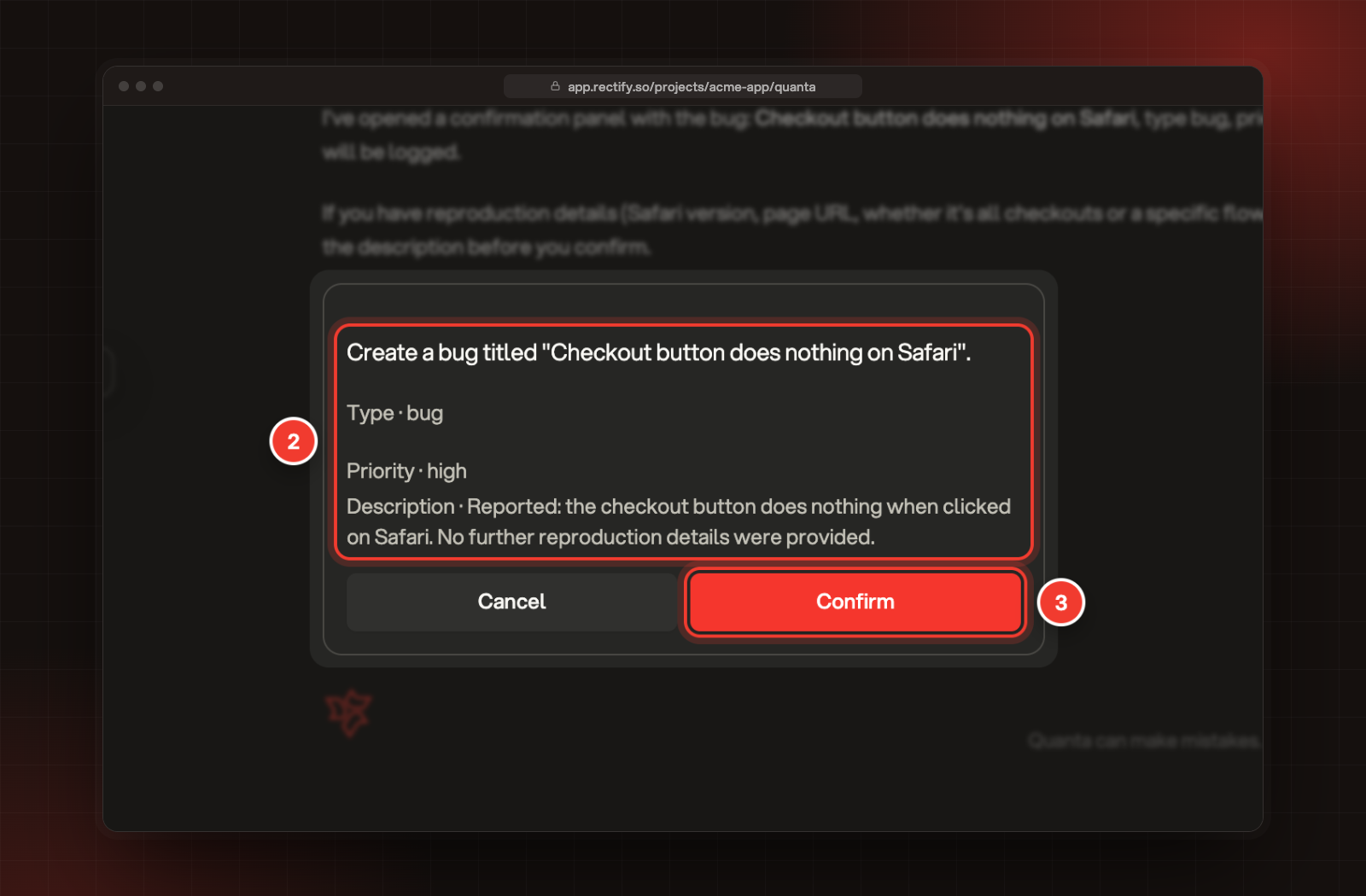
Check the card under Quanta's reply. It sums up the change and lists what will be saved. A red warning tells you when a change can't be undone.
3.
Select Confirm.
2 The change and what will be saved. 3 Confirm.
The card then reads Done. If the change doesn't go through, it reads Failed and a message tells you why.
Not sure yet? Select Cancel and the card reads Canceled. Nothing is saved until you select Confirm.
A few things to know:
•
A card waits 30 minutes. After that, ask Quanta to prepare the change again.
•
Only the person who asked can confirm a change.
•
Quanta prepares one change per reply. If you ask for two at once, confirm the first, then ask for the next.
•
A card that's still waiting goes away when you reload the page or leave the chat. Ask Quanta again to bring it back.
Answer Quanta's questions
When Quanta needs details for a change, it shows a short form above the message box instead of guessing.
1.
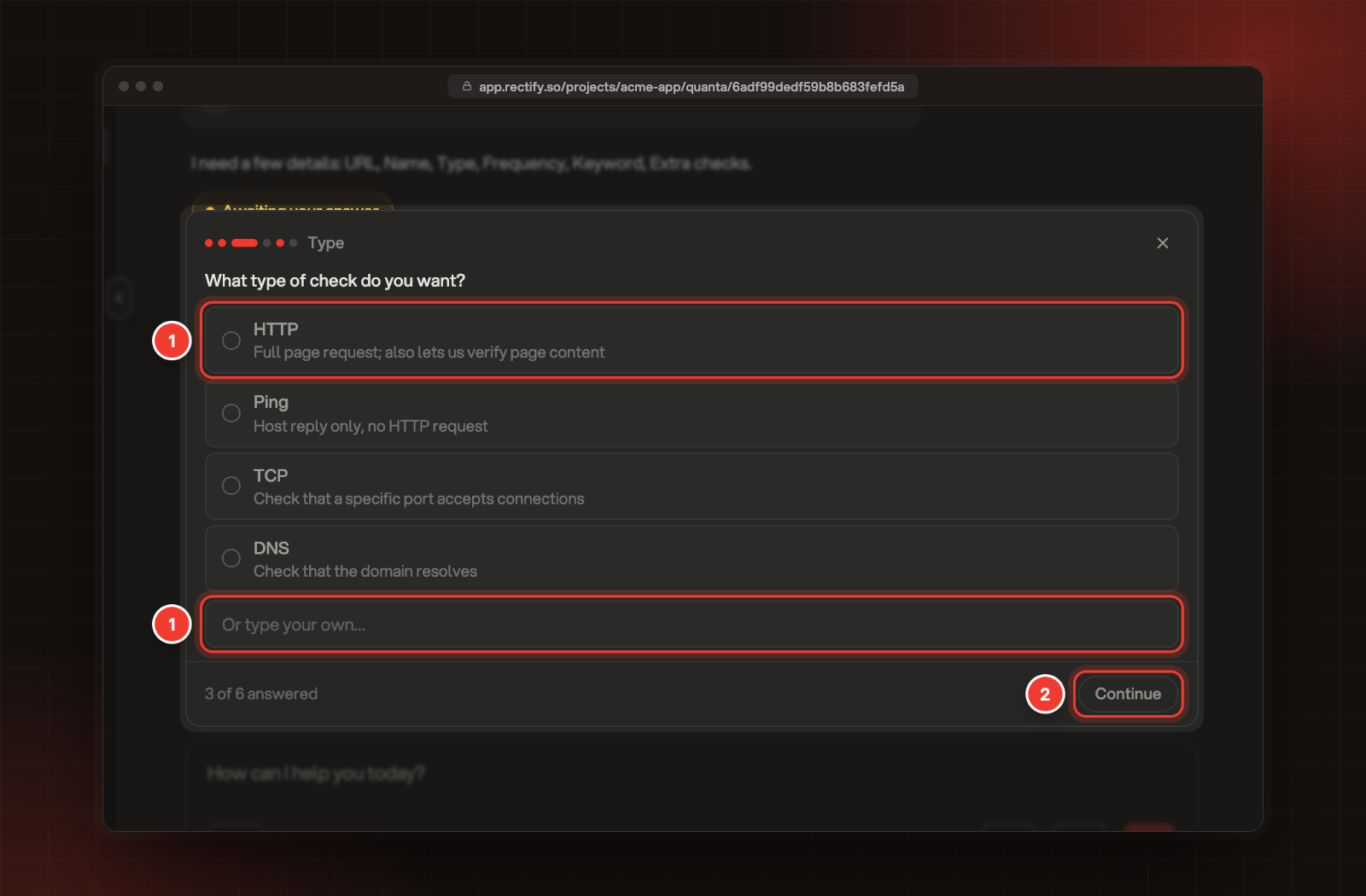
Pick an answer, or type your own under the choices.
2.
Select Continue to go to the next question.
3.
On the last question, select Send.
1 Pick an answer or type your own. 2 Continue.
After you answer, small follow-up changes go ahead without a card to confirm. Deleting, archiving, declining, unpublishing, resending, merging, sending, stopping and picking a winner still ask you first. To skip the questions, close the form. The reply is then marked Canceled.
Copy or retry a reply
Under each reply from Quanta:
•
Copy copies the reply's text.
•
Retry asks again with the model you've picked in the message box, and replaces the reply.
While Quanta is replying, the send button shows a spinner and you can send your next message once it's done. Quanta can make mistakes, so check anything important before you act on it.
Find, star, rename or delete a chat
1.
Open any chat and select History at the top.
2.
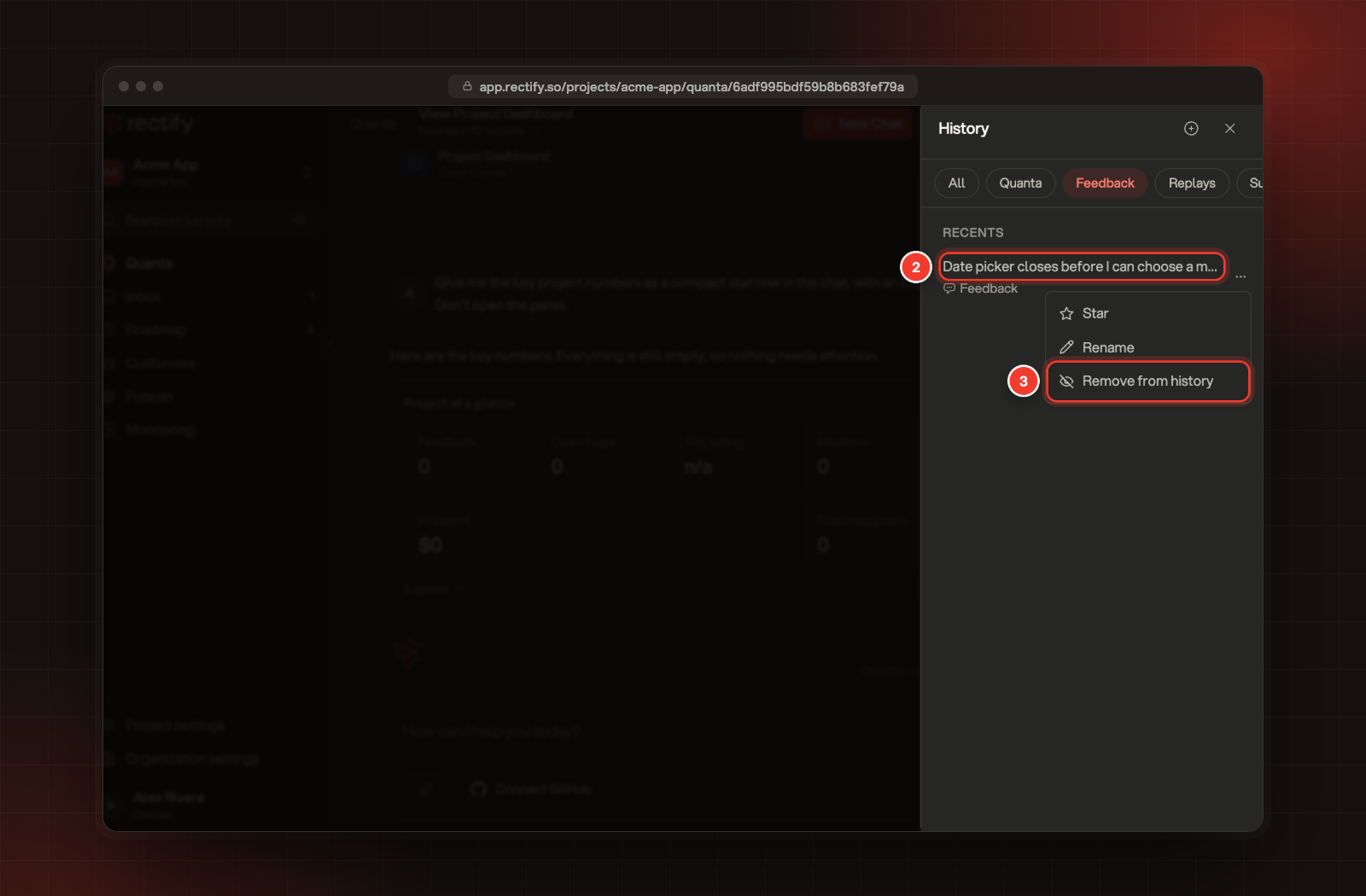
Point at a chat and open the menu next to it.
3.
Select Star, Rename or Delete. A chat from a feedback report, a session replay, a support chat or an extension session has Remove from history instead of Delete.
2 A chat from a feedback report. 3 Remove from history.
History lists your chats with Quanta from every place you use it: the Quanta page, feedback reports, session replays, support chats, analytics and extension sessions. A chat that started somewhere else shows where under its name, like Feedback or Support chat. Selecting it takes you back to where it started, with Quanta's chat open.
To see one place only, pick it at the top of History, for example Feedback or Replays. All shows everything again. These choices appear once you've chatted with Quanta in more than one place.
History shows Project Report first, then Starred and Recents. Older chats load as you scroll. History only lists your own chats, plus the Project Report, which everyone on the project can open. Heartbeat: scheduled check-ins and urgent alerts explains the Project Report.
Deleting a chat can't be undone. Remove from history only takes a chat off your list. The chat stays with its feedback report, replay, support chat or extension session, and it's back in History the next time you chat with Quanta there.
It says "Action not found or expired. Ask Quanta to prepare it again."
The card waited more than 30 minutes. Ask Quanta for the change again.
It says "This action does not belong to you."
Only the person who asked for a change can confirm it. Ask Quanta for the change in your own chat.
It says "Only owners and admins can publish or change changelog entries."
That change needs an Owner or Admin. Ask one of them to confirm it from their own chat.
It says "This chat is no longer available"
The feedback report, support chat, extension session or analytics chat it came from was deleted, so History takes the chat off your list.
Quanta stopped and says it reached its step limit
Quanta takes up to 50 steps for one reply. What it changed before stopping is saved. Reply "continue" and it picks up where it left off.