Add every new feedback report as a row in a Notion database that Rectify creates for you.
3 min readUpdated 24 days ago
Before you start. You need a Notion account that can edit the page where the feedback database should go. Owners, Admins and Members who can open the project can connect Notion. Integrations are on every plan, and each project connects its own Notion.
Once Notion is connected, each new feedback report becomes a row in a Notion database. Rectify creates the database for you under a page you choose and names it after your project, for example Acme App Feedback. Rows only go one way: what you change in Notion doesn't come back to Rectify.
Connect Notion
1.
Open Project settings, then Integrations.
2.
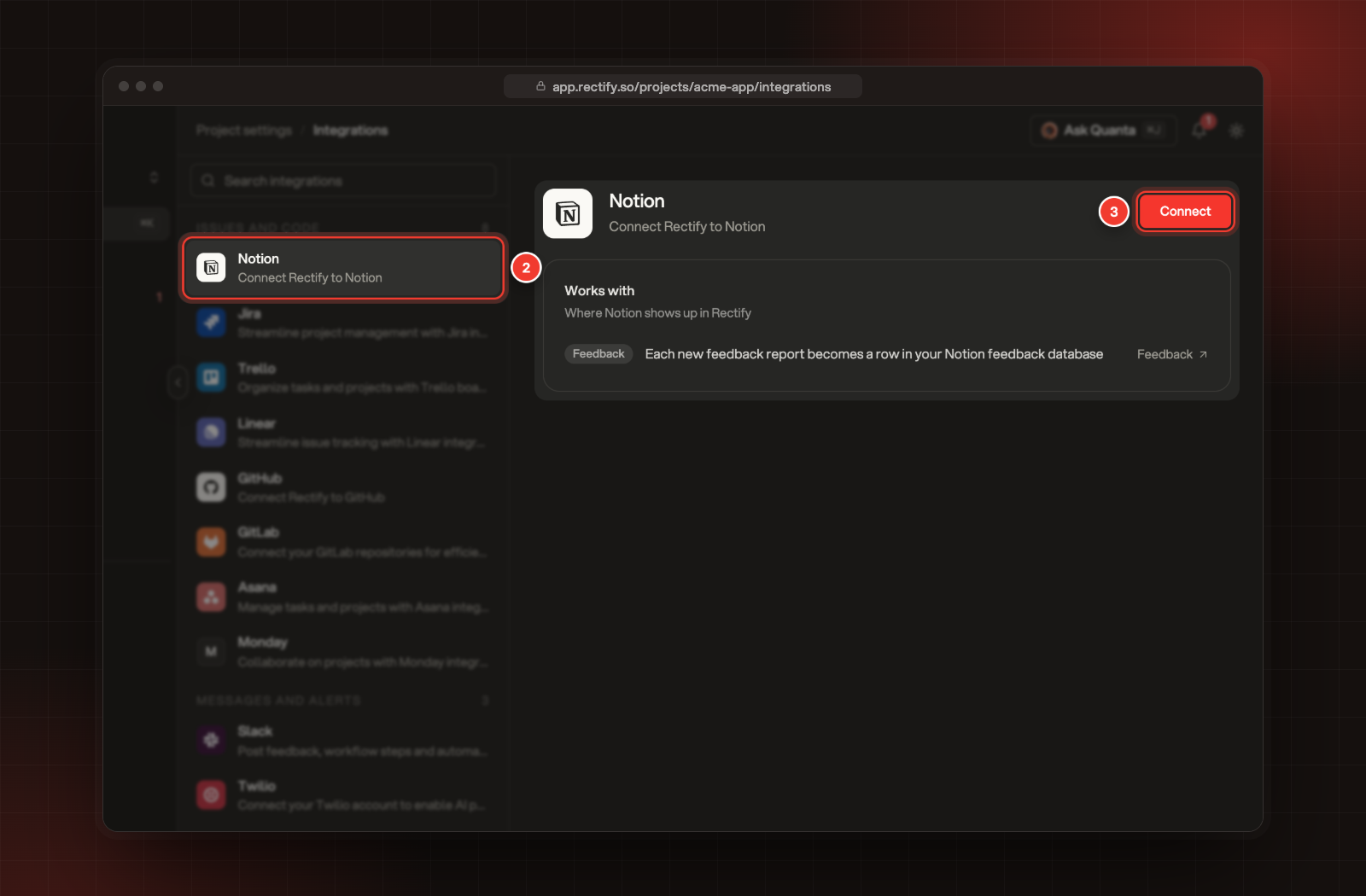
Select Notion under Issues and code.
3.
Select Connect.
2 Notion. 3 Connect.
4.
Notion opens. Sign in if it asks, choose the pages Rectify may use, and allow access.
5.
Notion sends you back to Integrations, where Notion now shows Connected.
Right after you connect, Rectify picks the first page it can see and creates the database there. Check that page in the next step.
Choose where the database lives
1.
Under Notion database, open Page and pick a page.
2.
Rectify creates the database under that page straight away, and shows its name under Database.
3.
Select Save. New reports now go to that database.
The Page list only shows pages Rectify can see, which are the ones you allowed when you connected. If the page you pick already holds a database with Title, Description, Status, Type and Priority columns, Rectify uses it instead of creating another.
What each row holds
Column
What it holds
Title
The report's title
Description
The report's description, up to 2,000 characters
Type
bug, idea, general or testimonial
Status
open, in-progress, under-review or resolved
Priority
low, medium, high, critical or neutral
Rating
The star rating, if the person left one
Reporter
The name of the person who sent it
Submitted at
When it was sent
Each row is a copy of the report as it arrived. Later changes in Rectify, like a new status, aren't copied to Notion.
Pause or disconnect Notion
•
Pause: turn off the switch next to On at the top of the Notion settings. Notion shows Paused, and new reports stop going to the database. Reports that arrive while it's paused aren't sent later.
•
Disconnect: select Disconnect under Disconnect Notion. This removes Notion and its settings from the project. The database and its rows stay in Notion. To take away Rectify's access on the Notion side too, remove Rectify from the connections in your Notion settings.
Check it worked
Send a test report from your widget, then open the database in Notion. The report appears as a new row. In Integrations, Notion shows Database ready under its name.
The page I want isn't in the Page list
Rectify only sees the pages you allowed when you connected. Select Disconnect under Disconnect Notion, then connect again and allow that page in Notion.
Reports stop showing up in Notion
Check that Notion says Connected, not Paused, and that Database shows a name. Rectify writes to the columns listed above, so renaming or deleting one of them in Notion stops new rows from being added. Change the column back to its first name and type.