Read today's summary of your product data, then ask follow-up questions in plain English and get answers with charts.
4 min readUpdated 24 days ago
Before you start. Analytics needs the Build plan or higher. Everyone in the project can read the brief and ask questions. Answers run on your AI credits, or on your own AI provider if you've connected one under Organization settings, AI providers.
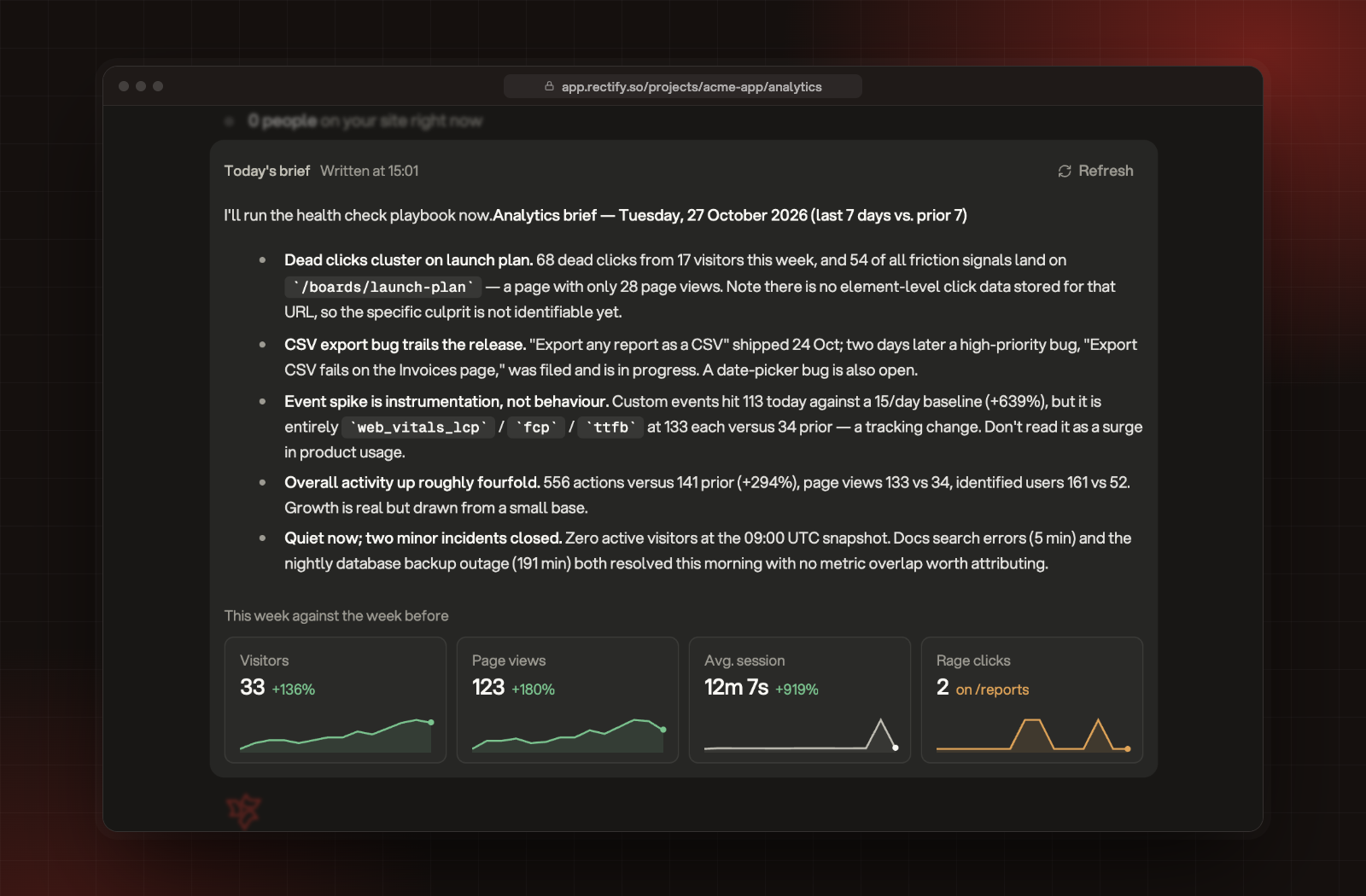
Open Analytics in the sidebar, under Customers. The page opens on today's brief, four numbers for the week, and a box where you ask about anything in your event data.
Today's brief, the week's numbers and the ask box.
Read today's brief
Today's brief is a short summary that Quanta writes from your events: an opening line and a few bullet points on what changed, where people struggled, and anything unusual. When something looks off, it also checks your monitoring incidents and changelog. Under the brief are follow-up questions you can select to ask straight away.
•
The brief is written the first time someone opens Analytics each day (UTC), and everyone in the project sees the same one.
•
Written at shows when it was written. Select Refresh to write it again with the latest data. You can refresh once a minute.
•
Writing the brief uses AI credits, like any question.
Read the week's numbers
Below the brief, four numbers compare This week against the week before: the last 7 days, today included, against the 7 days before them.
Number
What it counts
Visitors
Different people who visited.
Page views
Pages opened.
Avg. session
Average time from the first to the last event in a visit.
Rage clicks
Bursts of three or more quick clicks on the same element, with the page where they happened most.
The line above the brief shows how many people are on your site right now, with their latest events.
Ask a question
1.
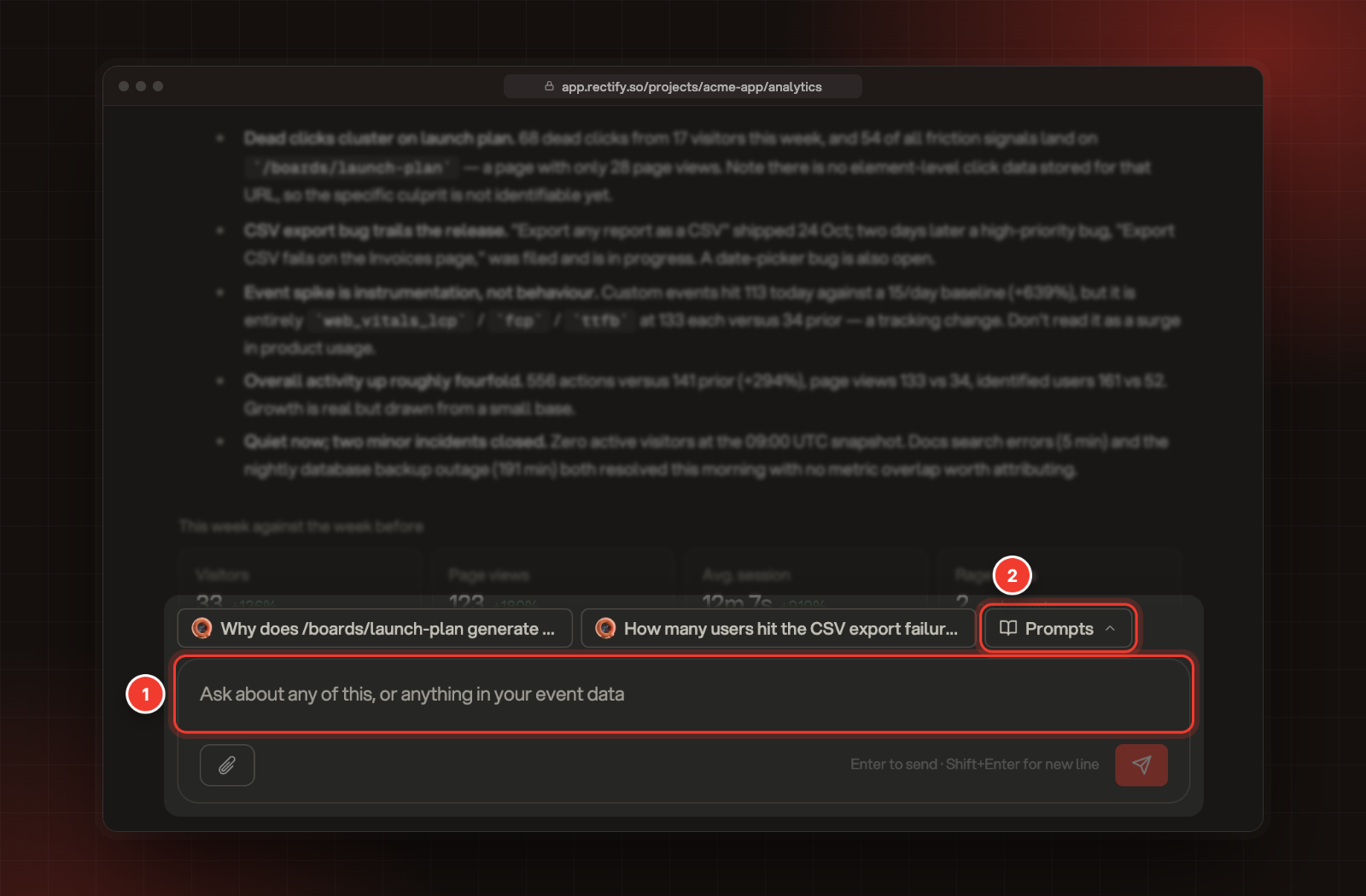
Type your question in the box at the bottom, for example "Where are users dropping off in onboarding?"
2.
To start from a ready-made question, select Prompts and pick one. Hover over a prompt to preview it.
3.
Press Enter to send. Shift+Enter adds a new line.
1 The ask box. 2 Prompts.
The answer appears in a new chat and can include tables and charts. Keep asking follow-up questions in the same chat. You can attach up to 3 images or PDFs (10 MB each) with the paperclip button, and a message can be up to 2,000 characters.
What you can ask
The AI reads your events and the rest of your project. It can answer questions about:
•
Traffic: visitors, sessions, top pages, referrers, countries, devices and campaign tags.
•
Funnels and retention: drop-off between steps (events or page addresses) and how many people come back.
•
Friction: rage clicks, dead clicks, errors and failed requests, down to the element.
•
Changes: spikes and drops against the last 7 days, and whether a release or an incident lines up with them.
•
Your customers: contacts, companies and segments, survey answers and NPS, feedback, email campaigns and automations.
•
Money: revenue and goal conversions.
It can also create a goal, an alert, a roadmap card or a changelog draft for you when you ask.
Find a past chat
Select History (the clock button at the top) to see your recent chats, newest first. Select one to open it. Your chats are private to you; teammates see their own.
Export your events
Select the download button at the top (Export), choose CSV or JSON and a Date range (7d, 30d, 90d or 6mo), then select Export CSV or Export JSON. The file holds up to the 50,000 most recent events in that range.
Check it worked
The brief shows Written at with a time, and your question opens a chat where the answer streams in.
The brief says "I could not finish today's brief."
Select Try again. If it keeps failing, check that your organization has AI credits left or a connected AI provider under Organization settings, AI providers.
It says "The brief was written a moment ago. Try again in a minute."
You can refresh the brief once a minute. Wait a moment and select Refresh again.
I see "Ask your product data anything" with an upgrade button