Change the wording, logo and colour of the emails Rectify sends for your project, or switch an email off.
4 min readUpdated 24 days ago
Before you start. Everyone who can open the project can edit these emails, on every plan. Hiding Powered by Rectify needs the Launch plan or above.
Rectify sends a few emails on your project's behalf, for example a thank-you when someone sends feedback. Open Project settings, then Email notifications, to change what they say and how they look.
The emails Rectify sends
Template
Who gets it
Variables
Feedback Received
The person who sent feedback, when they left an email address.
{{reporter_name}}
Chat Request
The person a teammate invites to a chat, for example from a feedback report.
{{recipient_name}}, {{chat_link}}, {{title}}
New Inbox Message
A visitor who is away when a teammate replies in their chat. It also tells your team about a new visitor message when the teammate handling the chat is away.
{{recipient_name}}, {{chat_link}}, {{title}}
Feature Request Status Update
Nobody. It shows Not sent: the status update email people get has fixed text.
{{reporter_name}}, {{status}}
Teammates who don't want these can turn off Support Inbox Message in their notification settings.
Edit a template
1.
Open Templates.
2.
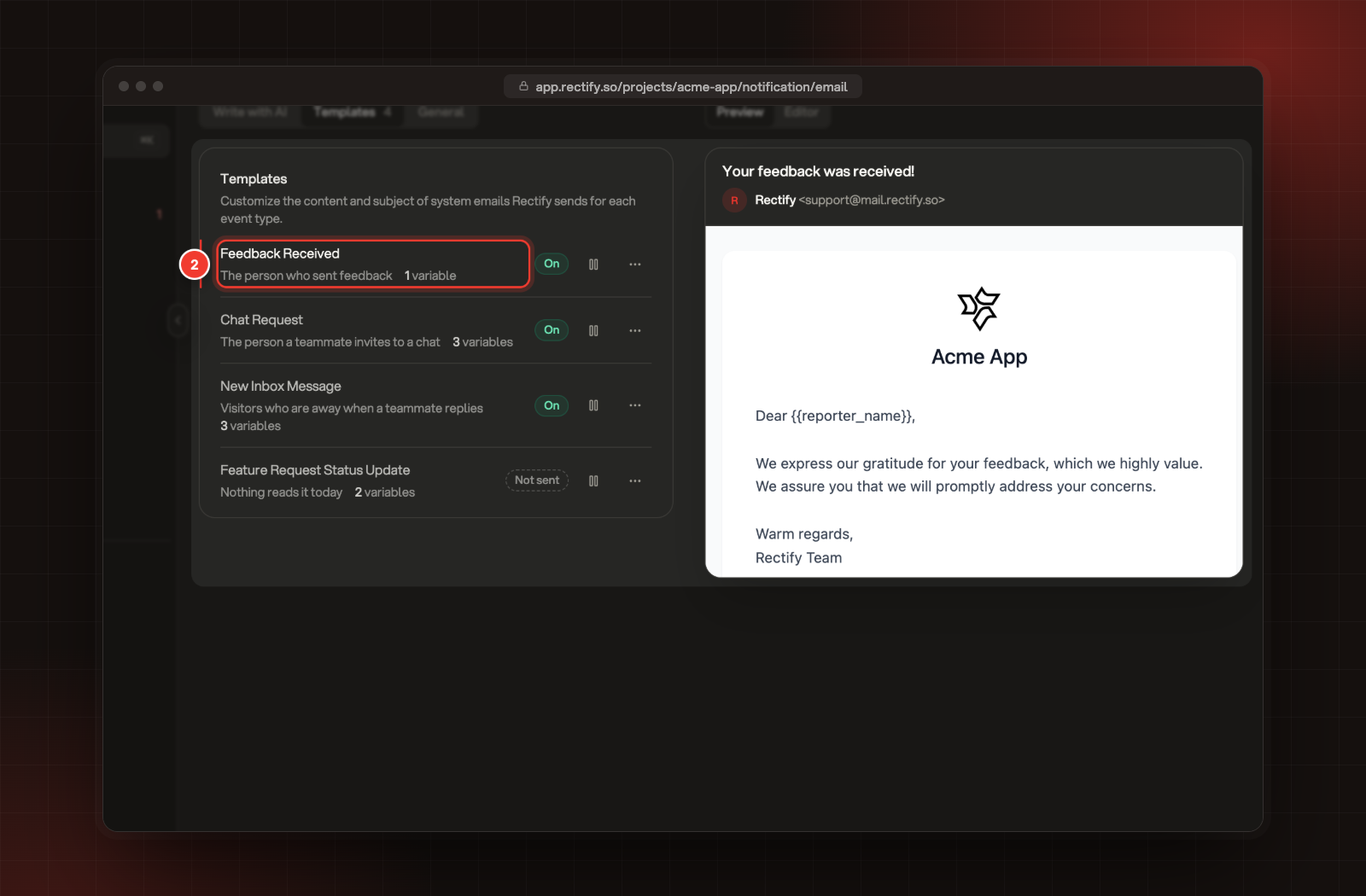
Select the template, for example Feedback Received. The preview on the right shows it the way people get it.
2 Feedback Received, with its preview.
3.
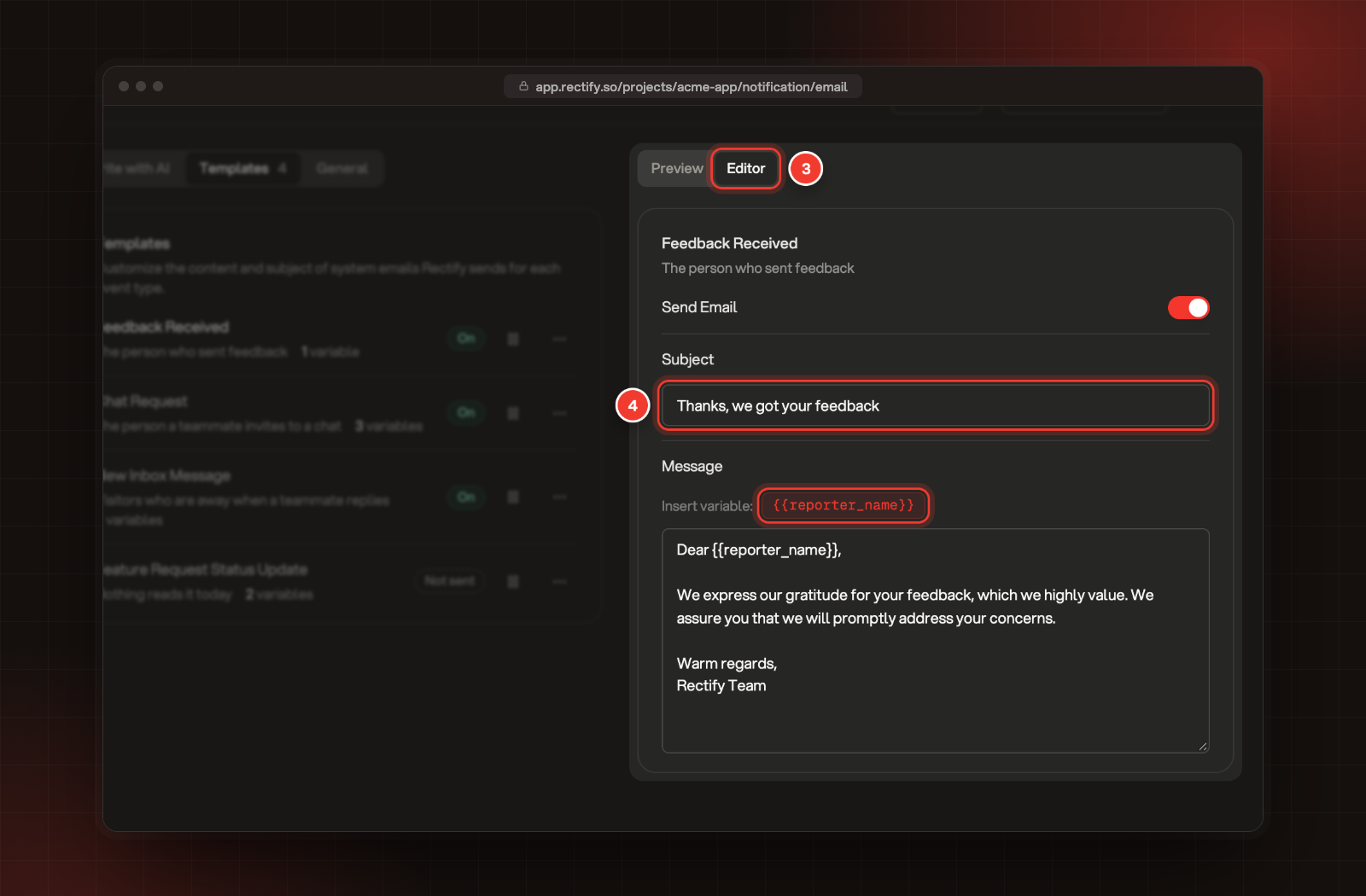
Select Editor above the preview.
4.
Change the Subject and the Message. Select a variable under Insert variable to add it at the end of the message.
3 Editor. 4 Subject, with the variable you can insert below it.
5.
Select Save in the bar at the bottom. Discard throws your changes away.
When the email goes out, each variable is replaced: {{reporter_name}} and {{recipient_name}} with the person's name, {{chat_link}} with a link to the chat, and {{title}} with the title from General.
To stop an email, select the pause button on its row, or turn off Send Email in the editor, and save. The row then shows Off instead of On.
Write a template with AI
1.
Open Write with AI.
2.
Describe what to change, for example "Make the chat invite friendlier and shorter", or pick one of the suggestions. To start from a ready-made draft, pick an example such as Set expectations under Or start from an example.
3.
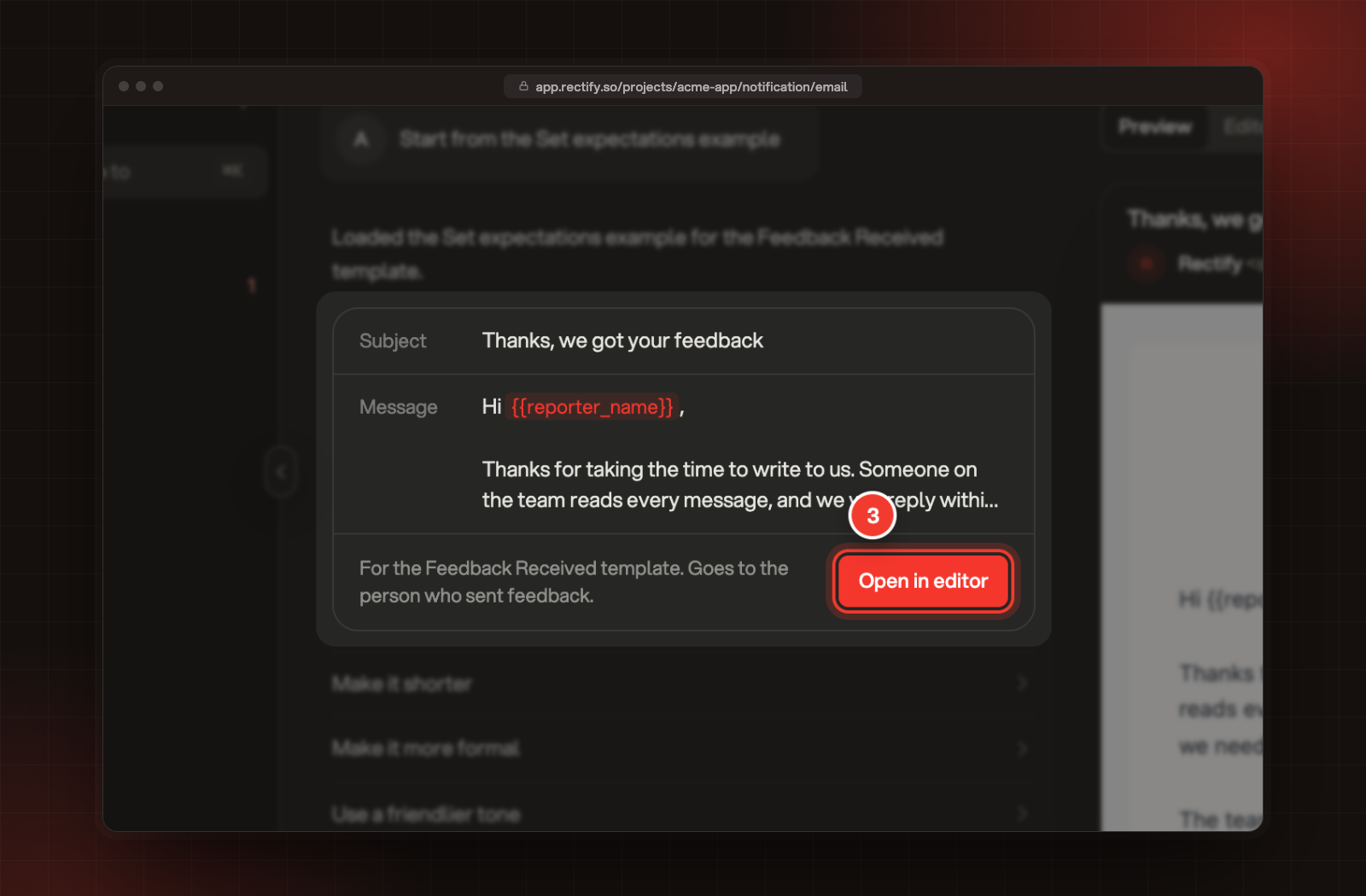
Quanta replies with a draft for one template. Ask for changes until you like it, then select Open in editor.
3 Open in editor, under the draft.
4.
Check the draft in the editor and select Save.
The chat isn't saved. If you leave or refresh the page before saving, the draft is gone.
Logo, colour and sender
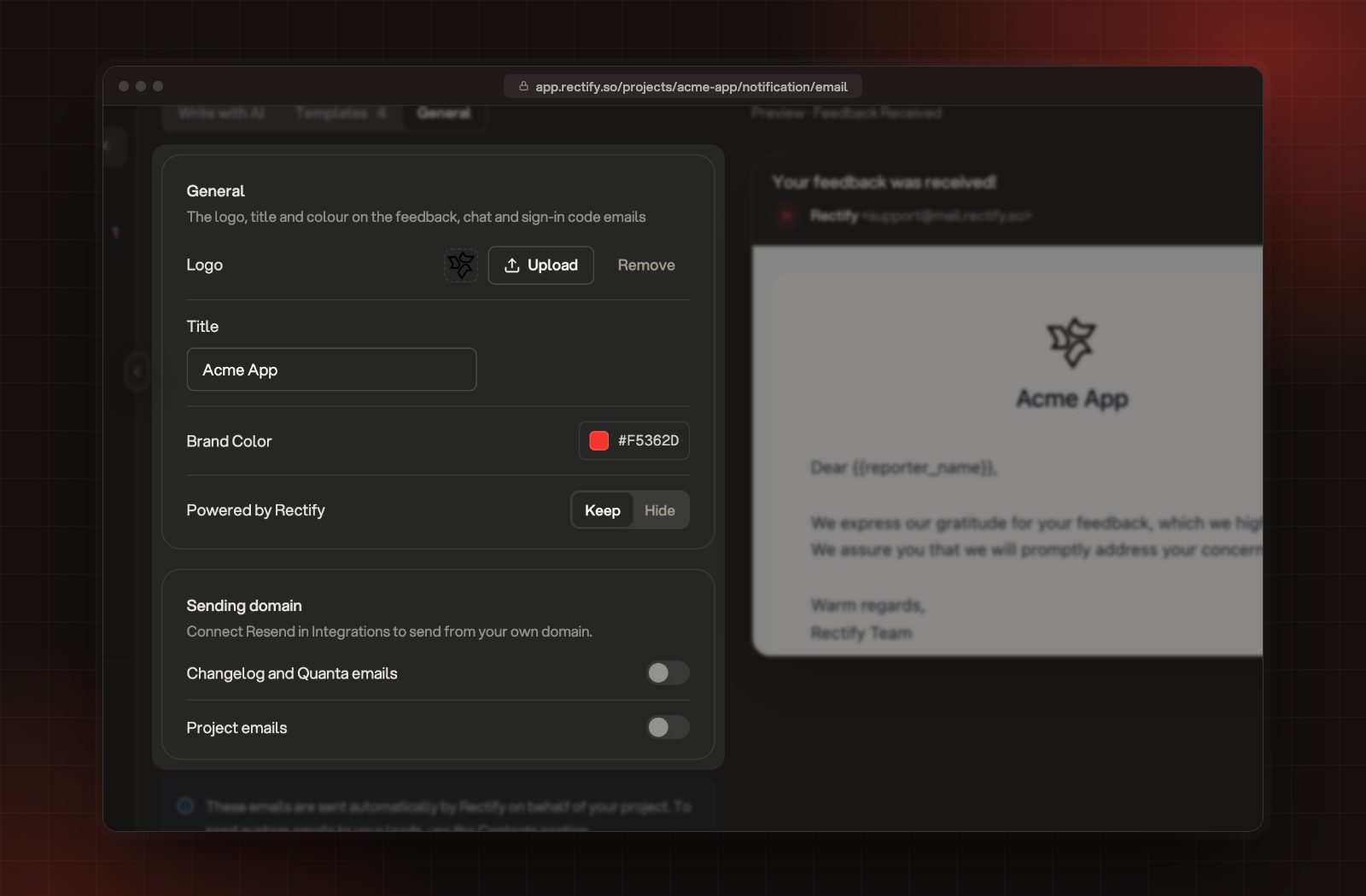
Open General to set what every email looks like.
The General and Sending domain settings.
Setting
What it does
Logo
Shown above the title. JPG, PNG or GIF, up to 4 MB.
Title
Shown under the logo. It's also the sender name when you send from your own domain.
Brand Color
Used for buttons and accents.
Powered by Rectify
Keep or Hide the Rectify badge. Hiding it needs the Launch plan or above.
Under Sending domain, you can send from your own address instead of Rectify's. Connect Resend under Project settings, Integrations first, then turn on:
•
Changelog and Quanta emails: changelog updates to subscribers, and emails Quanta sends for you.
•
Project emails: feedback, chat, mention and portal sign-in emails. If your Resend account fails, these fall back to Rectify, so sign-ins keep working.
Until then, emails come from Rectify at [email protected]. Mail sent from your own domain has no delivery tracking in Rectify.
Select Save in the bar at the bottom to keep your changes.
Check it worked
Open Templates and select the email. The preview shows your new subject, message, logo and colour. Rows you switched off show Off.
It says "Removing the Rectify badge is on the Launch plan and above"
Your plan doesn't include hiding the badge. Upgrade to Launch or above, or keep Powered by Rectify on Keep.
The Sending domain switches are greyed out
Resend isn't connected to this project. Connect it under Project settings, Integrations.
"Pick an image under 4 MB"
The logo is too big. Use a JPG, PNG or GIF under 4 MB.
To send your own emails to your contacts, use Messaging under Customers instead.