The nine kinds of question a survey can ask, the settings each one has, and how skip logic sends people to a different question.
3 min readUpdated 24 days ago
Before you start. Owners, Admins and Members can edit survey questions, on every plan. A survey can have up to 20 questions, though one or two get far more answers than five.
Add a question
1.
Open the survey in the editor and select the Questions tab.
2.
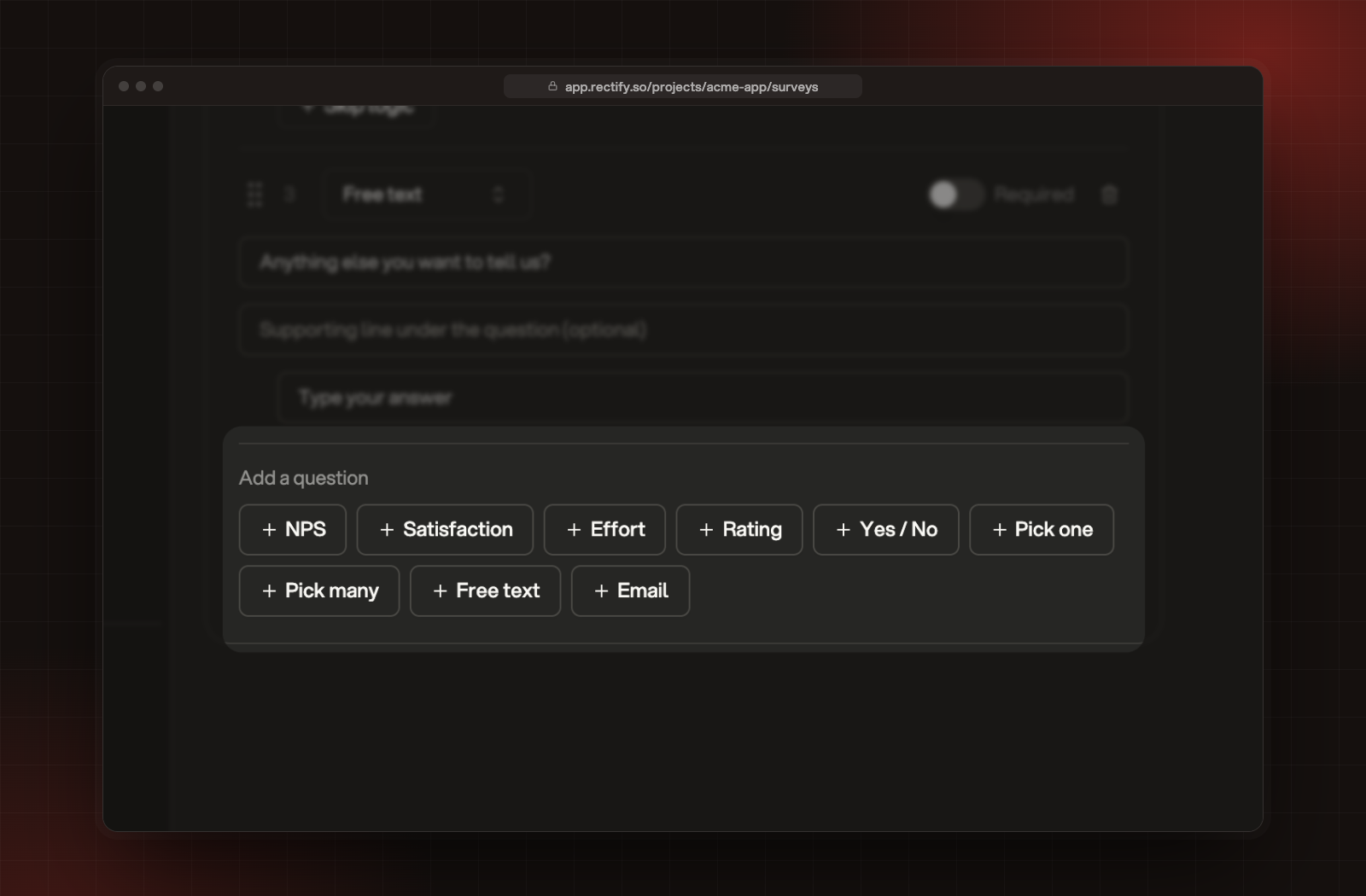
Under Add a question, select the kind of question you want. It's added at the end.
The nine kinds of question under Add a question.
3.
Write the question. You can add a supporting line under it.
4.
Switch on Required if people must answer before moving on. New questions start optional.
5.
Select Save in the bar at the bottom.
Questions are asked top to bottom. Drag a question by its handle to move it. To change a question's kind, pick another one at the top of the question. Its settings start over, but the question text stays.
The question types
Type
What visitors see
Settings
NPS
A scale from 0 to 10 for how likely they are to recommend you
Labels for both ends
Satisfaction
A rating from 1 to 5
Numbers or Faces, labels for both ends
Effort
A scale from 1 to 7 for how easy something was
Labels for both ends. They start as "Very difficult" and "Very easy".
Rating
Your own scale
Numbers, Stars, Hearts or Faces, the size of the scale, labels for both ends
Yes / No
Two answers
Buttons, with your own wording for each, or Thumbs
Pick one
A list where they choose one option
The options, at least two
Pick many
A list where they choose several options
The options, at least two
Free text
A box to type in
Placeholder text
Email
A box for an email address, checked as they type
Placeholder text
Labels for the ends of a scale can be up to 60 characters, and a question up to 300.
Set the scale of a Rating question
Style
Scale
Numbers
From 0 or 1, up to any number from 2 to 10. It starts at 1 to 5.
Stars or Hearts
From 3 to 10 stars or hearts.
Faces
Always five faces, from 1 to 5.
Add options to a choice question
Select Option to add another choice. A Pick one or Pick many question needs at least two, and a survey keeps the first 20.
Skip people to another question
Skip logic sends people to a different question, or ends the survey, depending on their answer. It works on NPS, Satisfaction, Effort, Rating, Yes / No and Pick one questions, but not on the last question.
1.
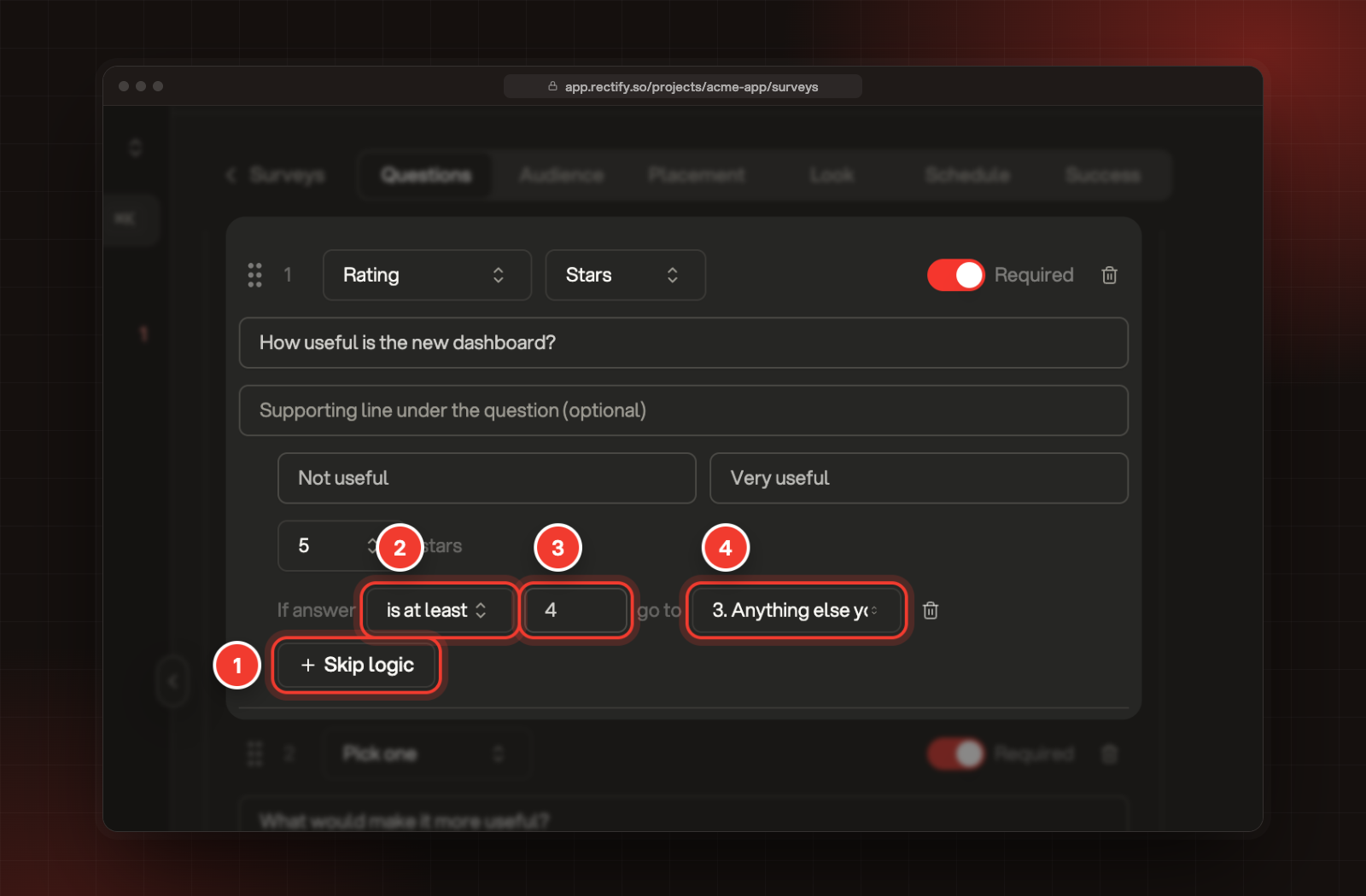
On the question, select Skip logic.
2.
Choose how to compare the answer: is, is not, is at least, is at most or is anything. Choice questions offer is, is not and is anything.
3.
Enter the answer, or pick it from the options.
4.
Under go to, pick a later question or Finish the survey.
A rule that sends people who give 4 stars or more straight to question 3. 1 Skip logic. 2 How to compare. 3 The answer. 4 Where to go.
You can add up to 10 rules to a question. They're checked top to bottom, and the first one that matches wins. When no rule matches, the survey moves to the next question.
If you move or delete questions, check the rules again. A rule keeps pointing at the question it had.
Troubleshooting
It says "Choice questions need at least two options"
Add another option with Option, or change the question to Free text.
It says "The scale must end above where it starts"
On a Rating question with Numbers, set the end of the scale higher than the start.
It says "Every question needs text"
One of the questions is empty. Write the question, or delete it.