Five short steps to brand your project, switch on what you need, bring in your team and add Rectify to your site.
4 min readUpdated 24 days ago
Before you start. Owners and Admins can run setup. It takes about five minutes. Your choices are saved as you go, and Skip for now at the top leaves the rest for later.
The wizard opens when you create a project. To come back to it later, open Set up in the sidebar and select Let's GO! or Continue setup.
Step 1: Your site
1.
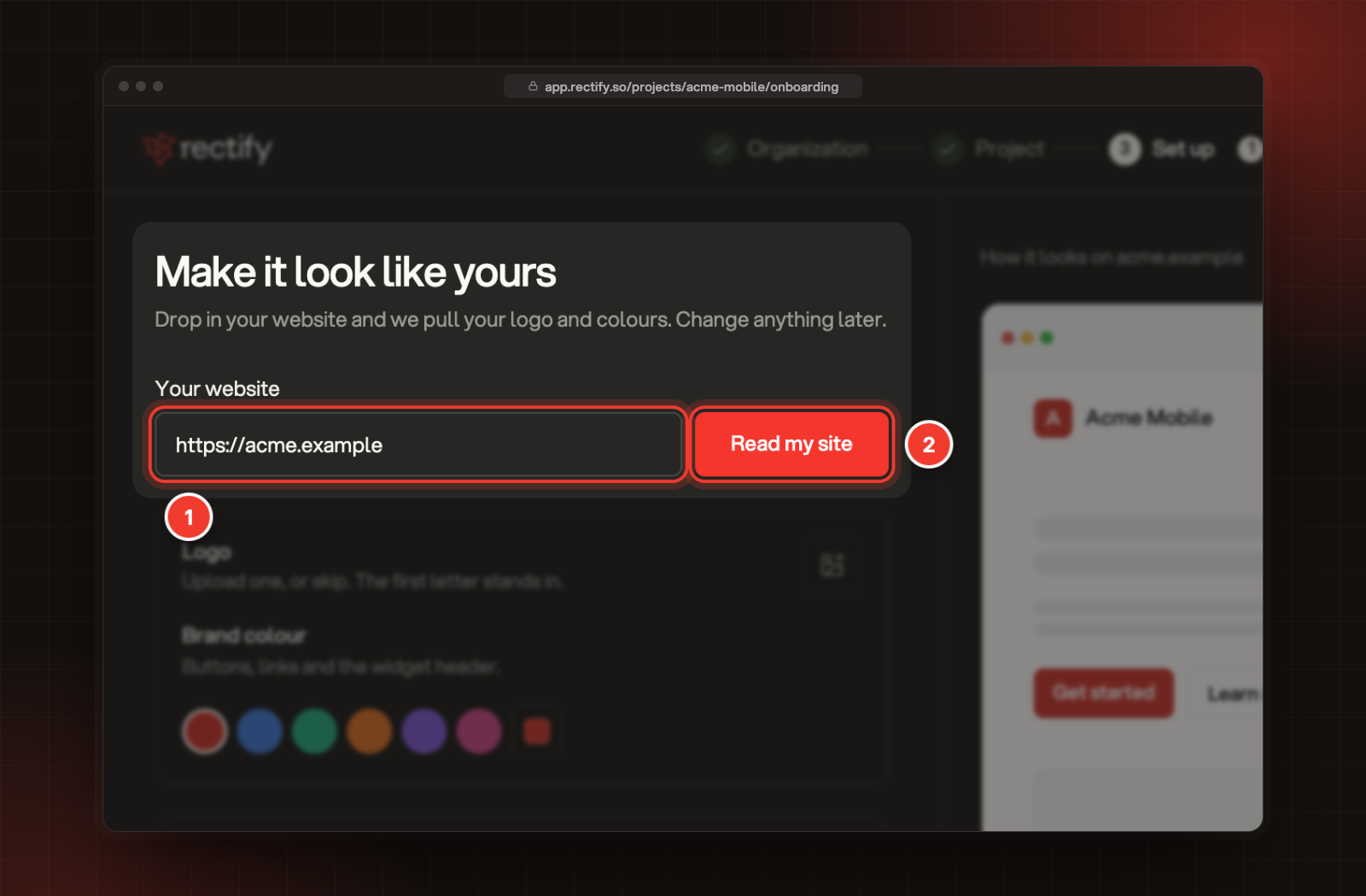
Enter your website under Your website.
2.
Select Read my site. Quanta reads your public pages and picks up your logo, your brand colour and your help pages.
3.
Check the logo and the Brand colour, and change them if you like.
4.
Select Continue.
1 Your website. 2 Read my site.
No website yet? Upload a logo or leave it out (the first letter of your project stands in), pick a colour, and select Continue.
Step 2: What you need
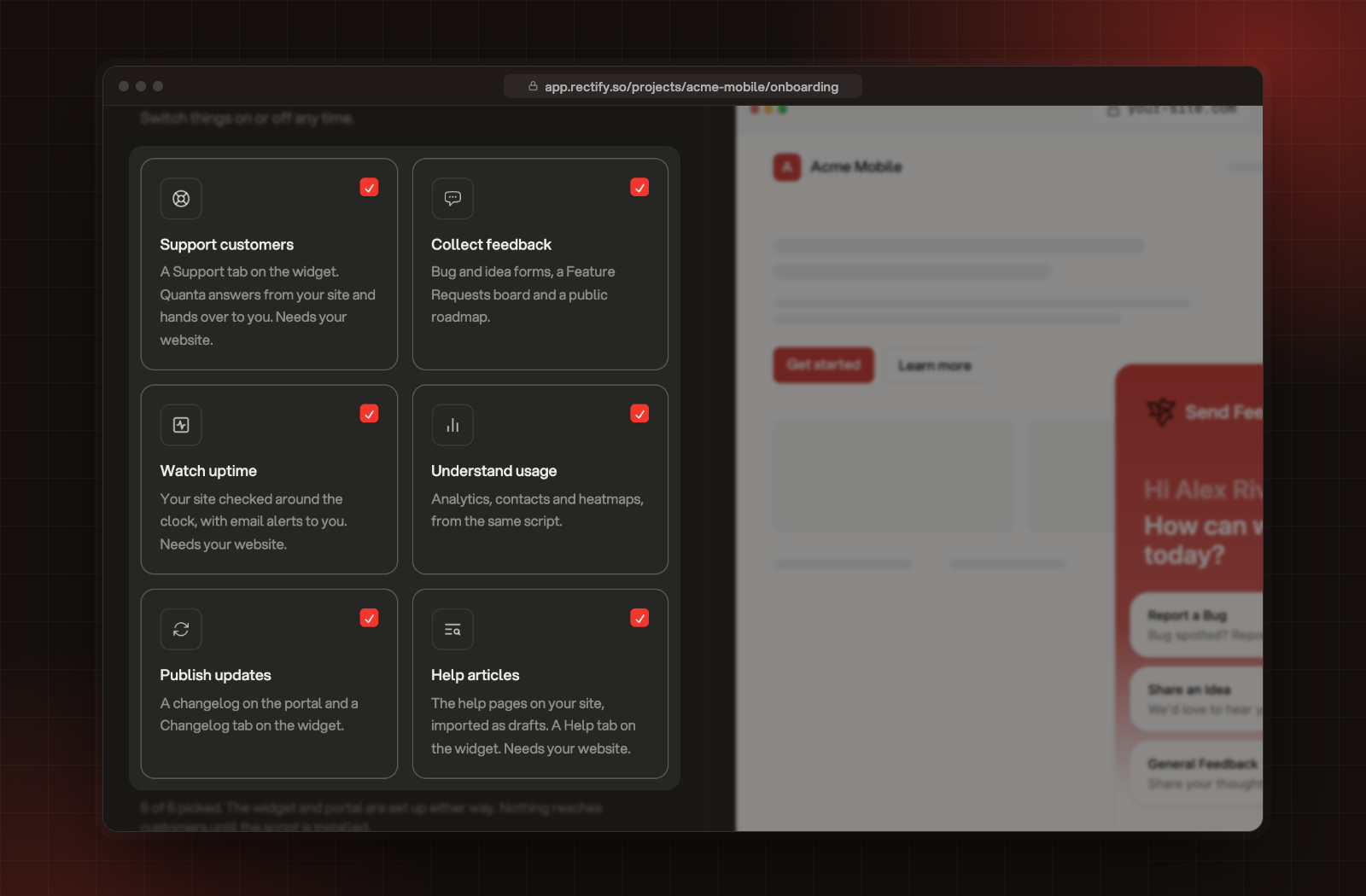
Pick what this project should do. Each one sets up its part of Rectify with sensible defaults, and you can switch any of them on or off later.
Pick
What it sets up
Support customers
A Support tab on the widget. Quanta answers from your site and hands over to you. Needs your website.
Collect feedback
Bug and idea forms, a Feature Requests board and a public roadmap.
Watch uptime
Your site checked around the clock, with email alerts to you. Needs your website.
Understand usage
Analytics, contacts and heatmaps, from the same script.
Publish updates
A changelog on the portal and a Changelog tab on the widget.
Help articles
The help pages on your site, imported as drafts. A Help tab on the widget. Needs your website.
All six start switched on. Turn off what you don't need, then select Set these up.
The six picks in What you need.
If Quanta found pages on your site, you can also choose the pages it learns from and the help pages to import. Imported help pages stay drafts until you publish them. How many pages Quanta reads depends on your plan:
Plan
Pages Quanta reads
Idea
50
Build
150
Launch
300
Accelerate and Enterprise
500
Your widget and portal are set up whatever you pick. Nothing reaches your customers until the script is on your site.
Step 3: Make it yours
Choose your widget's Greeting (up to 120 characters), its Position (Left, Right or Side), the Launcher style (Icon, Pill or Tab) and the Corners (Sharp, Soft or Round). The preview on the right shows your site with the widget on it. Select Preview portal to see your public portal, then select Continue.
You can change all of this later under Publish, Widget.
Step 4: Team, code and AI
Everything here is optional. Select Continue when you're done, or Skip these.
•
Invite your team: enter a teammate's email, pick Admin or Member, and send. You can invite up to 10 people at once. On the free Idea plan, sending invites starts a free 14-day Build trial with three seats, and no card is needed.
•
Connect GitHub: select Connect GitHub, approve Rectify on GitHub, then pick a repository and select Use this repository.
•
Connect your AI provider: pick a provider, paste your API key and choose a Model. Then select Connect with the provider's name, for example Connect Claude. Without one, Quanta runs on the Rectify credits included with paid plans.
Step 5: Install
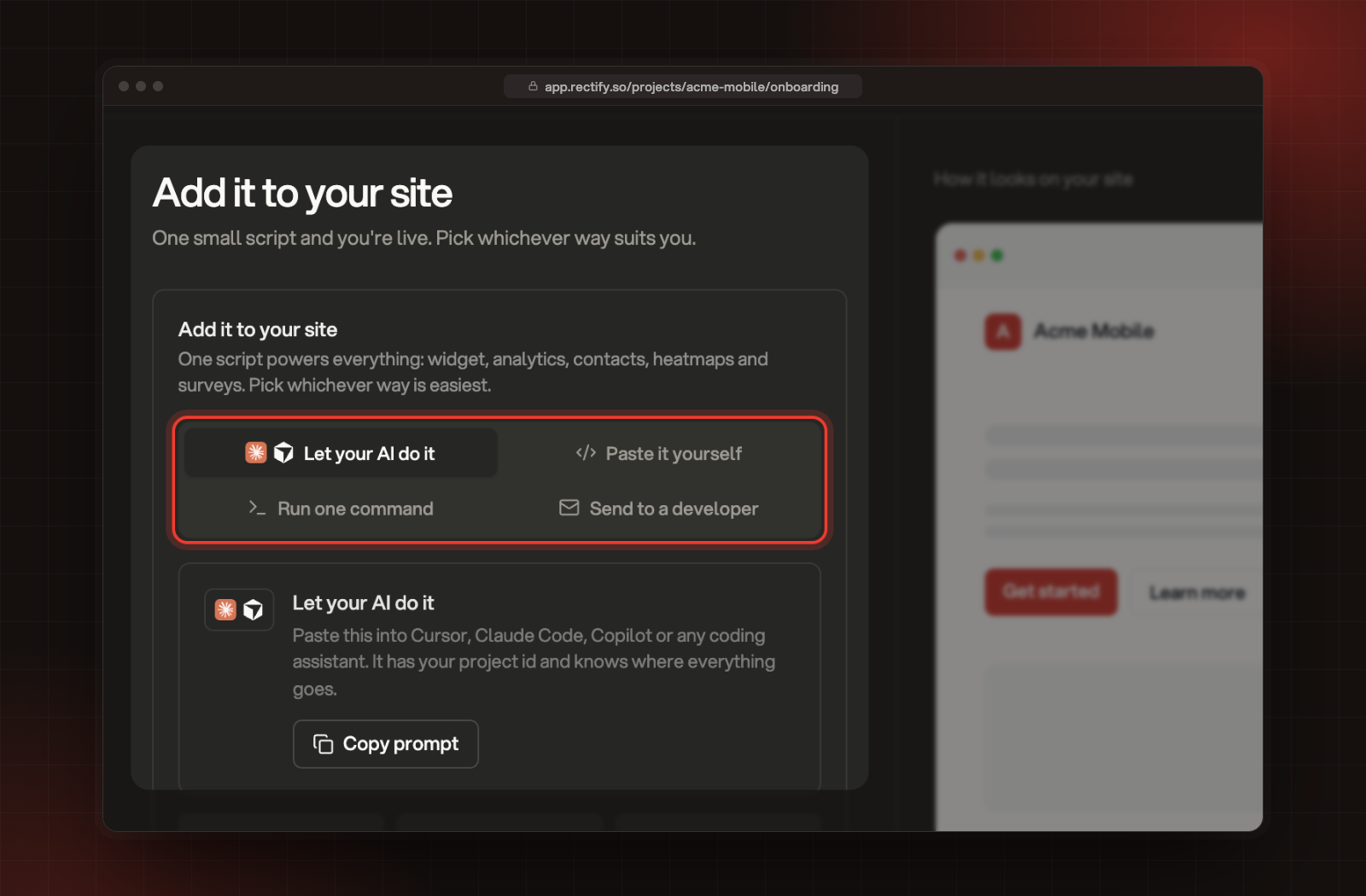
Pick how to add the Rectify script to your site:
•
Let your AI do it: copy a prompt for your AI coding tool.
•
Paste it yourself: copy the snippet for your framework.
•
Send to a developer: email the install steps to a teammate.
The page ticks itself the moment the script loads on your site. Select Finish setup to see what's left.
Quanta reads public pages only. Check the address opens in a private browser window without a sign-in, then select Read again. You can also skip the read, add your logo and colour yourself, and continue.
It says "That site was read a lot just now"
A project can read its site 10 times in 10 minutes. Wait a few minutes, then try again.