Greet visitors with a short message beside the launcher, on the pages, devices and people you choose.
6 min readUpdated 24 days ago
Before you start. Owners, Admins and Members can add popup messages, on every plan. A project can have up to 20.
A popup message is a short note that appears beside the launcher before anyone opens the widget, for example a hello on your pricing page. When a visitor selects it, the widget opens on Support so they can reply.
Add a popup message
1.
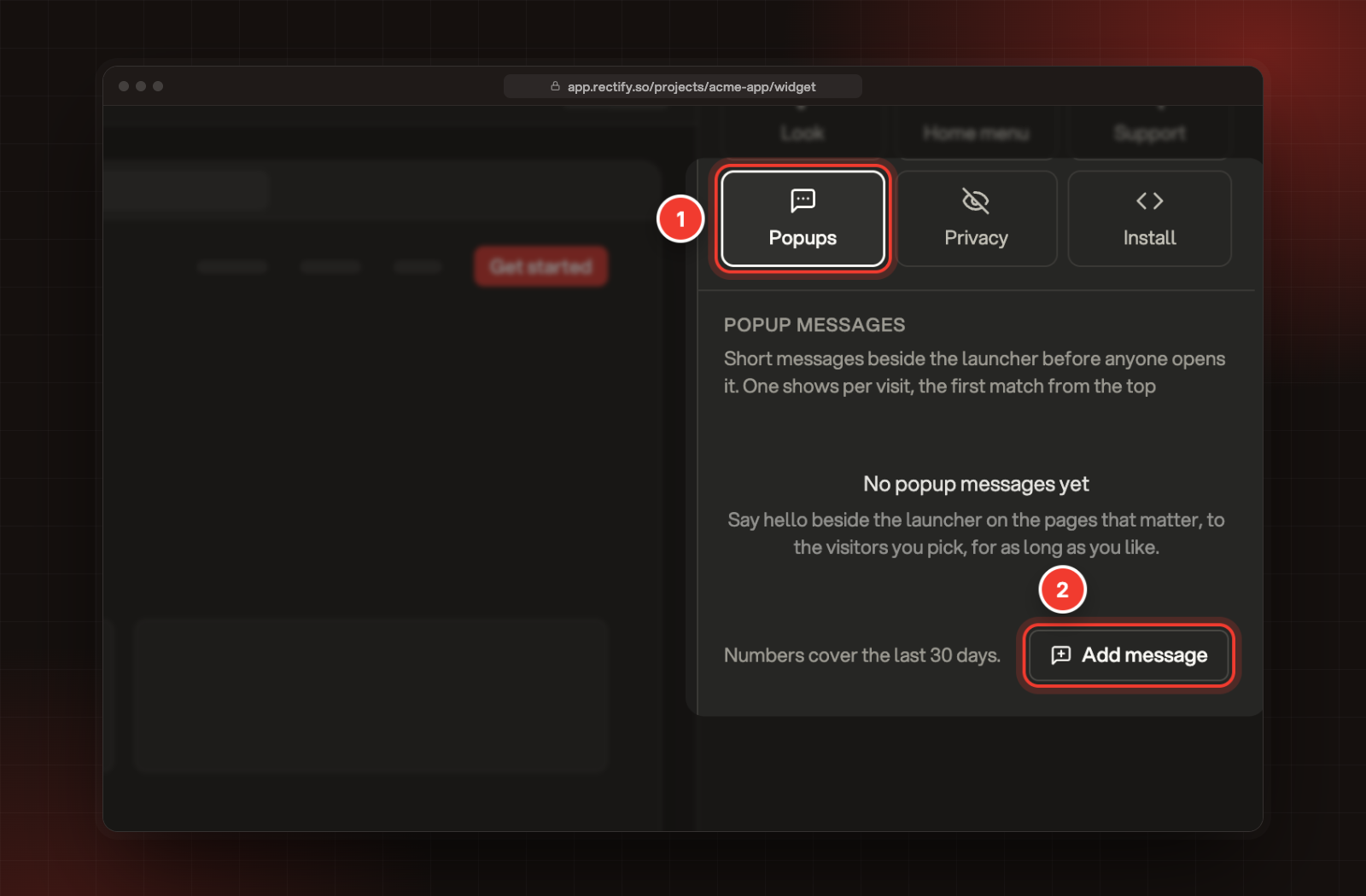
In your project, open Publish, then Widget, and select Popups.
2.
Select Add message. A new message opens, switched on, with sample text.
1 Popups. 2 Add message.
3.
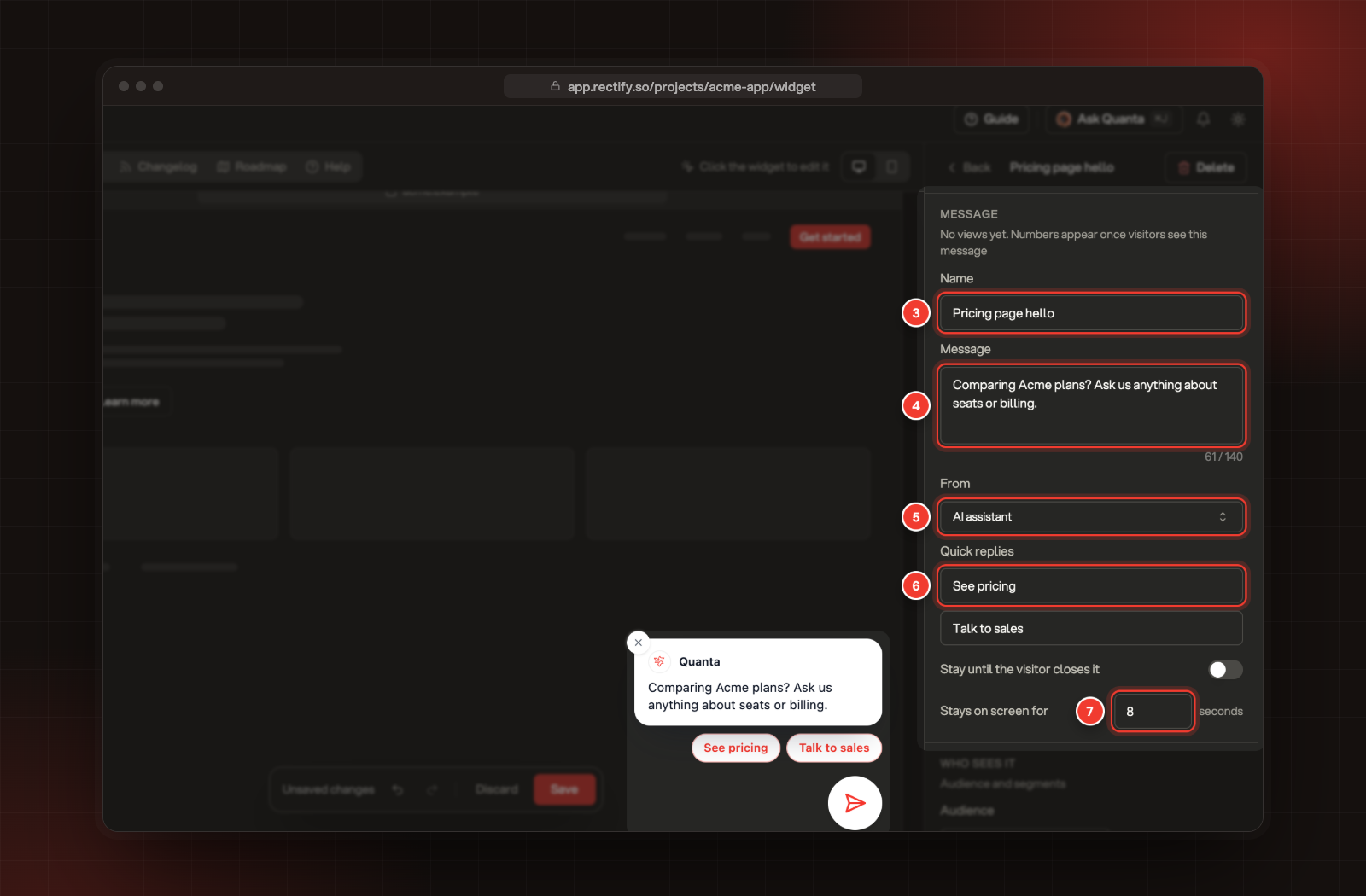
Enter a Name. Only your team sees it.
4.
Write the Message, up to 140 characters. The preview shows it beside the launcher as you type.
5.
Choose who it's From: Quanta, a Team member, or Nobody, just the message. The table under these steps shows what each one means.
6.
Optional: add up to two Quick replies, up to 30 characters each. Selecting one opens Support with it ready to send.
7.
Choose how long it stays. Turn on Stay until the visitor closes it, or set Stays on screen for between 3 and 120 seconds. It starts at 8.
3 Name. 4 Message. 5 From. 6 Quick replies. 7 Stays on screen for. The preview shows the message beside the launcher.
8.
Set who sees it, where and when, as described below, then select Save in the bar at the bottom.
Who the message is from
From
What visitors see
Who answers a reply
Quanta
Quanta's name and logo, or the ones you set on the Support tab. In the list it's called AI assistant until you give Quanta a name there.
Quanta
Team member
The name and photo of the agent you pick. Only people you've added as agents on the Support tab are listed.
That person
Nobody, just the message
Just the message.
Whoever your Support settings say
Choose who sees it
Under Who sees it, pick an Audience: Everyone, Known contacts (visitors you've identified) or Anonymous only. To narrow it down further, select one or more segments under Limit to segments. Anonymous visitors are never in a segment, so don't combine the two.
Choose where it shows
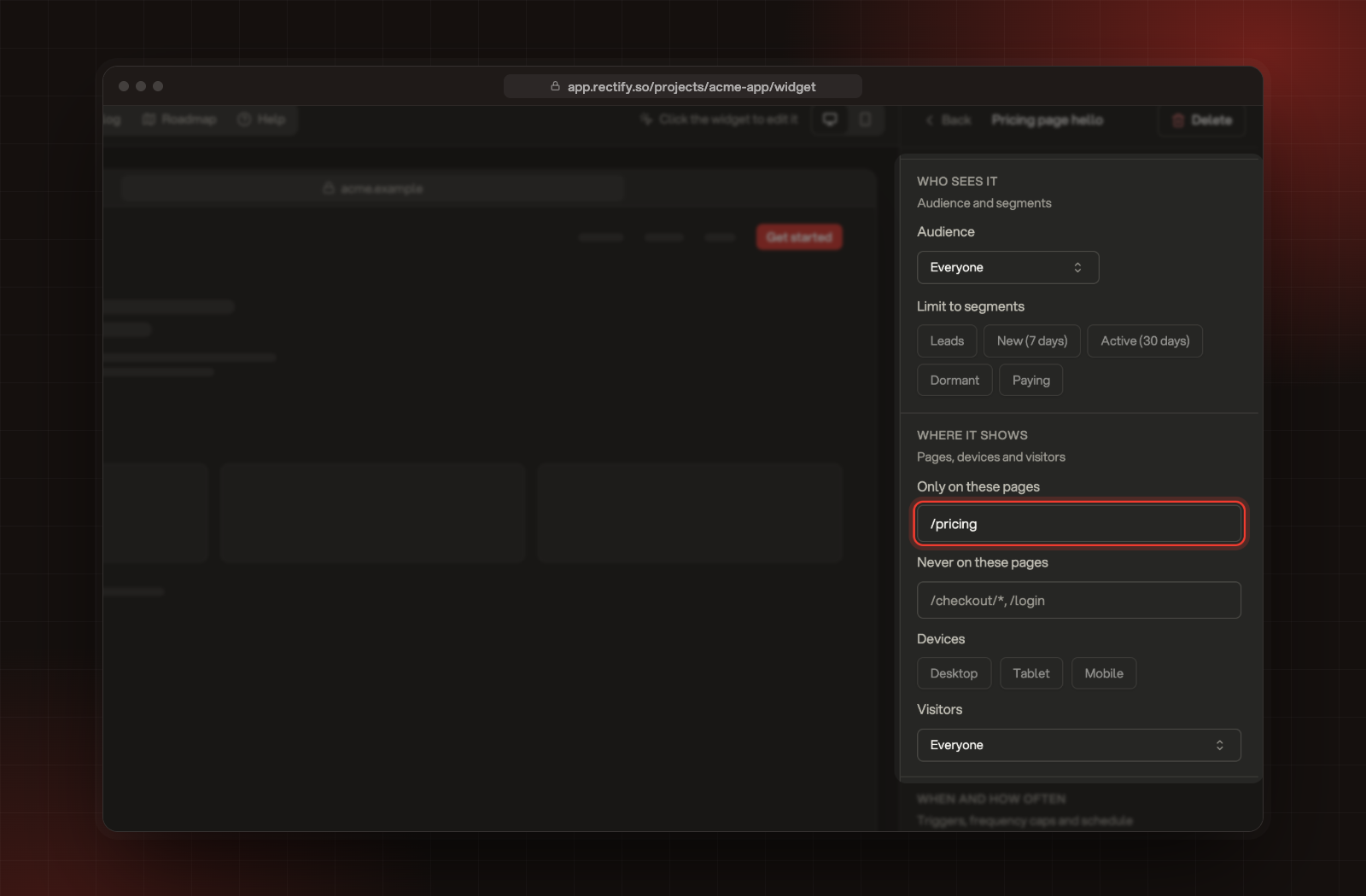
The Who sees it and Where it shows settings.
Setting
What it does
Only on these pages
Pages it can show on, separated by commas. Empty means every page.
Never on these pages
Pages it never shows on. This wins over the list above.
Devices
Desktop, Tablet or Mobile. None selected means all devices.
Visitors
Everyone, New visitors or Returning visitors. New means their first visit to your site.
Pages are matched on the part of the address after your domain, including anything after a ?:
•
/pricing matches only /pricing.
•
* matches anything within one part of the address. /docs/* matches /docs/install but not /docs/widget/install.
•
** matches across parts. /docs/** matches both.
Choose when and how often
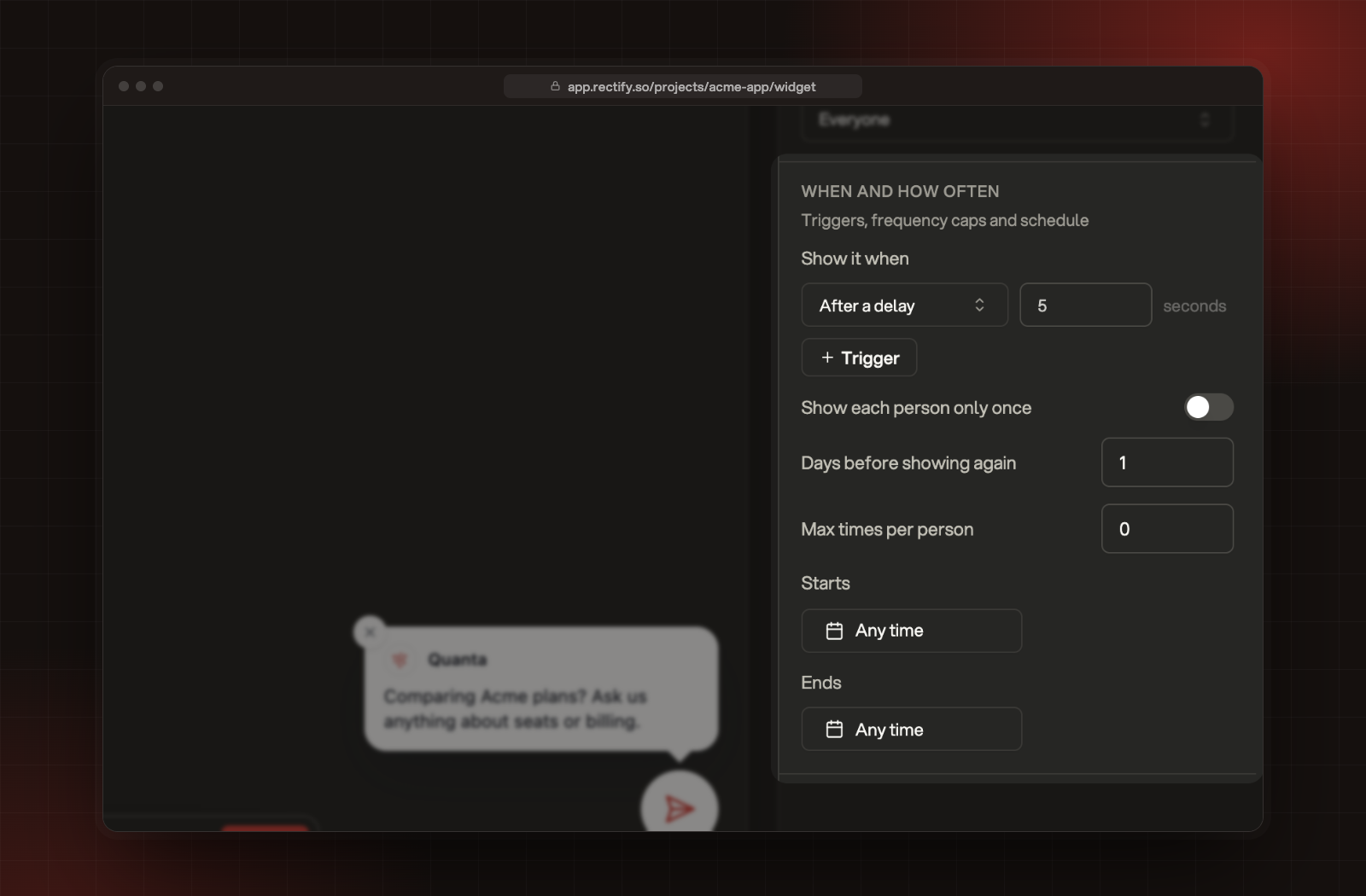
The When and how often settings.
Under Show it when, pick a trigger. Select Trigger to add up to three, and the first one to happen shows the message.
Trigger
When the message shows
Straight away
As the page loads, or after the number of seconds you enter.
After a delay
After the visitor has been on the page for the number of seconds you enter. New messages start at 5.
After scrolling
Once the visitor scrolls down the percentage of the page you enter.
When leaving
When the pointer moves up out of the page, towards the address bar or close button.
After frustration
After rage clicks, dead clicks, frantic scrolling or an immediate bounce. This needs analytics to be on for your project.
Then set how often:
•
Show each person only once: on, each person sees it once.
•
Days before showing again: how long before it can show again. 0 means it can come back on the next visit.
•
Max times per person: 0 means no limit.
•
Starts and Ends: the dates it runs between. Leave them as Any time to show it whenever it's switched on. It runs through the end of the Ends day.
How visitors see popups
•
Only one popup shows per visit. When several match, the first one in your list wins, so drag them into the order you want.
•
It doesn't show while the widget is open, while a survey or the What's new card is showing, or when the launcher is hidden.
•
Hovering over the message pauses its timer. Visitors close it with the small cross.
Turn a message off, change it or delete it
On Popups, use the switch next to a message to turn it off or on, or select Edit to change it. To remove one, open it and select Delete. Select Save after any change.
See how it's doing
Under each message, the list shows how many times it was Shown, and the share of those views that were Opened or Closed. The numbers cover the last 30 days. Opened means the visitor selected the message or a quick reply.
You can also start a popup from Customers, Messaging: select New campaign, then In-app popup.
Check it worked
Open a page that matches your settings in a private browser window and wait for the trigger. The message appears beside the launcher. Popups show once per visit, so open a new private window to see it again.
Troubleshooting
The popup doesn't show on my site
•
Check that the message's switch is on and that today is between its Starts and Ends dates.
•
Check Hide the launcher is off under Look. Popups need the launcher.
•
Check the page address matches Only on these pages, and isn't in Never on these pages.
•
You may have seen a popup already in this visit. Try a new private window.
I can't pick Team member
Support is set to Quanta only, so team members can't send popups. Change who answers on the Support tab, or send it from Quanta.
Saving asks me to pick the team member who sends the message
The message is from Team member but nobody is picked. Pick someone under Team member. If the list is empty, add agents on the Support tab first.
It says "A popup message is sent by someone who is not a Support agent"
The person you picked was removed from your Support agents. Pick someone else, or add them back on the Support tab.
It says "The end date must be after the start date"