Write pages for your team in each project's Wiki, nest them, keep some private, share one by link, and restore pages from the trash.
4 min readUpdated 5 days ago
Before you start. Every project has its own Wiki, and everyone on your team who can open the project can read and edit its pages. The Wiki is for your team: customers only see a page if you publish it.
Use the Wiki for release checklists, meeting notes, how-tos for your team and drafts you're not ready to share. When a page should help customers too, copy it into your Help Center.
Create a page
1.
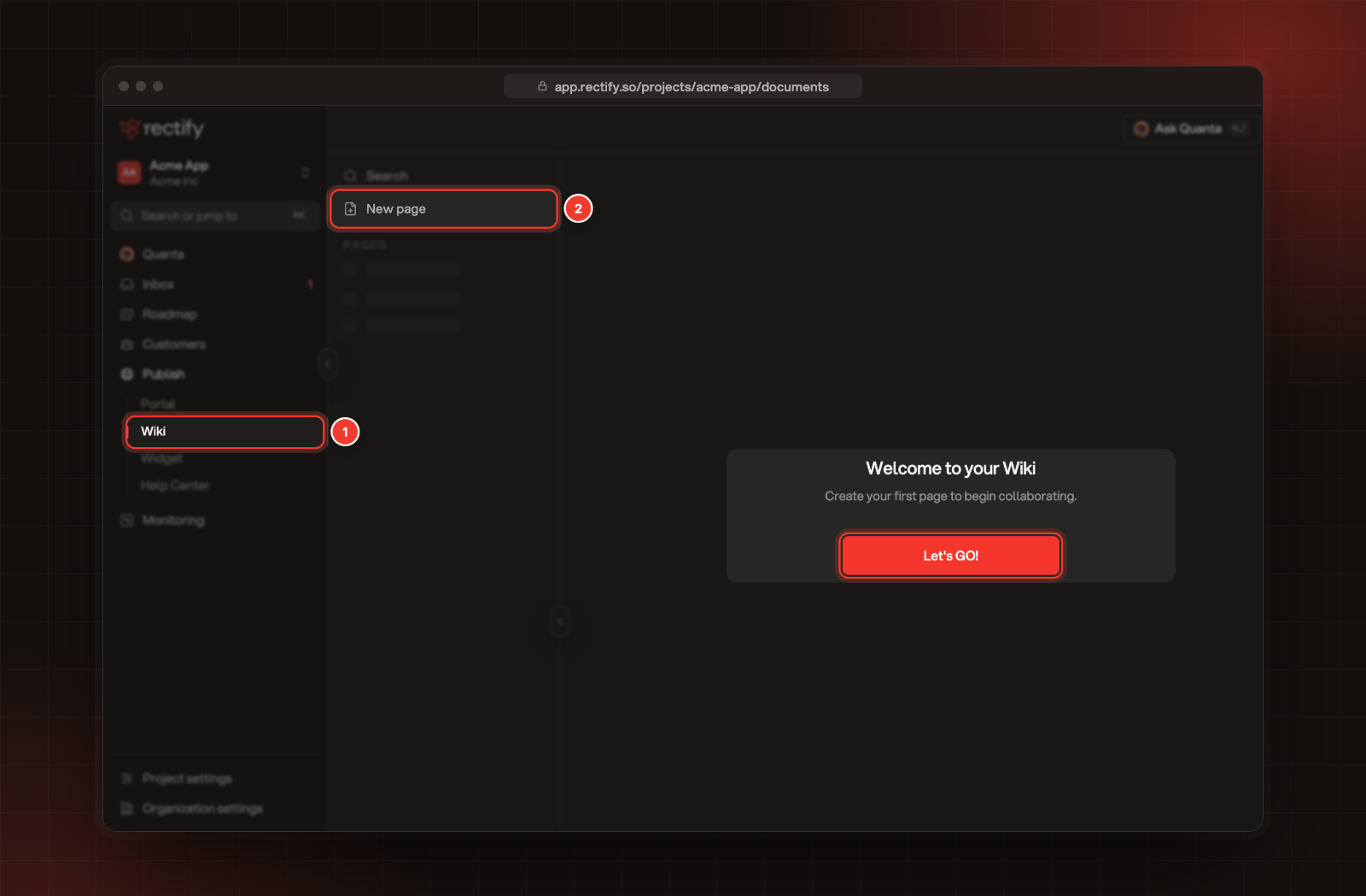
Open Wiki under Publish.
2.
Select New page at the top of the Wiki list. In an empty Wiki, you can also select Let's GO!.
1 Wiki under Publish. 2 New page.
3.
Click Untitled and type the page's title. Press Enter when you're done.
4.
Write the page. Type / to add headings, lists, checklists, tables, images and more.
Everything saves as you type. There's no save button.
To give the page a look, use Add icon to pick an emoji, and Add cover to add a banner image. A cover at least 1500 pixels wide looks best. Hover over a cover to Change cover or Remove it.
Put pages inside other pages
Hover over a page in the Wiki list and select + (New page inside). The new page sits under it, and the arrow next to a page shows or hides the pages inside it.
Find a page
Select Search at the top of the Wiki list and type part of a page's title.
Keep a page private
1.
Open the page.
2.
Select the ⋮ menu at the top right.
3.
Select Make private.
A private page shows a lock in the Wiki list, and only you can see it. Make public shares it with your team again. Only the person who created a page can change this.
Download a page
Select the ⋮ menu at the top right, then Download, and pick Plain Text (.txt), Markdown (.md) or PDF (.pdf).
Share a page by link
1.
Open the page and select Publish at the top right.
2.
Select Publish.
3.
Select the copy button next to the link, and share it.
Anyone with the link can read the page without signing in, so publish only what's fine to share. If the page is private, its link only opens for you, even while it's published. A globe next to Publish shows the page is live. To take it down, open Publish again and select Unpublish.
Move a page to the trash
Select Move to trash in the page's ⋮ menu, or in the ... menu next to it in the Wiki list. Pages inside it go to the trash too.
To bring one back, select Trash at the bottom of the Wiki list, then the Restore arrow next to the page. Delete forever, then Confirm, removes it for good.
Turn a page into a help article
To share a Wiki page with customers in your Help Center, open Help Center, select Import, then From the Wiki, and tick the page. Rectify copies it into a draft article, and the Wiki page stays as it is. See Import articles from a website, Markdown or the Wiki.
Check it worked
Your new page appears in the Wiki list under Pages. Ask a teammate to open the Wiki: they see every page except private ones.
A teammate can't see my page
The page is private. Open it, select the ⋮ menu and select Make public. If they can't open the Wiki at all, they don't have access to the project. An Owner or Admin can add it under Organization settings, Members.
I can't find Make private
Only the person who created the page can make it private or public again.
I deleted a page by mistake
If you moved it to the trash, open Trash at the bottom of the Wiki list and select Restore. Pages you deleted forever can't be brought back.