Open and close the panels Quanta shows next to the chat, expand a small card into the full view, and share a chat with a link.
3 min readUpdated 5 days ago
Before you start. Canvas panels open in any Quanta chat, for everyone who can open the project. Only the person who started a chat can share it.
When you ask Quanta to show something, like your feedback, your roadmap or your monitors, it opens the full view in a panel next to the chat. That panel is a canvas. For quick answers, Quanta shows a small card inside the chat instead.
Open and close a canvas
A canvas opens by itself when Quanta's reply is ready. Under the reply, a card with the canvas's name lets you bring it back.
1.
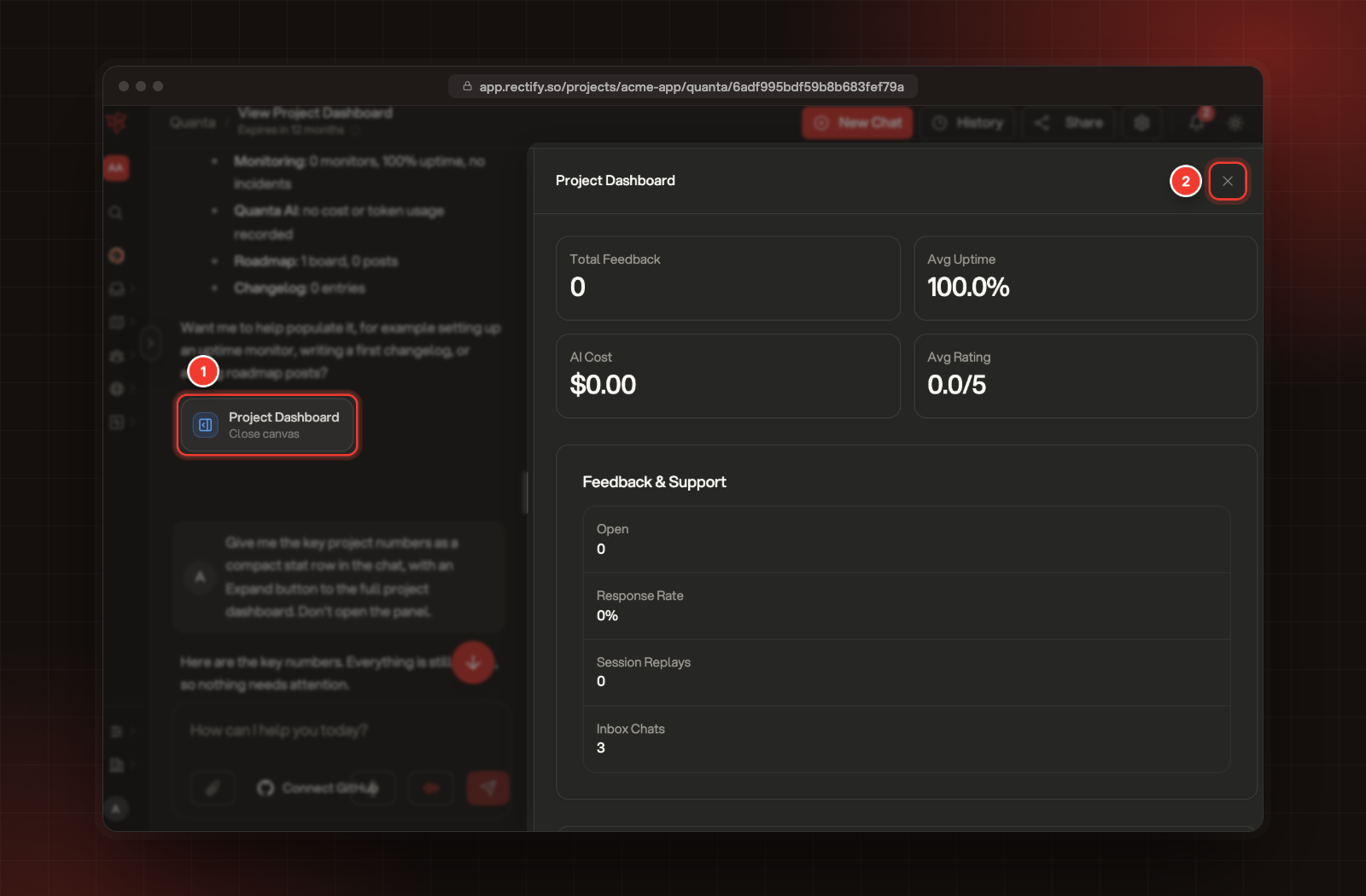
Select the card under a reply, for example Project Dashboard, to open the canvas. The card says Open canvas or Close canvas.
2.
Close the canvas with the X at its top right, or select the card again.
1 The card under the reply. 2 Close the canvas.
To make the canvas wider or narrower, drag its left edge. On a phone, the canvas fills the screen; tap outside it to close it.
Canvases cover most of Rectify, including:
•
Feedback, Roadmaps, Review queue, Portal settings and Changelogs
•
Analytics, Goals, Analytics alerts, Heatmaps and Session Replays
•
Support, Help Center and your Wiki Documents
•
Contacts, Companies and Segments
•
Monitoring and Code Scan
•
Surveys, Popups, Campaigns, Workflows and Webhooks
•
Widget Configuration, Project Dashboard and Quanta Cost Overview
Act from a canvas
Many canvases have buttons, like Change status on a feedback report or Resolve on a support conversation. Selecting one sends the request to Quanta in the chat, so the change still waits for you to confirm it. Ask Quanta and approve its changes explains how.
Two canvases save straight away when you use their own buttons: the changelog editor, with Publish and Save draft, and the workflow builder.
Expand a card into the full view
1.
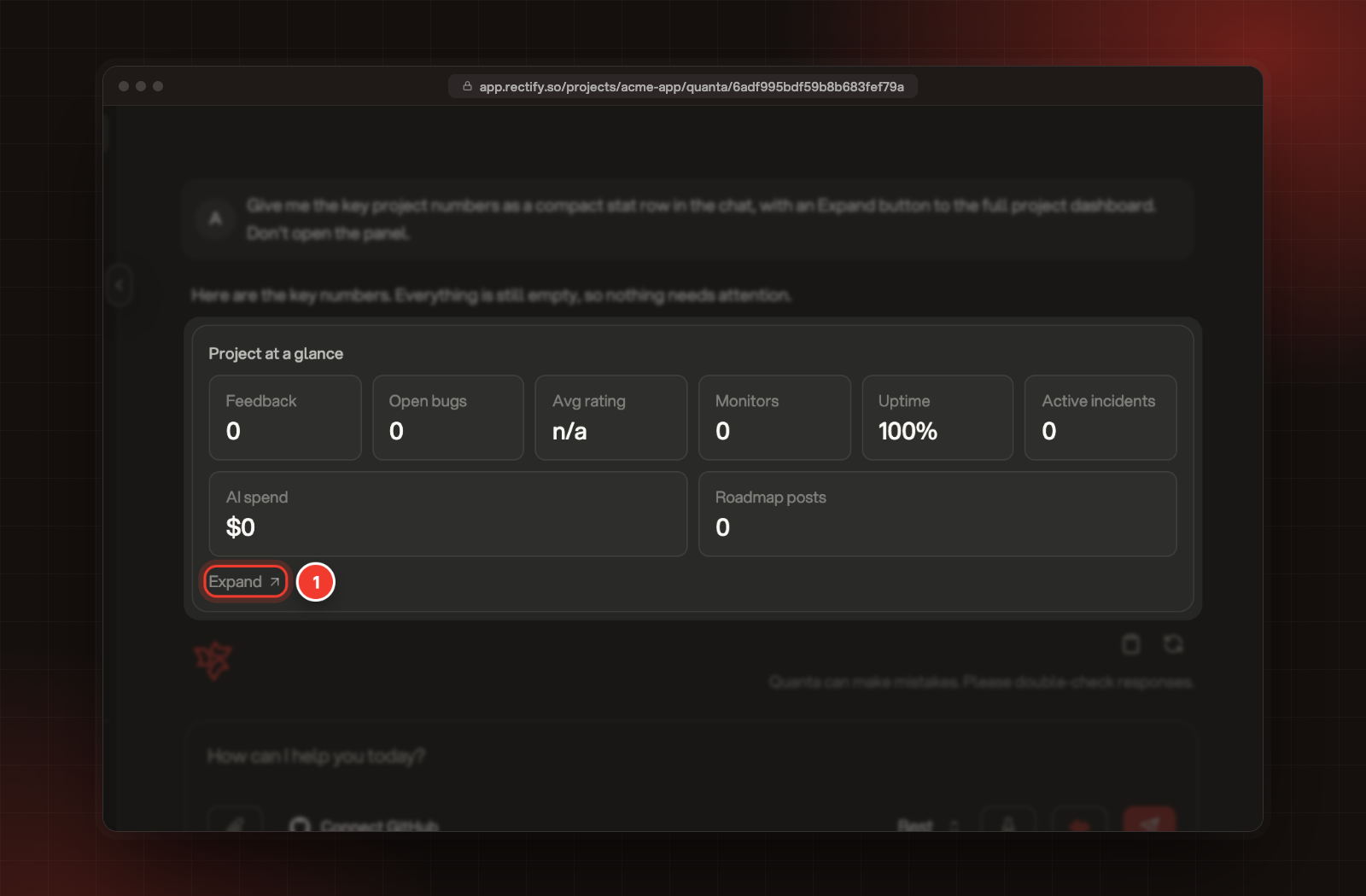
Find a card in Quanta's reply that has Expand under it.
2.
Select Expand. The full view opens as a canvas, with fresh numbers.
1 Expand opens the full view.
Expand works for the project dashboard, the feedback, support and monitoring overviews, analytics, code scans and Quanta's own cost overview. To get a card, ask for a quick summary, for example "Give me the key project numbers in the chat".
Come back to a canvas later
When you open an older chat, the card under a reply reopens the canvas as it looked when Quanta showed it. To see today's numbers, ask again or use Expand. Saved canvases are kept as long as the chat is.
These aren't saved, so ask Quanta again to bring them back: an email preview, the changelog editor and the workflow builder.
Share a chat
Sharing makes the whole chat readable by anyone with its link.
1.
Open the chat and select Share at the top.
2.
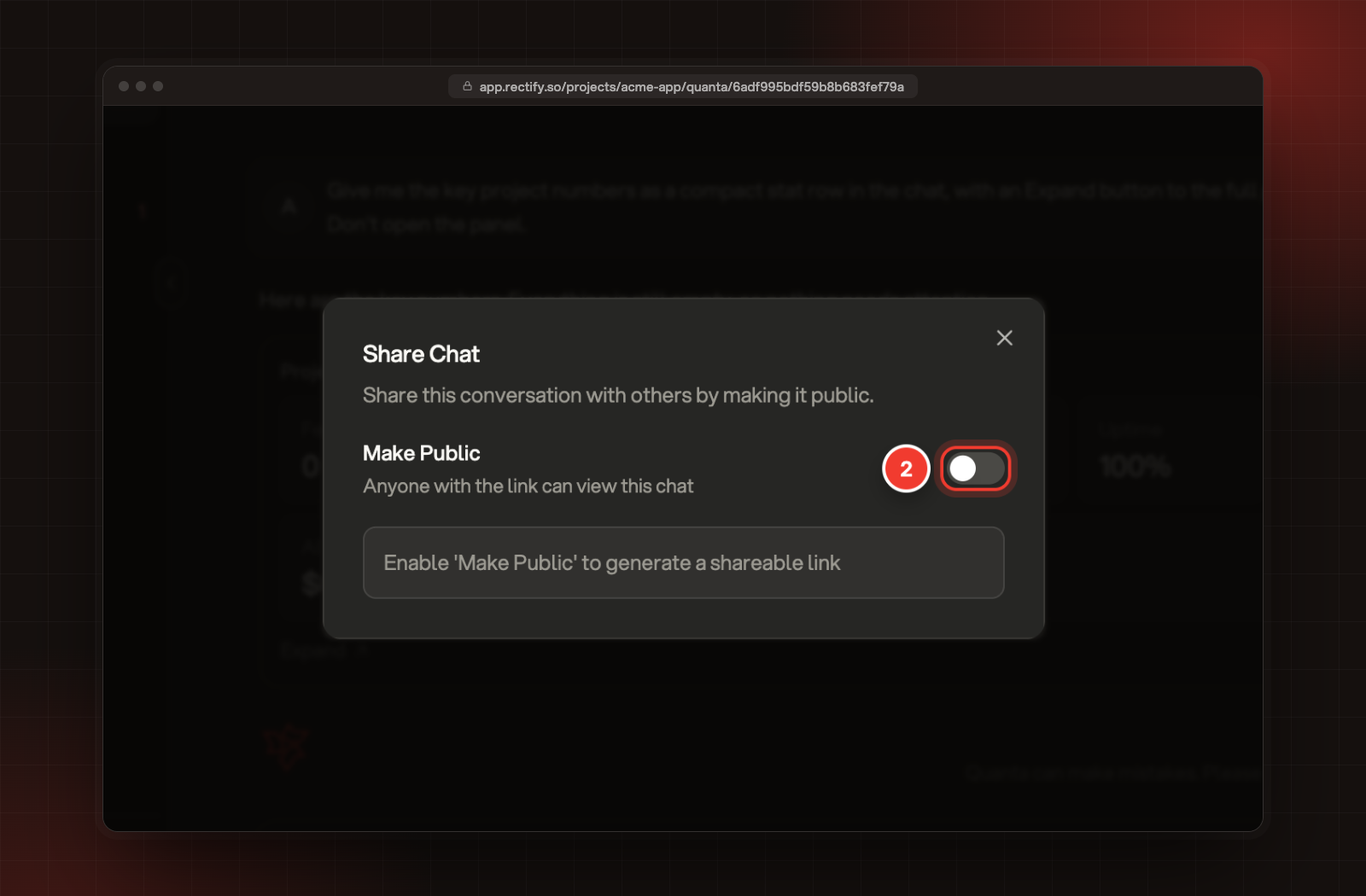
Turn on Make Public.
3.
Copy the link under Share Link.
2 Make Public creates the link.
People with the link see the messages, but not the canvases, and they can't reply. To stop sharing, turn Make Public off again.
It says "This view couldn't be shown"
Something in that canvas failed to load. Ask Quanta again, or open the same page in the sidebar.
It says "This view has expired. Ask Quanta to show it again."
The saved copy of that canvas is gone. Ask Quanta for the view again.
Someone opens my shared link and sees "Chat not found"
The chat is private again, or it was deleted. Open Share and turn on Make Public, then send the link again.