Let AI write or summarize as part of a workflow, and pass details from the trigger and earlier steps into later ones.
3 min readUpdated 5 days ago
Before you start. Owners, Admins and Members can change workflows. AI steps run on your plan's AI credits, or on the AI provider you connected under Organization settings, AI providers when you have no credits. Compare plans lists the credits on each plan.
Add an AI step
1.
Open the workflow, then open AI under Nodes.
2.
Drag AI Summarize or AI Generate Text onto the canvas and connect it below the trigger.
3.
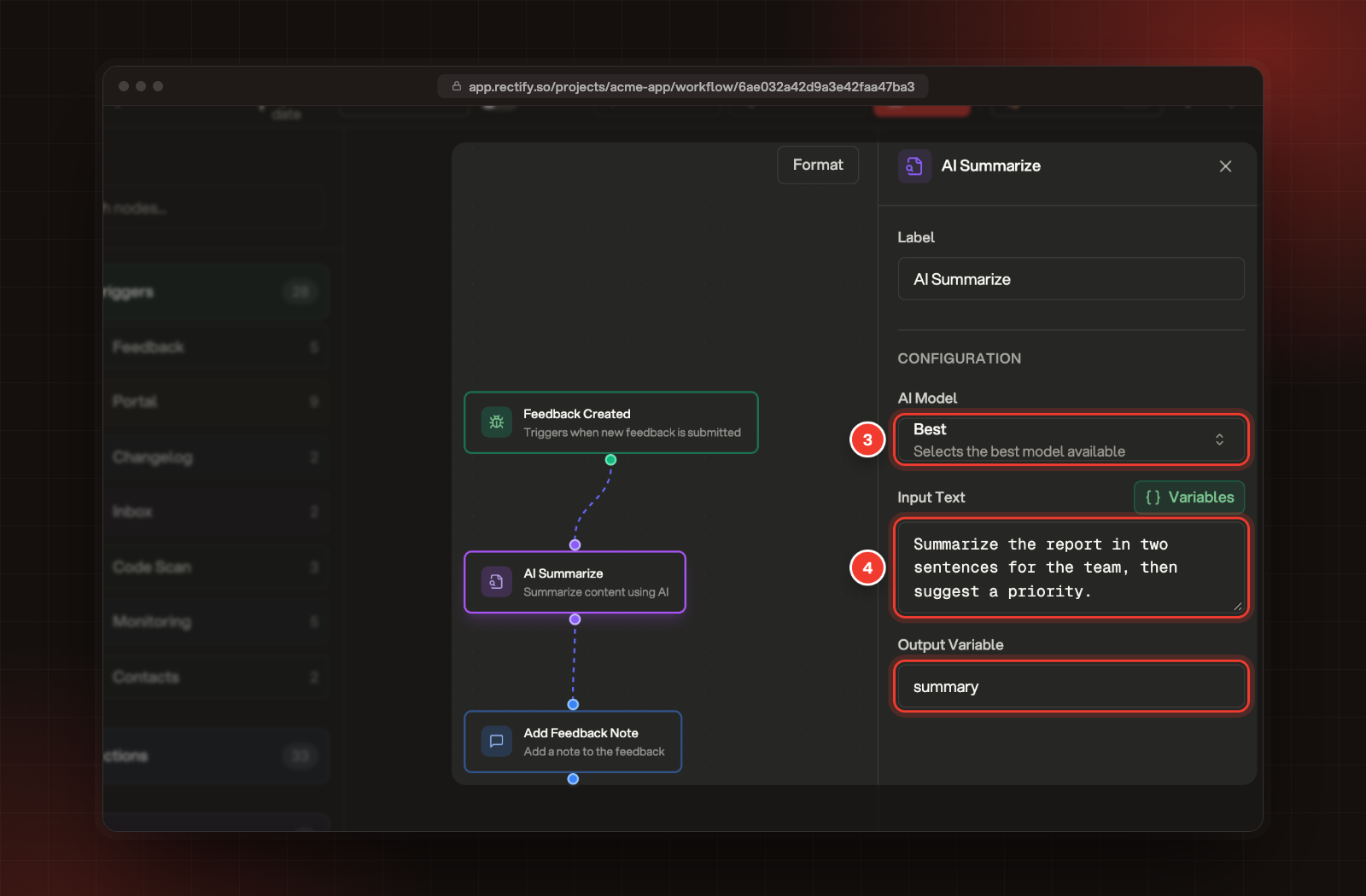
Select it and pick an AI Model. Best picks the best model available to you.
4.
For AI Summarize, write what the summary should focus on in Input Text. For AI Generate Text, write the Prompt.
3 AI Model. 4 Input Text. Output Variable shows the name the result is saved under.
The result is saved under the name in Output Variable, ready for the steps below it.
AI step
What it does
Output Variable
AI Summarize
Summarizes the trigger's details and what earlier steps produced, following your Input Text. When a new feedback report comes with screenshots, an attachment or a session replay, it can look at those too.
summary
AI Generate Text
Writes text from your Prompt, such as a changelog draft or a reply. The trigger's details are added to the prompt for you.
generatedText
Nano Banana
Makes an image from your Prompt, with an optional Reference Image (Optional) to guide it. Pick Nano Banana for 1024 px images, or Nano Banana Pro Preview for up to 4K.
generatedImageUrl
Nano Banana is listed only when a Gemini key is connected under Organization settings, AI providers. Its image can be the cover of a Create Changelog Entry step.
AI Summarize and AI Generate Text write plain text, without Markdown symbols.
Use the result in a later step
1.
Connect a step below the AI step, for example Add Feedback Note, and select it.
2.
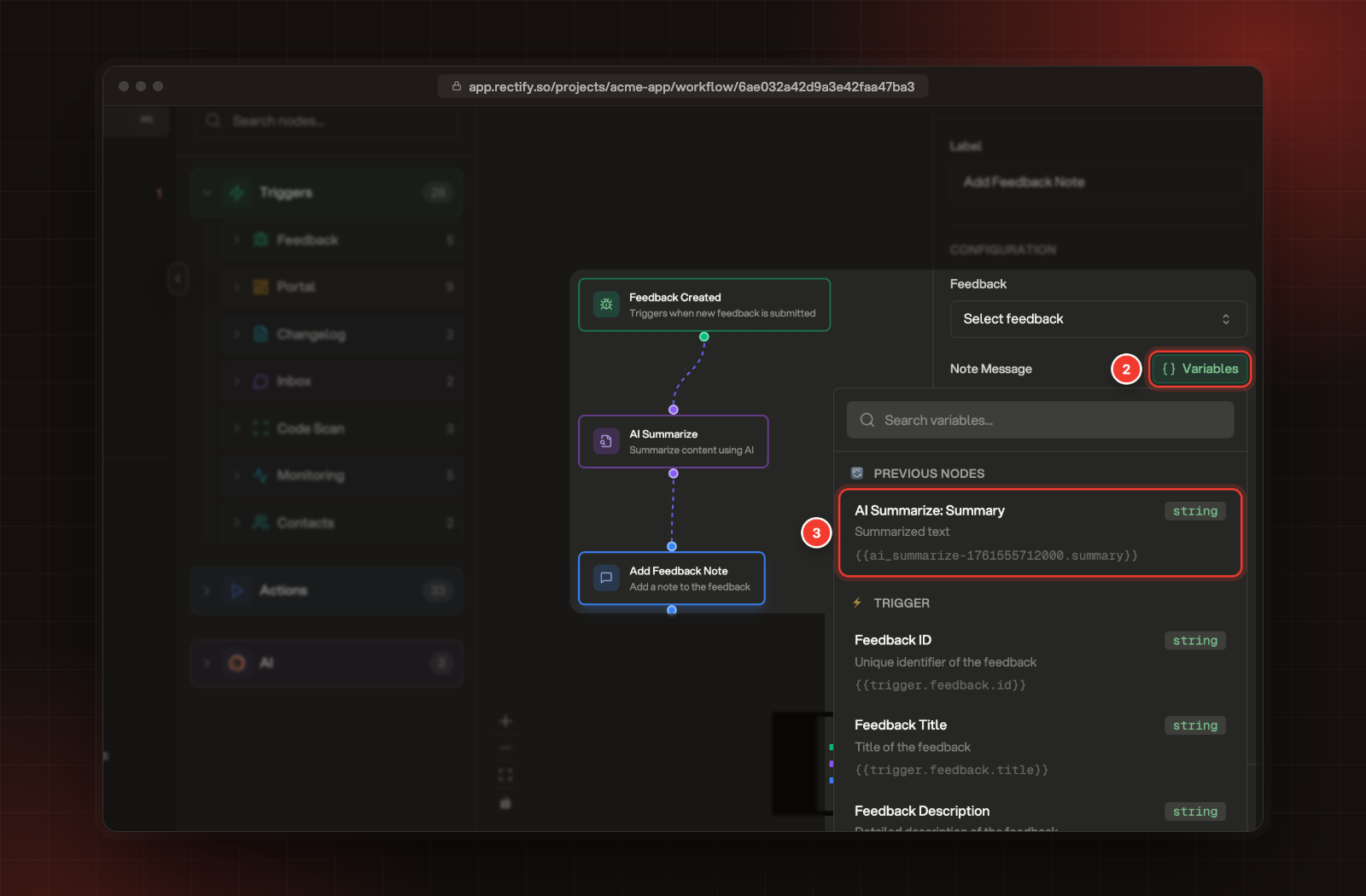
Select Variables beside a text setting, such as Note Message.
3.
Under Previous Nodes, pick the AI step's result, for example AI Summarize: Summary. It's added where your cursor is.
2 Variables. 3 AI Summarize: Summary, under Previous Nodes.
How variables work
A variable is a placeholder in double curly brackets. When the workflow runs, Rectify swaps it for the real value.
•
Under Trigger, you find the details of the event that started the run, such as Feedback Title ({{trigger.feedback.title}}) or Feedback Priority.
•
Under Previous Nodes, you find what the steps above this one produced. A step only sees the steps connected above it.
•
You can type a variable yourself, or mix several into one sentence: New bug: {{trigger.feedback.title}} ({{trigger.feedback.priority}} priority).
•
If a value is missing when the workflow runs, the placeholder stays in the text as you wrote it.
To run steps only for some events, use the trigger's settings, such as Feedback Type, or build a separate workflow for each case.
Check it worked
Run the workflow on a real report and open the run's details. Each step shows its Output, including the AI step's text. Test a workflow and read its runs shows how.
An AI step failed with "AI settings not configured for this organization"
Your organization has no AI credits left and no AI provider connected. Connect one under Organization settings, AI providers.
I don't see Nano Banana
It's listed only when a Gemini key is connected under Organization settings, AI providers.