Create, rename, revoke and delete MCP keys, see which AI apps use them, and disconnect apps that signed in with your Rectify account.
4 min readUpdated 24 days ago
Before you start. The MCP server needs the Build plan or higher. Anyone on your team can create keys for themselves. Owners and Admins also see their teammates' keys and connected apps, and can revoke or delete them.
AI apps reach your project in one of two ways: with an MCP key you paste into the app, or by signing in with your Rectify account. You manage both on the MCP Server page: open Project settings, then MCP server.
Create a key
1.
On the MCP Server page, select New key. With no keys yet, select Let's GO!.
2.
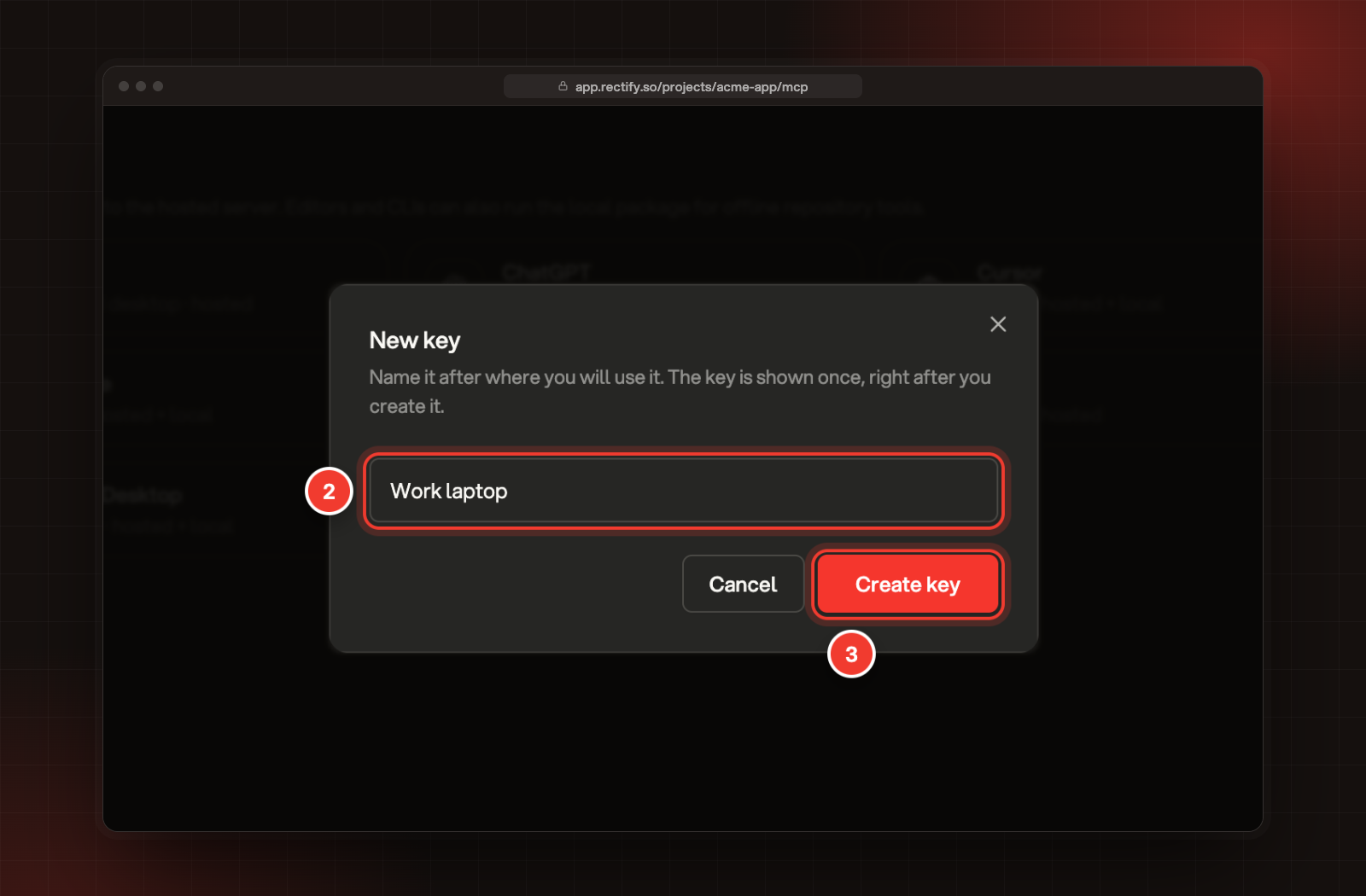
Name the key after where you'll use it, such as Work laptop or CI. The name is optional and can be up to 60 characters.
3.
Select Create key.
2 Name the key. 3 Create key.
4.
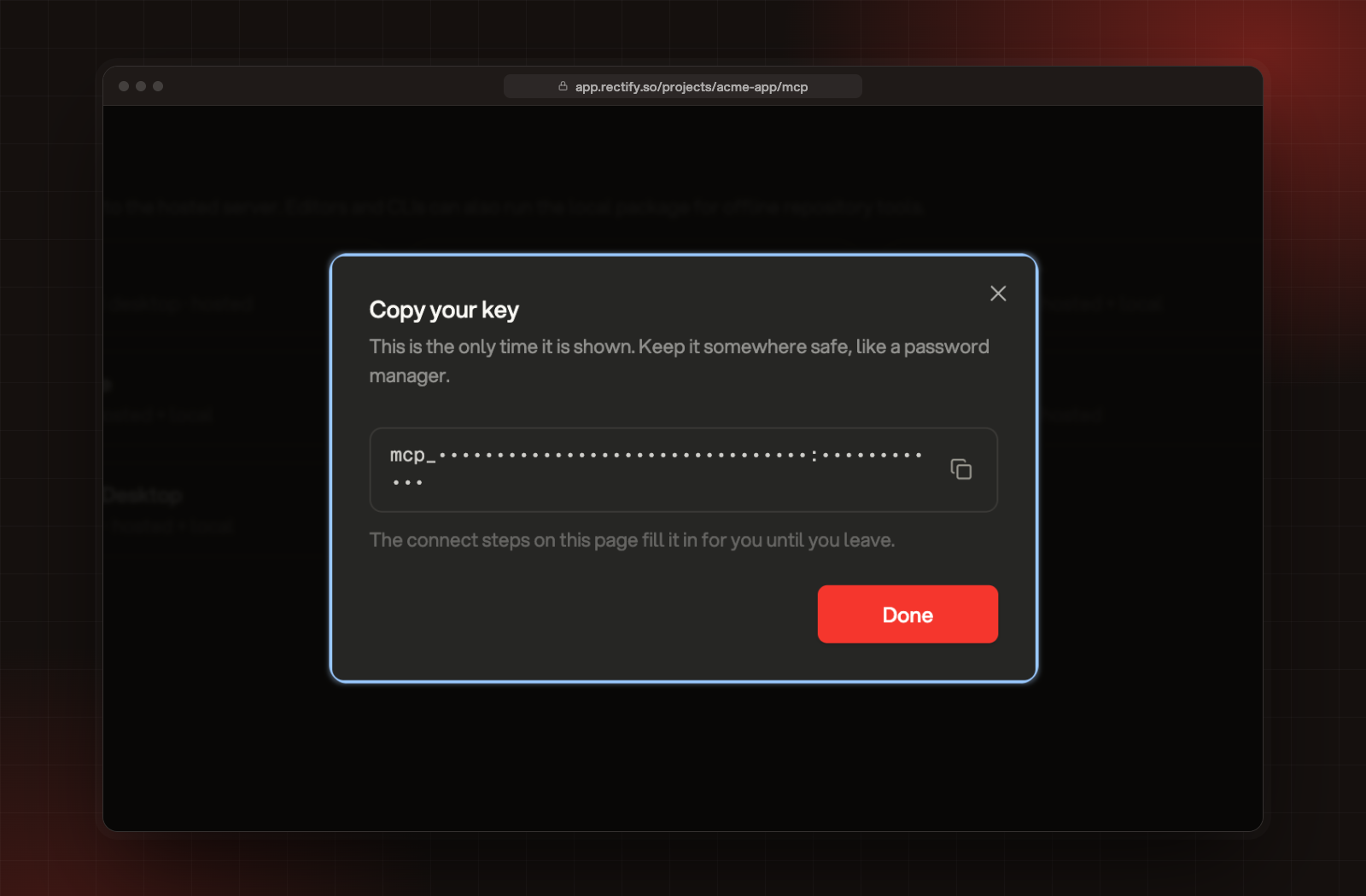
Copy the key from Copy your key, then select Done.
Copy your key. The key is hidden here.
The key is shown only this once. Rectify keeps only a fingerprint of it, so store it in a password manager. Until you leave the page, the connect steps on the page fill it in for you.
The value you copy starts with mcp_ and ends with a colon and your user ID. Paste it into your app exactly as copied.
How keys work
•
A key belongs to the person who made it, and works with their role in the project.
•
Each key works in one project.
•
You can have up to 3 active keys in each project. Revoked keys don't count.
•
If you lose access to the project, your keys stop working.
•
If you lose a key, you can't see it again. Create a new one and revoke the old one.
Your keys and team keys
Your keys lists the keys you made. Owners and Admins also see Team keys, the keys their teammates made. Each key shows:
•
its name and whether it's Active or Revoked
•
the start and end of the key, with the middle hidden
•
who made it, for a teammate's key
•
when it was created, and Used with when an app last started a session with it
•
the apps that have used it
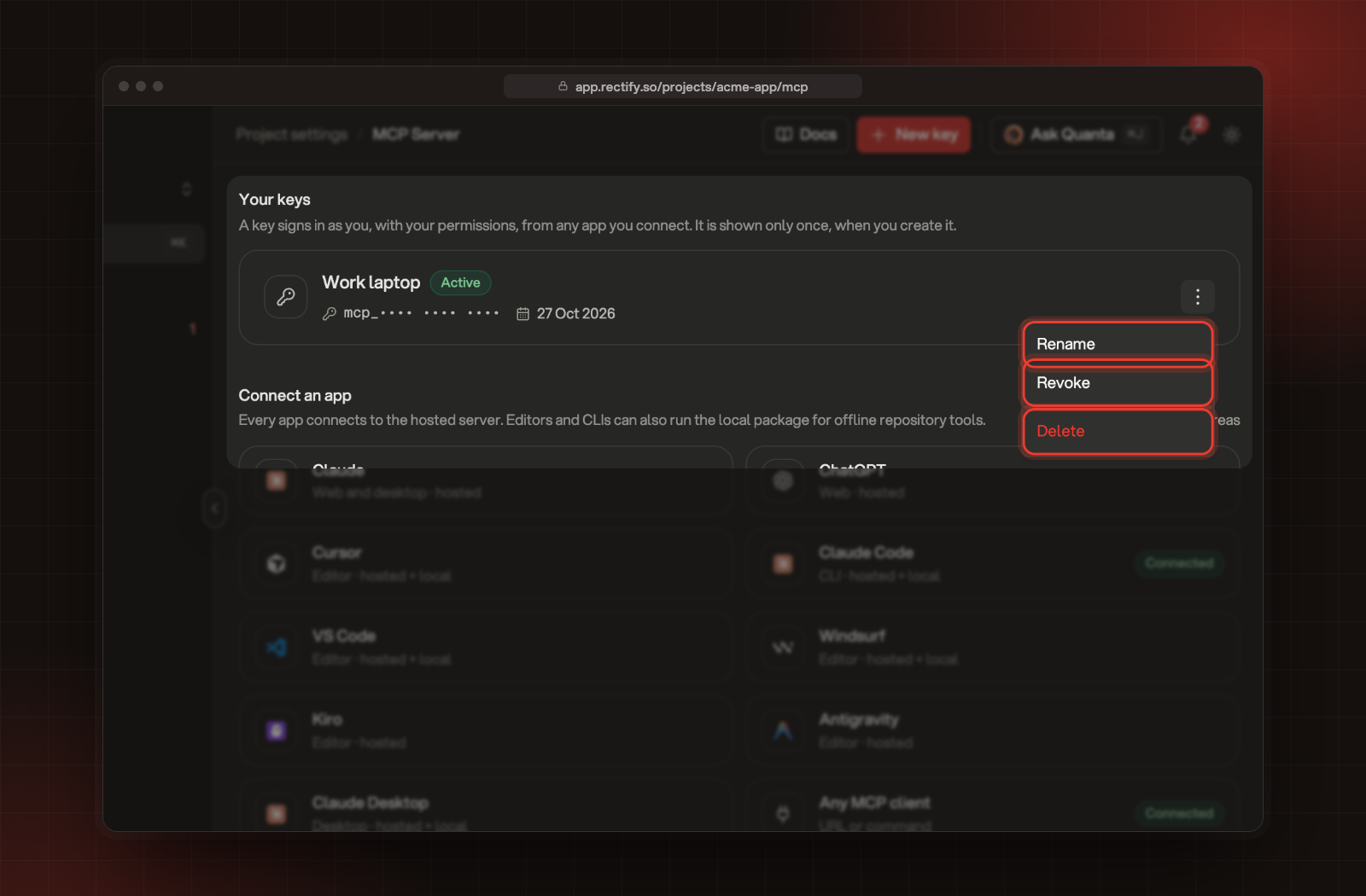
Rename, Revoke and Delete, in a key's menu.
Rename, revoke or delete a key
Open the menu at the end of a key's row:
•
Rename changes the name shown on this page. Apps keep working.
•
Revoke turns the key off straight away. Every app using it loses access on its next request. The key stays in the list as Revoked, and you can't turn it back on.
•
Delete removes the key for good. Type CONFIRM, then select Delete key.
Members can only rename, revoke or delete their own keys.
Connected apps
Connected apps lists the AI apps that signed in with a Rectify account, such as Claude or ChatGPT. It shows once an app has connected. Each row has the app's name, who connected it when it isn't you, when it connected, when it was last used and the address it sends you back to.
Select Disconnect to cut an app off straight away. It has to sign in again to come back. Members see and disconnect their own apps. Owners and Admins see everyone's.
A connected app also disconnects by itself:
•
after 90 days without use
•
when the person who connected it signs out of every device or resets their password
•
when that person loses access to the project
•
when that person connects more than 20 apps across all their projects, starting with the one used longest ago
Keys don't change when you sign out everywhere or reset your password. Revoke them yourself if you need to.
Check it worked
After you revoke a key or disconnect an app, ask the app something about your project. It can no longer reach Rectify and asks you to connect again.
Troubleshooting
New key is greyed out
Your organization is on the free Idea plan, and the MCP server needs Build or higher. Upgrade, or start the trial the page offers.
"You can have up to 3 active MCP keys in a project"
Revoke a key you no longer use, then create the new one.
"You can only manage your own MCP keys"
That key belongs to a teammate. Ask an Owner or Admin to revoke it.
Used doesn't change while I use the app
Used updates when an app starts a session with the key, not on every request.