Find feedback in the Rectify app, set its status, priority and owner, add notes, reply to the person who sent it, and move or delete it.
5 min readUpdated 5 days ago
Before you start. Everyone who can open a project can work through its feedback in the app. Moving and deleting feedback are for Owners and Admins. Replies to the person who sent feedback count toward your plan's Support Inbox replies, which are 10 a month on the free Idea plan.
Feedback from your widget lands in Inbox, Feedback: the same reports your team sees on the web. Changes you make on your phone are saved to those reports, so your team sees them there too.
Find feedback
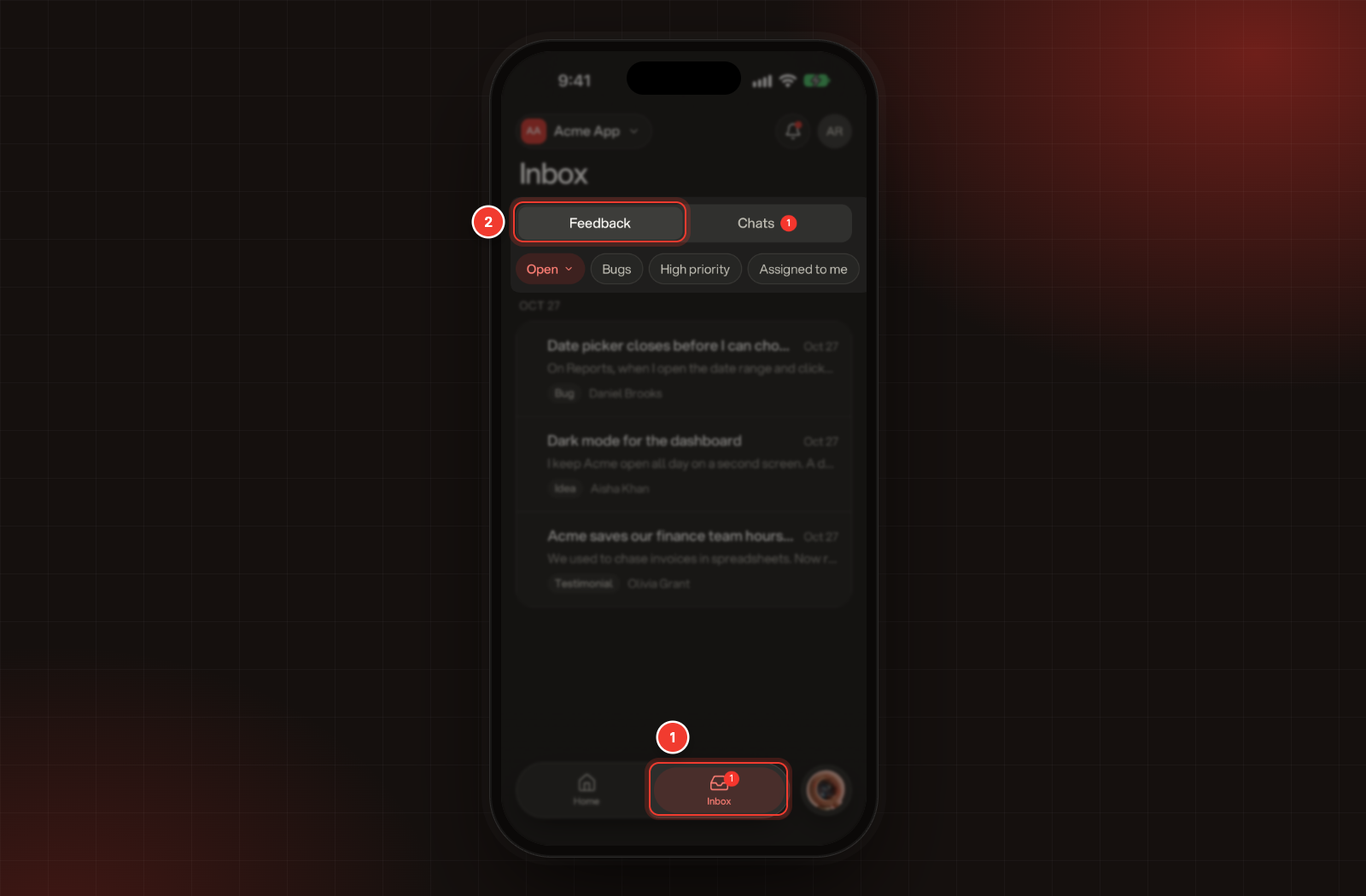
1.
Tap Inbox.
2.
Tap Feedback.
1 Inbox. 2 Feedback.
The newest feedback is at the top, grouped by day. A red dot marks feedback from today and yesterday. Each row shows the title, how long ago it came in, the first line of the description, its type or status, the priority when it's High or Critical, and who sent it. A play icon means it has a session replay.
The chips above the list narrow it down. The list starts on Open feedback.
•
The status chip picks All statuses, Open, In progress, Under review or Resolved.
•
Bugs shows bug reports only.
•
High priority shows High and Critical feedback.
•
Assigned to me shows feedback assigned to you.
Tap a chip again to turn it off. Pull the list down to refresh it. Older feedback loads as you scroll.
Assign or resolve from the list
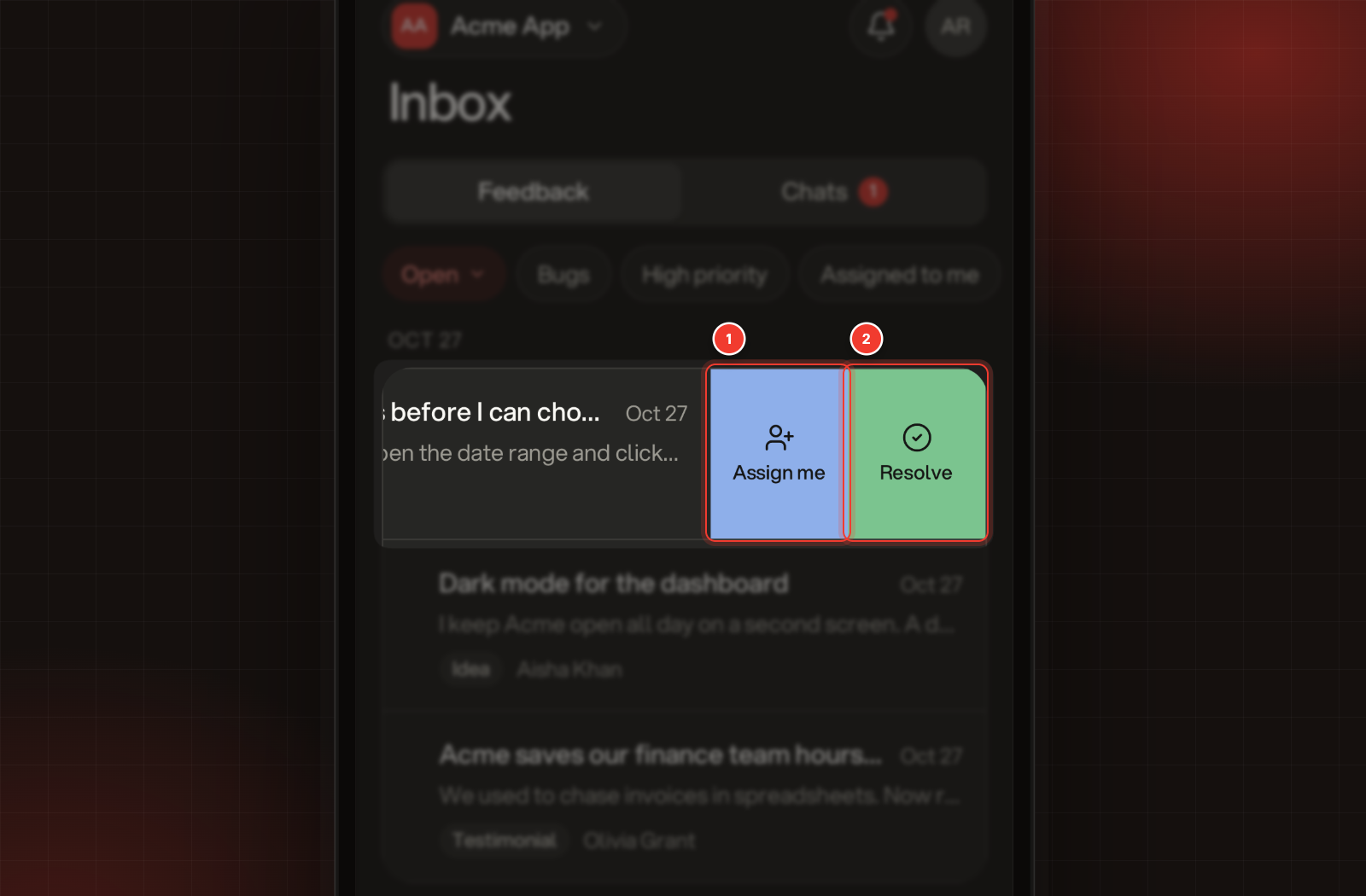
Swipe a row to the left for quick actions:
•
Assign me assigns the feedback to you. It doesn't show when it's already yours.
•
Resolve sets its status to Resolved. It doesn't show when it's already resolved.
1 Assign me. 2 Resolve.
Open a report
Tap a row. The report shows its type, status and priority, the title, who sent it and the description, followed by any screenshots and recordings, Assignee, Category, the Page it was sent from, and the Session details. When the sender has a conversation linked to this feedback, Chat next to their name opens it. Look into a bug report on your phone covers the recordings, logs and Quanta's triage.
The arrows at the top move to the previous or next report in your list, and the middle shows where you are, for example 3 of 42. Inbox takes you back to the list.
Set the status, priority, type or category
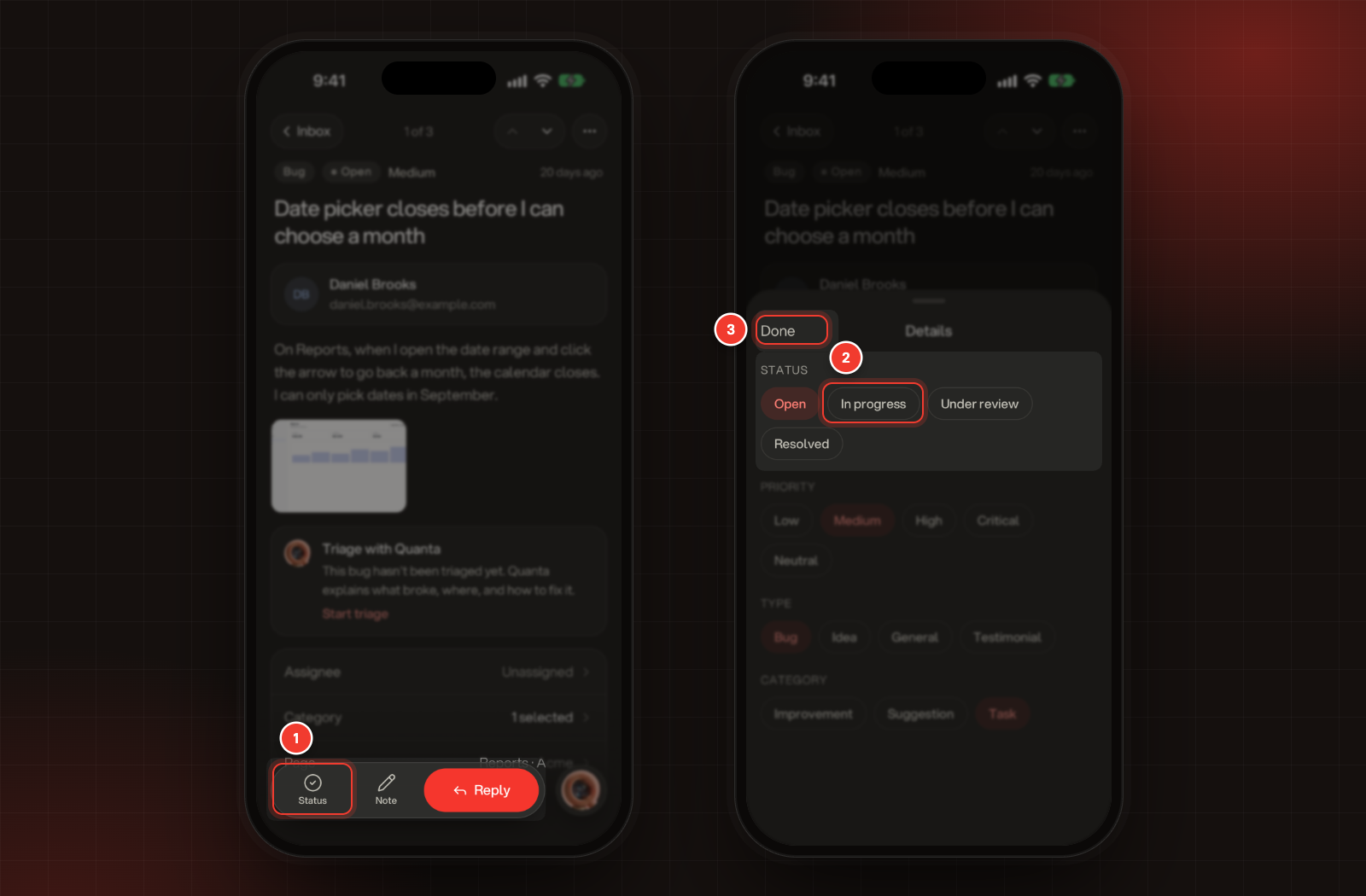
1.
Tap Status at the bottom of the report.
2.
Tap the new value under Status, Priority, Type or Category. It saves straight away.
3.
Tap Done.
1 Status. 2 The new value. 3 Done.
Section
Choices
Status
Open, In progress, Under review, Resolved
Priority
Low, Medium, High, Critical, Neutral
Type
Bug, Idea, General, Testimonial
Category
Improvement, Suggestion, Task. You can pick more than one.
To give it an owner, tap Assignee in the report and pick a teammate. The list only shows teammates who can open this project.
Add a note for your team
1.
Tap Note at the bottom of the report.
2.
Type your note. Notes can be up to 1,000 characters.
3.
Tap Add note.
Reporters never see notes. Notes show under Notes at the end of the report. Tap ••• on a note to Edit it, Mark resolved or Delete it.
Reply to the person who sent it
Reply works when the feedback has the sender's email address.
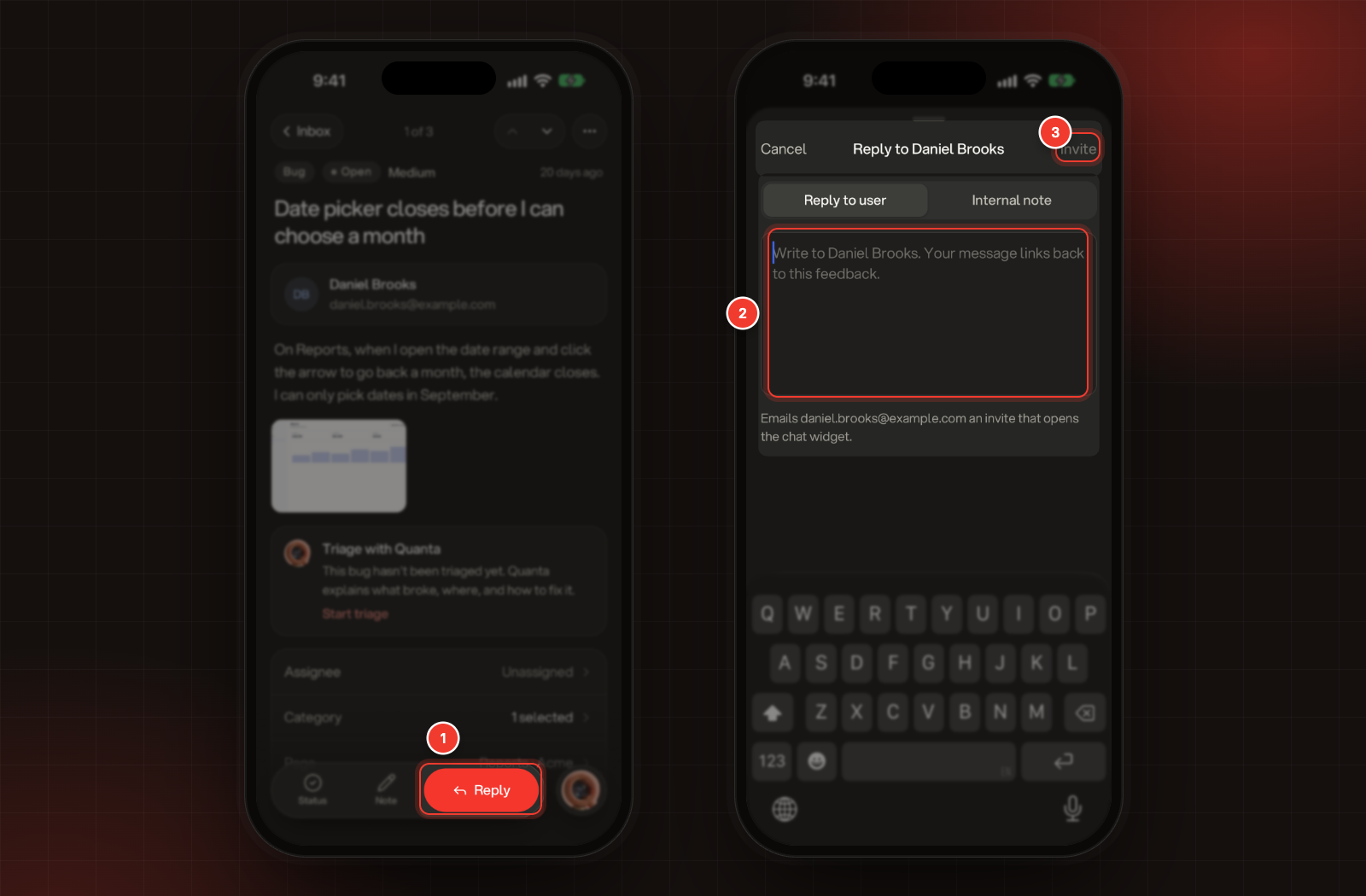
1.
Tap Reply at the bottom of the report.
2.
Type your message.
3.
Tap Reply or Invite at the top right, whichever the sheet shows.
1 Reply. 2 Your message. 3 Invite.
•
Reply shows when they already have a conversation with your team. Your message goes into that conversation, linked to this feedback. To start a fresh conversation, tap Start a new chat instead.
•
Invite emails them an invite that opens the chat widget on the page they sent the feedback from.
The Reply to user and Internal note switch at the top of the sheet changes between a reply and a note.
Edit, move or delete it
Tap ••• at the top right of the report:
•
Edit changes the Title (3 to 200 characters), Description, Type, Status, Priority, Categories and Assignee. Tap Save when you're done.
•
Move moves the feedback to another project in your organization.
•
Delete deletes it after you confirm. It can't be undone.
Troubleshooting
It says "No open feedback"
The list starts on Open feedback, and there's none right now. Tap Show all statuses to see the rest.
It says "No feedback matches these filters"
Tap Reset filters, or turn a chip off.
Reply is greyed out
The feedback has no email address for the person who sent it, so there's no one to reply to. Add a note for your team instead.
It says "Replying to reporters needs a higher plan."