Download Rectify for iPhone, iPad or Android, sign in with the account you use on the web, and pick the project you want to work in.
5 min readUpdated 5 days ago
Before you start. You need a Rectify account and an organization. Both are created on the web, at app.rectify.so; the app can't create accounts, organizations or projects. Members only see the projects they've been given.
The Rectify app keeps your project with you. At the bottom of the app you'll find Home, Inbox and the round Ask Quanta button. At the top of Home and Inbox are your project's name, the bell for your notifications, and your photo, which opens You.
On the App Store it's called Rectify App. On Google Play and on your home screen it's Rectify.
Sign in
1.
Open the app.
2.
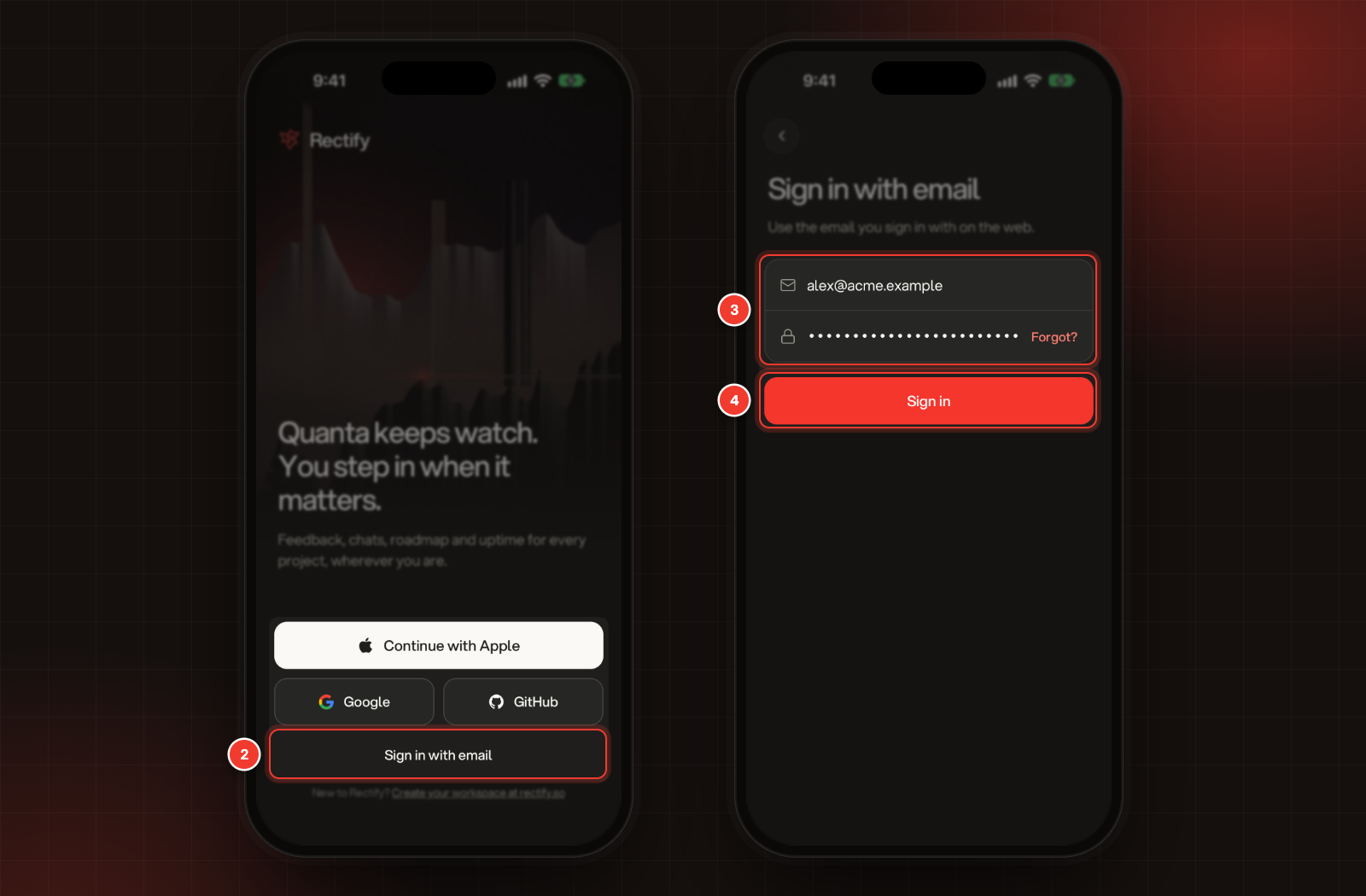
Tap Sign in with email.
3.
Enter your Email and Password.
4.
Tap Sign in.
2 Sign in with email. 3 Email and Password. 4 Sign in.
To sign in with Apple, Google or GitHub instead, tap Continue with Apple, Google or GitHub on the first screen and approve Rectify. The Apple button is on iPhone and iPad only. Sign in the same way you do on the web, so you land in the same account.
If your email address isn't verified yet, the app sends you a 6-digit code and opens Verify your email. Type the code from the email; the app checks it as soon as you enter the last digit. Then sign in again.
New to Rectify? Tap Create your workspace at rectify.so at the bottom of the first screen, then Open web app. Create your account and organization on the web, then come back and sign in.
Turn on notifications
If your phone hasn't asked about Rectify notifications yet, the app shows Know the moment it matters after you sign in.
1.
Tap Turn on notifications.
2.
Allow notifications when your phone asks.
Not now skips this. You can turn them on later under You, Notifications.
Pick your project
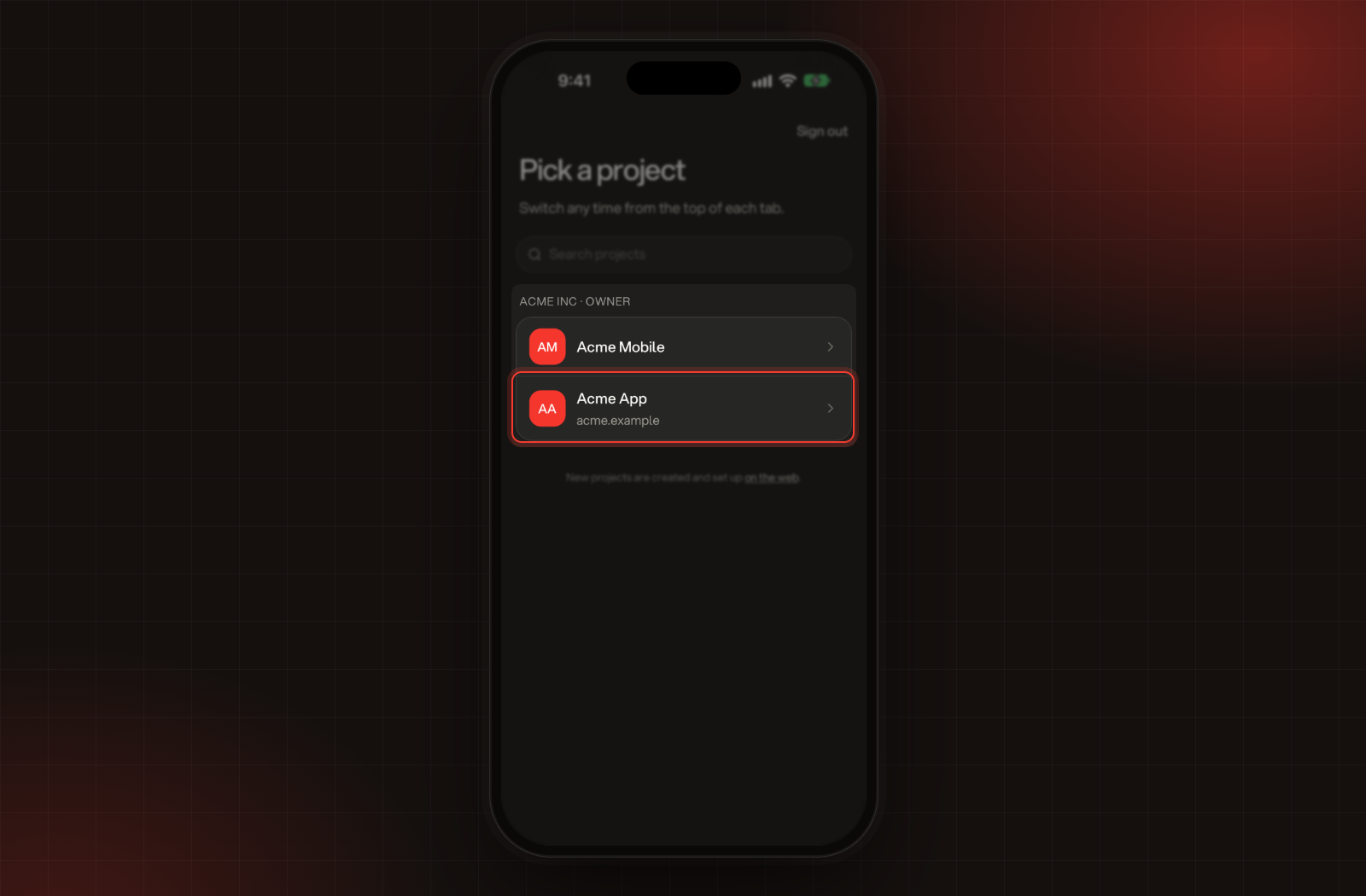
Pick a project lists your projects, grouped by organization, with your role next to each organization's name. Tap a project to open its Home screen. When you have more than one project, Search projects at the top finds one by name or website.
Pick a project, with the projects in Acme Inc.
The app remembers your choice, so next time it opens straight on Home. New projects are created and set up on the web.
Switch to another project
1.
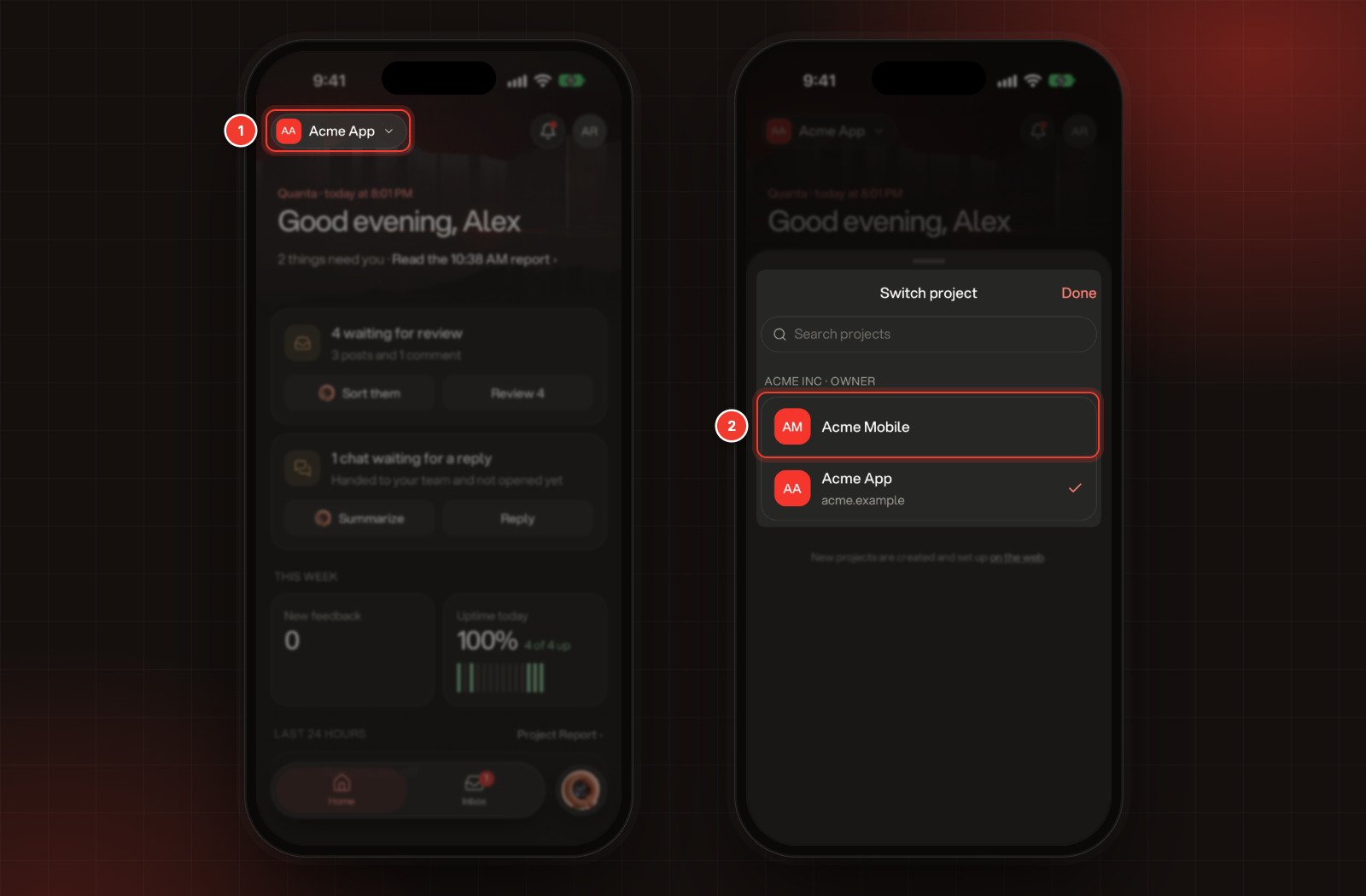
Tap your project's name at the top of Home or Inbox.
2.
Under Switch project, tap the project you want. The one you're in has a check mark.
1 Your project's name. 2 The project to switch to.
You can also tap your photo, then Switch next to the project's name. Projects from all your organizations are in the same list.
Reset a forgotten password
1.
On the first screen, tap Sign in with email.
2.
Tap Forgot? in the password box.
3.
Check your Email is filled in.
4.
Tap Send reset code.
5.
Type the 6-digit code from the email. The app checks it as soon as you type the last digit, and the code works for 5 minutes.
6.
Enter a New password and type it again under Confirm password. Passwords need at least 8 characters.
7.
Tap Reset password, then sign in with your new password.
No email? Check your spam folder, then tap Resend under the code. You can ask for a new code once a minute.
Your profile, appearance and signing out
Tap your photo at the top of Home or Inbox to open You.
•
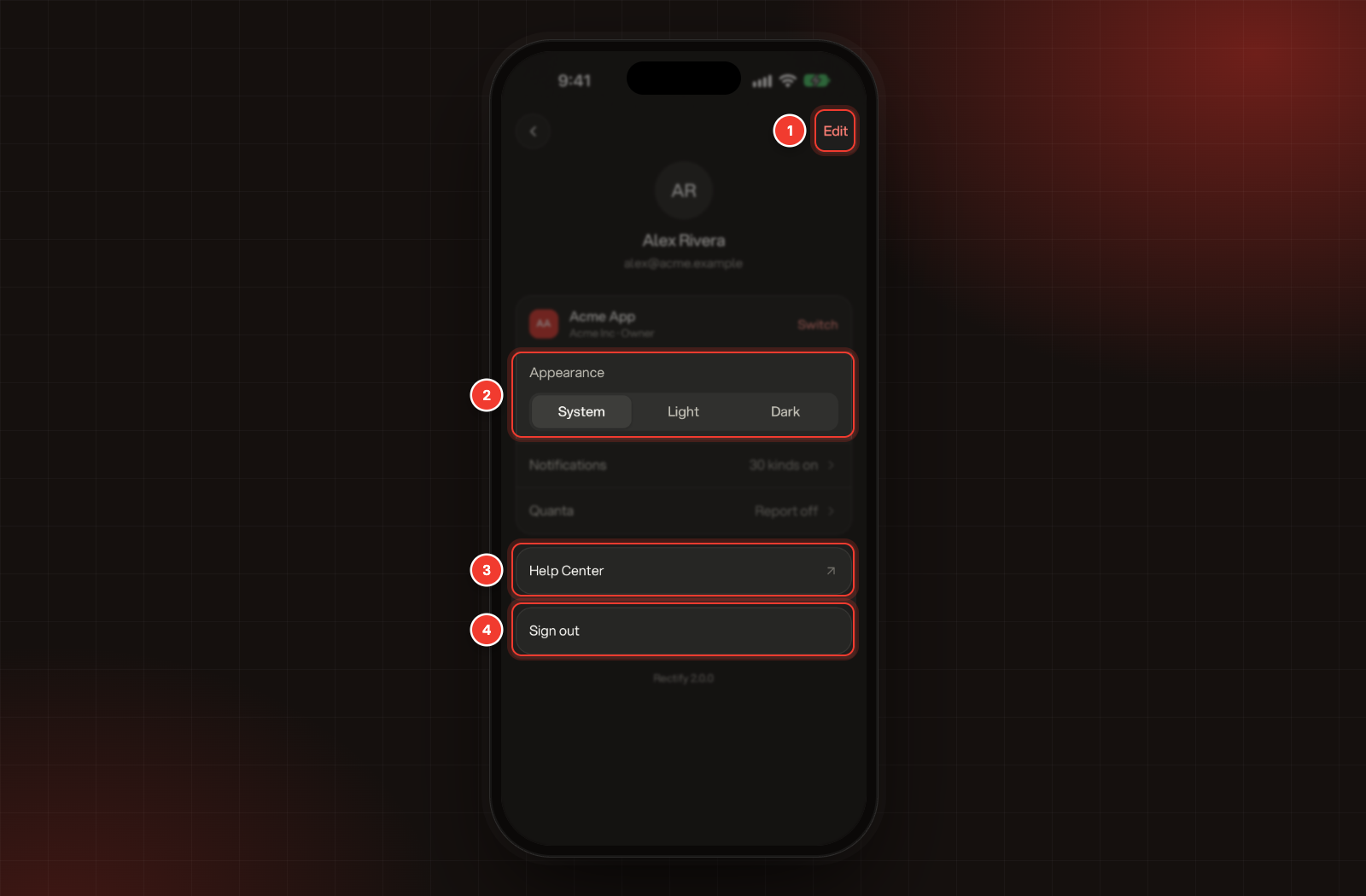
Edit at the top right opens Edit profile. Tap your photo to choose a new one, or tap Remove photo; photo changes save straight away. To change your Name, type it and tap Save. Your email address can't be changed in the app.
•
Appearance sets the app to System, Light or Dark.
•
Help Center opens these guides in your browser.
•
Sign out signs this phone out. It stops getting push notifications from Rectify until you sign in again.
1 Edit. 2 Appearance. 3 Help Center. 4 Sign out.
To sign the app out from another device, open your profile on the web and use Signed-in devices. Sign in and keep your account secure shows how.
Troubleshooting
It says "Invalid email or password"
Check you're using the email address you signed up with. If you signed up with Apple, Google or GitHub, go back and tap that button instead. If you've forgotten your password, tap Forgot?.
It says "No organizations yet"
The account you signed in with isn't in any organization. You may have signed in a different way than on the web, for example with Apple or another email address. Tap Sign out at the top and sign in the way you do on the web. If it's the right account, ask an Owner or Admin of your organization to invite you.
It says "No projects yet" under my organization
There's no project in that organization that you can open. As a Member, you only see the projects you've been given, so ask an Owner or Admin for access. Owners and Admins create projects on the web.
It says "Couldn't load these projects."
Check your connection, then tap Try again under the organization's name.
Resetting my password says "Invalid OTP", "OTP expired" or "Too many attempts"
The code was wrong, more than 5 minutes old, or typed wrong 3 times. Tap Resend for a new code and type it in.