Record what happens in a tab, with its console and network logs, and save it to your project as a bug report.
5 min readUpdated 24 days ago
Before you start. Sign in to the extension and pick a project first. Anyone who can open the project can record. A recording lasts up to 3 minutes, and each saved session counts toward your organization's extension sessions for the month.
A session is a replay of what happened in one tab, with its clicks, console messages and network requests, plus your title and notes. Nothing leaves your browser until you select Save session.
Record a session
1.
Open the page where the problem happens.
2.
Select the Rectify icon in Chrome's toolbar.
3.
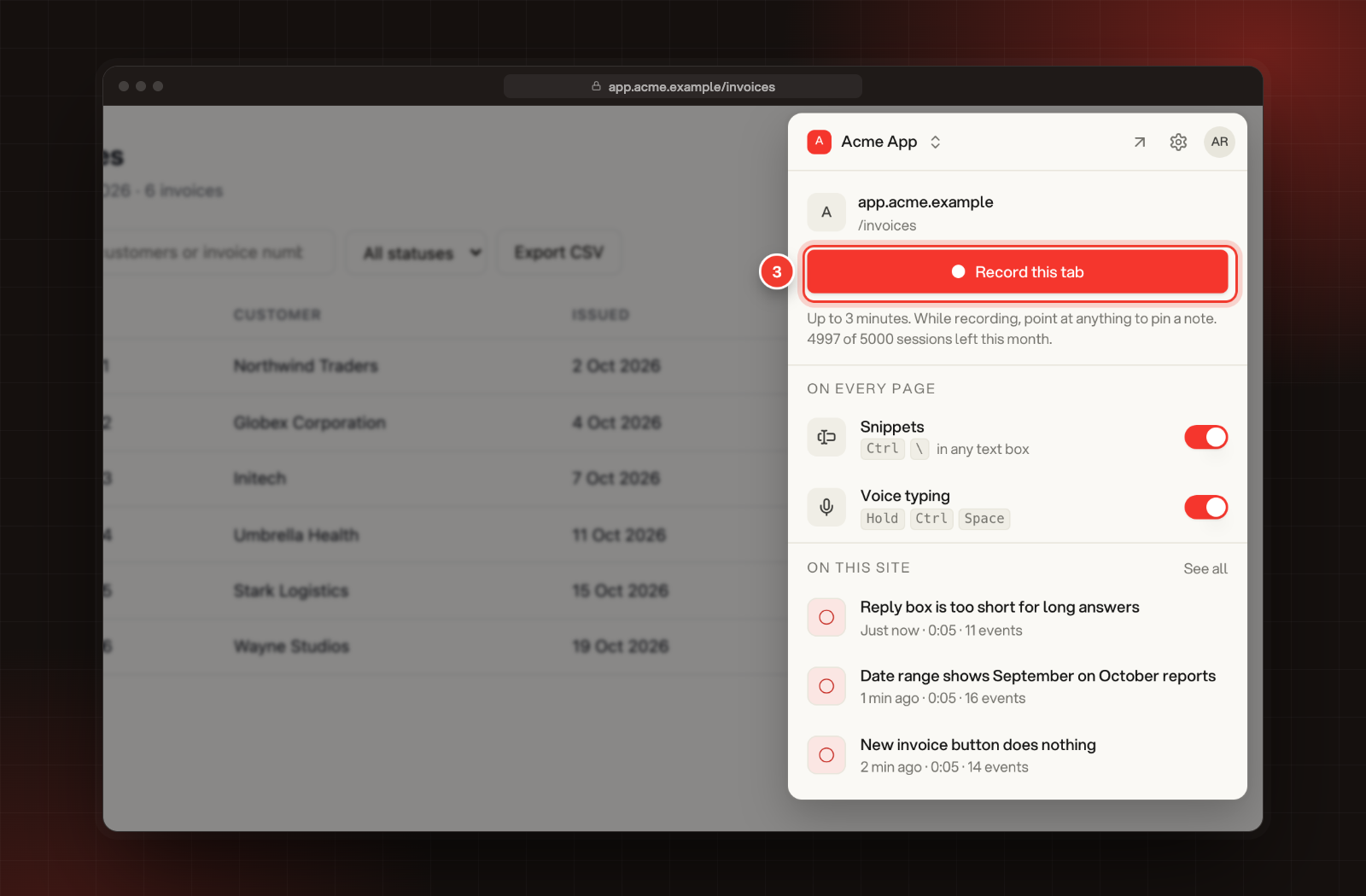
Select Record this tab. The popup closes and the recording starts.
3 Record this tab, in the Rectify popup.
4.
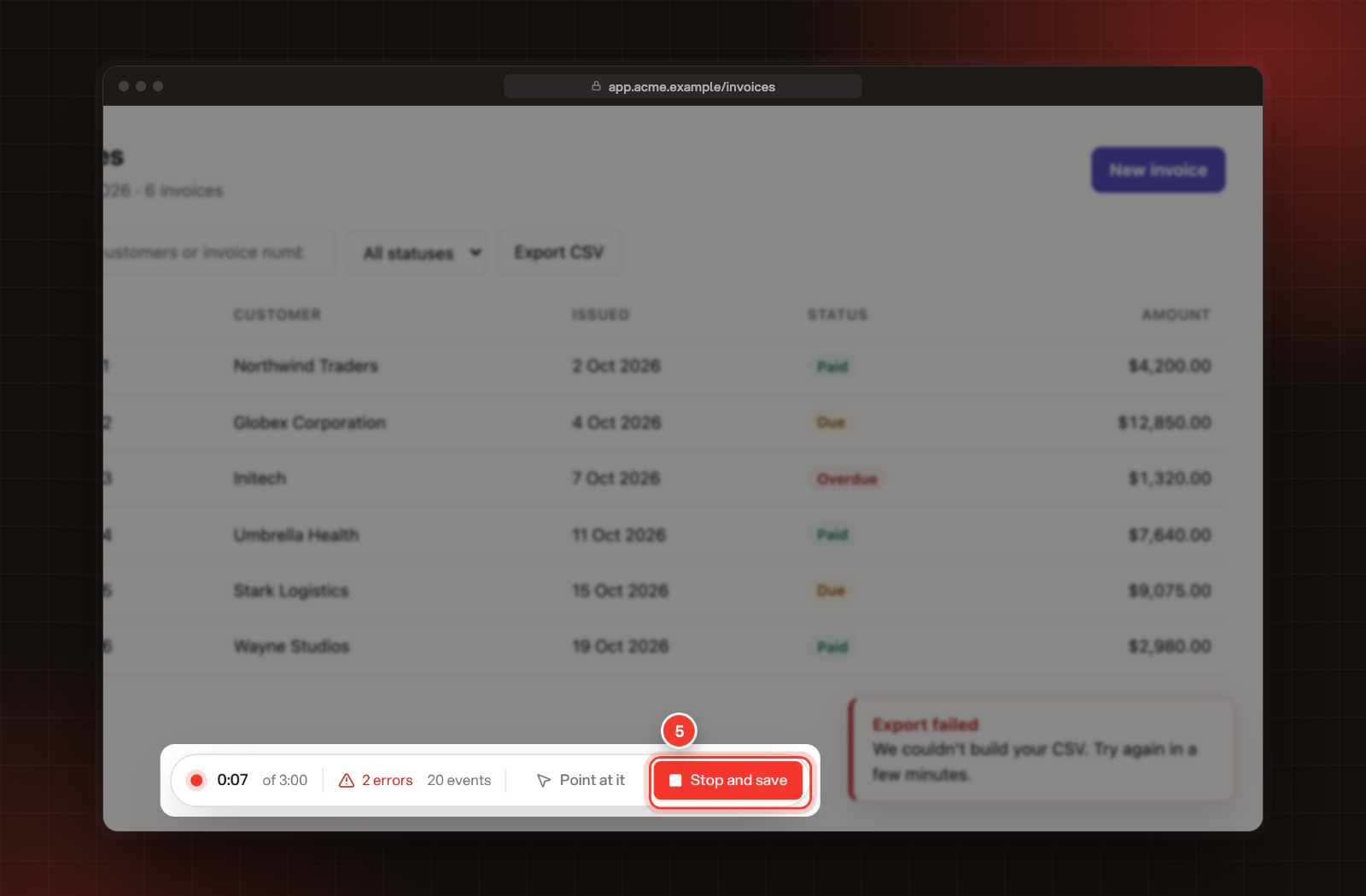
Do what you did when it went wrong. A bar at the bottom of the page shows the time, the events recorded and any errors so far.
5.
Select Stop and save in the bar.
5 Stop and save, in the recording bar.
6.
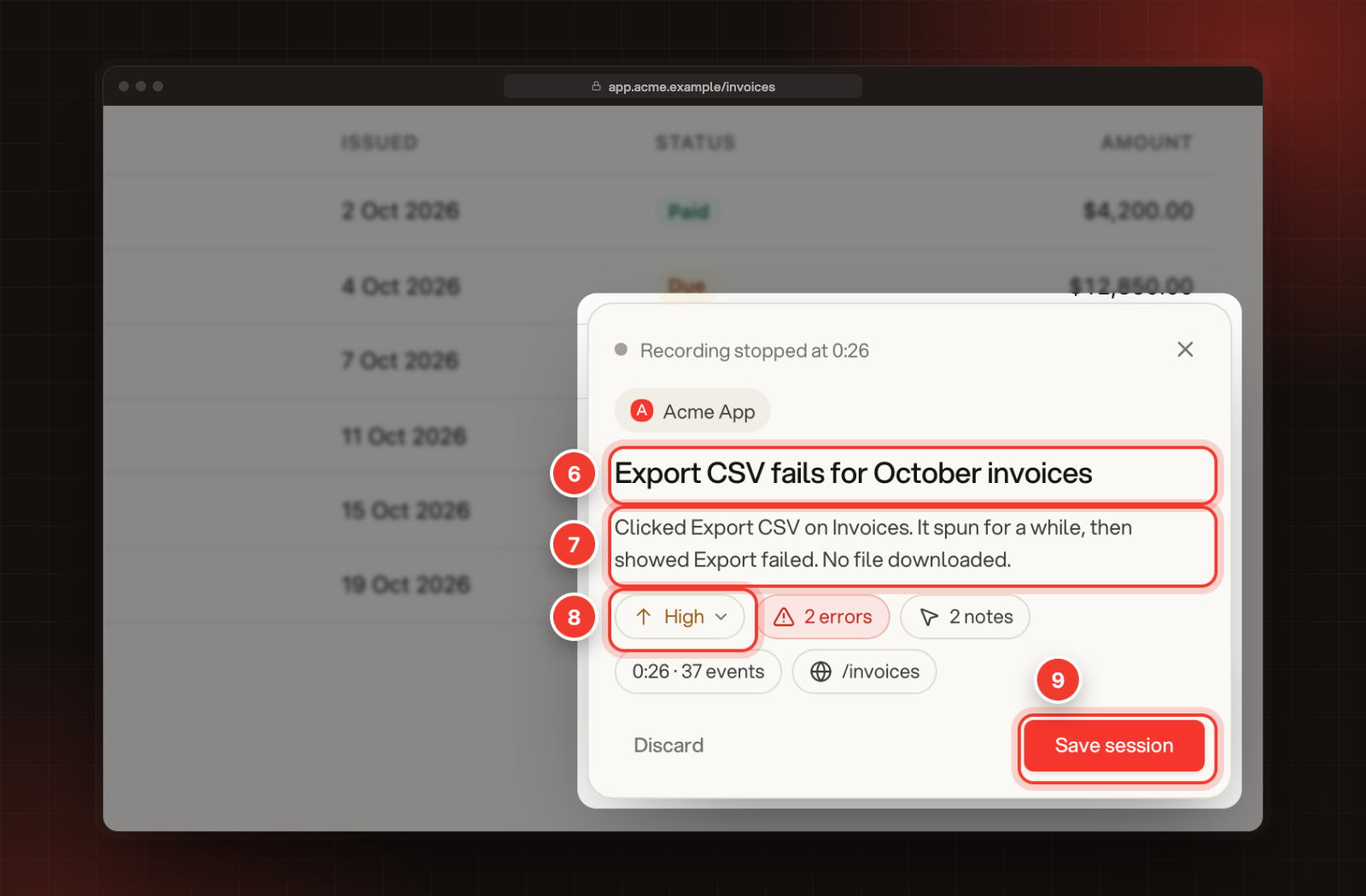
Under What went wrong?, give the session a title.
7.
Add what you did and what happened instead. This is optional.
8.
Pick a priority: Low, Medium, High or Critical. It starts at Medium.
9.
Select Save session, or press Ctrl+Enter (⌘ Enter on a Mac).
6 Title. 7 What happened. 8 Priority. 9 Save session.
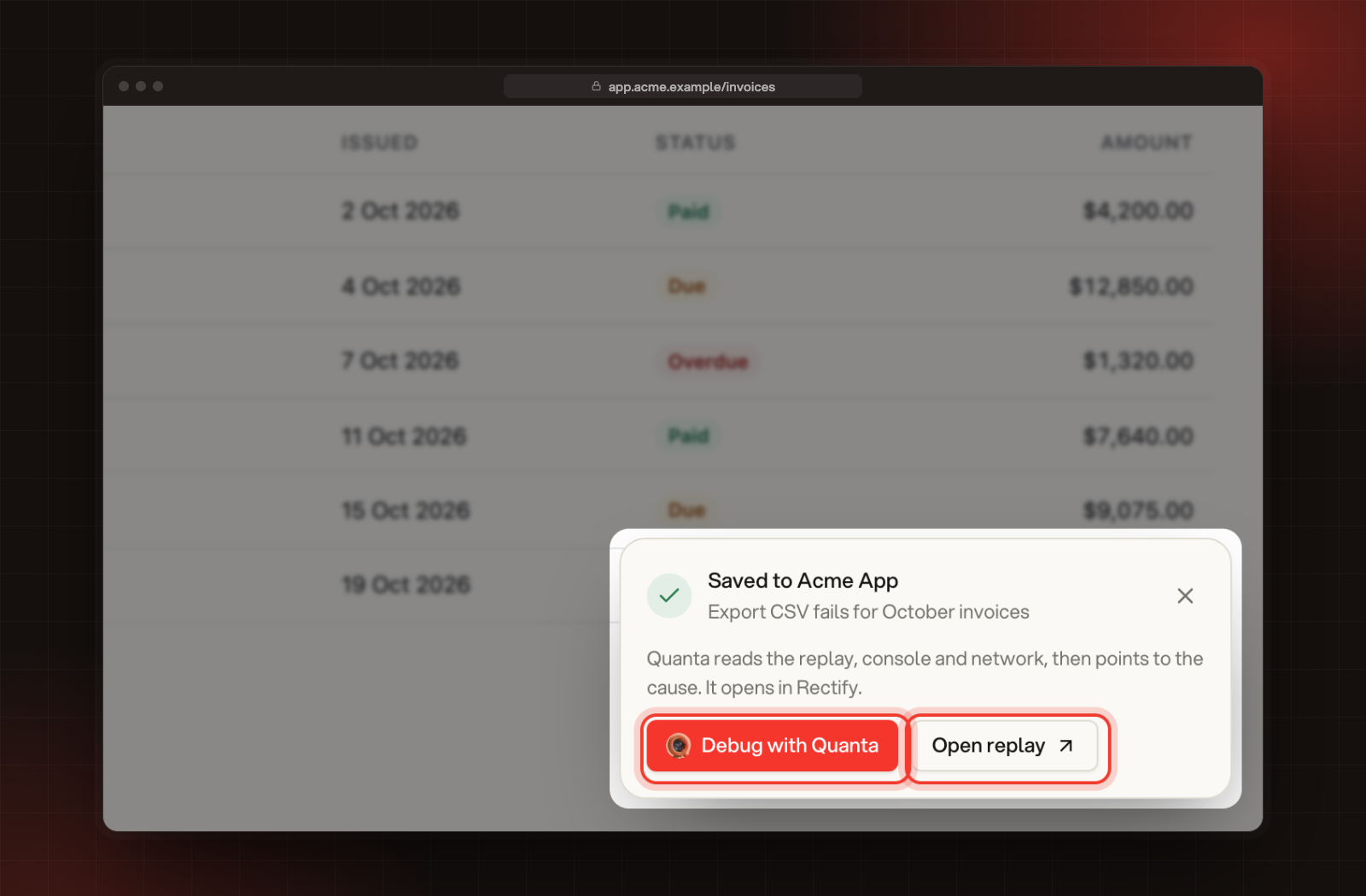
The card shows Saved to and your project name. Select Open replay to see the session in Rectify, or Debug with Quanta to open it with Quanta's tab ready.
Debug with Quanta and Open replay, after the session is saved.
You can also start and stop with Alt+Shift+R (Option+Shift+R on a Mac). To change that shortcut, open the popup, select the gear for Settings, then Change recording shortcuts in Chrome.
The tab's page, clicks and scrolls, as a replay. It keeps recording if you move to another page in the same tab.
•
Console messages and network requests, so you can see errors and failed calls.
•
The page address, how long you recorded and how many events there were.
Two settings in the popup's Settings, under Recording, change what's kept:
Setting
What it does
Starts
Hide what people type
Text typed into fields shows as dots in the replay.
On
Keep request and response bodies
Keeps the content of network requests and responses. Passwords, tokens and headers like Authorization are always removed.
Off
These settings belong to your browser, so each teammate sets their own.
Building in Bolt, Lovable, v0, Replit or Base44? When your app's preview is open in the builder, Rectify records the preview, not the editor around it.
Find your sessions in Rectify
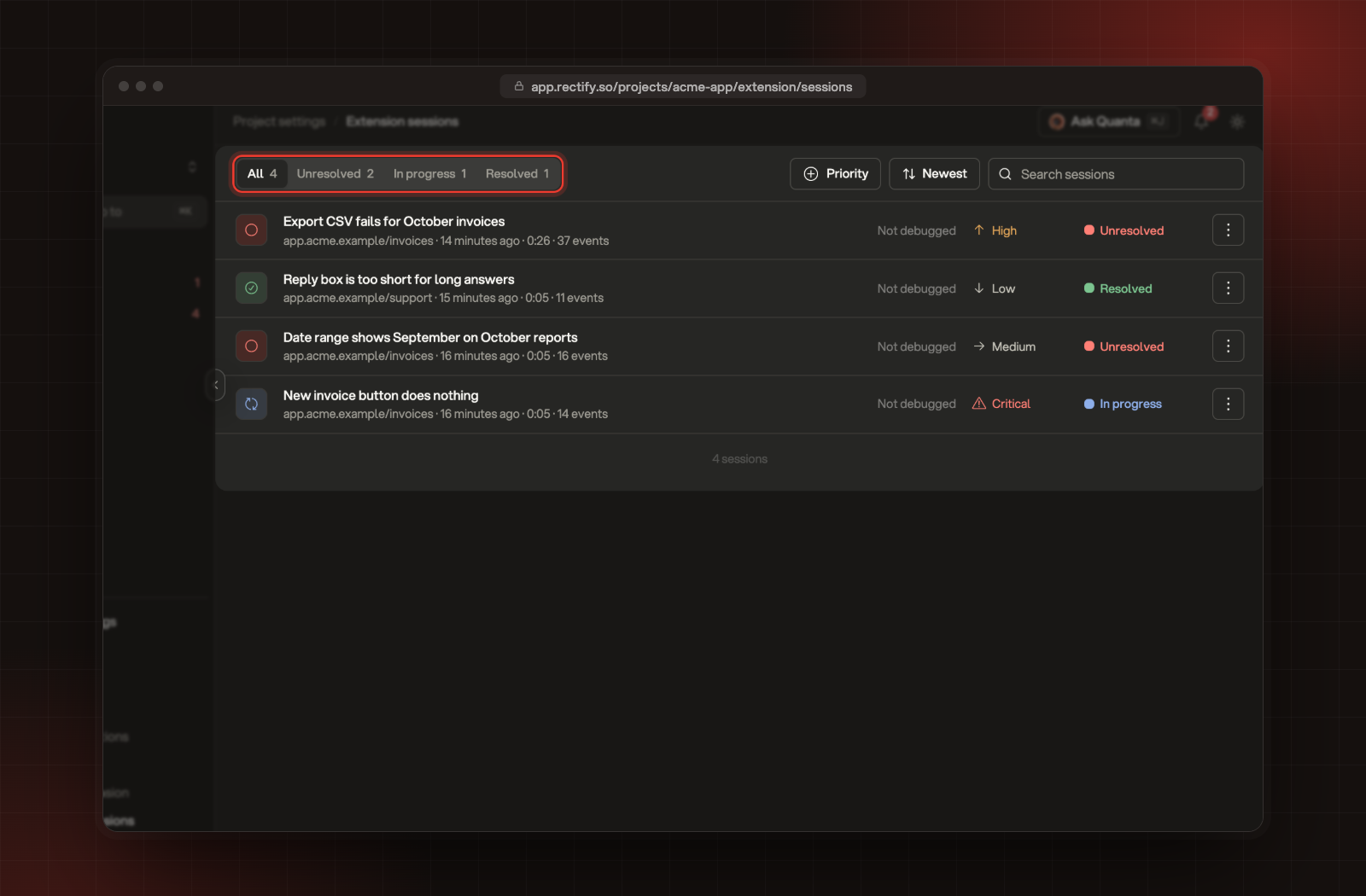
Open Project settings, then Extension sessions. Every session saved to the project is listed with its status and priority. Filter by Unresolved, In progress or Resolved, filter by priority, sort them, or search.
The status filters and the sessions saved to Acme App.
Open a session to watch the replay and read its Events, Console, Network, Quanta and Notes tabs. Change the Status and Priority at the top as you work on it.
The popup also lists the three latest sessions saved to the project for the site you're on, under On this site. Select See all to open Extension sessions.
On the session's Quanta tab, select Start debugging. Quanta reads the console logs, network requests and clicks from the session, then lists what went wrong and when. It uses your organization's AI: your own AI provider key, or the AI credits included with paid plans.
Sessions on each plan
Every saved session counts toward one monthly allowance for your whole organization, across all its projects. It resets on the 1st of each month.
Plan
Extension sessions a month
Idea
10
Build
100
Launch
1,000
Accelerate
5,000
Enterprise
Unlimited
The popup shows how many sessions are left this month, under Record this tab.
It says "No sessions left this month"
Your organization has used this month's extension sessions. Record this tab stays off until the 1st, or until you move to a plan with more. See Compare plans and what each one includes.
I can't record this page
Chrome doesn't let extensions record its own pages, such as new tabs, settings and the Chrome Web Store. Open a website in the tab and try again.
It says "Save or discard the last recording first"
You stopped a recording without saving it. Open the Rectify popup, then save it with Save session or select Discard and confirm with Discard recording.
The recording stopped on its own
Recordings stop at 3 minutes. A very busy page can also hit the size limit sooner: the card then says the recording stopped early. Save what you have, or record a shorter session.
I closed the save card, or the tab
Selecting the X hides the card as Recording ready to save at the bottom of the page. Select it to bring the card back. If you closed the tab, the recording stops and you can still save it from the Rectify popup.