Turn every new feedback report into a Trello card, an Asana task or a Monday.com item on the board or project you pick.
4 min readUpdated 24 days ago
Before you start. You need an account in the tool you're connecting, with access to the board or project you want to use. Owners, Admins and Members who can open the project can connect these tools. Integrations are on every plan, and each project connects its own accounts.
Each of these tools gets a new entry for every new feedback report. Entries only go one way: what you change in the tool doesn't come back to Rectify.
Tool
What each report becomes
Trello
A card at the top of the To do list on your board, with the report's title as its name and the description inside
Asana
A task in your project, with the report's title as its name and the description in its notes
Monday
An item on your board, named after the report's title
You can connect one, two or all three.
Connect the tool
1.
Open Project settings, then Integrations.
2.
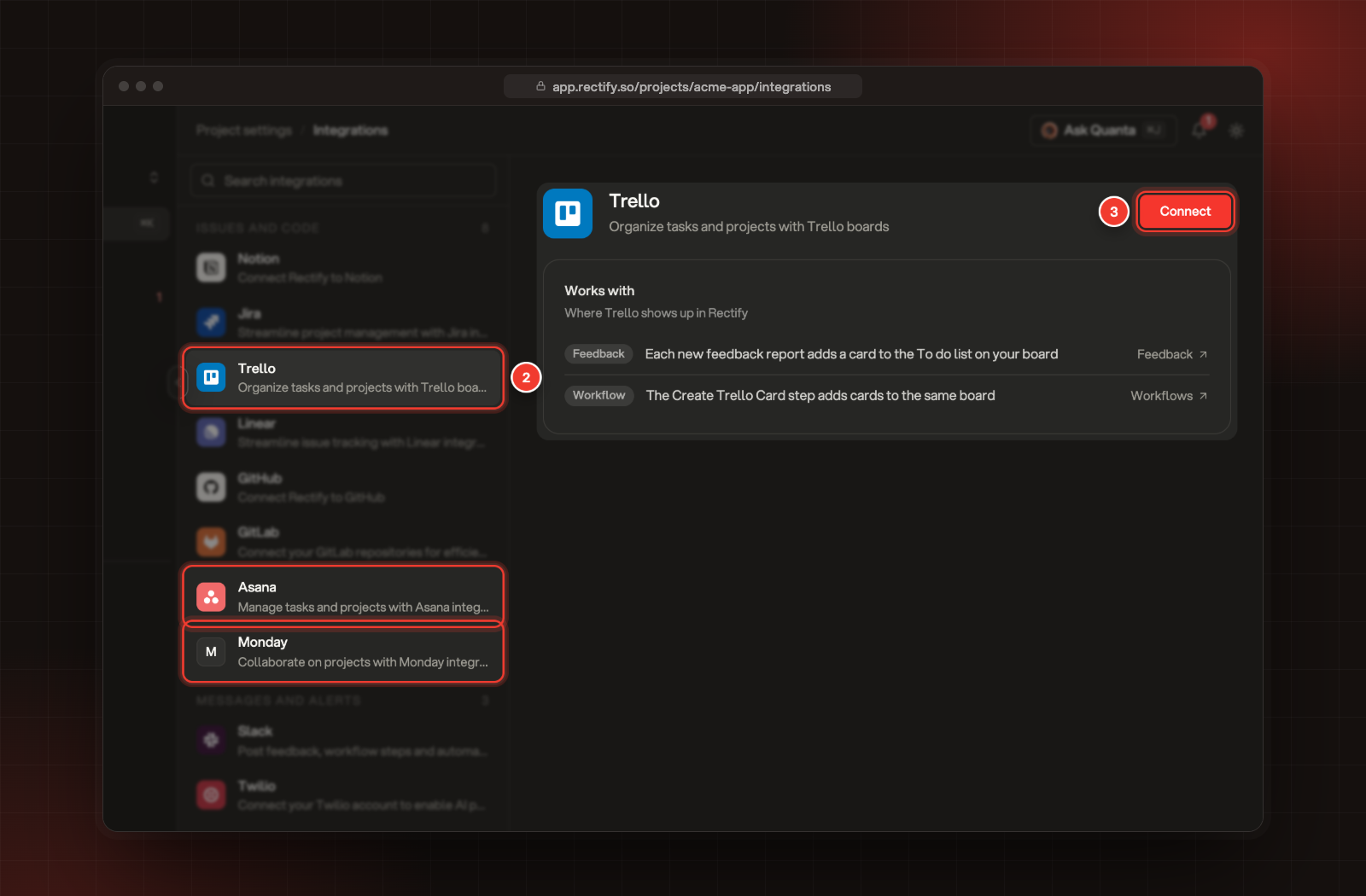
Select Trello, Asana or Monday under Issues and code.
3.
Select Connect.
2 Trello, Asana or Monday. 3 Connect.
4.
The tool opens. Sign in if it asks and allow Rectify access.
5.
You're sent back to Integrations, where the tool now shows Connected.
When you connect, Rectify picks your first board, or your first workspace and project, for you. Check it in the next step.
Choose where entries go
Trello:
1.
Under Trello board, pick a board.
2.
Select Save.
Rectify adds cards to the list named To do on that board. If the board has no list with exactly that name, Rectify creates one.
Asana:
1.
Under Asana project, pick a Workspace.
2.
Pick a Project in that workspace.
3.
Select Save.
Monday:
1.
Under Monday board, pick a Workspace.
2.
Pick a Board in that workspace.
3.
Select Save.
Use it in workflows
Workflows can add entries to the same board or project as part of their steps:
•
Create Trello Card adds a card to your Trello board.
•
Create Asana Task adds a task to your Asana project.
•
Create Monday Item adds an item to your Monday board.
The step only works while the tool is connected and switched on. Add it to a workflow from Project settings, Workflows.
Pause or disconnect
•
Pause: turn off the switch next to On at the top of the tool's settings. The tool shows Paused, and new reports and workflow steps stop sending to it. Reports that arrive while it's paused aren't sent later.
•
Disconnect: select Disconnect under Disconnect Trello, Disconnect Asana or Disconnect Monday. This removes the tool and its board or project choice from the project. Cards, tasks and items already created stay where they are. To take away Rectify's access on the tool's side too, remove Rectify from the connected apps in that tool's settings.
Check it worked
Send a test report from your widget, then open your board or project. The report appears as a new card, task or item. In Integrations, the tool reads Board selected or Project selected under its name.
A second To do list appeared on my Trello board
Rectify looks for a list named exactly To do, with a small "d". If your list is called "To Do" or something else, Rectify makes its own. Rename your list to To do and delete the extra one, and new cards go to yours.
My board or project isn't in the list
The lists show what the account you connected with can open. Ask for access in the tool, or select Disconnect and connect again with an account that has it.
A workflow step fails with "Trello integration not enabled for this project"
The tool isn't connected, or it's paused. Asana and Monday say the same with their own names. Open Integrations, connect the tool or turn its switch back on, and run the workflow again.