While you record, click the part of the page that's wrong and pin a note to it, so your team sees exactly where and when.
2 min readUpdated 24 days ago
Before you start. Pointing works while a recording is running. A session holds up to 49 pinned notes, and each note can be up to 2,000 characters. Notes are saved with the session when you select Save session.
A pinned note is tied to one thing on the page and to the moment in the recording when you pinned it. Your team sees both next to the replay.
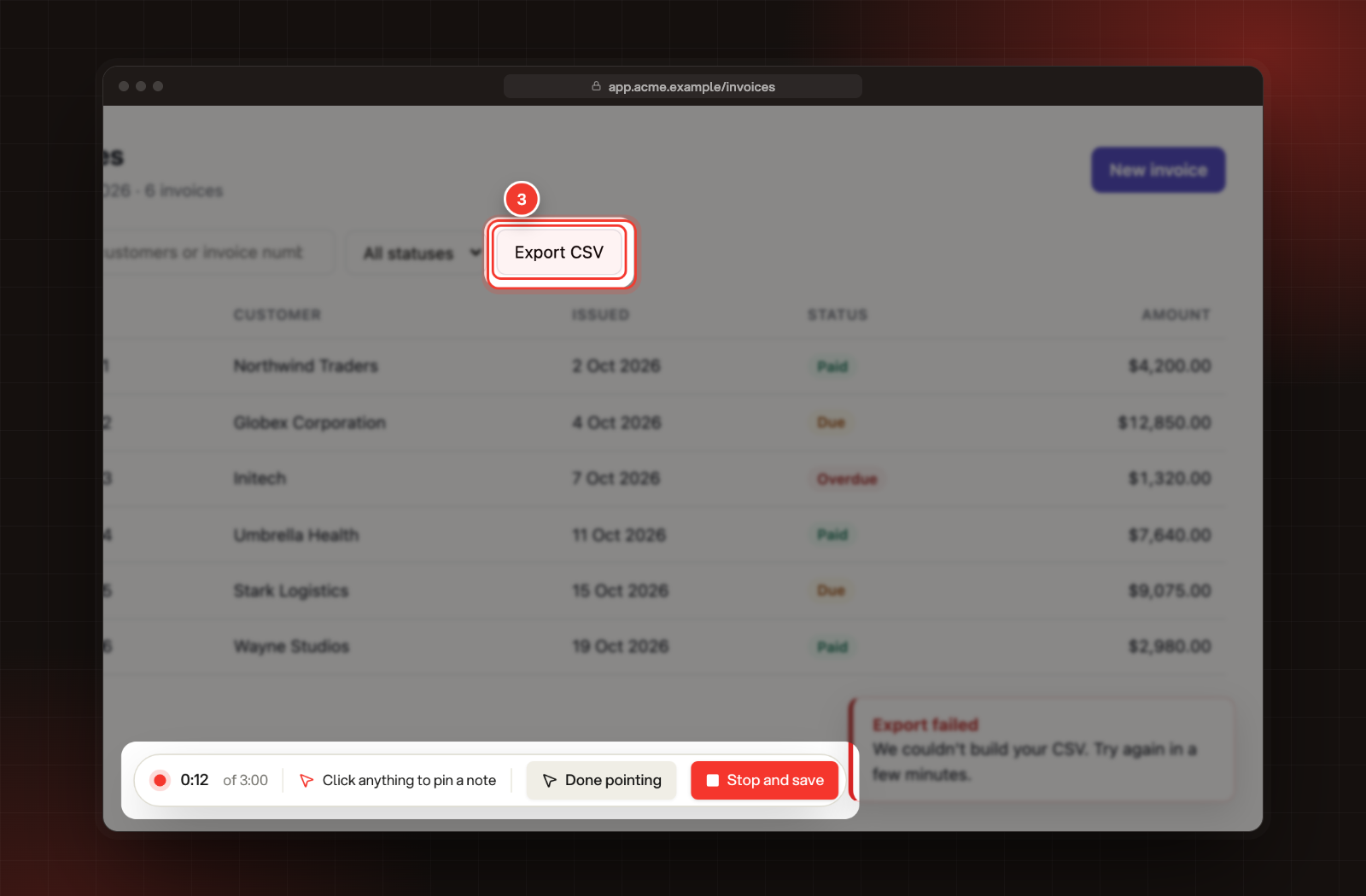
Select Point at it in the recording bar at the bottom of the page. The bar now says Click anything to pin a note.
3.
Move over the page. An outline shows what you're pointing at. Click the part that's wrong.
3 The outlined element, with the recording bar ready to pin.
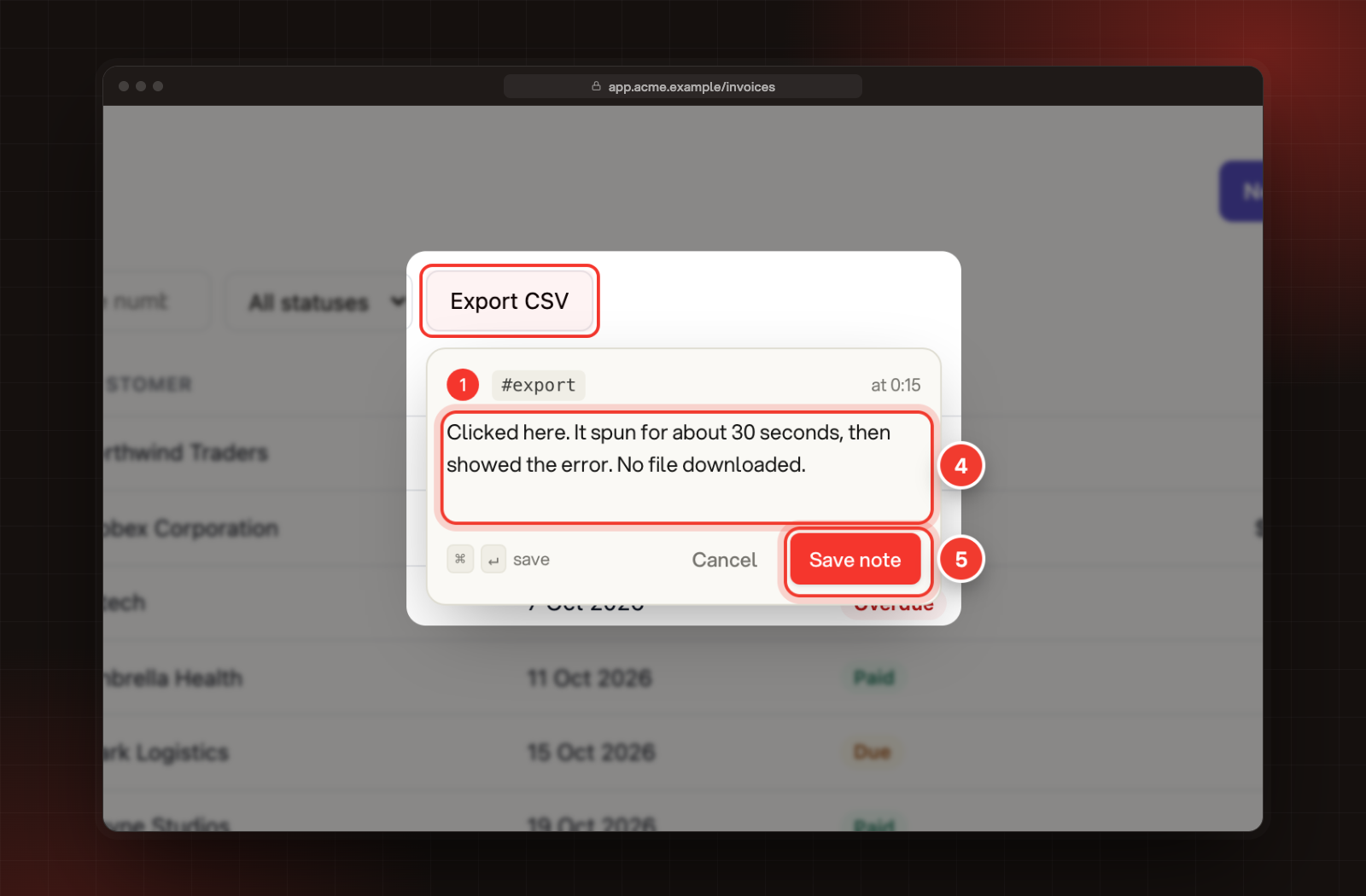
4.
Write what's wrong in the note card. It shows the note's number and when in the recording you pinned it.
5.
Select Save note, or press Ctrl+Enter (⌘ Enter on a Mac).
4 The note. 5 Save note.
6.
Pin more notes the same way. When you're done, select Done pointing or press Esc.
While you point, clicks on the page pin notes instead of pressing buttons, so you can point at a button without setting it off. Each pinned element shows its number while you're pointing.
You can also start pointing from the Rectify popup with Point at it, or with Alt+Shift+P (Option+Shift+P on a Mac). To cancel a note before you save it, select Cancel or press Esc.
Where your notes show up
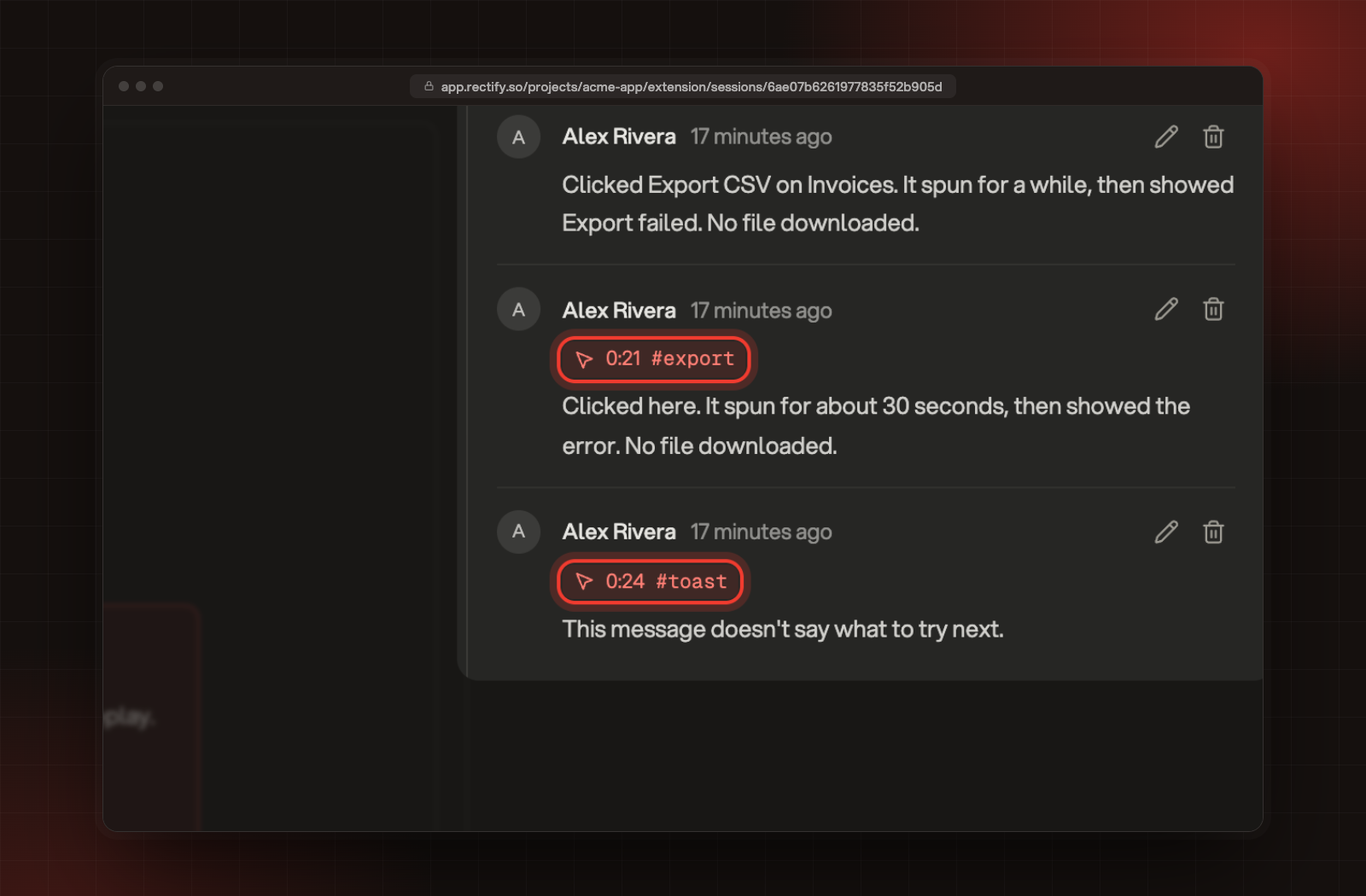
When you stop recording, the save card counts your notes, for example 2 notes. After you save, open the session in Project settings, Extension sessions and select the Notes tab. Each pinned note shows the time in the recording and the element you pointed at. Select the time to jump to that moment in the replay.
Pinned notes with their time and element on the Notes tab.
If you described what happened when you saved the session, that note is listed first. Anyone who can open the project can add more notes from the box at the bottom of the tab.
It says "Start recording first"
Pointing needs a recording. Start one with Record this tab in the popup or Alt+Shift+R, then point.
It says "A session holds up to 49 pinned notes"
You've pinned the most one session can hold. Save this session and record another for the rest.