Triage feedback: status, priority, owner and notes
Find feedback fast, set each report's status, priority and assignee, and keep notes your team can see.
6 min readUpdated 2 days ago
Before you start. Everyone who can open the project can change a report's status, type, priority, category and assignee, and add notes. Only Owners and Admins can move or delete feedback.
Open Inbox, then Feedback. The list is on the left and the report you select opens beside it, with its Details on the right. Press j and k to move down and up the list.
Find the reports you need
1.
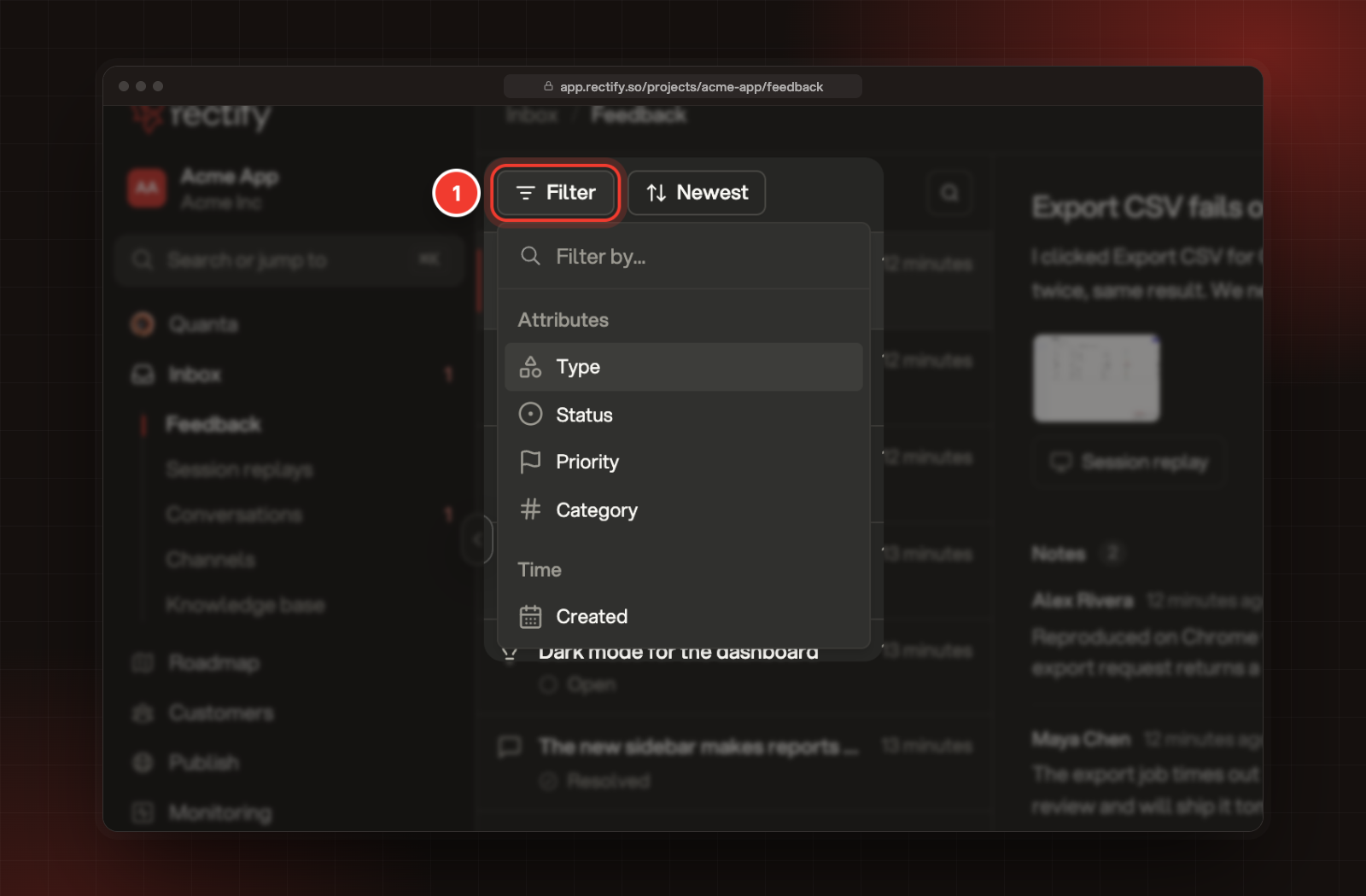
Select Filter above the list.
2.
Pick Type, Status, Priority, Category or Created, then the values you want.
1 Filter, with the attributes you can filter by.
The sort button next to Filter orders the list by Newest, Oldest, Recently updated or Title A to Z. The search button on the right looks through titles, descriptions, and reporters' names and emails. To clear every filter, select the × next to the sort button.
Set the status, type and priority
1.
Select a report in the list.
2.
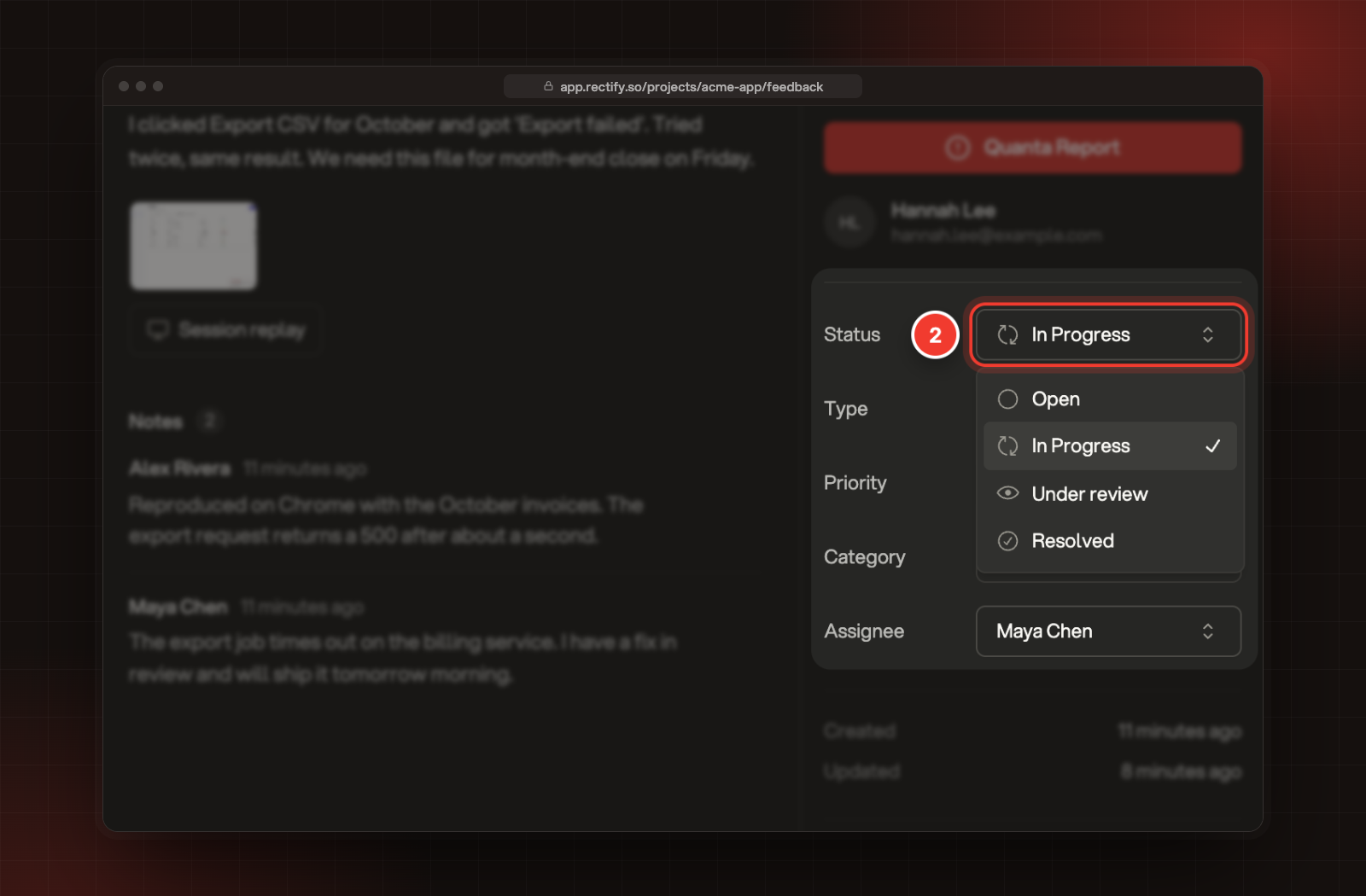
Under Details, open Status and pick one.
2 Status, with the four statuses.
3.
Set Type, Priority and Category the same way.
Each change saves straight away and shows Feedback updated.
Field
Choices
Status
Open, In Progress, Under review, Resolved
Type
Bug, Idea, General, Testimonial
Priority
Low, Medium, High, Critical, Neutral
Category
Improvement, Suggestion, Task (pick any)
New reports start as Open with Neutral priority, unless your form lets people choose a priority or category.
Choose who owns it
Under Details, open Assignee and pick a teammate. It saves straight away and shows Assignee updated. Your teammate gets an email and a push notification, unless they've switched off Feedback Assigned to You in their notification settings.
You can hand a report to someone else at any time. There's no option to leave it unassigned again.
Add a note for your team
1.
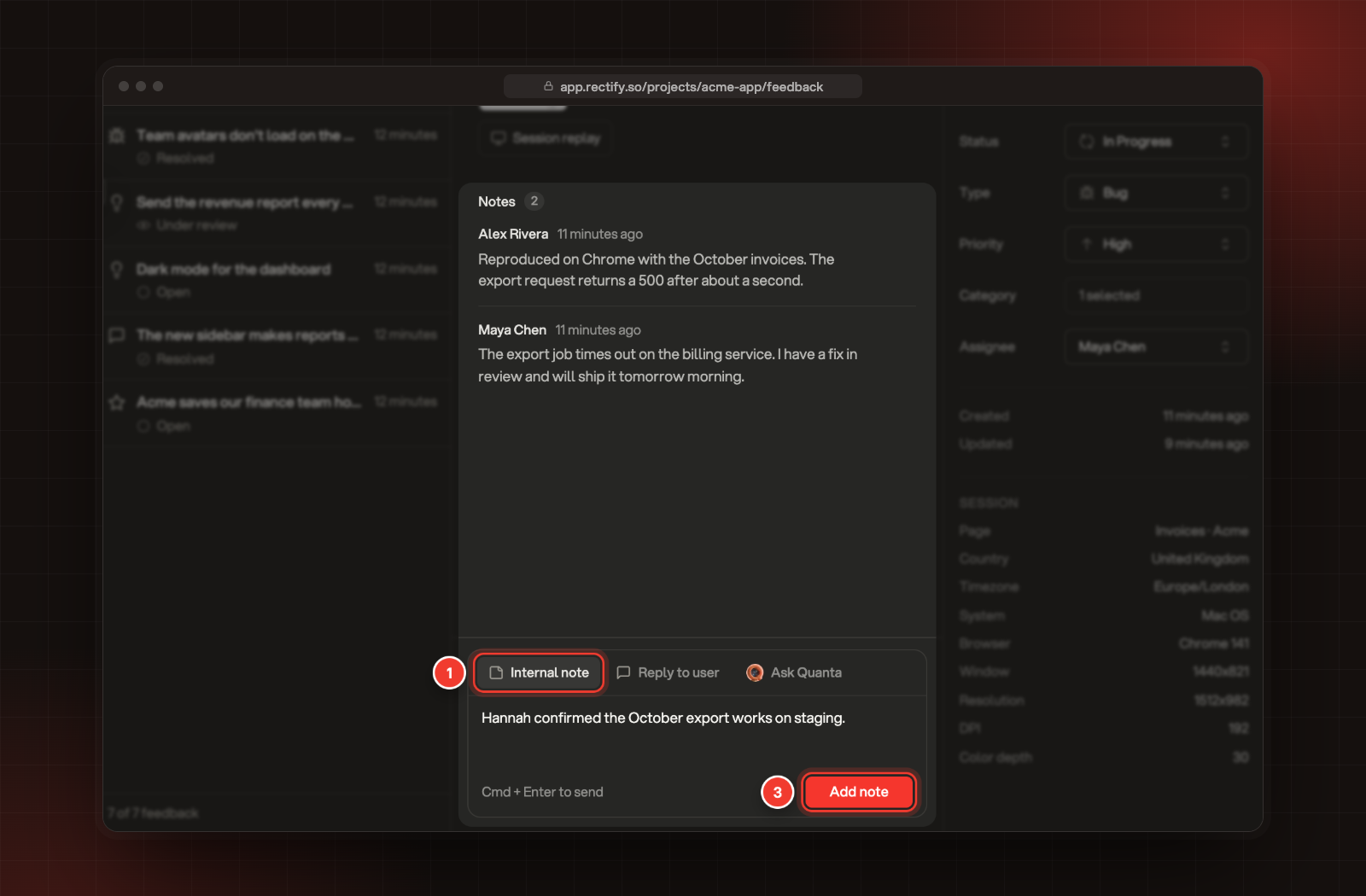
Below the report, select Internal note.
2.
Type your note, up to 1,000 characters.
3.
Select Add note, or press Cmd + Enter.
1 Internal note. 3 Add note.
Reporters never see notes. Each note shows who wrote it and when. Its menu has Edit, Mark resolved and Delete, and anyone on the team can use them.
Reply to the person who sent it
The Reply to user tab writes to the reporter. It's greyed out when the report has no email, unless it came from Discord.
•
If you haven't talked to them yet, Send invite emails them an invitation that opens a chat in the widget, on the page they reported from.
•
If you already have a conversation with them, Send reply adds your message to it. Start a new chat instead sends a fresh invitation.
Your message links back to the report, and the conversation appears in Inbox, Conversations. On the Idea plan, your team can send 10 Support Inbox replies a month.
Reply to a bug report from Discord
A report sent from your Discord server shows Discord next to Source under Details, and Discord member under the reporter's name. Reply to user answers them in Discord, through support chat in Discord. Next to Send reply, a line says where your reply goes:
•
"Opens a private thread with Noah Bennett in Discord." when private threads are allowed.
•
"Sends Noah Bennett a direct message in Discord." when only direct messages are allowed.
•
"Sends to the open Discord chat with Noah Bennett." when they already have a chat open. Select open Discord chat to go to it.
After you send, you see "Reply sent to Noah Bennett in Discord". In a new chat, your message follows a line saying your team replied about their report. The chat is in Inbox, Conversations, where you can carry on.
If you can't reply in Discord, the line says why and Send reply stays greyed out:
•
"Turn on Support in Discord in Inbox › Channels to reply there." Switch it on in Inbox, Channels.
•
"Rectify is paused in this server." Discord is paused for this project in Integrations.
•
"Noah Bennett is in an open direct message chat with another team." They're talking to another team that uses Rectify by direct message. Allow private threads to reply in a thread instead.
If the line says "Couldn't check where this reply goes in Discord.", select Try again.
Edit, move or delete a report
Open the menu at the top of Details:
•
Edit: change the title, description, properties and categories, then select Save changes.
•
Move: send the report to another project in your organization. Owners and Admins only.
•
Delete: remove the report with its screenshots and replay. Owners and Admins only. You confirm first, and it can't be undone.
To connect a report to a roadmap post, open the post and select Link under Linked, then search for the feedback.
Check it worked
The status under each title in the list changes as soon as you pick a new one. To see what's left to do, select Filter, Status and pick Open.
Move and Delete are greyed out
You're a Member. Ask an Owner or Admin to move or delete the report.
Reply to user is greyed out
The report has no email address, so there's no one to write to. Reports from Discord don't need one.
It says "Your team started 30 Discord DMs in the last hour."
Your team can start 30 direct message chats in Discord an hour from Reply to user. Try again later, or allow private threads under Inbox, Channels, Discord.
It says the person "turned off direct messages"
They don't accept direct messages from your server, so Discord can't deliver the reply. Allow private threads under Inbox, Channels, Discord to reply in a thread instead.
It says the person "is no longer in your Discord server"
They left your server, so Rectify can't open a chat with them there. The reply isn't sent and no chat is created.
It says "Rectify cannot open a private thread in your support channel."
The Rectify role lost a permission in your support channel, or the channel was deleted. Open Inbox, Channels, Discord. Pick another channel under Support channel, or allow what the lines under it list in Discord and select Check again.
It says "Replying to reporters needs a higher plan."
Your team has used this month's Support Inbox replies on the Idea plan. Compare plans shows the limits on each plan.
It says "Cannot invite: this report has no page URL to open the chat on."
An invitation opens the chat on the page the report came from, and this report doesn't have one. If you already have a conversation with them, reply there instead.