See who got your campaign, who opened and clicked it, what bounced, and how all your campaigns are doing over time.
4 min readUpdated 24 days ago
Before you start. Everyone on your team can read campaign results. A report fills in once the campaign starts sending. Only Owners and Admins can pause or stop a campaign from its report.
Open a campaign's report
1.
In your project, open Customers, then Messaging.
2.
On the Campaigns tab, select a campaign that has been sent, or is sending.
Drafts and scheduled campaigns open in the editor instead. A report for a campaign that hasn't started says "Not sent yet".
The top of the report shows when it was sent, how many people it went to, who it's from and its subject. View email shows the email as people got it, and Duplicate starts a new draft from it.
What the numbers mean
Number
What it counts
Delivered
Emails that reached an inbox, out of those sent.
Opened
People who opened it at least once. Opens by machines, such as privacy features that load every email, are left out.
Clicked
People who clicked a link at least once. Clicks by link scanners are left out.
Clicks
Every click on every link.
Bounced
Emails that couldn't be delivered. These addresses are left out of every later send.
Unsubscribed
People who unsubscribed from this email, as a share of those it reached.
Spam complaints
People who marked it as spam. Keep it under 0.1%. Gmail doesn't report these.
Clicks on a phone
The share of clicks that came from a phone.
A dash means opens or clicks weren't tracked for this campaign. You switch tracking on or off under Tracking and delivery in the email's Email settings.
Below the numbers
Section
What it shows
Opens and clicks, first 24 hours
Opens and clicks hour by hour after sending.
From send to click
How many were sent, delivered, opened and clicked.
Clicks by link
Clicks on each link, and how many people clicked it.
What Quanta sees
Select Read the results for a short summary from Quanta, or Ask Quanta to talk it through.
Subject line test
Each subject's open or click rate, and which one won.
By group
Open and click rates for each segment you sent to, when you picked more than one.
Not sent to
People in the audience who didn't get it, and why. For example, they unsubscribed or already got three emails that day.
When a campaign has finished and some people didn't open it, What Quanta sees offers Resend to the number who did not open. It makes a new draft for just those people, so you can change the subject before sending it.
See each person
Under Recipients, every person is listed with their status, opens, clicks and last activity.
•
Filter by All, Opened, Not opened, Clicked, Bounced, Unsubscribed or Skipped.
•
Search by name or email.
•
Select someone to see their timeline, from sent to clicked, and the other campaigns they got. Open contact takes you to their profile.
•
Export CSV downloads the list with each person's status, opens, clicks, times, device and the reason they were skipped.
Person by person results are kept as long as your plan keeps analytics history: 30 days on Idea, 90 on Build, 180 on Launch, a year on Accelerate and two years on Enterprise. After that, the report keeps its totals.
See all campaigns together
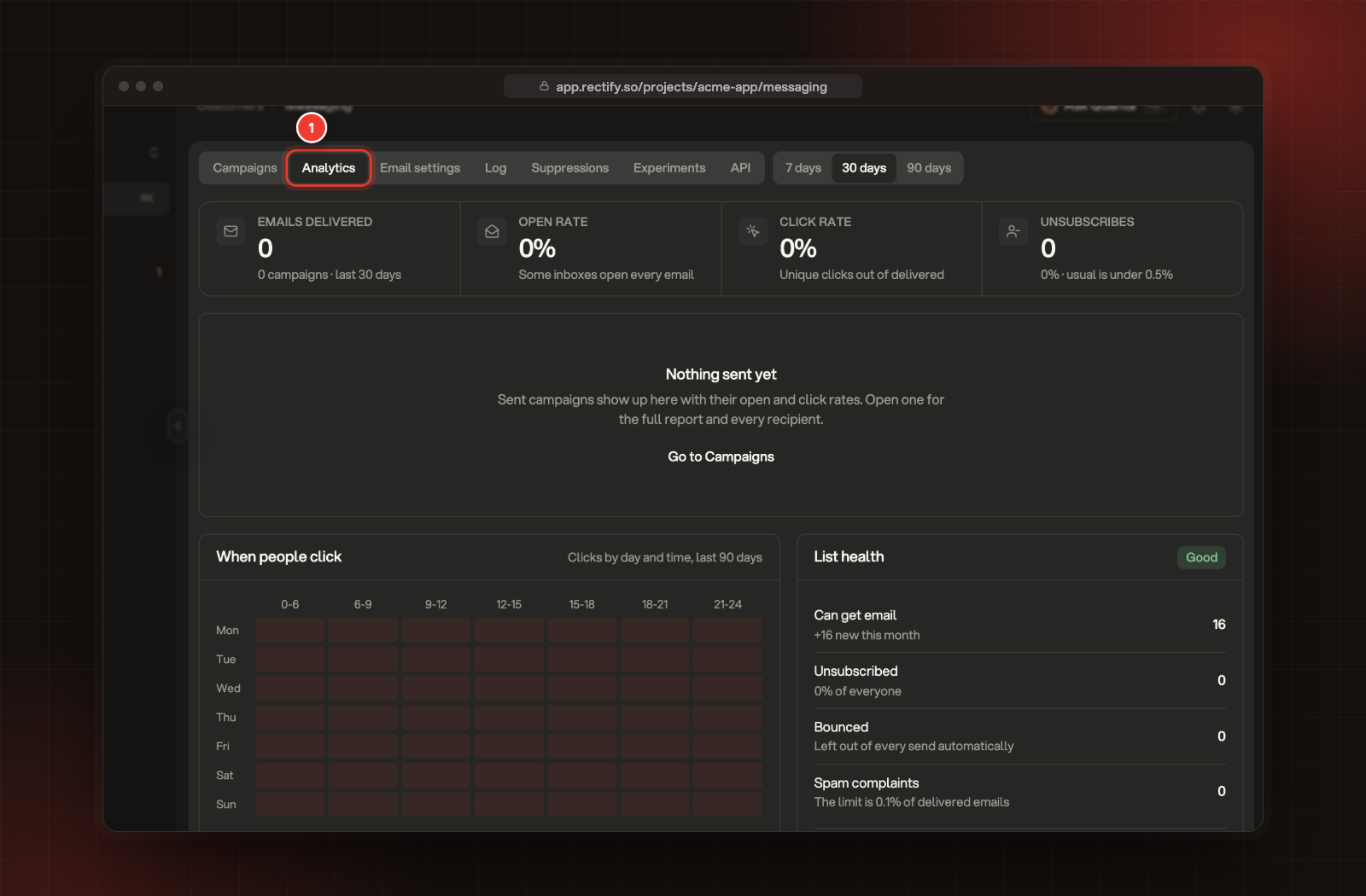
Open the Analytics tab in Messaging and pick 7 days, 30 days or 90 days.
1 The Analytics tab, with the totals, sent campaigns, click times and list health.
Part
What it shows
Emails delivered, Open rate, Click rate, Unsubscribes
Totals for the campaigns sent in that period.
Sent campaigns
Each campaign's recipients, open rate, click rate and unsubscribes. Select one to open its report.
When people click
Clicks by day and time over the last 90 days. Rectify suggests the busiest time when you schedule.
List health
How many contacts Can get email, and how many unsubscribed, bounced, complained or were removed by your team.
Troubleshooting
Opened and Clicked show a dash
Opens or clicks weren't tracked for this campaign. Switch on Track opens and Track clicks in the email's Email settings before you send the next one.
Bounced and Spam complaints stay at 0
Rectify may not be able to hear back from your Resend account. Open Messaging, Email settings. If it says "Bounces and spam complaints are not tracked", reconnect Resend with a Full access key. Send from your own domain shows how.
The report says "Person by person results were cleared"
The campaign is older than your plan keeps analytics history. The totals stay.