Decide what counts as down for a monitor, from status codes and slow responses to missing text, expiring certificates and your own assertions.
6 min readUpdated 24 days ago
Before you start. Anyone on your team who can open the project can change a monitor. SSL certificate and domain expiry checks need the Build plan or higher. Assertions work on HTTP monitors.
Choose what counts as down
1.
Open Monitoring, then Monitors, and select the monitor.
2.
Open the menu (the three dots) on the monitor's card and select Edit. You can also set all of this when you create a monitor.
3.
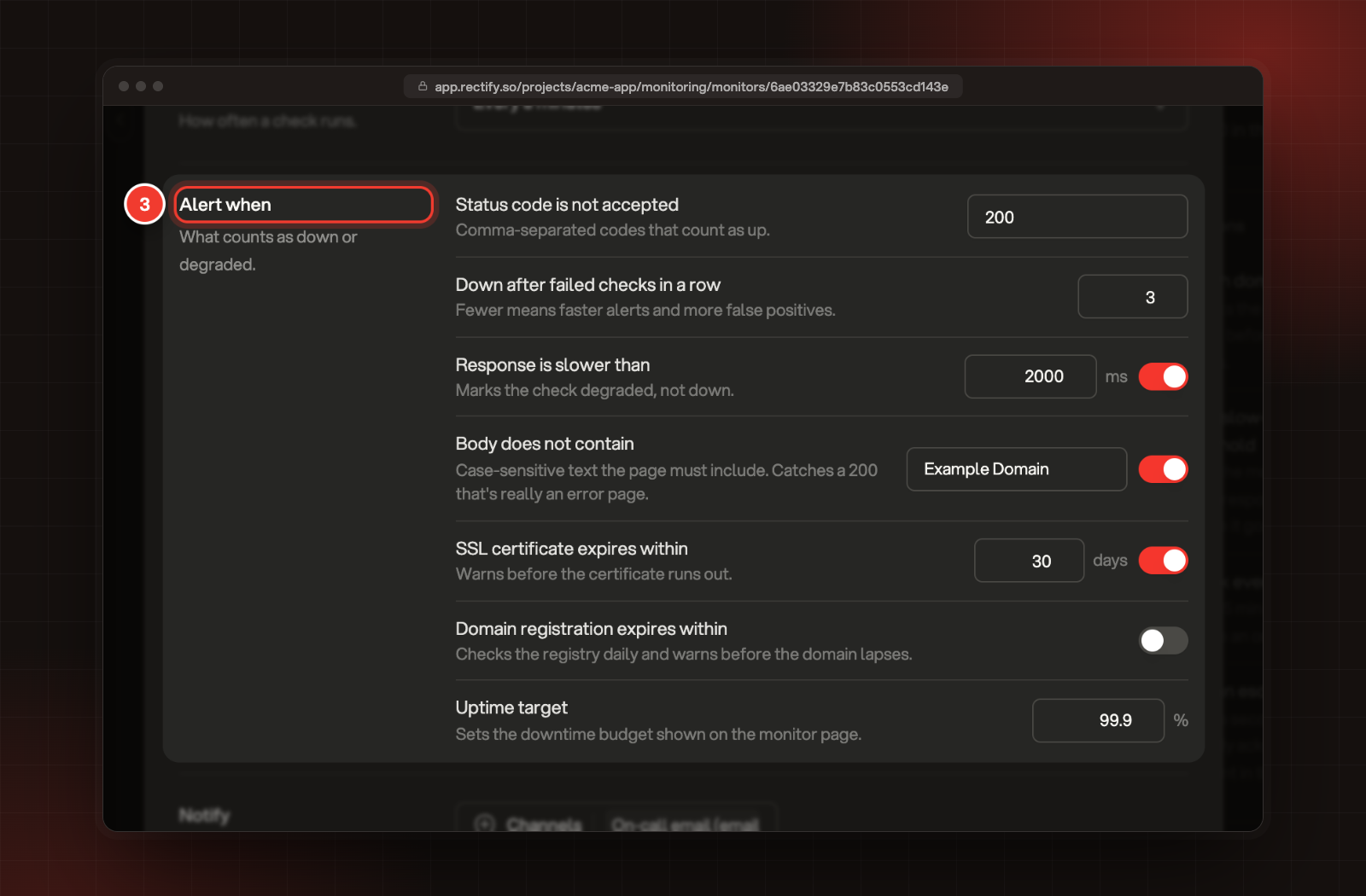
Under Alert when, set the rules you want. Rules with a switch only apply when the switch is on.
3 The Alert when rules in the monitor's settings.
4.
Select Save changes. The new rules apply from the next check.
Rule
What it does
Status code is not accepted
HTTP only. The status codes that count as up, separated by commas, such as 200, 204. Any other code fails the check. It's 200 to start with.
Down after failed checks in a row
How many checks must fail in a row before the monitor is down, from 1 to 10. It's 3 to start with. Fewer means faster alerts and more false alarms.
Response is slower than
A time in milliseconds (100 or more). Checks that take longer count as a problem.
Body does not contain
HTTP only. Text the page must include. The check fails when it's missing, which catches an error page that still answers 200.
SSL certificate expires within
HTTPS addresses only. Rectify reads the certificate every day and warns your channels as the expiry date gets close.
Domain registration expires within
Every type except Heartbeat. Rectify checks the domain's registration every day and warns when it's within the days you set (1 to 365), then again 7, 3 and 1 day before it lapses.
Uptime target
A percentage from 90 to 100, 99.9 to start with. It sets the downtime allowance shown on the monitor page.
One failed check doesn't alert anyone. The monitor shows Degraded once about half the failed checks you set have happened in a row (2 of 3, for example), and Down when it reaches the full number. Down opens an incident and alerts your channels.
Add assertions to an HTTP monitor
Assertions test the response in more detail. Every assertion must pass, or the check fails.
1.
Open the monitor's menu and select Edit. Under Request, select Show request options.
2.
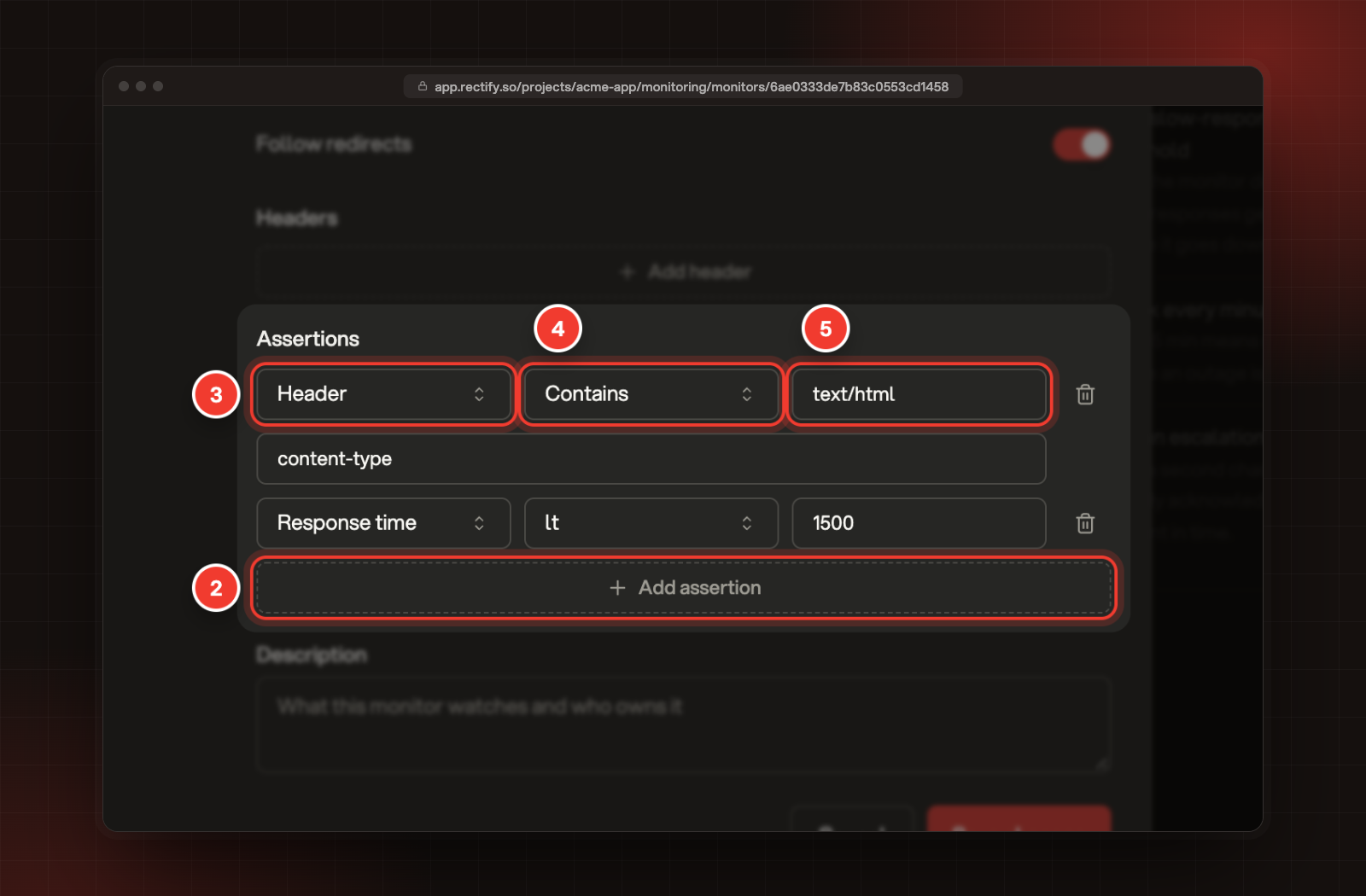
Under Assertions, select Add assertion.
3.
Choose what to test: Body, Header or Response time.
4.
Choose how to compare it (see the table below).
5.
Enter the value to compare against. For a Header, enter the header name in the field below. For JSON path, enter the path there.
2 Add assertion. 3 What to test. 4 How to compare. 5 The value.
6.
Select Save changes.
Comparison
Passes when
Contains
The value appears anywhere in the body or header
Does not contain
The value doesn't appear
Equals
The whole body or header is exactly the value
Does not equal
The body or header is anything other than the value
Matches regex
The body or header matches a regular expression
JSON path
The value at a path in a JSON body equals the value you enter
For Response time, pick lt (less than), lte (less than or equal to), gt (greater than), gte (greater than or equal to) or eq (equal to), then enter a time in milliseconds.
A few things to know:
•
A monitor can have up to 10 assertions, counting the Body does not contain rule.
•
Text comparisons ignore upper and lower case.
•
Type header names in lowercase, such as content-type.
•
Write JSON paths with dots and square brackets, starting from the top of the body, such as data.status or items[0].id. Leave out a leading $..
•
Regular expressions can't use lookarounds or backreferences.
Use the suggestions on the monitor page
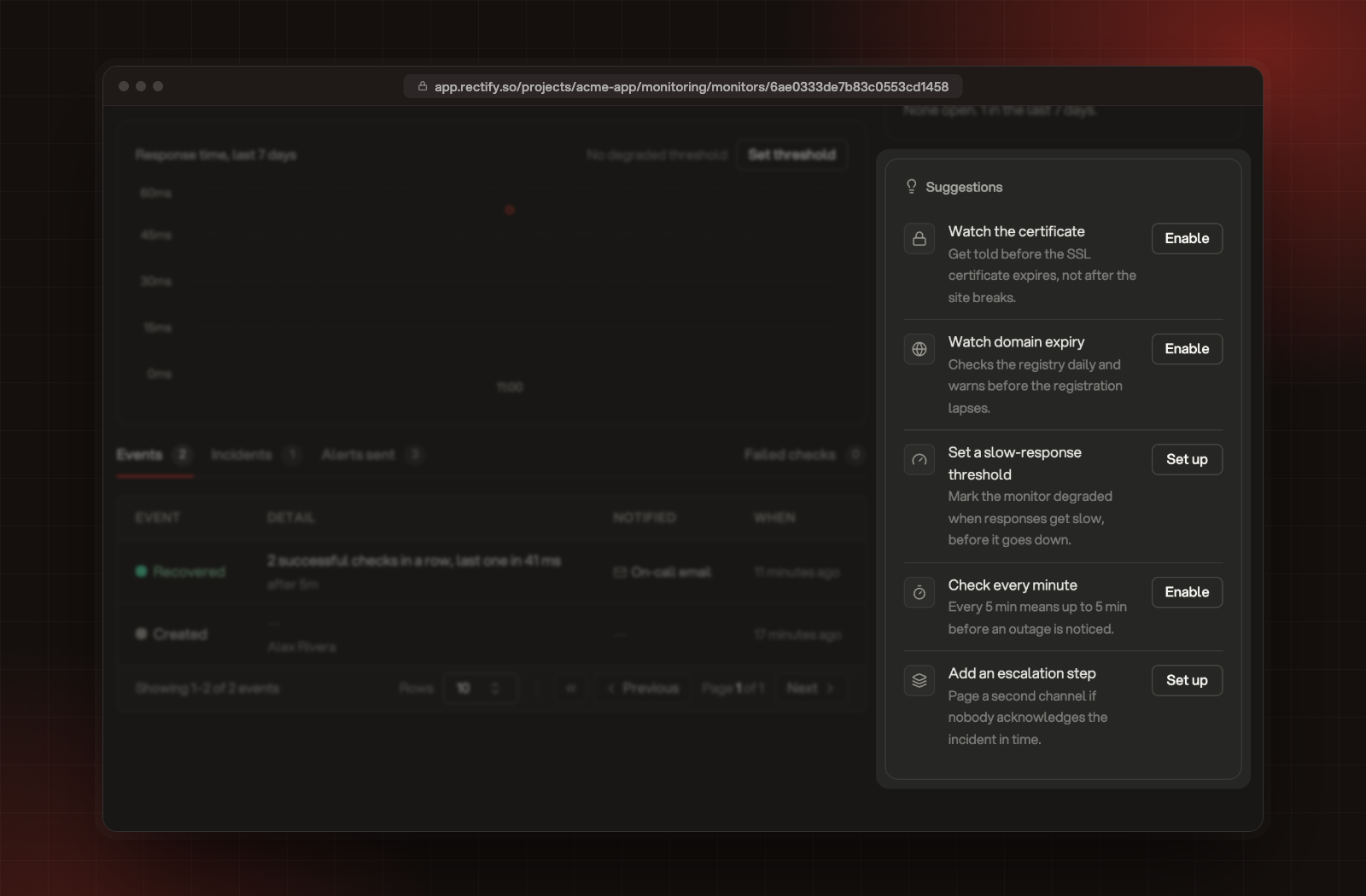
The monitor page lists Suggestions on the right. Each one is a quick fix for that monitor. Enable turns it on straight away, Set up opens the monitor's settings at the right place, and Upgrade shows the plans that include it.
Suggestion
Shows when
What it does
Watch the certificate
An HTTPS monitor has no SSL check
Turns on SSL certificate expiry warnings
Watch domain expiry
A monitor on a domain name has no domain check
Turns on domain registration warnings
Set a slow-response threshold
Response is slower than is off
Opens Alert when
Check every minute
The monitor checks less often than every minute
Switches to every minute, on Launch and higher
Add an escalation step
The monitor has alert channels but no escalation
Opens Notify
The Suggestions on a monitor's page.
When a monitor keeps flipping
If a monitor goes down and comes back up 4 times within 30 minutes, Rectify marks it Flapping. While it flaps, the down and recovered alerts are held back, so your team isn't flooded. Channels that have the Flapping event get one alert instead. The label clears once the monitor stays steady for 30 minutes.
Check it worked
The monitor's card lists its rules, such as "Down after 3 failed checks" and "Degraded over 2,000 ms". When a check fails, open the Failed checks tab on the monitor page: the Detail column shows why, for example which assertion failed.
It says "This pattern is invalid or uses lookarounds or backreferences, which monitor checks do not support."
Rewrite the regular expression without lookarounds (such as (?= or (?!) and backreferences (such as \1). A simpler pattern, or a Contains assertion, usually does the job.
My header assertion always fails
Check the header name is in lowercase, such as content-type rather than Content-Type, and that the header is really in the response. The Failed checks tab shows the reason for each failure.
My JSON path assertion always fails
Write the path without a leading $., for example data.status. The body must be valid JSON, and the value at the path must equal what you entered.
I can't turn on the SSL or domain checks
They need the Build plan or higher. The switch shows the plan it needs. Select the plan label to see your options.