Decide whether Quanta, your team, or Quanta and then your team answer chats in the widget, and see how a chat moves to your team.
4 min readUpdated 2 days ago
Before you start. Owners, Admins and Members can change widget settings. Quanta answers with your organization's AI provider, or with the Rectify credits included with paid plans.
Pick who answers
1.
Open Publish, then Widget.
2.
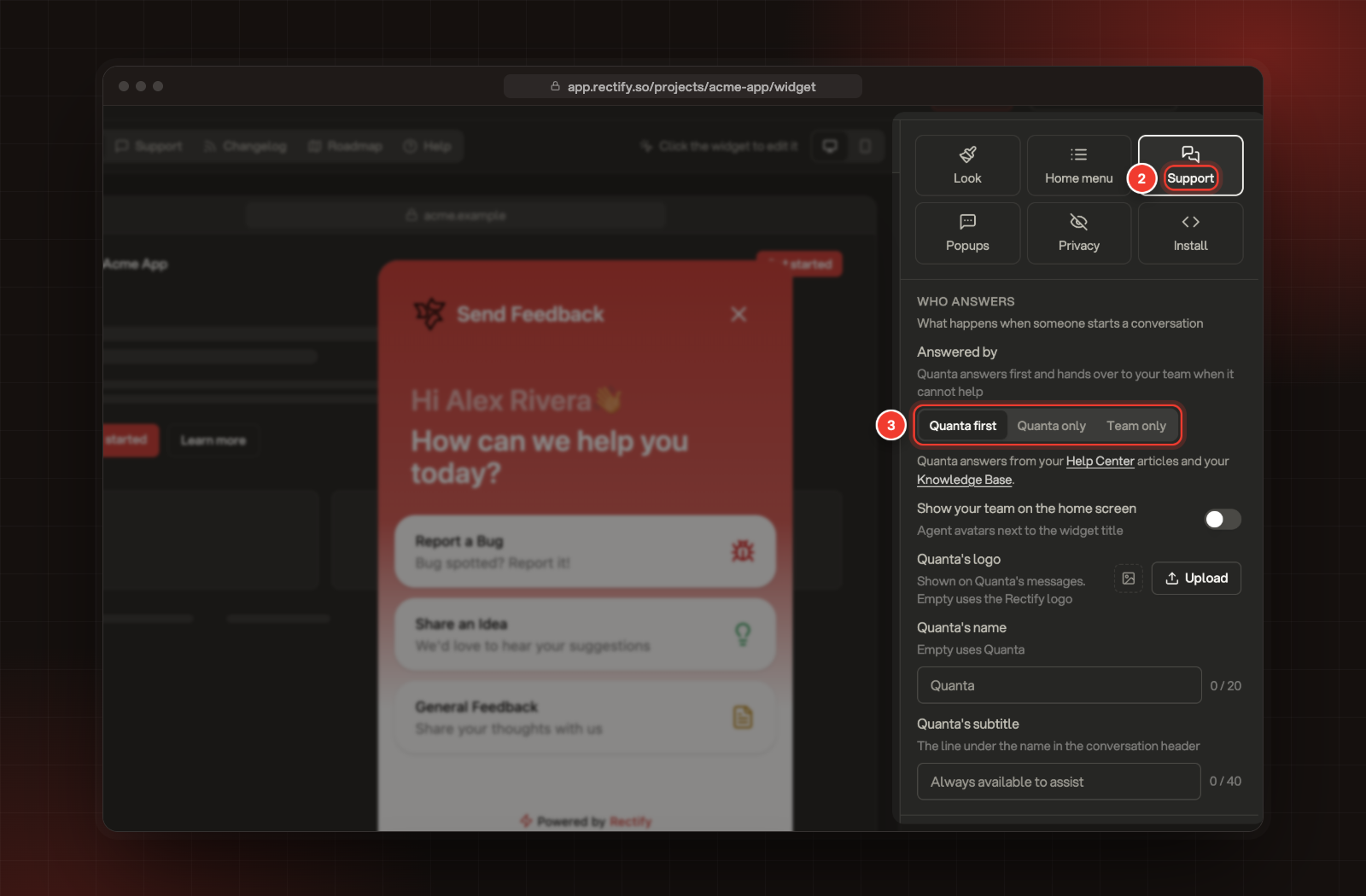
Select Support.
3.
Under Answered by, pick Quanta first, Quanta only or Team only.
4.
Select Save.
2 Support. 3 Answered by.
Option
What happens
Quanta first
Quanta answers every new chat, and hands over to your team when it can't help. This is the default.
Quanta only
Quanta answers everything. Customers can't reach your team from the chat.
Team only
Every chat goes straight to your team in Conversations. Quanta doesn't answer.
Quanta answers from your published Help Center articles and your Knowledge base. Internal and sign-in-only articles are never used. The more you publish, the more Quanta can answer on its own.
A change also reaches chats that are already open, at the customer's next message. After a switch to Team only, the chat moves to your team. After a switch to Quanta only, a chat with your team goes back to Quanta.
Chats from your Discord server follow the same choice and the same hours. Set up support chat in Discord explains how they work there.
How a chat reaches your team
With Quanta first:
1.
Quanta looks for the answer in your articles. When it finds none, or the customer asks for a person, its reply ends with a Talk to our support team button.
2.
The customer selects the button. They see "Your request for human support has been received. A support agent will join the conversation shortly."
3.
The chat moves into Conversations with nobody assigned and the priority set to Medium. Your team gets a Human Support Requested alert.
4.
Someone on your team selects Join and replies. From then on, Quanta stays out of that chat.
You don't have to wait for the customer to ask. Chats that Quanta is still answering are in the conversation list too, with Quanta's face next to them.
1.
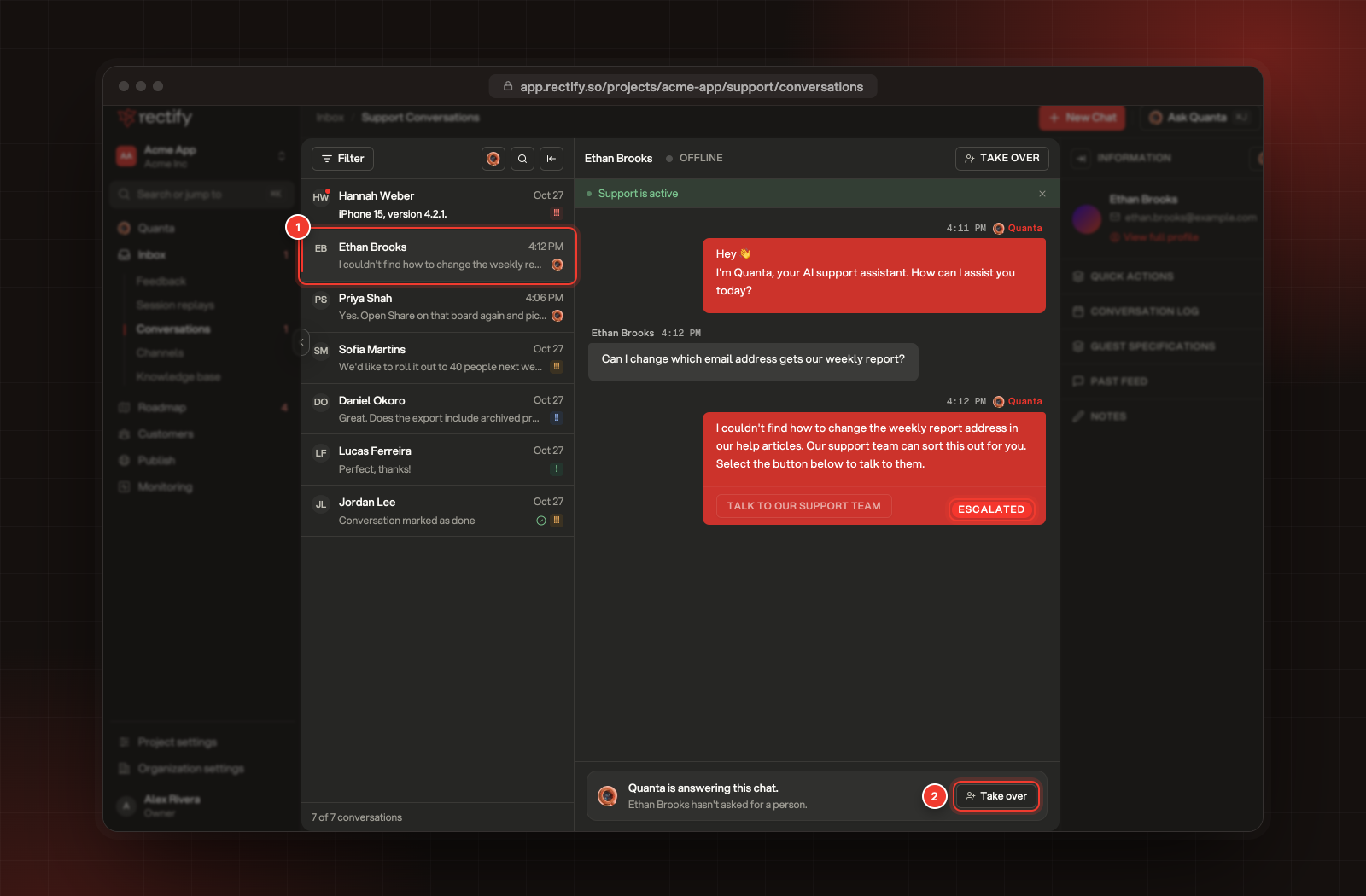
In Conversations, select a chat with Quanta's face next to it.
2.
Select Take over in the bar at the bottom of the chat.
1 A chat Quanta is answering. 2 Take over.
The chat is assigned to you, and the customer sees "You're now connected with our support team for personalized assistance." Take Over at the top of the chat does the same. A Quanta reply marked Escalated is one where Quanta offered the customer your team.
To see only the chats Quanta is answering, select the Quanta button at the top of the list. Select it again to show every conversation.
When your team is away
You can set your team's hours and a message for customers who ask for your team while you're away.
1.
Under Availability, select Manage hours.
2.
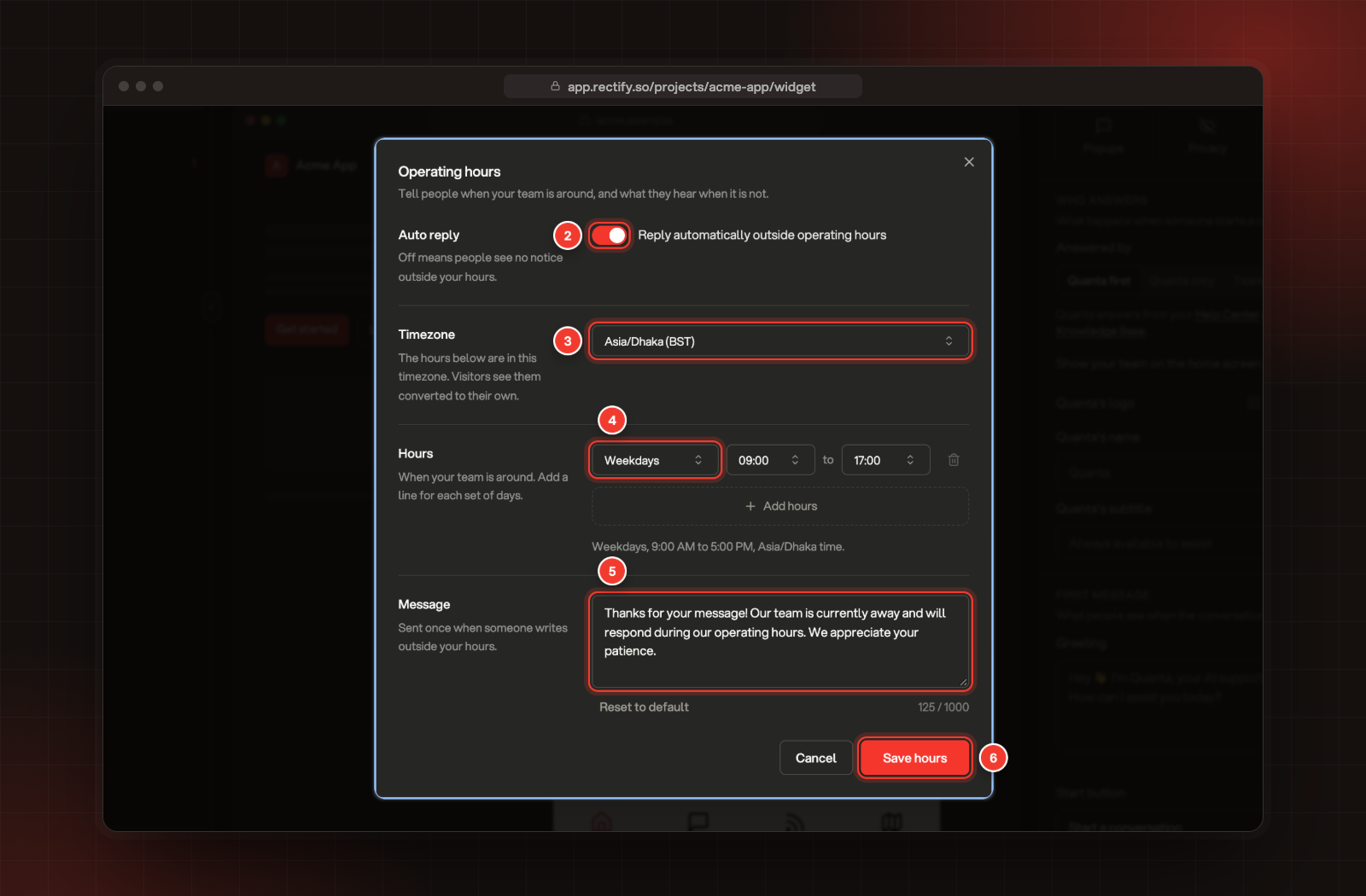
Switch on Reply automatically outside operating hours.
3.
Pick your Timezone.
4.
Under Hours, set the days and times your team is around. Add hours adds another set of days.
5.
Write your Message, or keep the default.
6.
Select Save hours. The hours save straight away, separately from the rest of the widget settings.
2 Auto reply. 3 Timezone. 4 Hours. 5 Message. 6 Save hours.
While the banner above a conversation in Conversations says Outside support hours, a customer who asks for your team gets your message instead of the usual handover message. Quanta keeps answering around the clock.
Check it works
Open your site, open the widget and select Support. Start a conversation and ask something your articles don't cover. With Quanta first, select Talk to our support team when it appears. In Conversations, the chat loses Quanta's face in the list and is ready for your team to join.
Troubleshooting
Quanta doesn't answer, and the chat says "Something went wrong! Try again"
Quanta needs an AI provider or Rectify credits. Ask an Owner or Admin to check Organization settings, AI providers.
Customers never see Talk to our support team
On Quanta only, Quanta never offers your team. On Quanta first, the button only shows when Quanta can't help or the customer asks for a person.
A chat I took over went back to Quanta
On Quanta only, a chat goes back to Quanta at the customer's next message. Switch to Quanta first to keep chats with your team.