The ways to sign in, how to reset a forgotten password, and how to see and sign out the devices on your account.
3 min readUpdated 24 days ago
Ways to sign in
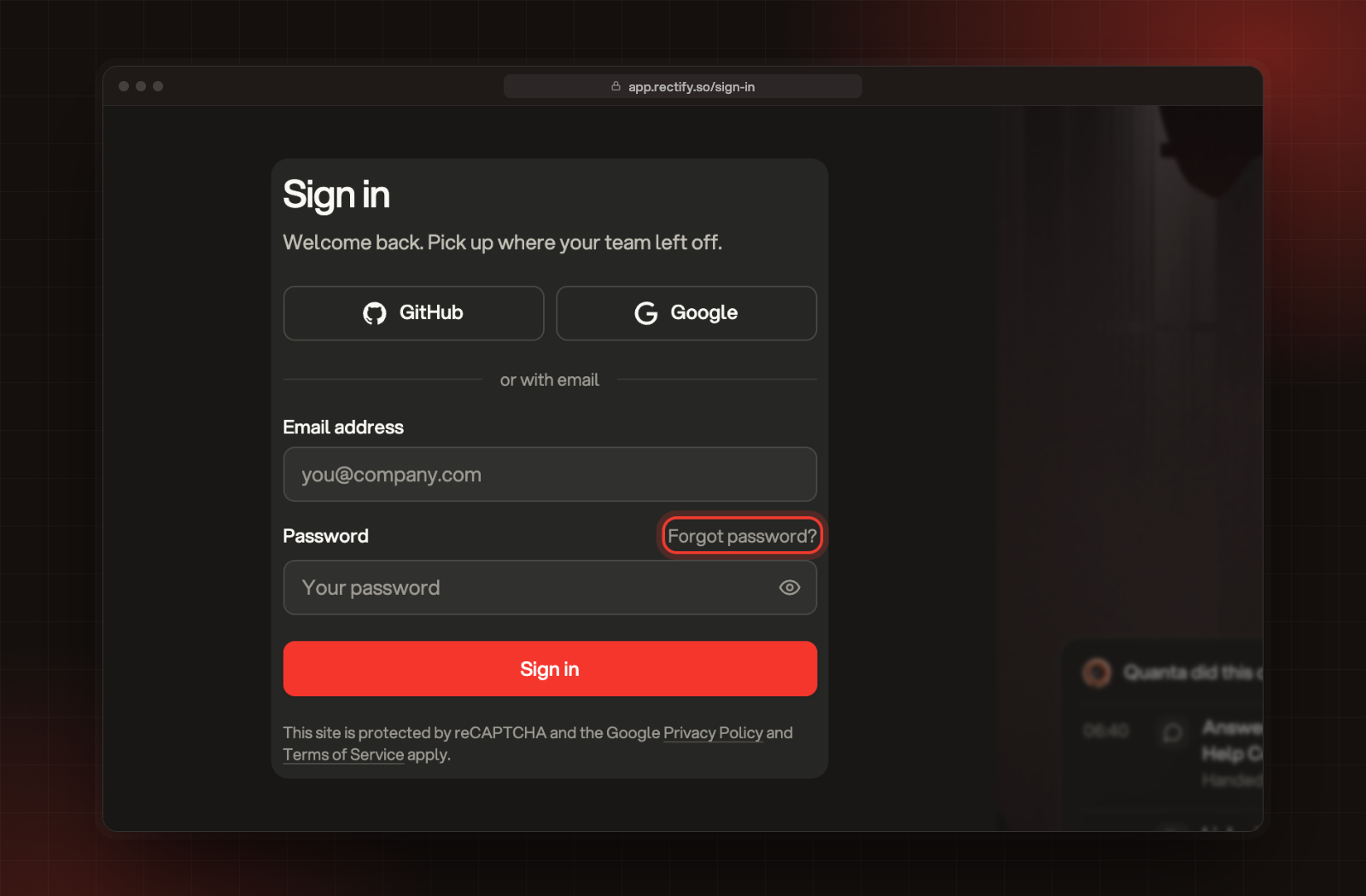
Sign in at app.rectify.so/sign-in with GitHub, Google, or your email address and password. Use the same way you signed up.
The sign-in page, with GitHub, Google and email.
Passwords need at least 8 characters. You stay signed in as long as you use Rectify at least once every 7 days.
Reset a forgotten password
1.
On the sign-in page, select Forgot password?.
2.
Enter the email you sign in with and select Send reset code.
3.
Enter the 6-digit code from our email and select Continue. The code expires in 5 minutes.
4.
Enter a New password, type it again under Confirm new password, and select Reset password.
5.
Sign in with your new password.
Signed up with GitHub or Google? You can use these steps to add a password to your account too.
Change your password
When you're signed in, change your password from your profile. Your profile and notification settings has the steps. Changing it there signs you out on every other browser and phone, and disconnects your Chrome extension and AI apps.
If you think someone else knows your password, change it from your profile while you're signed in. That signs out every other device straight away.
See where you're signed in
1.
Select your name at the bottom of the sidebar, then Profile.
2.
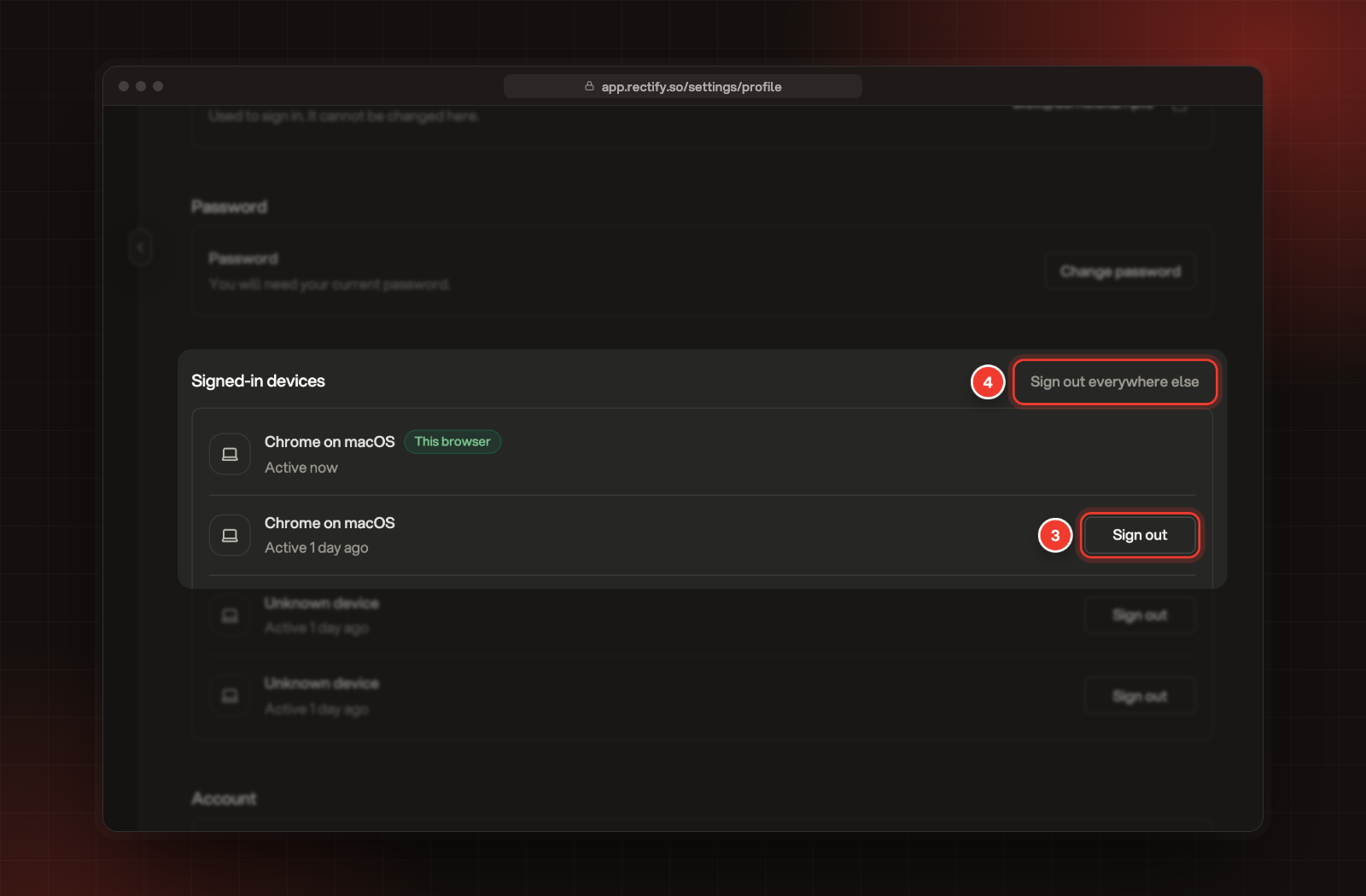
Scroll to Signed-in devices. It lists your browsers, the Rectify mobile app and your Chrome extension connections. The browser you're using says This browser.
3.
Select Sign out on a row to end that session, or Disconnect for an extension.
4.
To end every other session at once, select Sign out everywhere else and confirm. Every other browser, phone and extension signs out, and your AI apps are disconnected. This browser stays signed in.
Signed-in devices, and Sign out everywhere else.
Good to know
•
Rectify doesn't have its own two-step verification. For a second step when you sign in, sign in with GitHub or Google and turn on two-step verification in that account.
•
You can't change your email address or delete your account in the app. Contact support for either.
It says "That email and password don't match"
Check you're using the email address you signed up with, or select reset your password. If you signed up with GitHub or Google, select that button instead.
I didn't get a code
Codes can take a minute to arrive, so check your spam folder too. Then select Send a new code (you can ask once a minute) and use the newest email.
It says "Too many tries with that code"
Each code allows 3 tries. Select Send a new code and use the code in the newest email.