Read Quanta's briefing in the Rectify app, act on what needs you, check your week at a glance and open the latest Project Report.
3 min readUpdated 5 days ago
Before you start. Everyone who can open a project sees its Home screen in the app. The reports under Last 24 hours come from the Project Report, which only the organization's Owner can turn on.
Home is the first screen of the app. Quanta checks the project you're in and shows what needs you, how your week is going and its latest reports. The line above the greeting says when, for example Quanta · today at 9:41 AM. Pull the screen down to check again.
What needs you
Under the greeting, Quanta tells you how many things need you, or says Nothing needs you right now. When there's a Project Report, Read the 9:00 AM report › next to it opens the latest one.
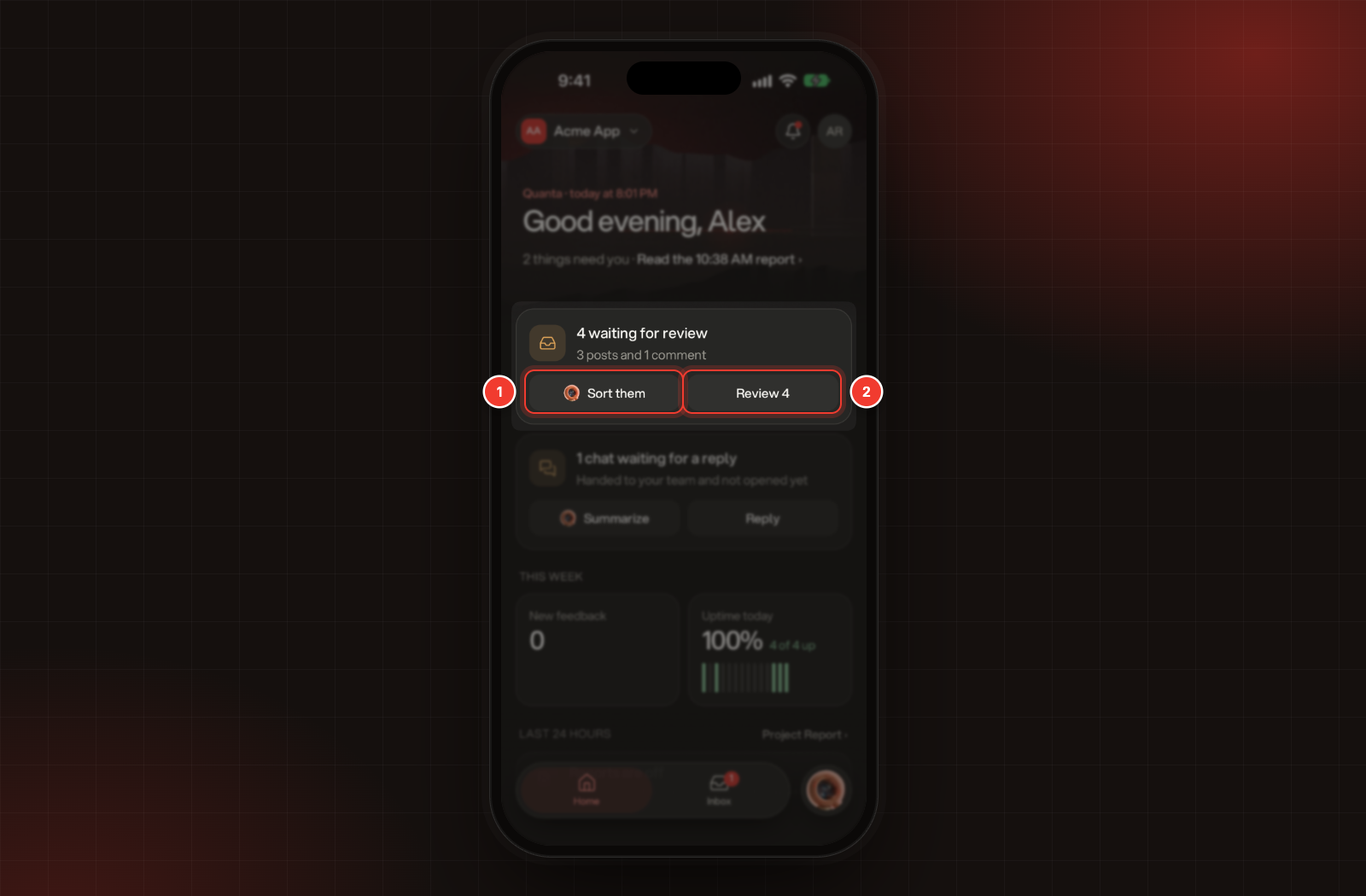
Each thing that needs you gets a card with two buttons. The first asks Quanta about it in a new chat. The second acts on it.
1 Ask Quanta about it. 2 Act on it.
Card
Ask Quanta
Act
A monitor is down, for example Sync service has been down for 2 hours
Ask why
Acknowledge acknowledges the open incident on the monitor that's been down longest
Posts and comments waiting for review on your portal
Sort them
Review, with the count, for example Review 3, opens the review queue in Rectify on the web
Chats waiting for a reply that your team hasn't opened yet
Summarize
Reply opens Inbox, Chats
When nothing needs you, the All clear card lists what Quanta checked, for example 3 of 3 monitors up, Nothing waiting for review and No chats waiting for a reply.
This week
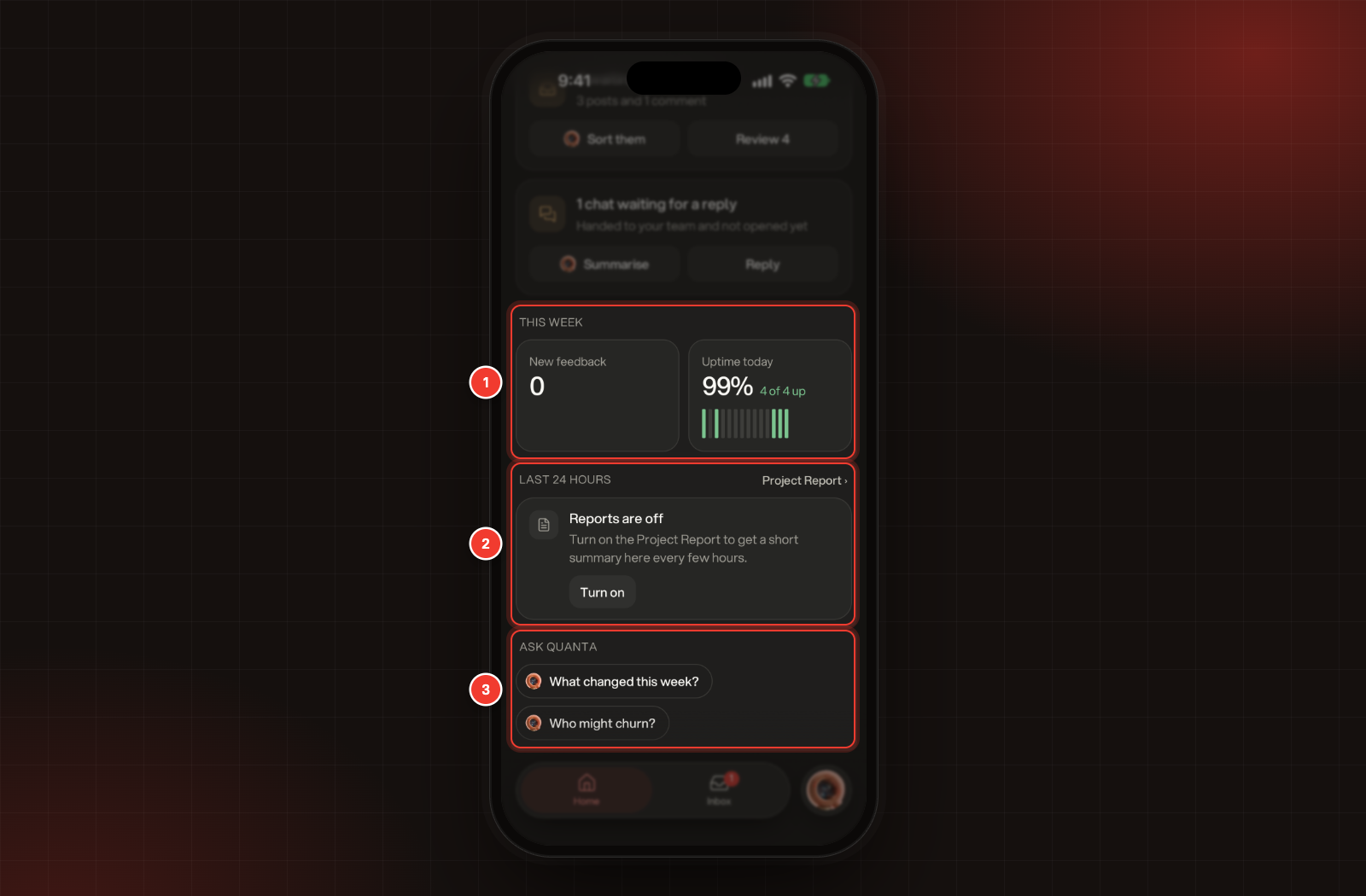
Two tiles show your week at a glance:
•
New feedback counts the feedback that came in over the last 7 days, with the change from the 7 days before. Tap it to open Inbox, Feedback.
•
Uptime today shows your monitors' uptime on their latest day, and how many are up. Before there's any uptime to show, it says Monitors up. Projects without monitors see Page views for the last 7 days instead.
1 This week. 2 Last 24 hours. 3 Ask Quanta.
Last 24 hours
This card shows up to 3 of the reports and alerts Quanta posted to the Project Report in the last 24 hours, newest first. Tap one to open it in the Project Report chat, or tap Project Report › to open the whole chat.
If reports are off, the card says Reports are off. The Owner can tap Turn on to open Quanta's settings and switch them on. Heartbeat: scheduled check-ins and urgent alerts explains what each report covers.
Ask Quanta
The chips at the bottom ask Quanta about your project in a new chat: What changed this week? and Who might churn?. When feedback came in this week, Themes in this week's feedback comes first. Use Quanta and the canvas on your phone shows what you can do in a chat.
Troubleshooting
It says "Couldn't load your briefing"
Check your connection, then tap Try again.
Review asks to open the web app
The review queue isn't in the app yet. Tap Open web app to review posts and comments in Rectify on the web. You may need to sign in there.
It says "No open incident for this monitor"
That monitor has no open incident right now, so there's nothing to acknowledge. Pull the screen down to refresh it.
It says "Ask an owner to turn on the Project Report."