Acknowledge an incident, post updates as you fix it, resolve it, or report one by hand.
4 min readUpdated 24 days ago
Before you start. Anyone on your team who can open the project can acknowledge, update, resolve and report incidents. Only Owners and Admins can delete one.
An incident opens by itself when a monitor fails the number of checks in a row you set for it. It's named after the monitor, such as "Nightly database backup is down", and its first entry says what went wrong. It starts as Minor and becomes Major, then Critical, if the failures carry on. Rectify alerts the monitor's channels when it opens.
Take an incident and keep everyone posted
1.
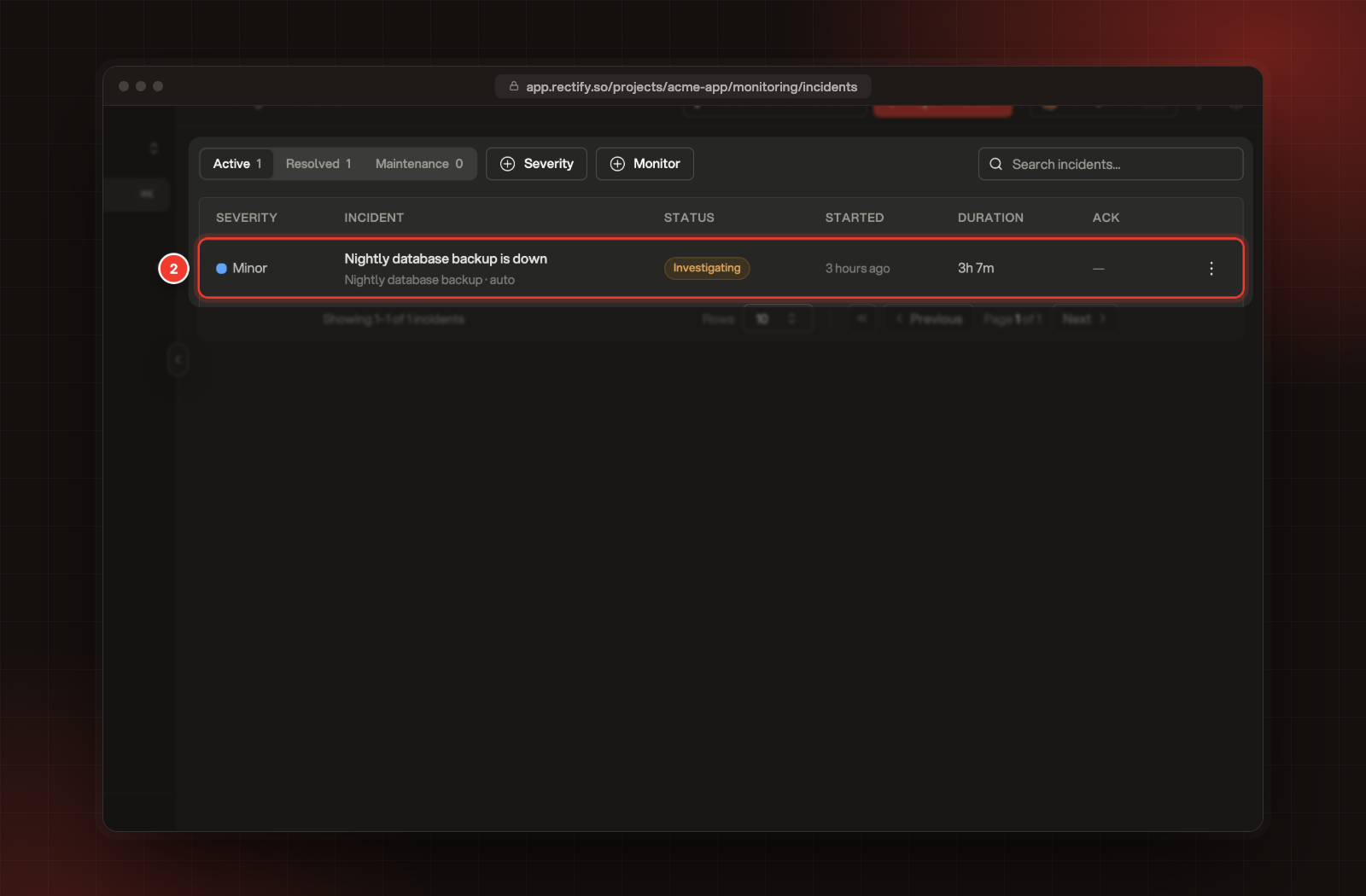
Open Monitoring, then Incidents. The Active tab lists every open incident.
2.
Select the incident to open it.
2 An open incident in the Active tab.
3.
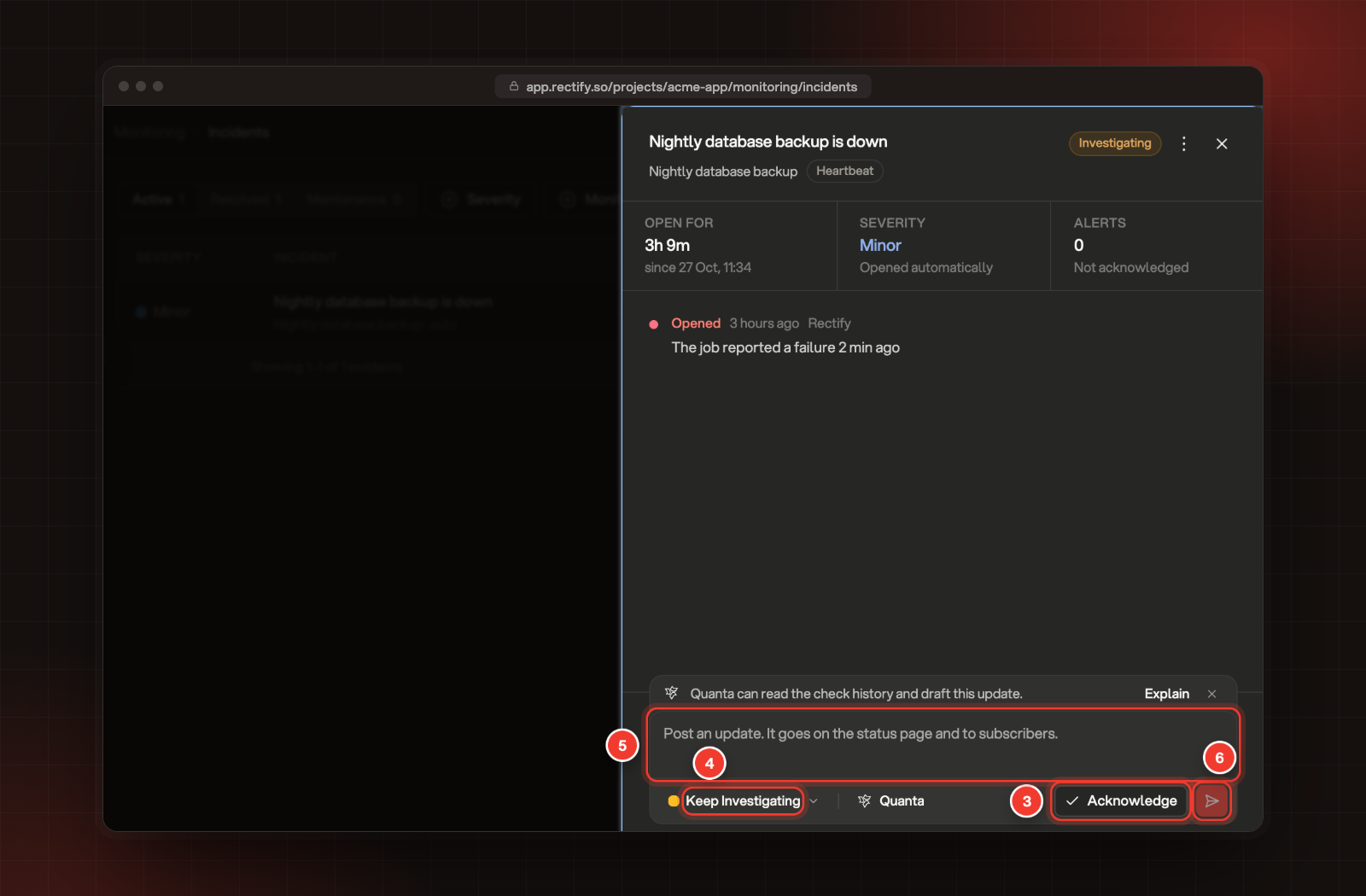
Select Acknowledge so your team knows someone is on it. This stops any escalation steps, and the timeline shows who acknowledged it.
4.
Open the status menu at the bottom (it starts as Keep Investigating) and pick where things stand: Investigating, Identified, Monitoring or Resolved.
5.
Write what's happening, in at least 10 characters.
6.
Select the send button, or press Cmd+Enter (Ctrl+Enter on Windows).
3 Acknowledge. 4 The status menu. 5 The update. 6 Send.
Each update goes on the incident's timeline, to the monitor's alert channels, and on your status page with an email to its subscribers when the monitor is shown there. Write it for your customers.
Not sure what's wrong yet? Select Quanta (or Explain) next to the status menu. Quanta reads the monitor's check history and drafts an explanation. Select Insert into update to use it, then edit it before you send. Quanta uses your Rectify AI credits or your own AI provider key.
Resolve an incident
1.
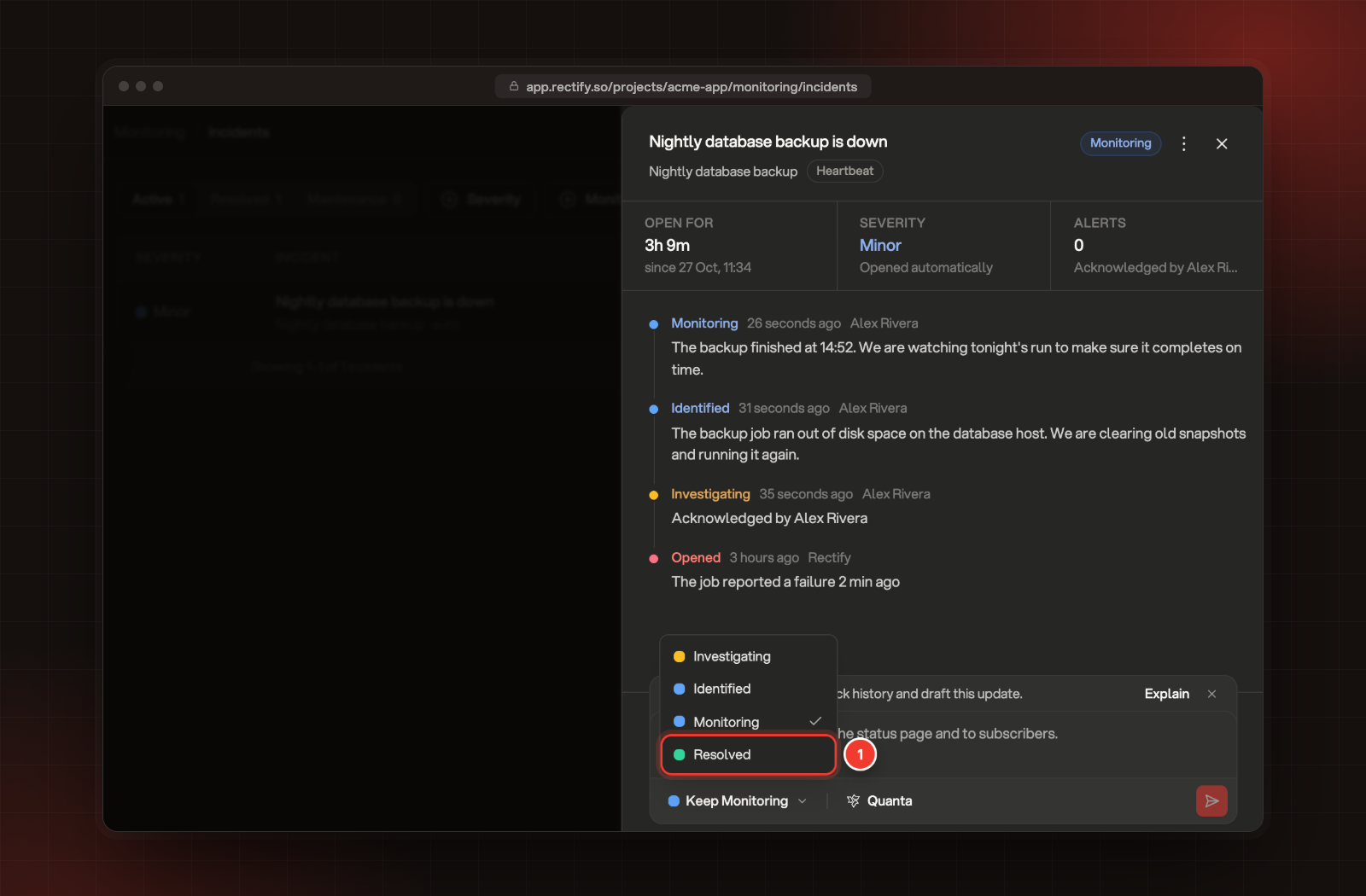
In the status menu, pick Resolved.
1 Resolved, in the status menu.
2.
Write what fixed it.
3.
Select the send button.
The incident moves to the Resolved tab with how long it lasted. You can also select Resolve from the menu on an incident's row.
You don't always have to resolve it yourself. When the monitor passes 2 checks in a row, Rectify resolves the incident and adds "Monitor has recovered and is responding normally" to the timeline.
Report an incident by hand
Use this for problems your monitors can't see, such as a slow sign-in.
1.
On the Incidents page, select Report incident.
2.
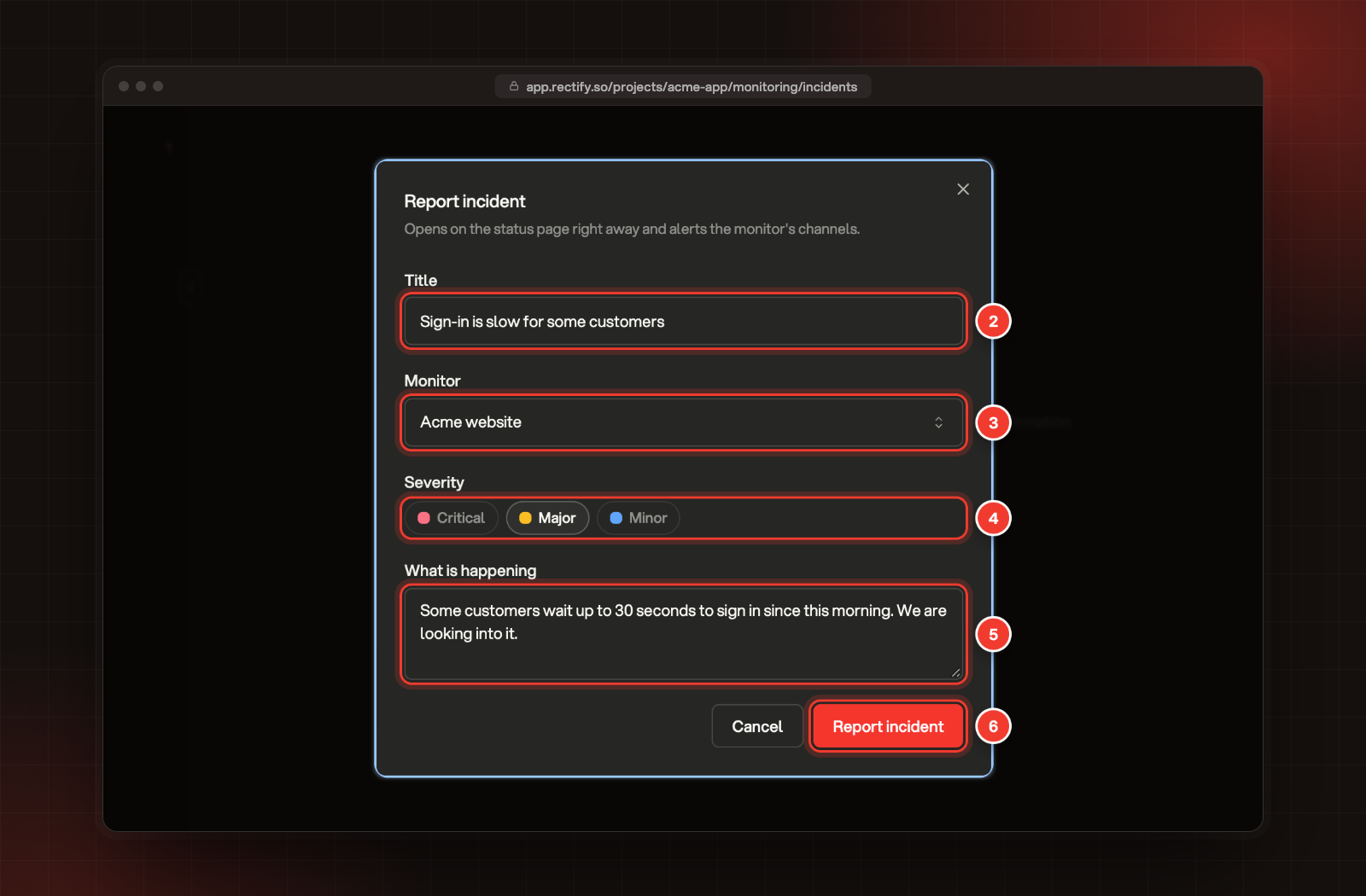
Enter a Title of at least 5 characters.
3.
Pick the Monitor it affects.
4.
Choose the Severity: Critical, Major or Minor.
5.
Under What is happening, describe it for your customers. This is optional.
6.
Select Report incident.
2 Title. 3 Monitor. 4 Severity. 5 What is happening. 6 Report incident.
The incident opens straight away, shows on your status page, and alerts the monitor's channels.
Edit or delete an incident
Open the incident, then open its menu (the three dots) at the top:
•
Edit changes the title and severity. The new ones show on the status page right away.
•
Delete removes the incident and its timeline from the status page and reports. It can't be undone, and only Owners and Admins can do it.
Check it worked
Your update appears at the top of the incident's timeline with your name and the new status. The incident's row on the Incidents page shows the same status, and the Ack column shows who acknowledged it.
I resolved an incident and a new one opened
The monitor was still failing. Resolving clears the count of failed checks, and once the monitor fails that many checks in a row again, a new incident opens. Fix the cause first, or wait for the monitor to recover on its own. To stop checks while you work, pause the monitor from its menu, or plan a maintenance window.
The send button is greyed out
Updates need at least 10 characters.
Delete is greyed out
Only Owners and Admins can delete incidents. Ask one of them, or resolve the incident instead.