Find a conversation in the Rectify app, join or take it over, reply with text, a photo or a PDF, let Quanta help, and keep notes.
6 min readUpdated 5 days ago
Before you start. Everyone who can open a project can join, take over and answer its chats in the app. Assigning, priority, Done, Archive, notes and deleting are for Owners and Admins. On the free Idea plan, your team can send 10 replies a month, counted together with replies sent from the web. Quanta's answers don't count.
Your support conversations are under Inbox, Chats, for the project you're in. They're the same conversations your team sees on the web, and replies show up in both places straight away.
Find a conversation
1.
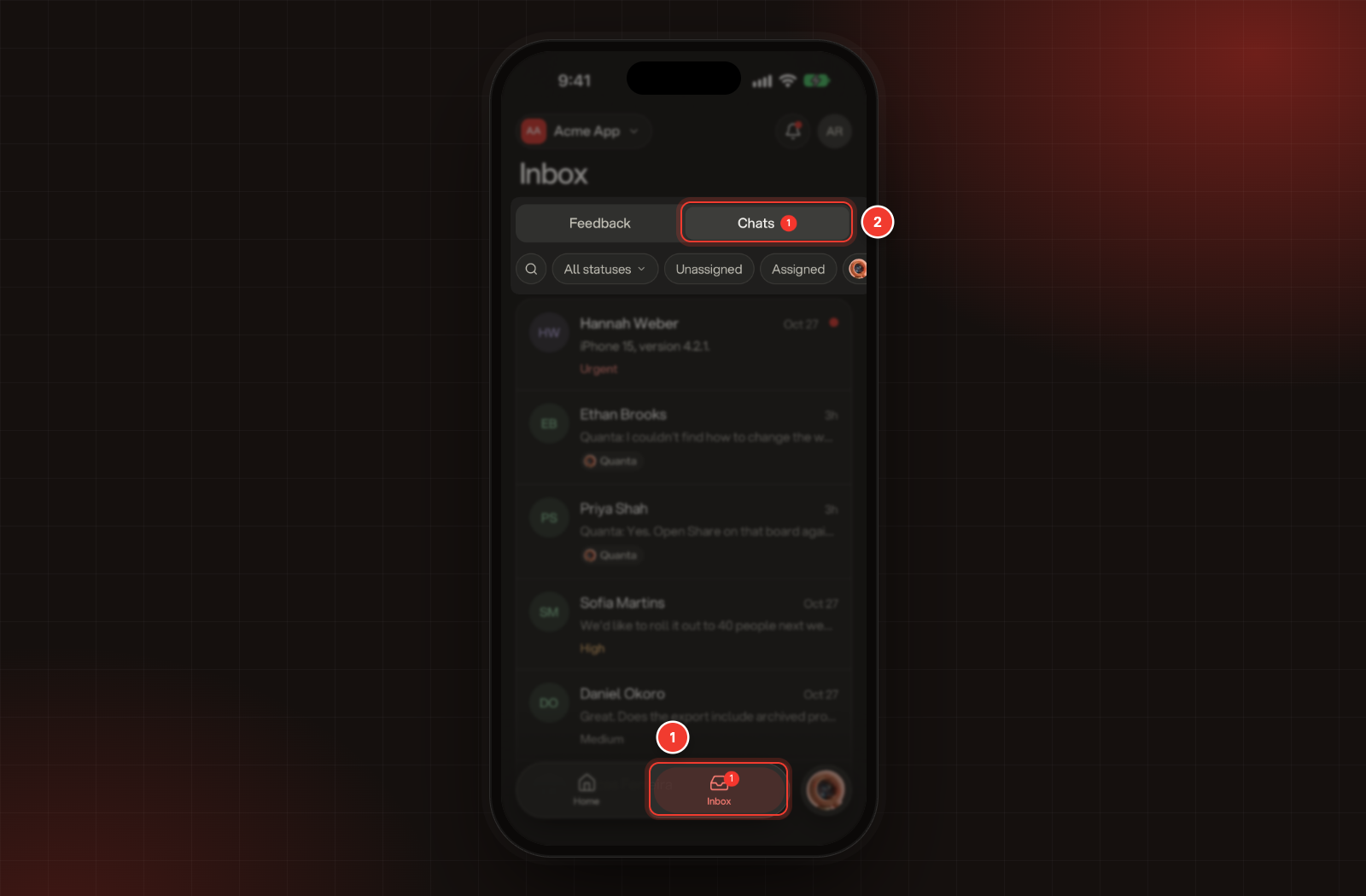
Tap Inbox.
2.
Tap Chats.
1 Inbox. 2 Chats.
The list shows the chats handed to your team and the chats Quanta is still answering. Quanta's chats have a chip with its name and picture, or the name and picture you gave it in your widget. Chats with new messages come first, with a red dot, and the number on Inbox and Chats counts them. New chats and messages appear as they arrive.
The chips above the list narrow it down:
•
The magnifier searches customer names and message text.
•
The status chip picks Open, Done or Archived. Archived chats only show when you pick Archived.
•
Unassigned shows chats nobody has, Assigned shows chats assigned to you, and Quanta shows only the chats Quanta is still answering.
•
The priority chip picks Urgent, High, Medium or Low.
•
Clear turns the filters off.
Pull the list down to refresh it.
Reply to a customer
1.
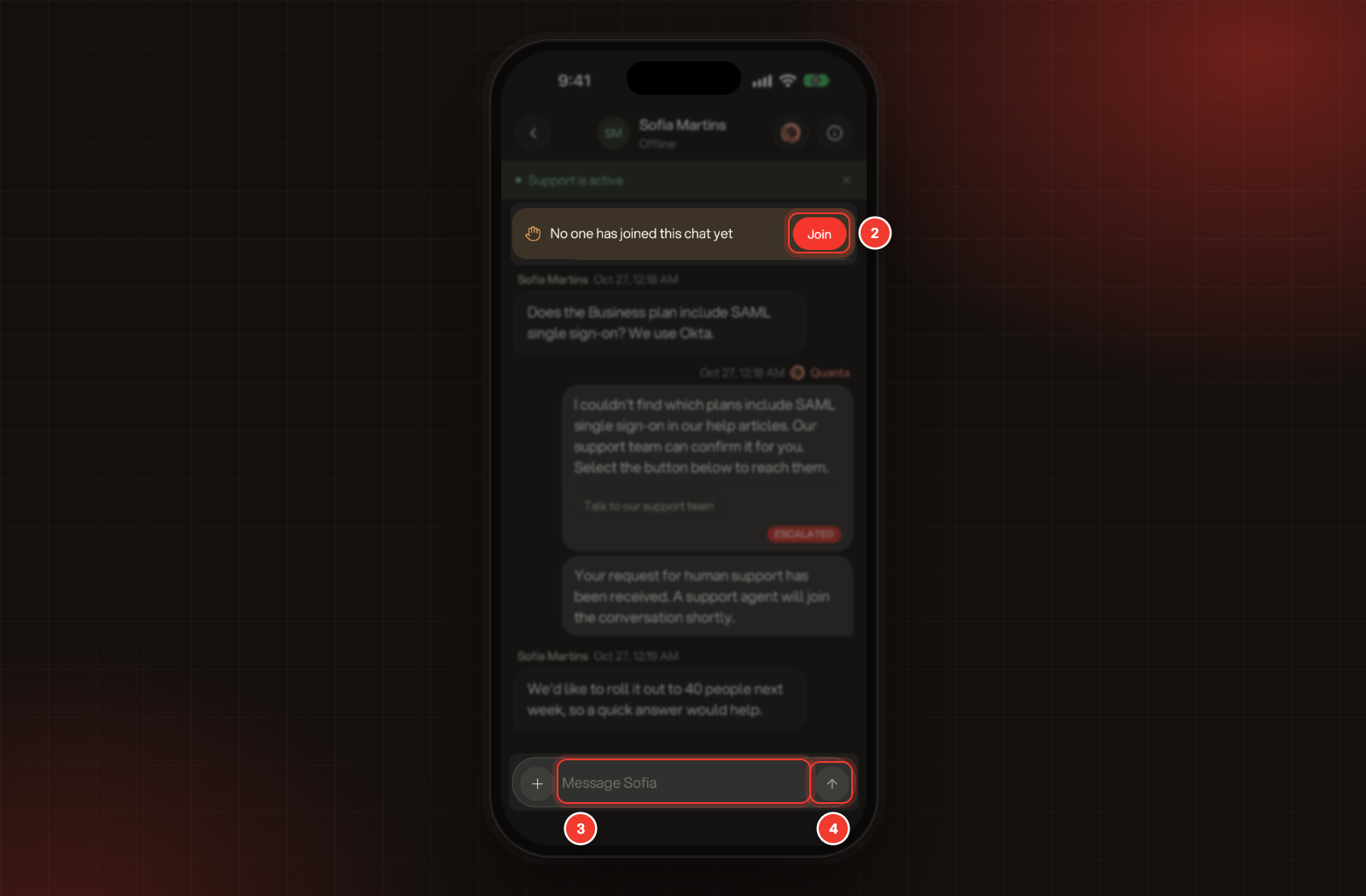
Tap a conversation. The customer's name is at the top, with Online or Offline under it.
2.
If it says No one has joined this chat yet, tap Join. The chat is assigned to you.
3.
Type your reply in the box at the bottom.
4.
Tap the send arrow.
2 Join. 3 The message box. 4 Send.
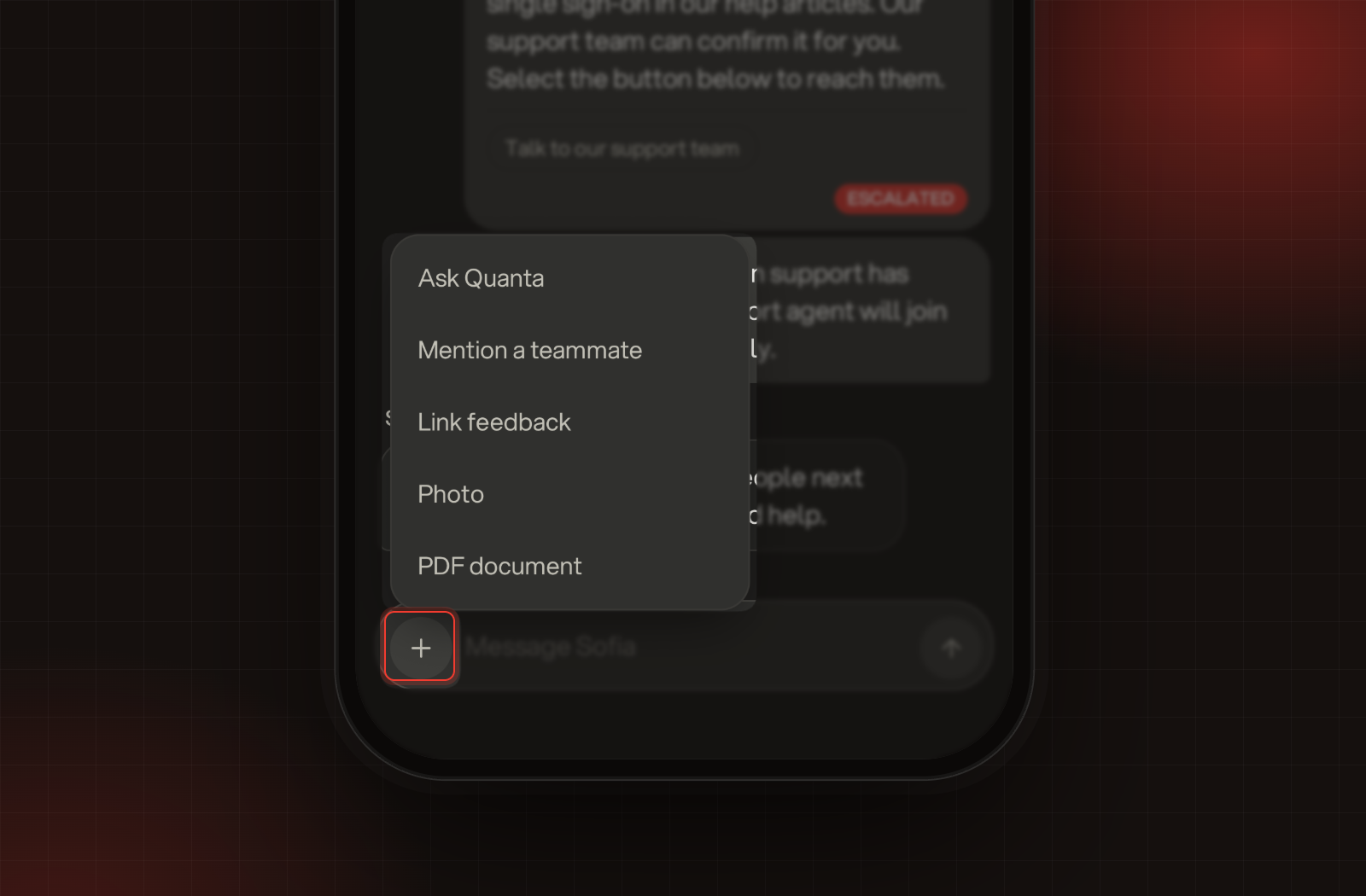
Tap + next to the box for more:
•
Photo or PDF document adds a file to your message. You can send one file with each message, up to 10 MB.
•
Mention a teammate brings a teammate in, and they get an alert. You can also type @.
•
Link feedback links a feedback item. You can also type #. You can link up to 5 in one reply.
•
Ask Quanta works like typing /, below.
The menu under +: Ask Quanta, Mention a teammate, Link feedback, Photo and PDF document.
A mention or a linked item is part of your reply, so the customer sees it too. Anything only your team should read belongs in the conversation's notes.
Press and hold a message for Reply and Copy text. On your own messages, you'll also find Edit and Delete.
Take over from Quanta
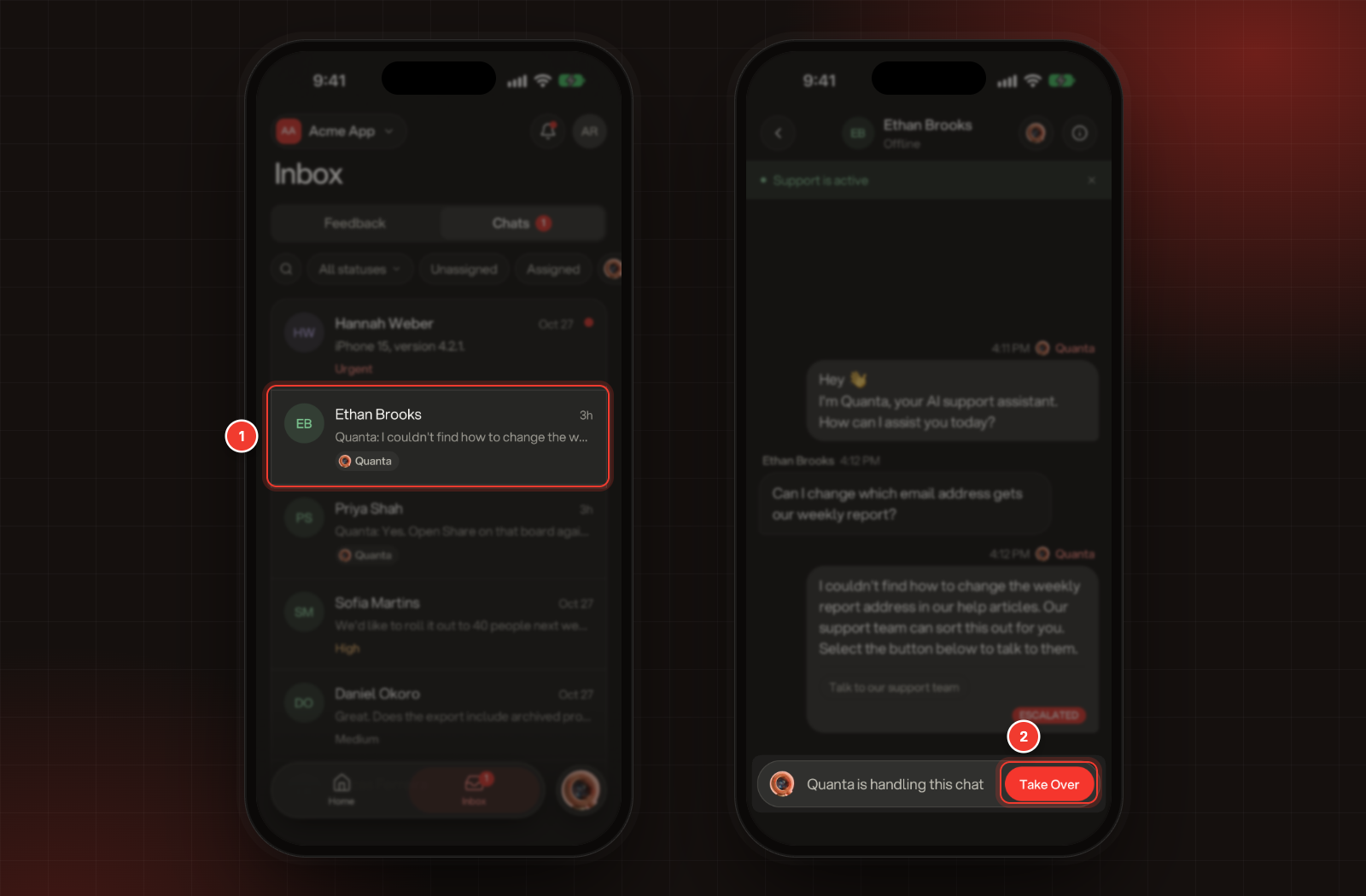
While Quanta is still answering a chat, you can read it but not type in it. In place of the message box, a bar says Quanta is handling this chat, with the name you gave Quanta in your widget if you changed it.
1.
In Chats, tap a chat with Quanta's chip. To see only those chats, tap Quanta above the list.
2.
Tap Take Over in the bar at the bottom.
1 A chat Quanta is answering. 2 Take Over.
The chat moves to your team and is assigned to you, and the customer is told they're now connected with your team. Type your reply as usual. Choose who answers first: Quanta or your team explains when chats move from Quanta to your team.
Let Quanta help you reply
1.
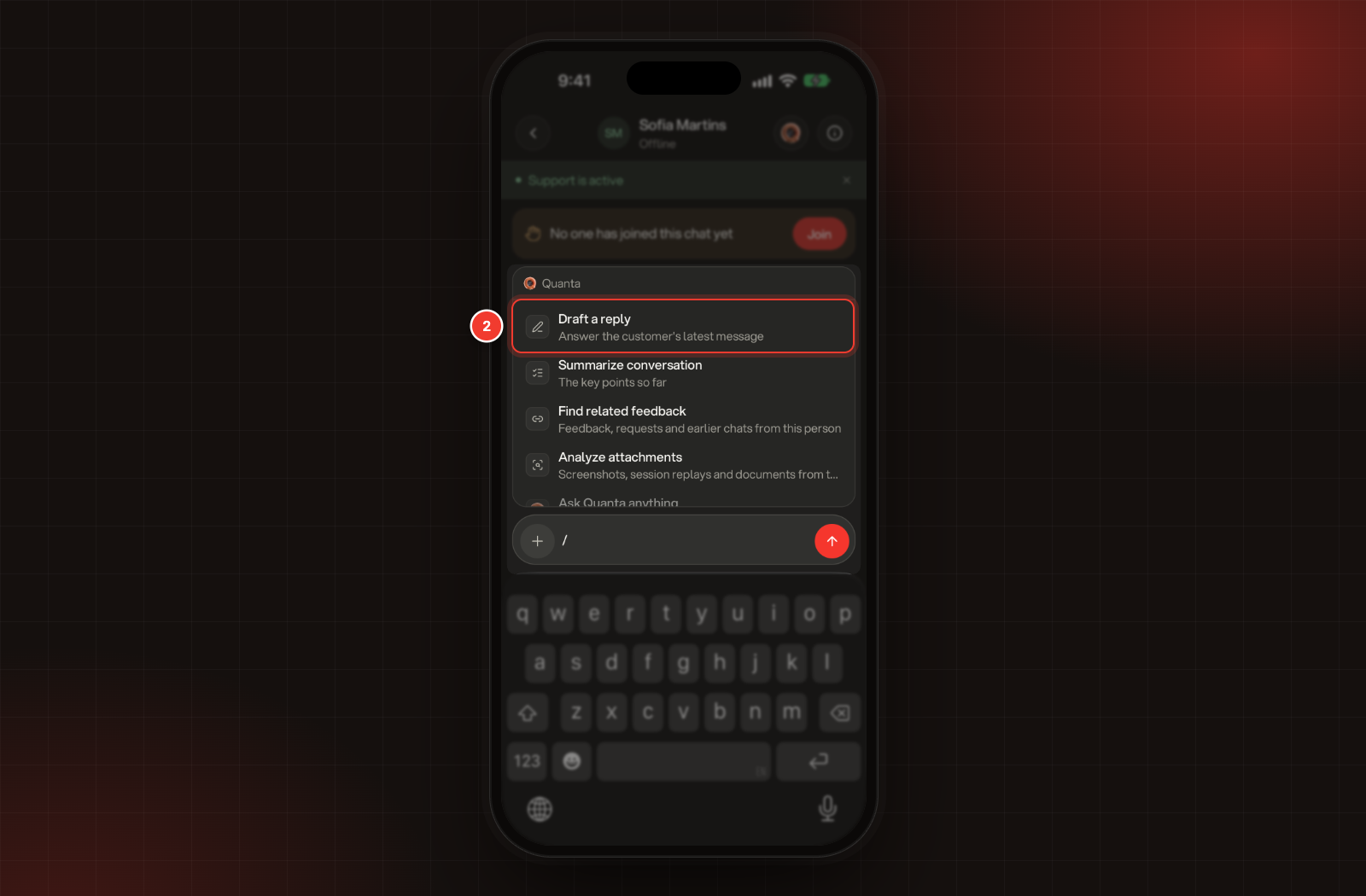
In an empty message box, type /.
2.
Pick what you need:
•
Draft a reply: Quanta answers the customer's latest message for you to check.
•
Summarize conversation: the key points so far.
•
Find related feedback: feedback, requests and earlier chats from this person.
•
Analyze attachments: screenshots, session replays and documents from this person's feedback.
3.
When the answer is ready, tap Insert into reply to use it, or Copy.
2 Quanta's commands, starting with Draft a reply.
To ask your own question, type it after the /, then tap the Ask Quanta: line that shows your question. Nothing reaches the customer until you send it yourself.
To polish what you wrote, select at least 10 characters of it and tap Enhance message, Fix grammar or Enhance and fix grammar. Quanta's face at the top of the conversation opens a longer chat with Quanta about it.
Keep notes and change the details
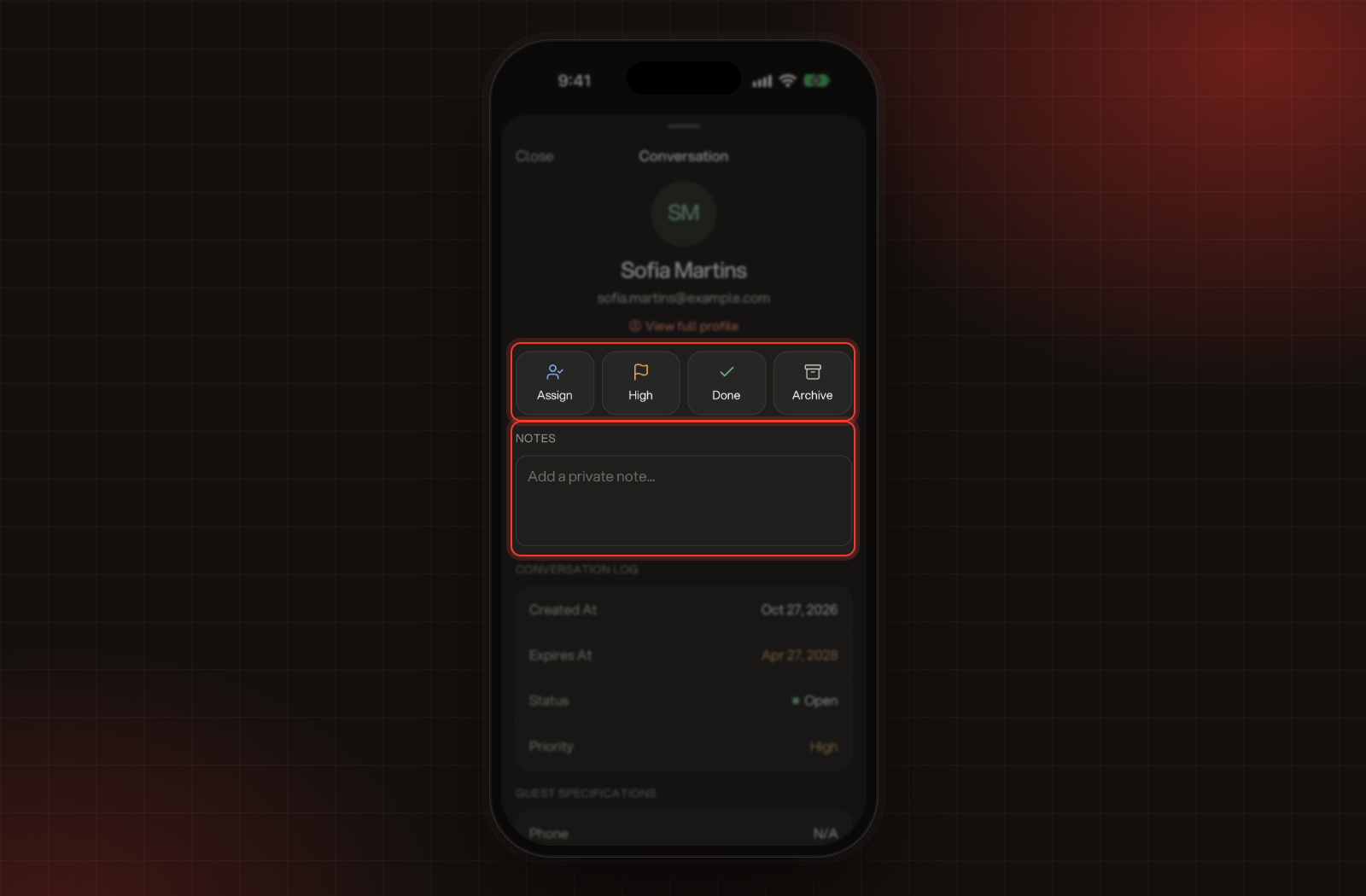
Tap the customer's name at the top to open the Conversation panel. It shows who you're talking to, with View full profile when they're one of your contacts. Owners and Admins can:
•
Assign the chat to a teammate. The list only shows teammates who can open this project.
•
Set the priority to Urgent, High, Medium, Low or None.
•
Tap Done to close the chat, or Reopen to open it again.
•
Tap Archive to take it out of the list without telling the customer, or Unarchive to bring it back.
•
Write a private note under Notes and tap Save Note. Customers never see notes.
The Conversation panel: Assign, priority, Done and Archive, then Notes.
Below that are the Conversation log, the customer's Guest specifications and the Past feed of earlier conversations with them. Delete conversation deletes the chat and everything in it after you confirm. It can't be undone.
Get alerts for new chats
To hear about chats when the app is closed, tap your photo, then Notifications, and switch these on under Support:
•
Support Session Started: a visitor starts a support conversation, with Quanta or your team.
•
Human Support Requested: a customer asked to talk to your team.
•
Support Inbox Message: a customer wrote in a conversation that's yours, or in one nobody is assigned to.
•
Support Chat Assigned: a conversation was assigned to you.
•
Mentioned in Conversation: a teammate mentioned you.
Quanta is still answering this chat. Tap Take Over in the bar at the bottom to answer it yourself.
It says "In order to continue using this feature, please upgrade your plan."
Your team has used this month's 10 replies on the free Idea plan, so the send button stays grey. An Owner or Admin can upgrade on the web, or you can wait until next month. Compare plans and what each one includes lists the limits.
It says "Chat is already assigned to an agent"
A teammate joined first. Pull the list down to refresh it and see who has the chat.
It says "File size exceeds the limit of 10MB."
Pick a smaller file, or send a link to it instead.
Assign, Done and Archive are greyed out, and I can't type a note
They're for Owners and Admins. They're also off while Quanta is still answering the chat; tap Take Over first.