Cap how much Rectify spends each month on each AI provider key you connect, and see what happens when a limit is reached.
2 min readUpdated 24 days ago
Before you start. Owners and Admins can change AI providers. A spend limit applies to your own provider keys. Rectify credits are a fixed amount, so they don't need one.
Set a limit
1.
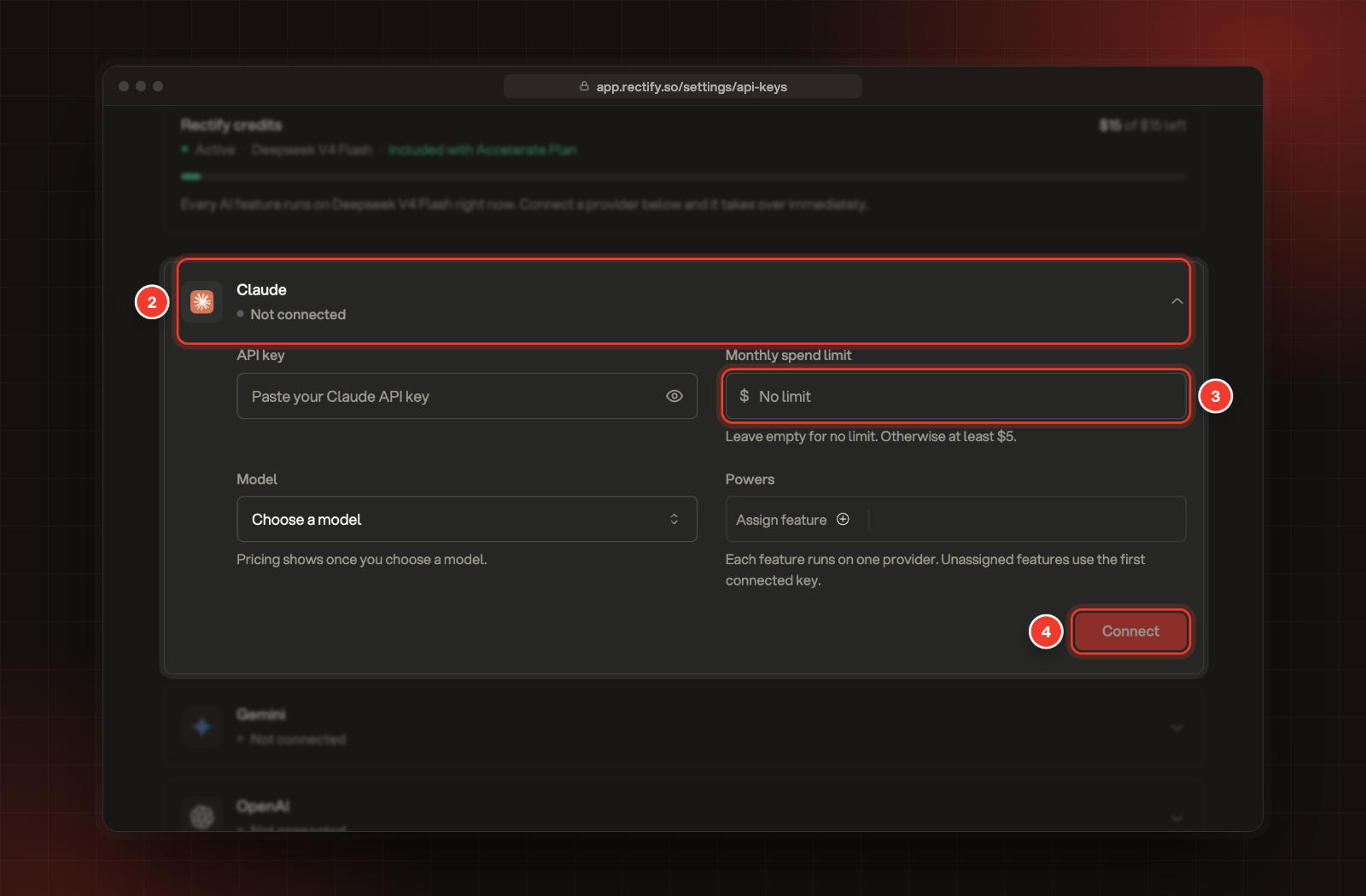
Open Organization settings, then AI providers.
2.
Select a provider to open it, for example Claude.
3.
Under Monthly spend limit, enter an amount in US dollars. It must be at least $5. Leave it empty for no limit.
4.
Select Save changes. If you're connecting the key for the first time, select Connect instead.
3 Monthly spend limit. 4 Save or connect.
Each provider has its own limit. A new key has no limit until you set one.
What happens near and at the limit
Rectify estimates what each key has spent this month from the tokens it used and the model's price. The month runs on the calendar, in UTC.
•
At 80%, we email the person who set up AI providers for your organization.
•
At 100%, we email again and stop using that key until next month. AI features switch to your other providers, then to your Rectify credits.
•
If nothing else is left, AI features stop and show a message that the month's spend limit is reached.
To start again straight away, raise the limit or leave it empty, then save.
Reading images, PDFs and screenshots, making images, changelog covers and phone calls run on Gemini only. When your Gemini key reaches its limit, those features stop until next month, even if you have other keys.
Your provider's own bill can differ a little from our estimate. To be sure you never pay more than you plan for, set a limit in your provider's account too.
Rectify credits
Paid plans include Rectify credits, so AI features work before you connect a key: $5 on Build, $10 on Launch and $15 on Accelerate. Credits are a one-time amount, not a monthly one. The Rectify credits card at the top of AI providers shows what's left. When they're used up, connect a provider to keep AI features running.