Tidy away a project you no longer use, or delete it and everything in it for good.
2 min readUpdated 24 days ago
Before you start. Anyone who can open a project can archive it. Only the organization's Owner can delete a project.
Archive a project
Archiving moves a project out of your project switcher. Everything in it is kept.
1.
Open Projects: select the Rectify logo at the top of the sidebar, or All projects in the project switcher.
2.
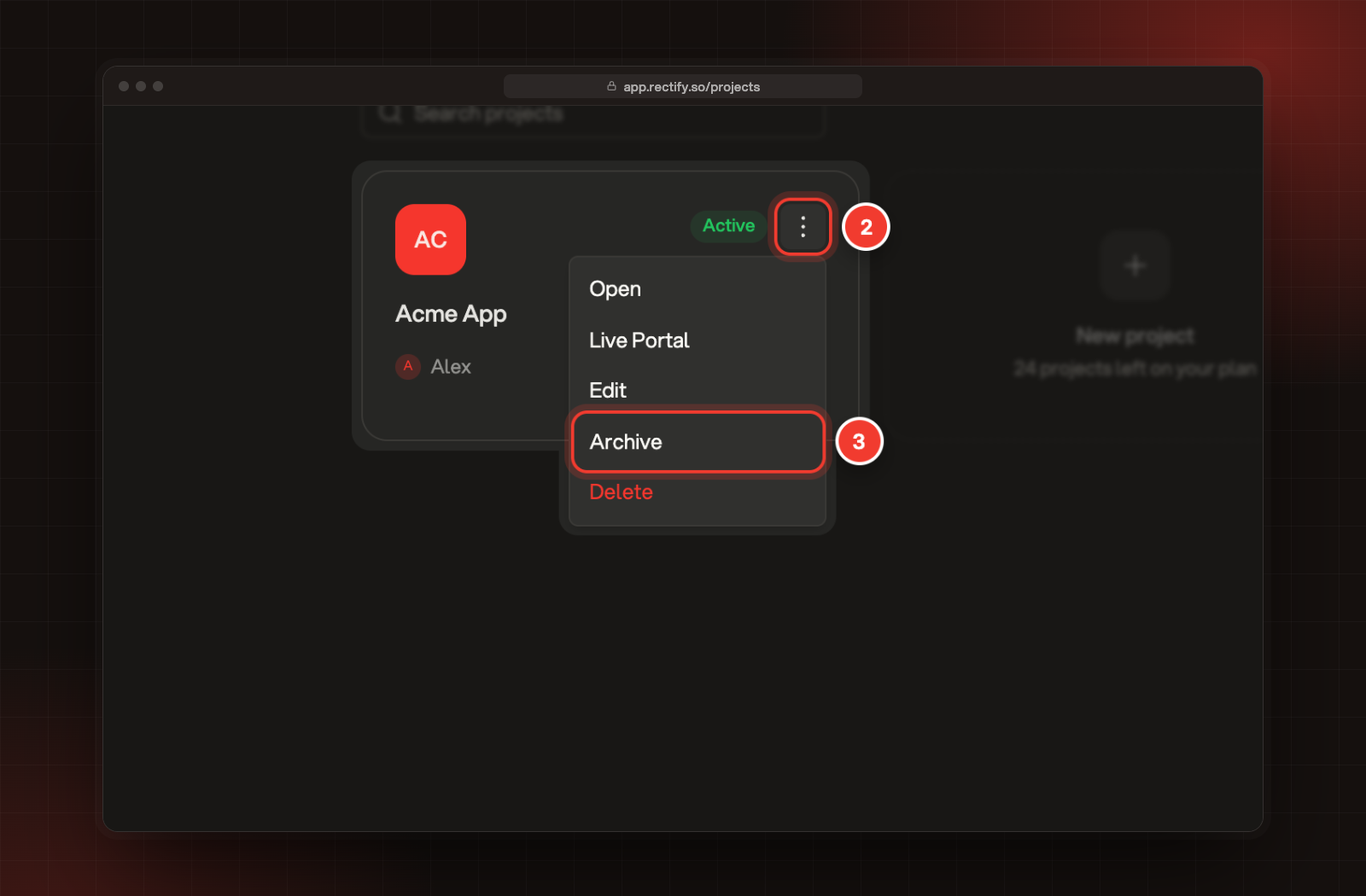
On the project's card, open the menu (⋮).
3.
Select Archive.
4.
Select Archive again to confirm.
2 The project's menu. 3 Archive.
The card now shows Archived, and you'll find it under the Archived tab on Projects. You can still open it from there.
Archiving doesn't switch anything off. The project's portal, widget and monitors keep running, and it still counts toward the projects on your plan. You can't unarchive a project from the app.
Delete a project
Deleting a project removes it and everything in it, for good. That includes feedback, session replays, conversations, the roadmap, changelog, portal, help center, widget, monitors, contacts, analytics, Quanta chats and uploaded files.
1.
Open Projects.
2.
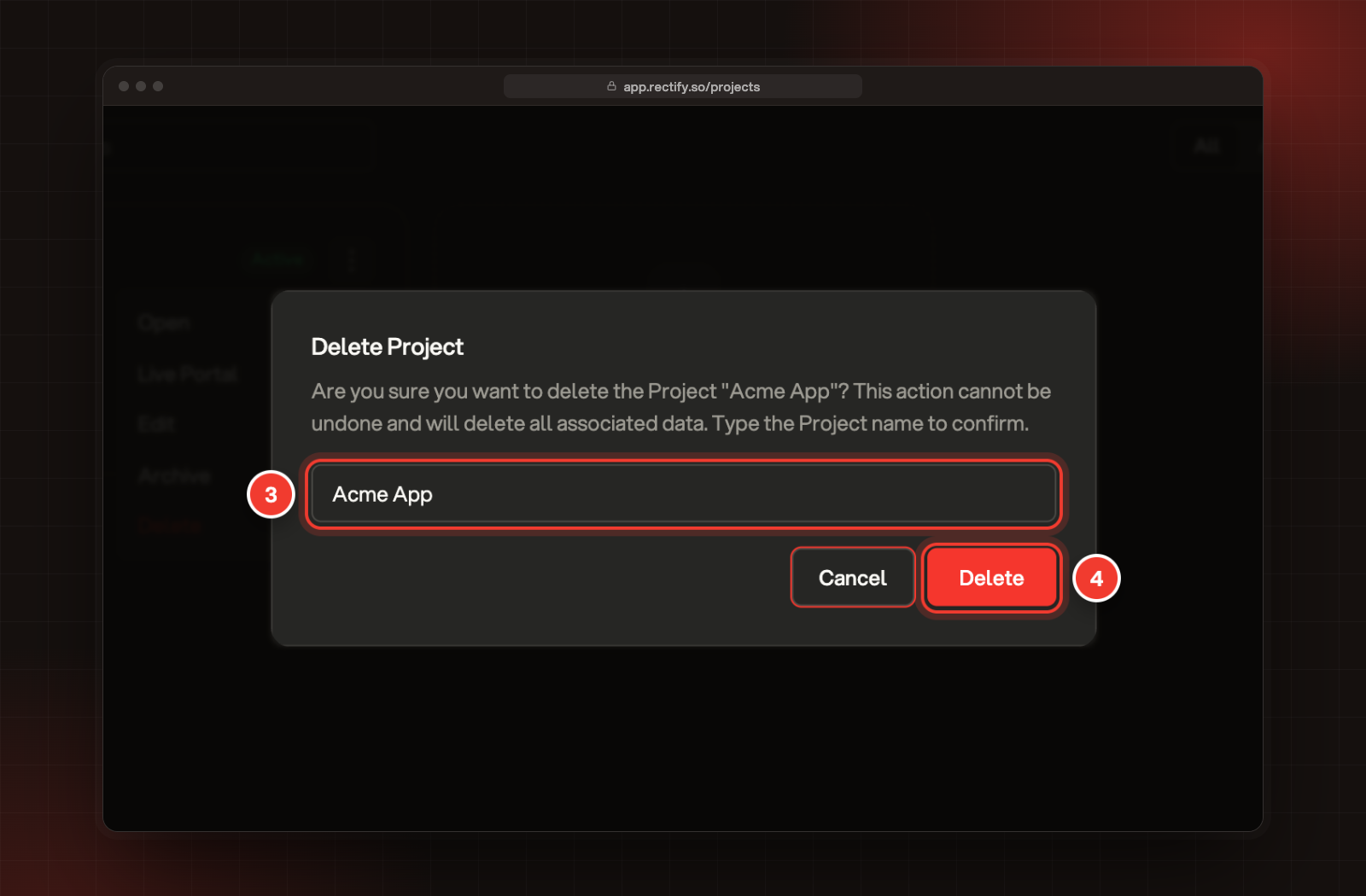
On the project's card, open the menu (⋮) and select Delete.
3.
Type the project's name.
4.
Select Delete.
3 Type the project's name. 4 Delete.
Most of the project goes straight away. Uploaded files and other large data are cleared in the background within the next hour. The project, its monitors and its published help articles stop counting toward your plan as soon as you delete it.
Deleting a project can't be undone. If you might need it again, archive it instead.
I can't select Delete
Only the organization's Owner can delete a project. Admins and Members see Delete greyed out, so ask your Owner.
I only want to rename the project
Select Edit in the same menu. You can change the project's logo, name, description, website and colour there.