Turn the Support, Changelog, Roadmap and Help tabs on or off, put them in order, and rename them or change their icons.
4 min readUpdated 20 days ago
Before you start. Owners, Admins and Members can change the tabs. Every tab is available on every plan.
The tabs sit along the bottom of the widget. You start with Home, Support, Changelog and Roadmap switched on, and Help switched off. In a widget set up a while ago, Support may be called Messages. It works the same way.
Turn tabs on, off and in order
1.
In your project, open Publish, then Widget. Look opens first.
2.
Scroll down to Bottom navigation.
3.
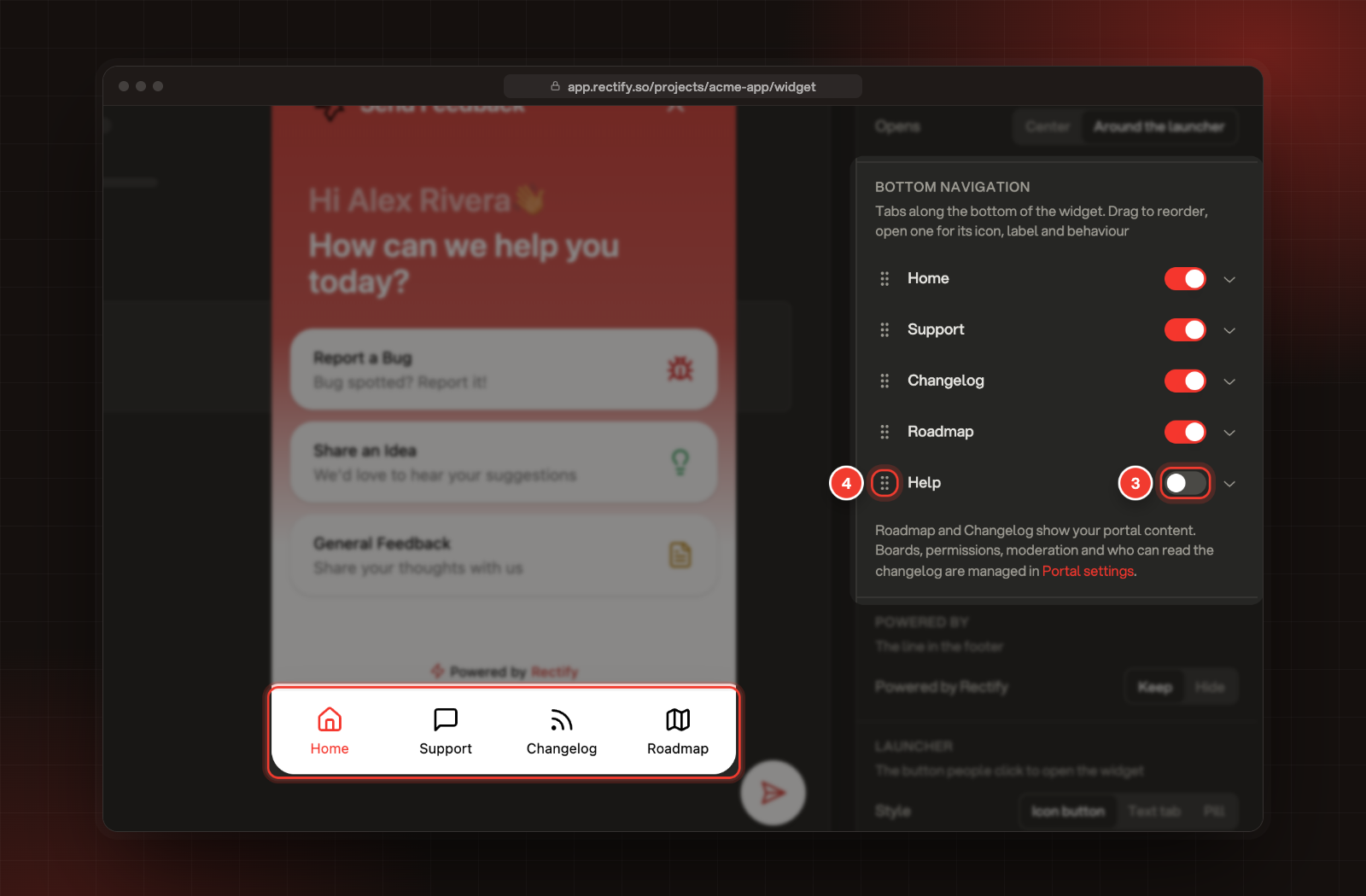
Use the switch next to a tab to turn it on or off. Home can be turned off too. The last tab that is on can't be turned off.
4.
To change the order, drag a tab by the handle on its left.
3 The switch for Help. 4 The drag handle. The preview shows the tabs as visitors see them.
5.
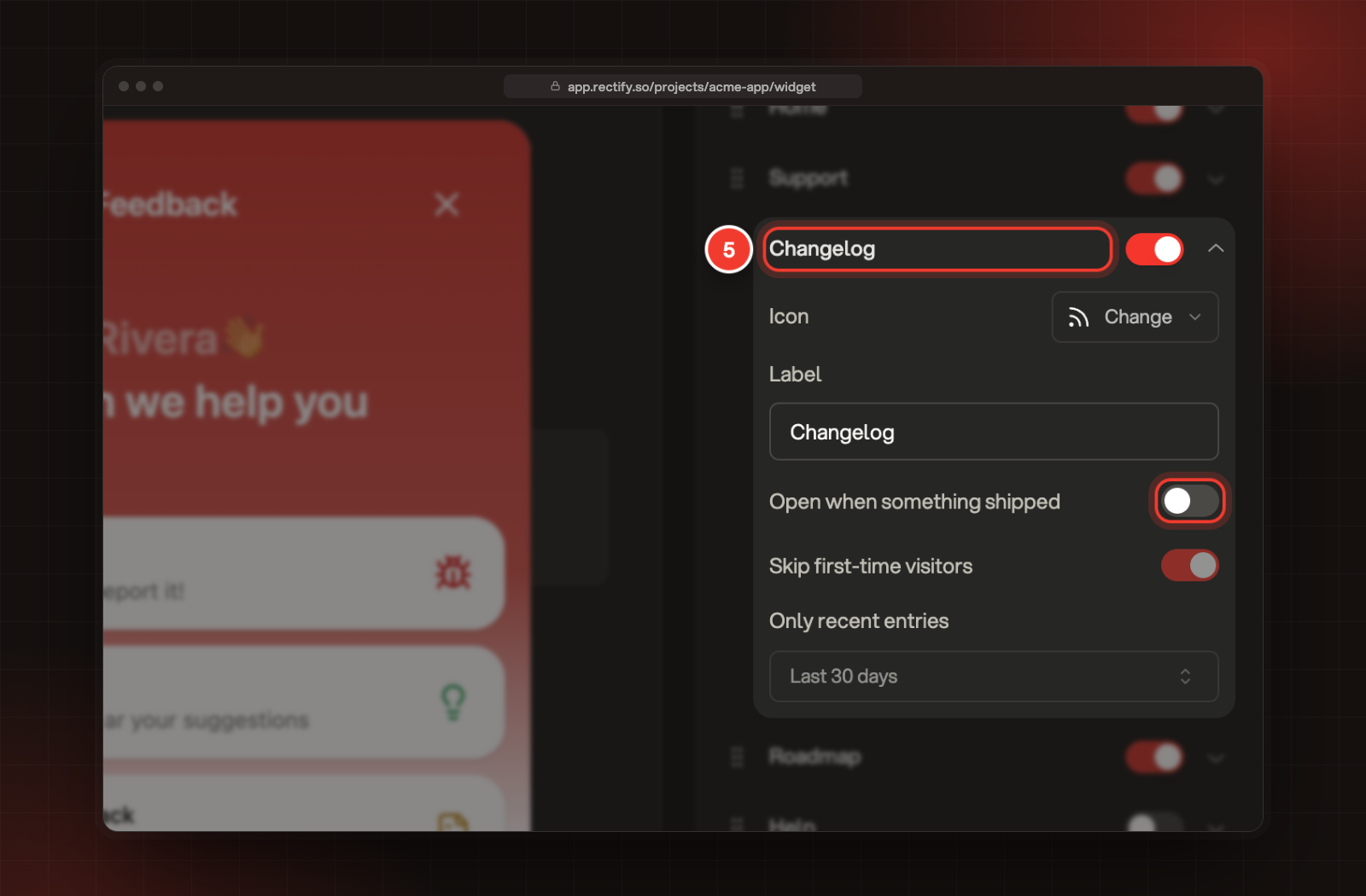
To rename a tab or change its icon, select its name. Select Change next to Icon to pick a new icon, and type a new Label.
5 The Changelog tab, opened.
6.
Select Save in the bar at the bottom.
The label you choose is also the title at the top of that tab in the widget.
The bar changes with the number of tabs. With one tab on, there's no bar. Two or three tabs sit together in the middle of the bar, and four or more spread across it.
If you turn Home off, a line under the tabs says where the widget opens instead, for example "Home is off, so the widget opens on Support."
Open the changelog when something ships
Open the Changelog tab in the list to see three more settings:
Setting
What it does
Open when something shipped
A returning visitor with entries they haven't seen gets the newest one in a What's new card, once per visit. Off, they just see a dot on the tab.
Skip first-time visitors
On a first visit, everything published so far counts as seen, so new visitors aren't greeted with old news. On when you start.
Only recent entries
Only entries from the Last 7 days, Last 30 days or Last 90 days open on their own. Older ones still show in the tab.
Hide the tab bar
The bar has no switch of its own. To hide it, pick Home and support or Support only under Home menu, Layout. Choose the widget's layout shows what each layout does.
While the bar is off, Bottom navigation shows a line such as "The bar is off in the Support only layout." Select Change the layout to go back to the tiles.
Support is where visitors chat with Quanta or your team. Its settings are under Support.
•
Changelog, Roadmap and Help show your portal's changelog, roadmaps, request boards and help articles. Which boards visitors can see, who can vote or post, and who can read the changelog are set in Publish, Portal. Help shows your published help articles.
Open the widget on a tab
Without a setting in your script, the widget opens on Home, or on the first tab that is on when Home is off.
Your script can open the widget on another tab, and that setting always wins. Under Install, Start on a tab or hide the launcher shows the setting to add to your script. Use home, support, changelog, roadmap or help.
Check it worked
The preview on the left shows the tab bar as you change it. After you select Save, refresh your site and open the widget.
Troubleshooting
The tab bar disappeared
The bar only shows with two or more tabs on, so check that more than one is switched on. It's also off in the Home and support and Support only layouts. To bring it back, open Home menu and select Home and tabs under Layout.
I can't turn off a tab
The widget needs at least one tab, so the switch of the last tab that is on can't be turned off. Turn another tab on first.
The Help tab shows "No articles yet"
The tab only shows published articles. Publish some articles in your Help Center first.
Visitors see "This portal is private"
Your portal only lets some people in. Visitors who aren't signed in see this in the Changelog, Roadmap and Help tabs. Sign in verified users shows how to sign them in from your site.