See which articles people read and trust, what they search for, and which questions your Help Center can't answer yet.
3 min readUpdated 5 days ago
Before you start. Everyone on your team who can open the project can see Help Center analytics, start articles from a gap and mark feedback as handled.
Open analytics
1.
Open Help Center under Publish.
2.
Select Analytics at the top.
3.
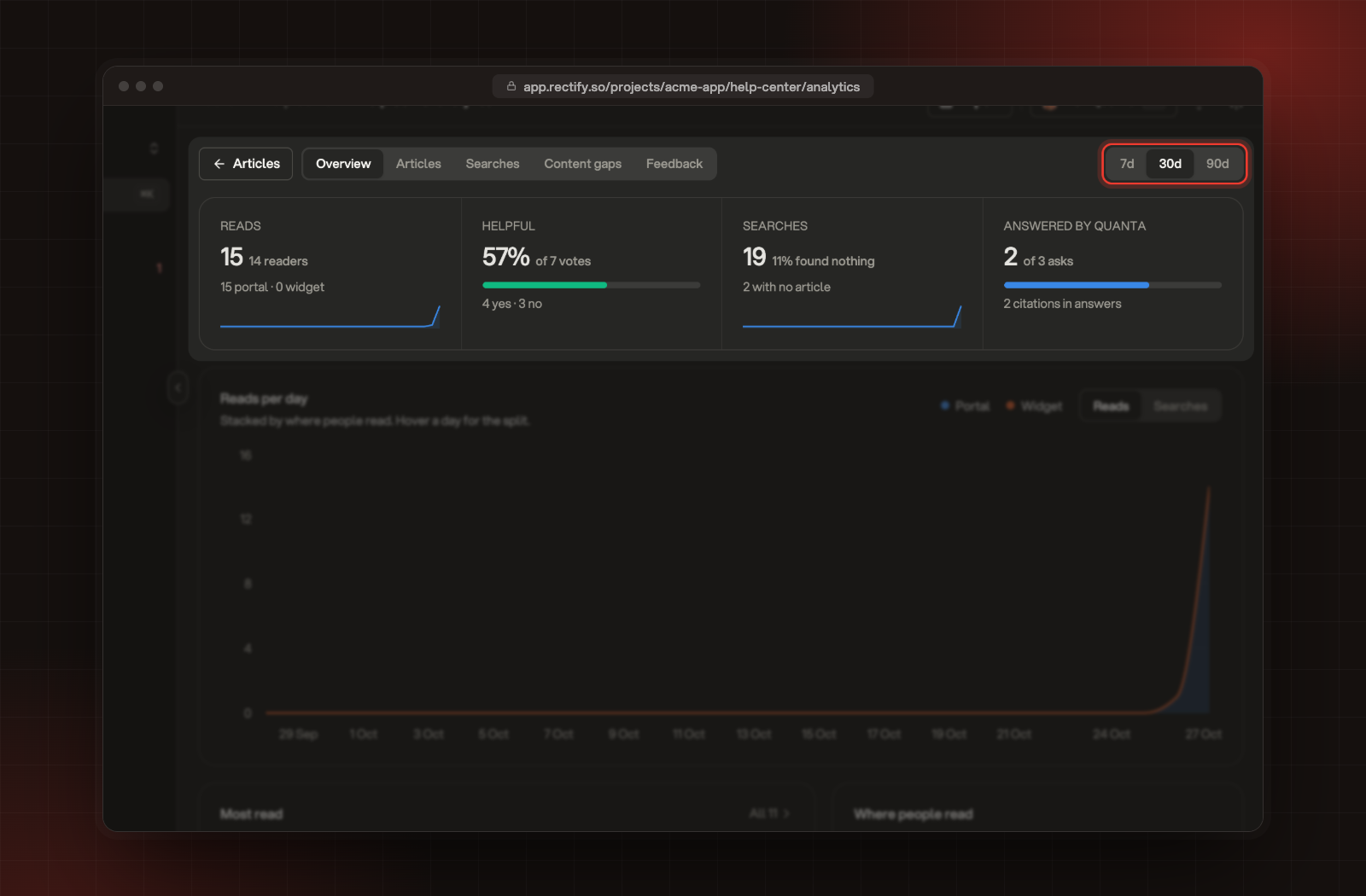
Pick the period in the top right: 7d, 30d or 90d.
The tabs, the period and the four numbers at the top of the Overview tab.
The period applies to every tab except Content gaps, which always looks back over recent weeks. To download the numbers, select Export and pick Articles CSV, Searches CSV or Feedback CSV.
Overview
Card
What it counts
Reads
Every time an article was opened, and how many different people opened articles. The line below splits reads between your portal and your widget.
Helpful
The share of "Was this helpful?" votes that said yes, with the number of yes and no votes.
Searches
Searches in your Help Center, the share that found nothing, and how many had no article.
Answered by Quanta
Questions Quanta answered from your articles, out of all questions asked, and how often it cited an article.
Below the cards, Reads per day charts the period day by day (switch it to Searches to see searches instead), Most read ranks your articles, and Where people read compares the portal with the widget.
A reader's search counts once, not once for every letter they type. If someone refines a search within a minute, Rectify keeps the search they settled on.
Articles
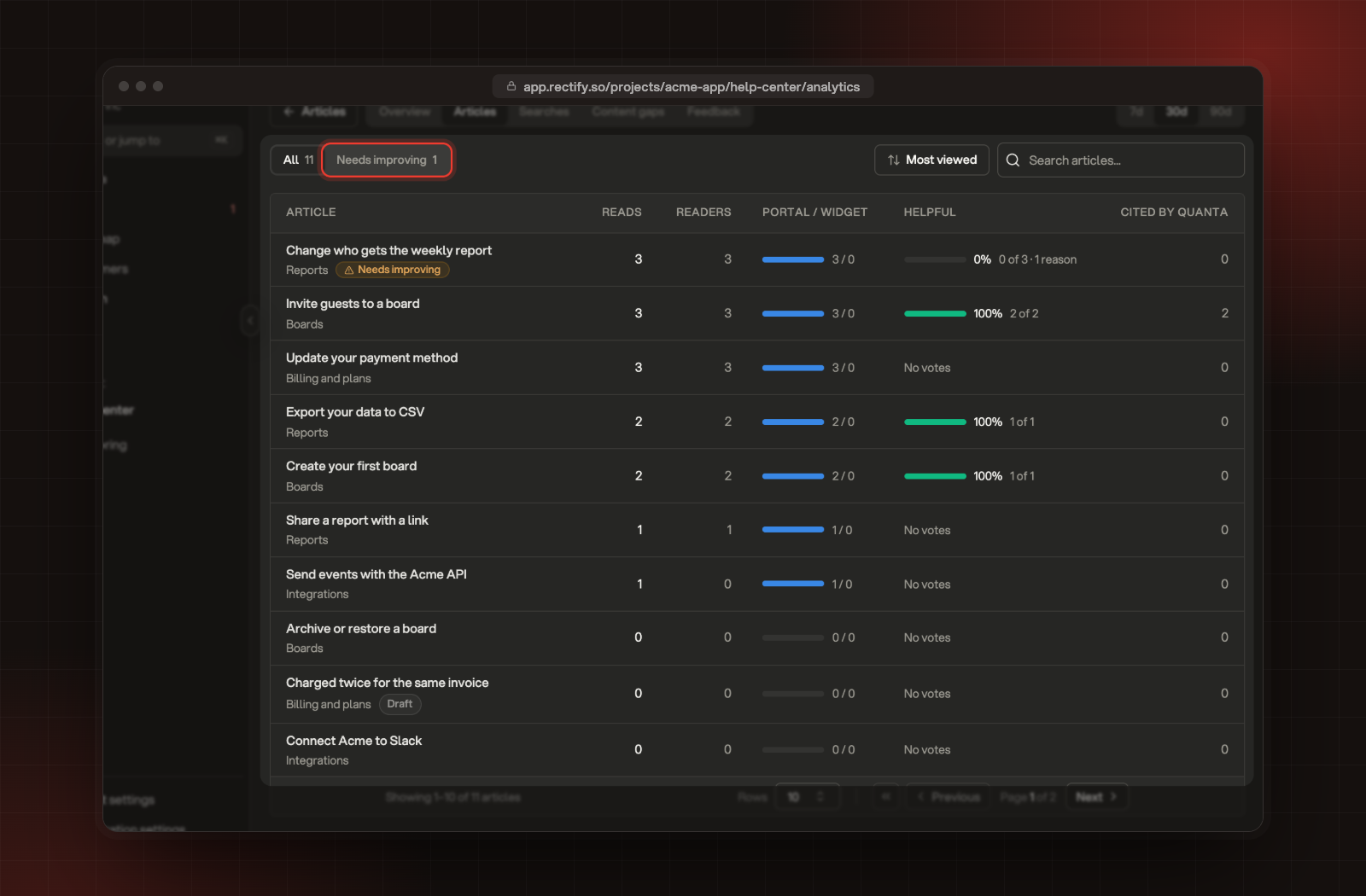
The Articles tab lists every article with its Reads, Readers, the Portal / widget split, how Helpful readers found it and how often it was Cited by Quanta.
Select Needs improving to see only the articles readers struggle with: three or more votes, and fewer than half of them helpful.
The Articles tab, with Needs improving.
Searches
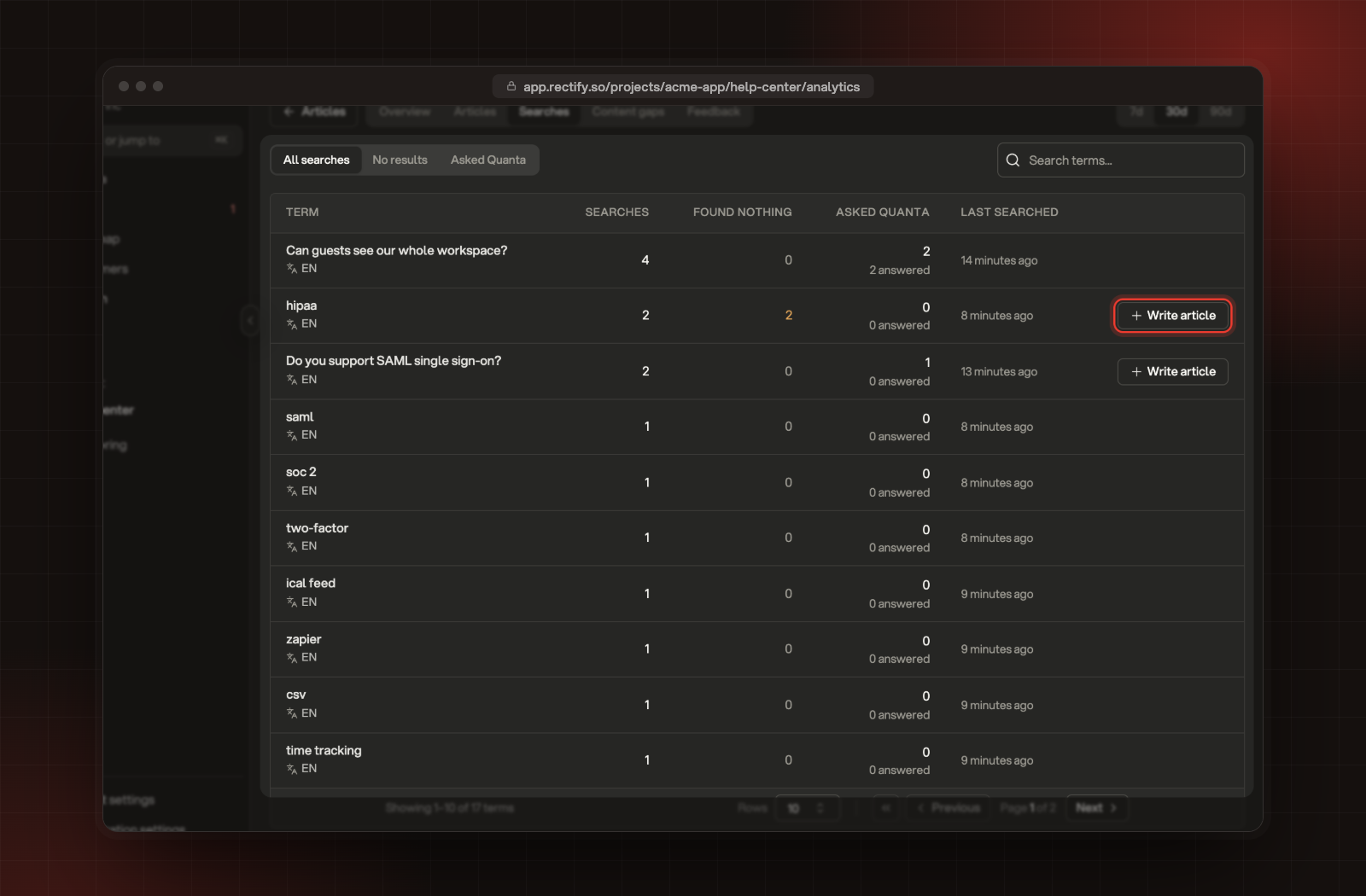
The Searches tab lists what people searched for, with how often each search Found nothing and how often people Asked Quanta. Pick No results or Asked Quanta to narrow the list.
A term with Write article next to it found nothing, or Quanta couldn't answer it.
A search that found nothing, with Write article.
Fill a content gap
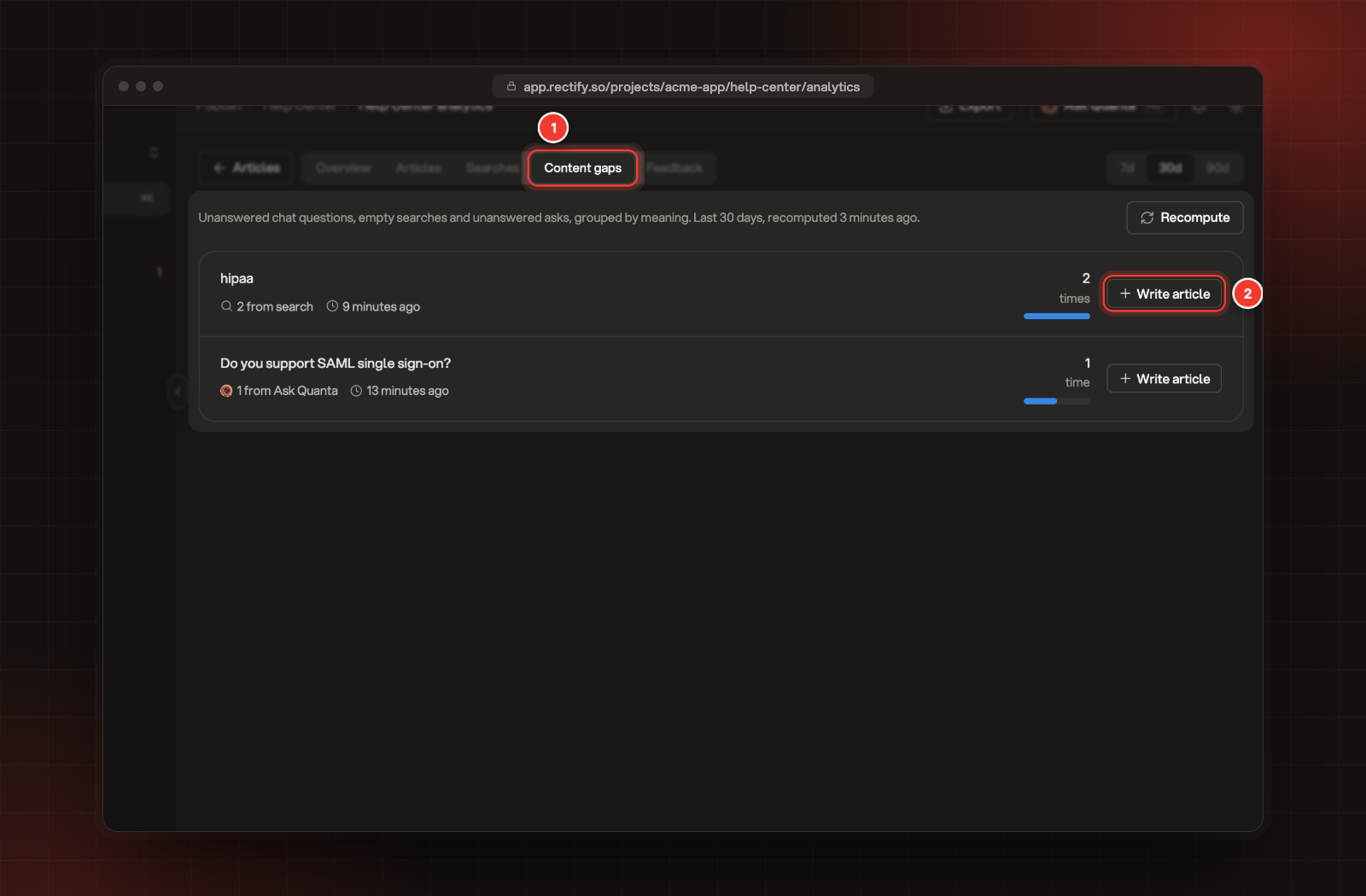
Content gaps groups the questions your Help Center couldn't answer by what they mean, so different wordings of the same question count as one gap. It collects three kinds:
•
from search: searches that found nothing.
•
from Ask Quanta: questions Quanta couldn't answer from your articles.
•
in chat: questions Quanta couldn't answer in your support chat.
To answer one:
1.
Select the Content gaps tab.
2.
Next to the gap, select Write article.
1 Content gaps. 2 Write article.
3.
A new article opens with the gap as its title. Rename it, write the answer and publish it.
The list is worked out again every 10 minutes. Select Recompute to refresh it right away.
Feedback
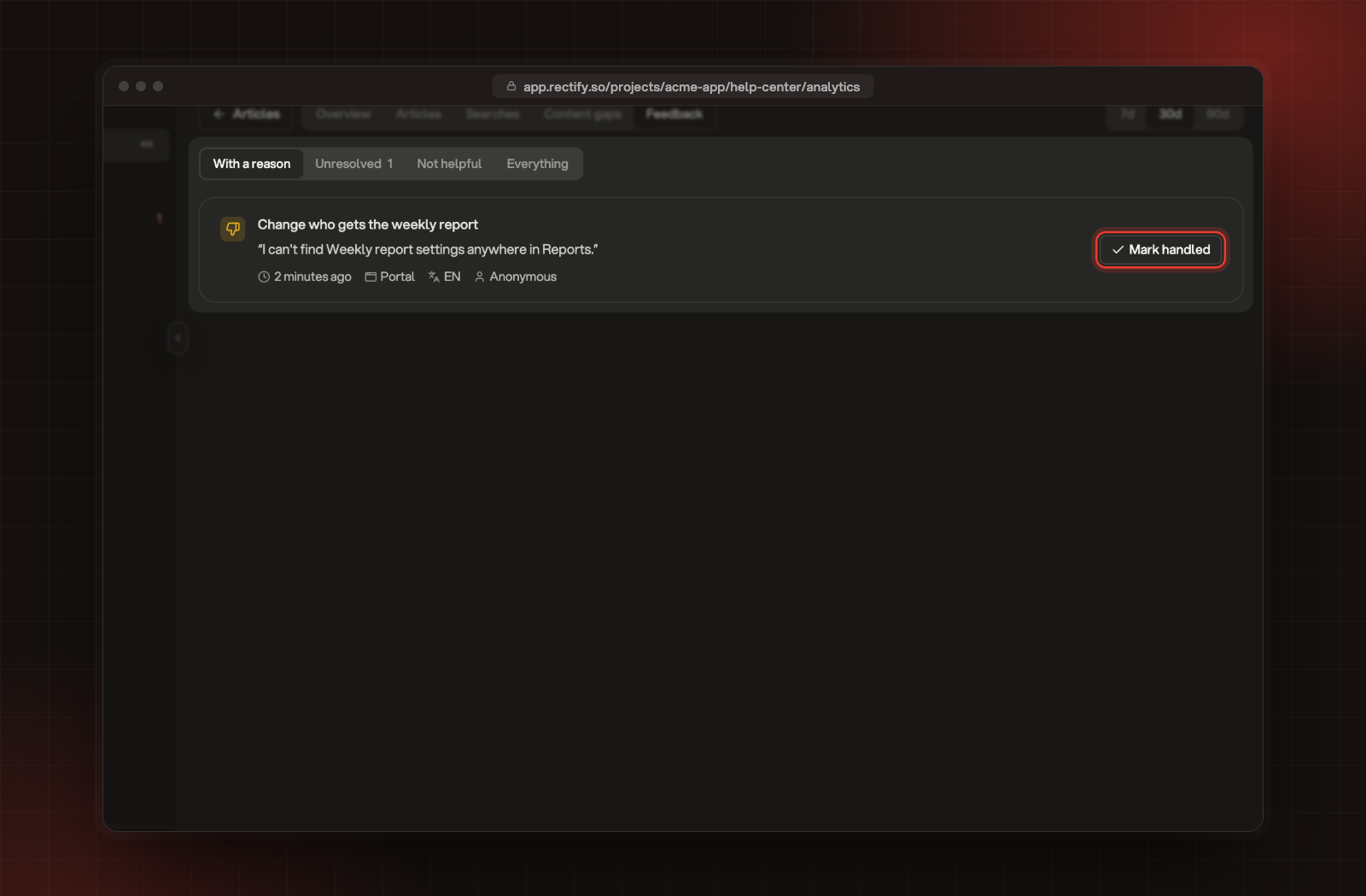
When readers vote no, they can say what they were looking for. The Feedback tab shows those reasons. Filter by With a reason, Unresolved, Not helpful or Everything.
Once you've fixed the article, select Mark handled. It leaves Unresolved, and Reopen brings it back.
A reader's reason, with Mark handled.
Check it worked
Open your Help Center in a private window, read an article and search for something. Reload analytics and your read and search are counted.
Every card shows 0
Analytics count reads and searches in your public Help Center and in the widget's Help tab. Check the period, and that your articles are published.