Install the Rectify app on GitHub so new feedback opens issues in your repository, and Quanta and Code Scan can read your code.
4 min readUpdated 5 days ago
Before you start. You need to be able to install apps on the GitHub account or organization that owns your repository. Everyone who can open the project can connect GitHub, on every plan. Some features that use GitHub have their own limits: Code Scan isn't on the free Idea plan, and only Owners and Admins can ask Quanta to write a fix.
With GitHub connected to a project, Rectify can:
•
Open an issue in your feedback repository for each new feedback report.
•
Let Quanta read your code when it triages a bug, and open a draft pull request with a fix.
•
Check your repositories with Code Scan.
•
Open issues from a workflow with the Create GitHub Issue step.
GitHub is connected per project. To use it in another project, connect it there too.
Connect GitHub
1.
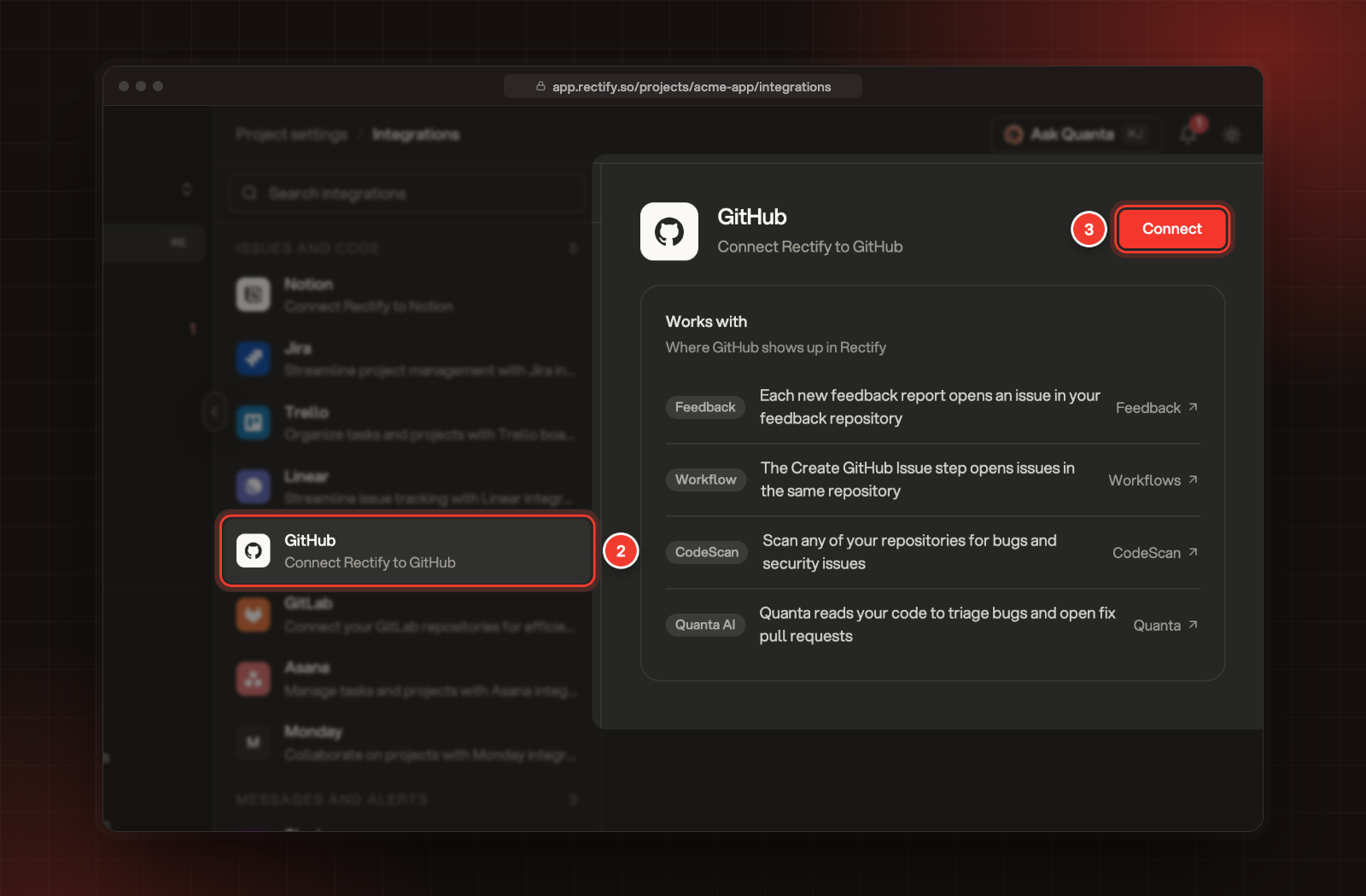
Open Project settings, then Integrations.
2.
Select GitHub.
3.
Select Connect. GitHub opens.
2 GitHub. 3 Connect.
4.
Choose the GitHub account or organization to install the Rectify app on.
5.
Choose which repositories Rectify can see: all of them, or only the ones you pick.
6.
Approve the install.
GitHub sends you back to GitHub in Integrations, now marked Connected. Rectify only sees the repositories you chose, and it only changes code when you ask Quanta for a fix.
Choose the feedback repository
Rectify starts with the first repository GitHub shares. To use another one:
1.
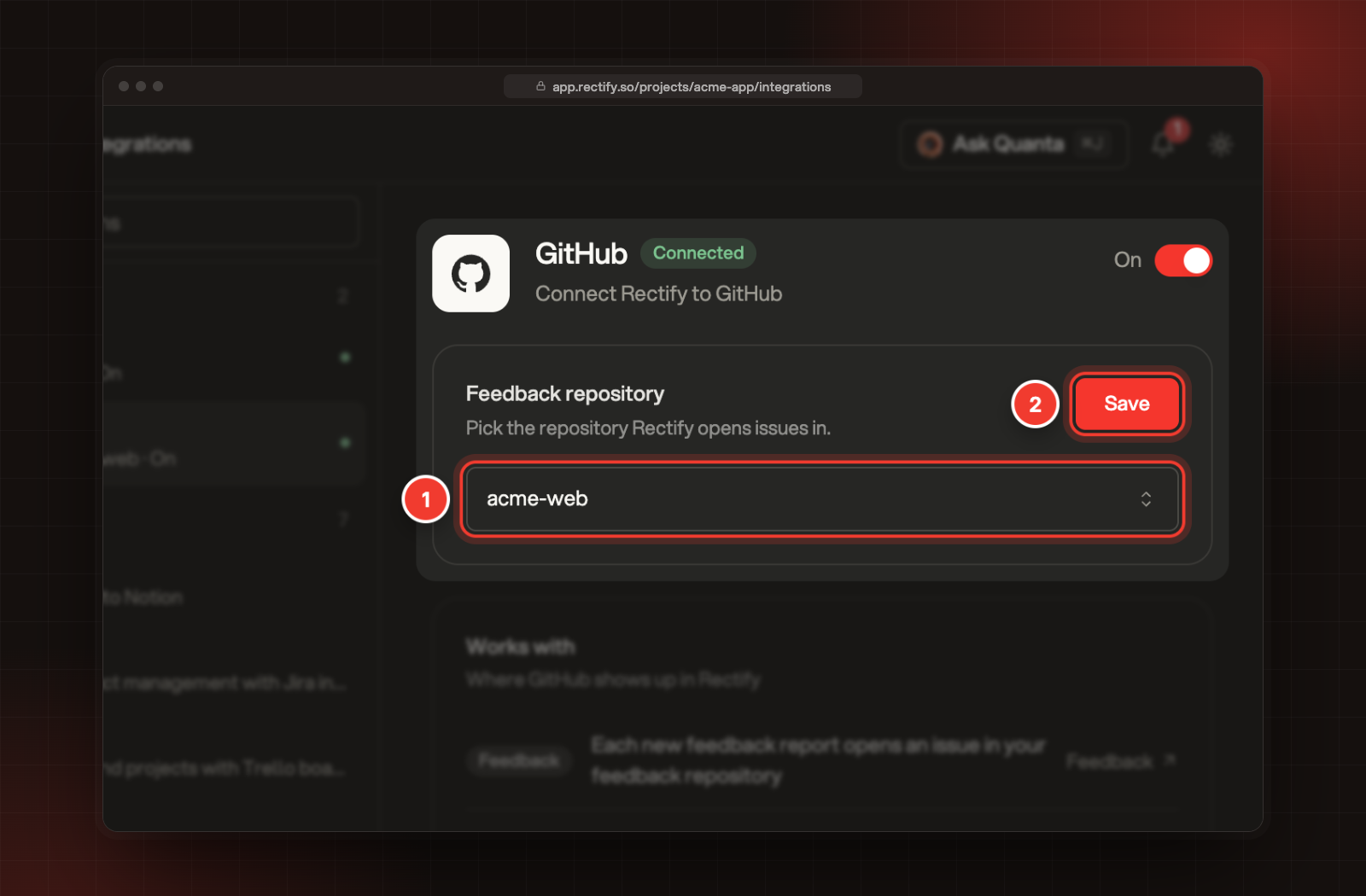
Pick it under Feedback repository.
2.
Select Save. You see GitHub repository configured successfully.
1 Feedback repository. 2 Save.
From then on, each new feedback report opens an issue in that repository, as soon as it arrives. The report's title becomes the issue title and its description becomes the issue body. Every type of report is sent: bugs, ideas, general feedback and testimonials. Changes made later, in Rectify or on GitHub, aren't synced either way.
The Create GitHub Issue workflow step opens issues in the same repository.
Choose the repository Quanta reads
Quanta's triage, its fixes and its answers about your code use a second setting, which also starts as the first repository GitHub shares. If you connected GitHub in the setup wizard, both settings use the repository you picked there.
1.
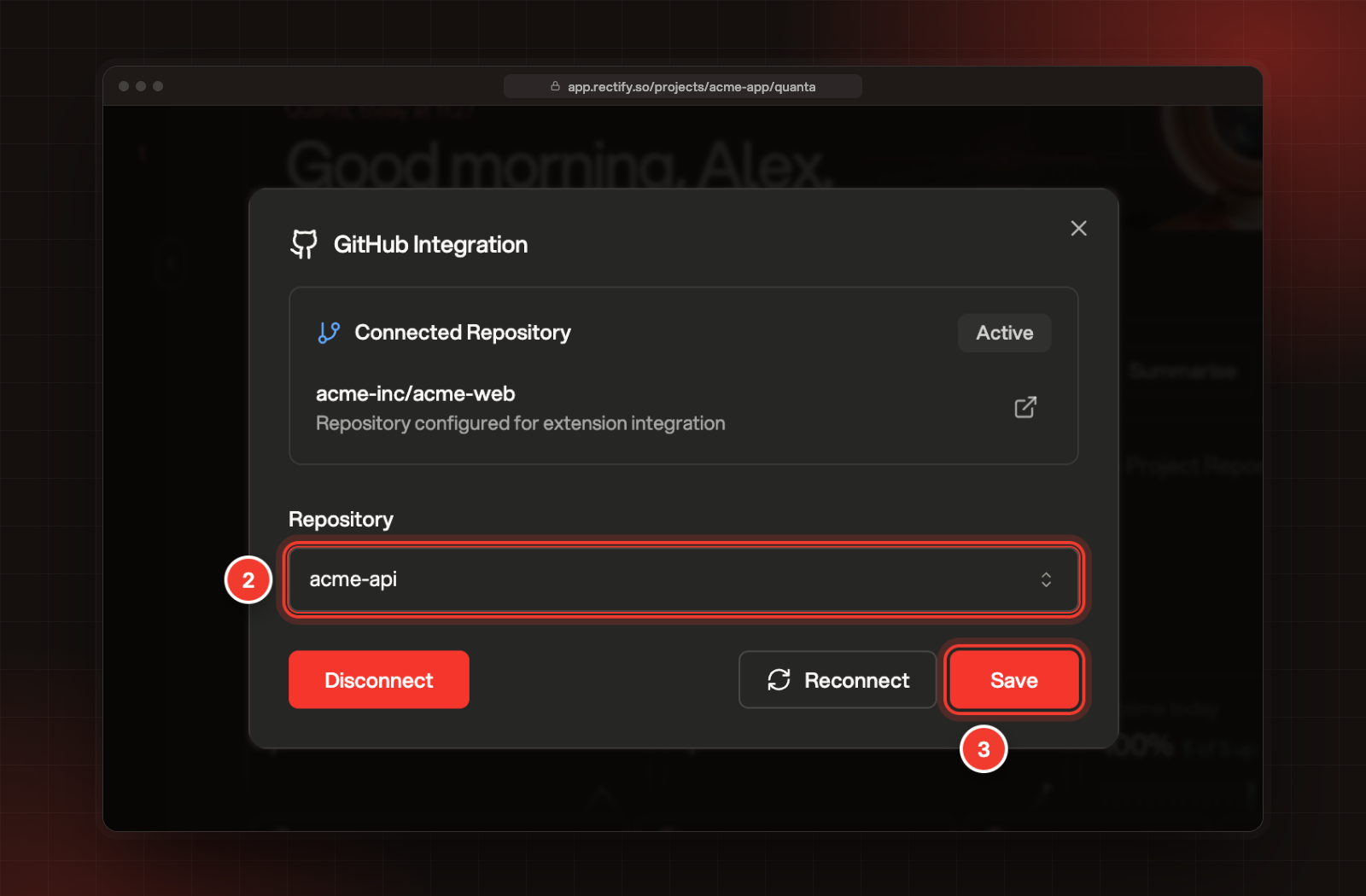
Open Quanta and select the GitHub button under the message box. It shows the repository Quanta reads now.
2.
Pick the Repository.
3.
Select Save. You see Repository configured.
2 Repository. 3 Save.
You can open the same window from a bug's Quanta triage panel. The CodeScan page asks for a repository and a branch each time you start a scan.
Pause or disconnect GitHub
To pause, turn the switch at the top of the GitHub page to Off. New reports stop opening issues and the Create GitHub Issue step stops working. Quanta and Code Scan can still read your code. Turn it back On to start again.
To disconnect, select Disconnect under Disconnect GitHub. It happens straight away, with no confirmation, and you see GitHub integration removed successfully.
Disconnecting only affects this project. Other Rectify projects that use the same GitHub account or organization stay connected. When no other project uses it, Rectify also uninstalls its app from that GitHub account or organization.
Troubleshooting
It says "Failed to fetch repositories, please try re-authenticating with your GitHub account."
Rectify can't reach GitHub with this connection, for example because the app was uninstalled or its access changed on GitHub. You may also see "GitHub no longer accepts this project's connection. Reconnect GitHub in Integrations." Open the GitHub window in Quanta and select Reconnect, then approve Rectify on GitHub again.
My repository isn't in the list
Rectify only sees the repositories you gave the Rectify app on GitHub. Add the repository to the app's access in your GitHub settings, then come back and pick it.
No issues appear on GitHub
Check that GitHub shows On in Integrations and that Feedback repository is the one you expect. Only reports that arrive after you connect are sent.
A workflow run fails with "GitHub integration not enabled for this project"
GitHub is turned off or not connected in this project. Turn it On, or connect it, and run the workflow again.