Tell the people who asked for a feature that it's live, when you move their request and when you announce it in the changelog.
5 min readUpdated 2 days ago
Before you start. Owners, Admins and Members can send updates to followers and publish changelog posts. Emails go to customers who have an email address on file.
There are two ways to tell people that what they asked for has shipped. Send an update when you move the request to a shipped status, and link the request to the changelog post that announces it. You can do either or both.
Who follows a request
People follow a request automatically when they post it, vote for it or comment on it. Taking a vote back doesn't unfollow them. People in your Discord server only follow when they choose to, with the DM box in the form or Follow on a card.
On your portal, each request has a Follow button. Followers can choose All activity, Status changes or Unsubscribe. People who pick Unsubscribe get nothing about that request.
Tell followers when you move a request
Moving a request never emails anyone on its own. After each move, Rectify asks whether to tell its followers.
1.
Open the request from your roadmap or from All posts.
2.
Change its Status to one in the Completed group, such as Shipped.
3.
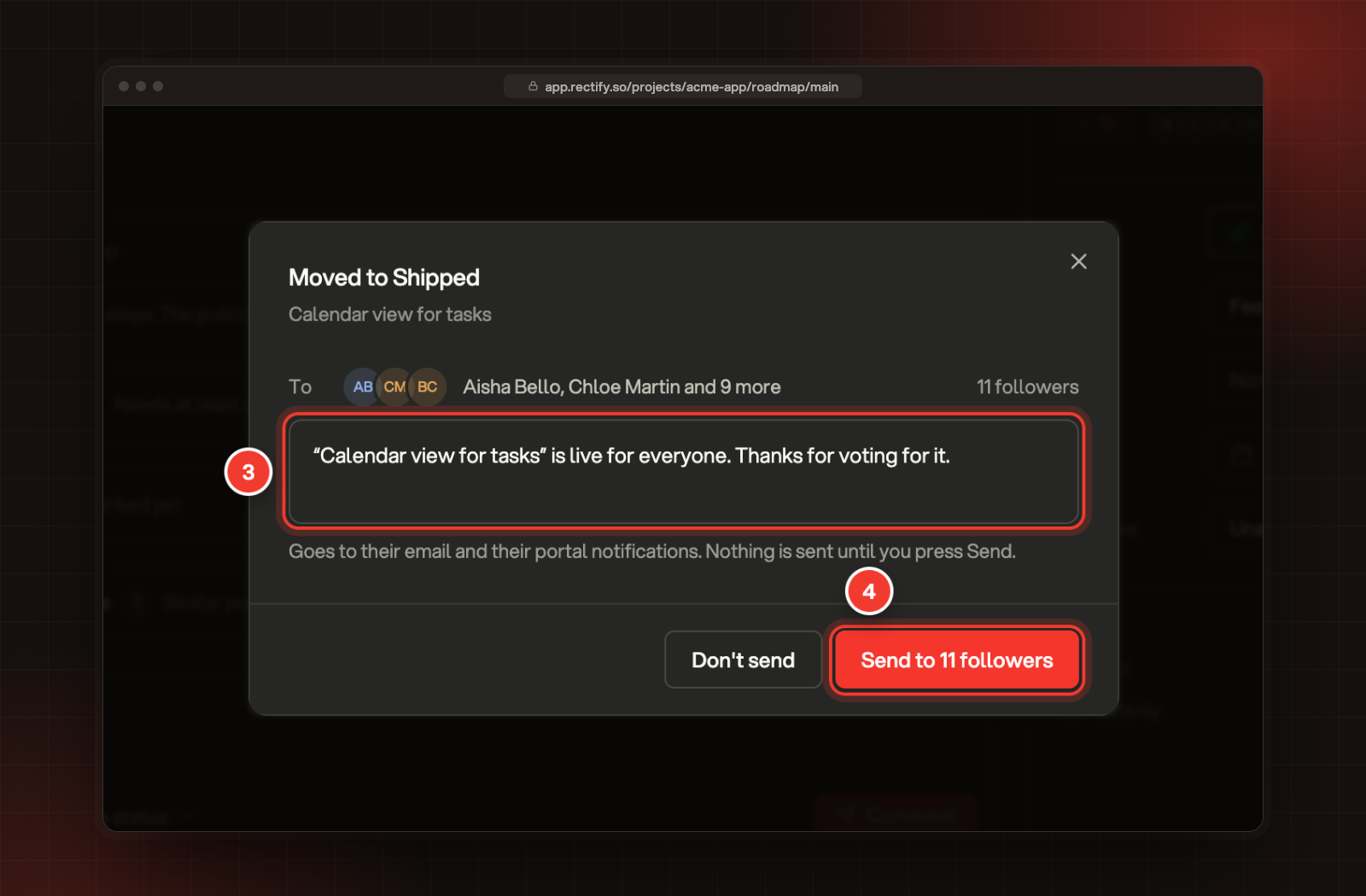
Rectify shows who will hear about it and a message ready to go. Edit the message if you like.
4.
Select Send to followers to send it, or Don't send to skip it.
3 The message. 4 Send to 11 followers.
Followers get the message by email and in their portal notifications. The email's subject is the request's title followed by "is now live". For other statuses, the subject starts with "Update on". The message can be up to 2,000 characters.
If your project is connected to Discord, followers who came from your Discord server get the message as a Discord DM instead, and the dialog says how many with "1 of them gets a Discord DM instead." Share roadmap and changelog updates in Discord shows what they get.
If nobody follows the request yet, Rectify says so and there's nothing to send.
Announce it in a changelog post
Link the requests a changelog post ships. When the post goes live, their followers hear about it too.
1.
In Roadmap, Changelog, open the post or select New update.
2.
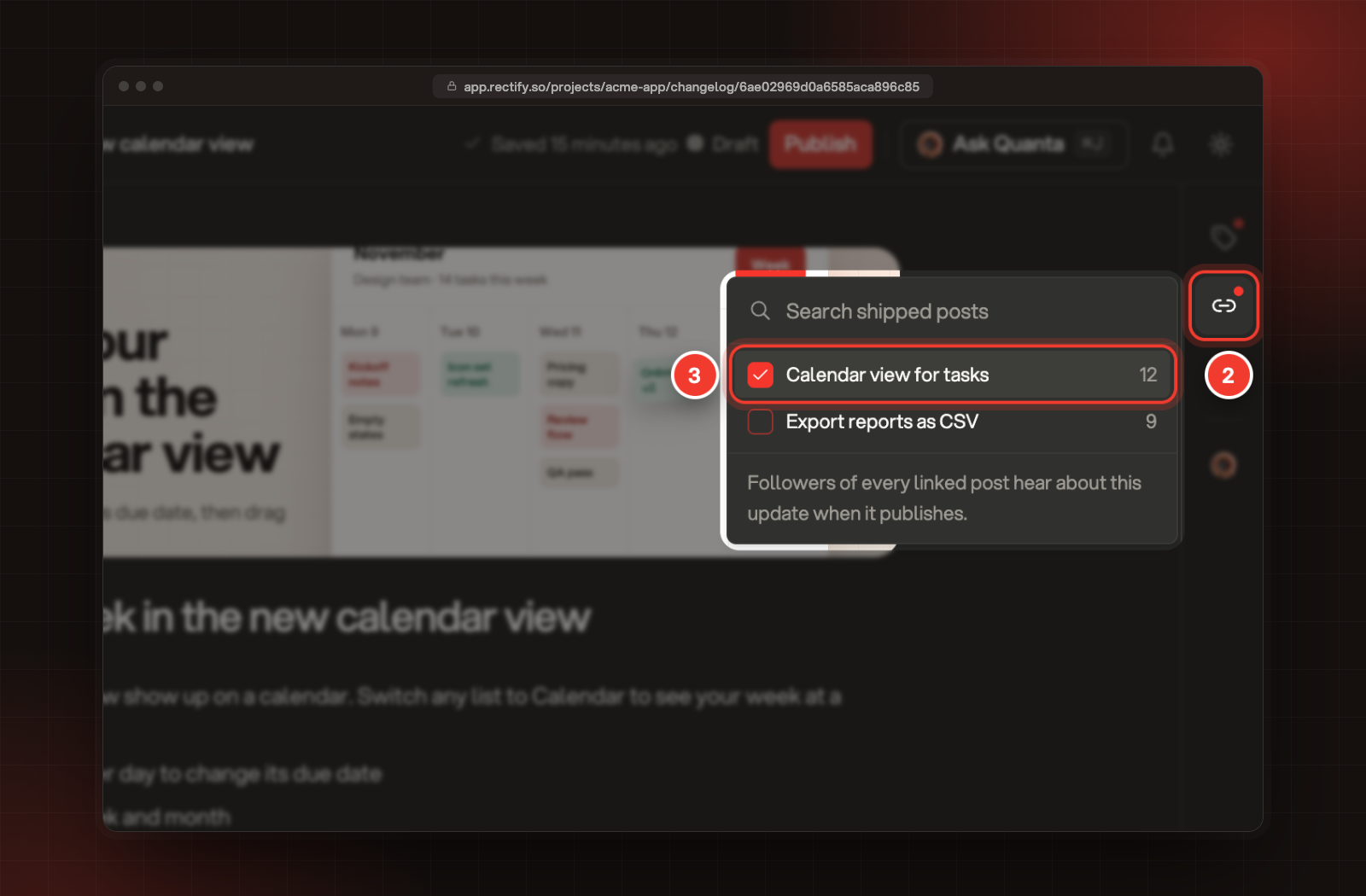
Select the link icon, Shipped posts, in the right-hand rail.
3.
Tick each request this post ships. The list shows requests in the Completed group, most votes first.
2 Shipped posts. 3 A shipped request, ticked.
4.
Select Publish in the top bar.
5.
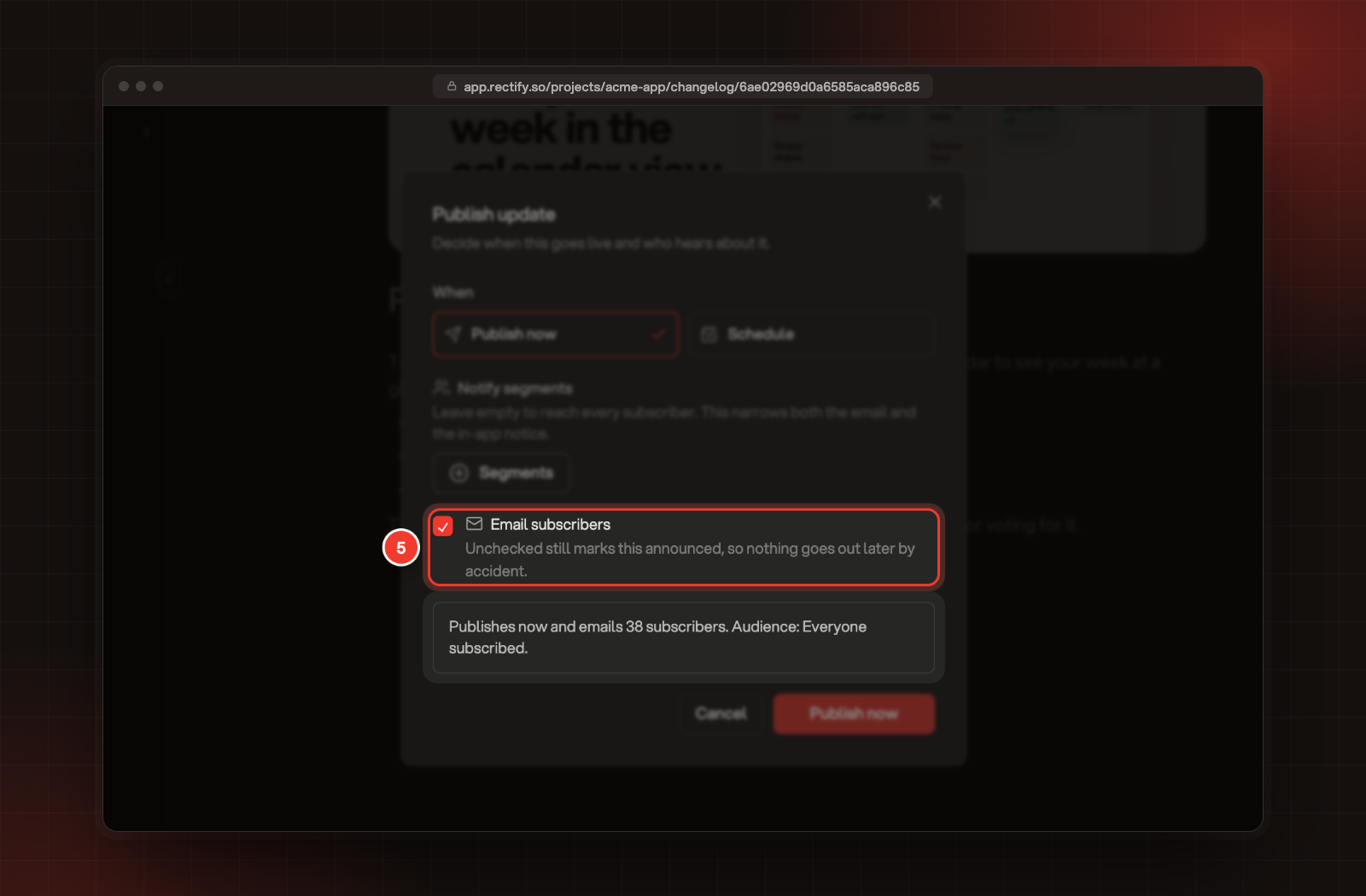
Make sure Email subscribers is ticked.
5 Email subscribers, ticked.
6.
Select Publish now, or Schedule update for a scheduled post.
Within about a minute of the post going live, Rectify emails everyone subscribed to your changelog. Then it emails the followers of each linked request who aren't subscribed, so nobody gets the same post twice. A scheduled post goes out at its scheduled time.
On the post's page, the linked requests show under Shipped in this release.
Followers of linked requests who follow through Discord get a "Shipped" DM at the same time, even while changelog emails are paused.
If you untick Email subscribers, nobody hears about the post: not your subscribers, not the followers of linked requests and not your Discord server. The post is marked as announced, so it won't go out later either.
What people receive
The changelog email has your project's name and the post's title as its subject, the start of the post, and a Read the update button that opens it on your portal. Every email ends with an Unsubscribe link. For a subscriber it stops changelog emails. For a follower it unfollows that one request.
People signed in to your portal choose what reaches them on its Settings page, under Notifications. Product updates covers changelog emails, Shipped and Status changes cover the updates you send when you move a request, and Pause every email stops them all.
Send a post again
Owners and Admins can open a published post and select Resend email, then Send again. Within a minute, everyone subscribed gets it again, including people who already had it, and so do the followers of its linked requests. If your project posts changelog entries to a Discord channel, it's posted there again too. If the post was published quietly, this sends it for the first time.
Check it worked
After you select Send to followers, Rectify confirms with "Update sent to" and the number of followers. For a changelog post, select Subscribers at the top of the Changelog page to see who is subscribed.
A request isn't in the Shipped posts list
The list only shows requests with a status in the Completed group. Move the request to your shipped status first, then open Shipped posts again.
A follower didn't get the email
They may have chosen Unsubscribe on the request, used an unsubscribe link, or paused emails in their portal settings. They also need an email address on file. If the post was limited to segments, only followers in those segments hear about it.
It says "Changelog emails are switched off"
Changelog emails are turned off for this project. Owners and Admins can turn them back on in Settings on the Changelog page, under Email. Anyone on your team can also do it under Publish, Portal: on the Changelog tab, turn off Pause all changelog emails, then select Save. Posts published while emails are off are never emailed afterwards.