Open an Intercom ticket for every new feedback report, so your support team can follow it up there.
2 min readUpdated 24 days ago
Before you start. You need an Intercom workspace that uses tickets, and an Intercom teammate account to connect with. Owners, Admins and Members who can open the project can connect Intercom. Integrations are on every plan, and each project connects its own Intercom workspace.
Once Intercom is connected, each new feedback report opens a ticket in Intercom with the report's title and description. Tickets only go one way: what you change in Intercom doesn't come back to Rectify.
Each ticket is opened under the email address of the Intercom teammate who connected Rectify, not under the person who sent the feedback. That address shows under Intercom in the list of integrations.
Connect Intercom
1.
Open Project settings, then Integrations.
2.
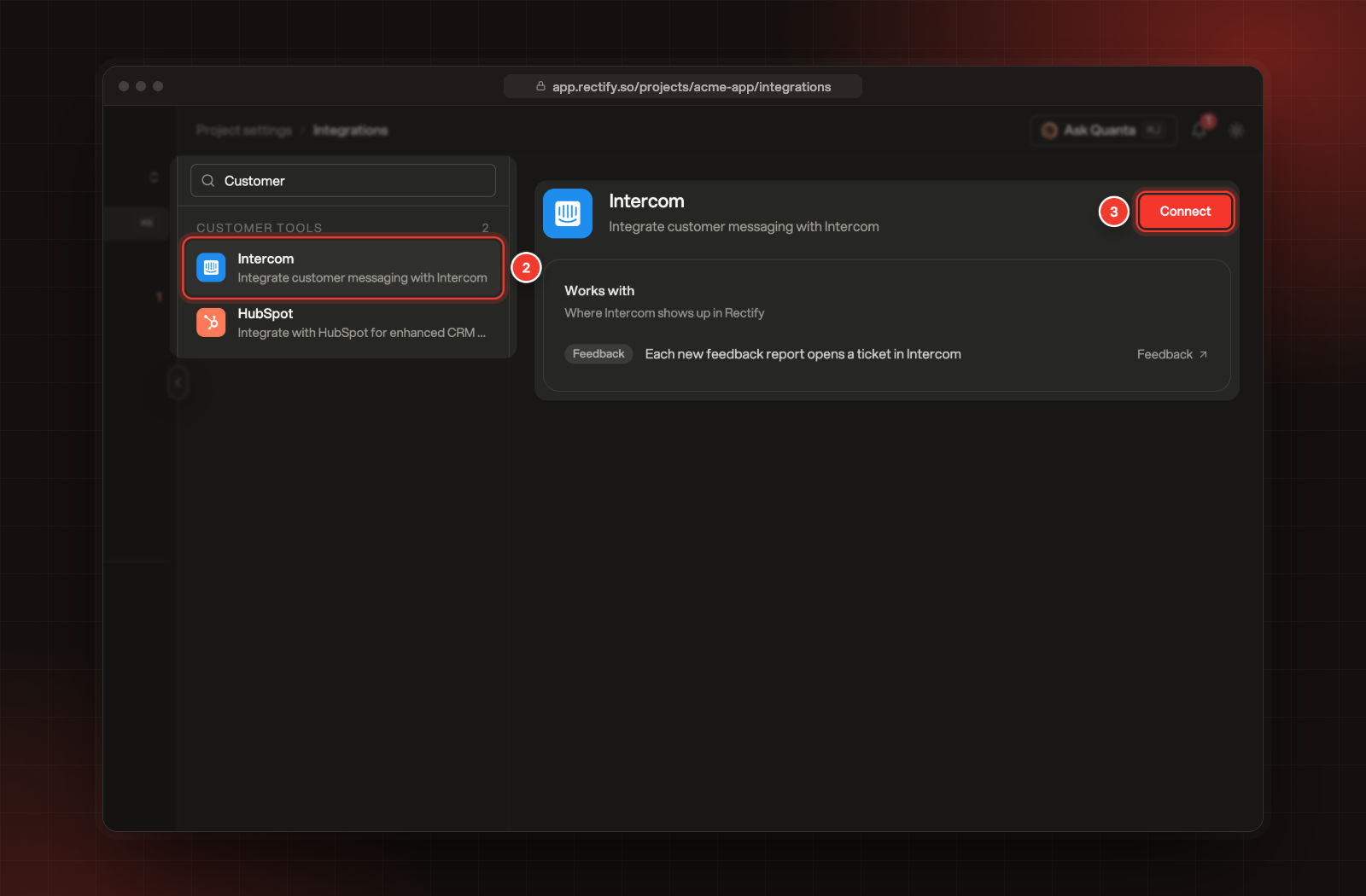
Select Intercom under Customer tools. You can also type its name in Search integrations.
3.
Select Connect.
2 Intercom. 3 Connect.
4.
Intercom opens. Sign in if it asks and approve Rectify.
5.
Intercom sends you back to Integrations, where Intercom now shows Connected.
There's nothing else to set up. In the list, Intercom moves to Connected and shows the email of the teammate account you connected with.
Pause or disconnect Intercom
•
Pause: turn off the switch next to On at the top of the Intercom settings. Intercom shows Paused, and new reports stop opening tickets. Reports that arrive while it's paused aren't sent later.
•
Disconnect: select Disconnect under Disconnect Intercom. This removes Intercom from the project. Tickets already in Intercom stay there. To take away Rectify's access on the Intercom side too, remove Rectify from the installed apps in your Intercom settings.
Check it worked
Send a test report from your widget, then open your tickets in Intercom. A new ticket with the report's title is there.
I connected with the wrong Intercom account
Tickets use the email of whoever connected. Select Disconnect under Disconnect Intercom, then ask the right teammate to select Connect and approve Rectify with their own Intercom account.
I don't see the ticket
Check that Intercom says Connected, not Paused, in Integrations, and that tickets are turned on in your Intercom workspace.