Ask Quanta to draft a survey, or start from a template or a blank page, then name it and put it live on your site.
4 min readUpdated 24 days ago
Before you start. Owners, Admins and Members can create, edit, pause and delete surveys, on every plan. Drafting with Quanta needs an AI provider or Rectify credits. Surveys show on your site through the Rectify script, so install it first.
Start a survey
1.
In your project, open Customers, then Surveys. The New survey tab opens.
2.
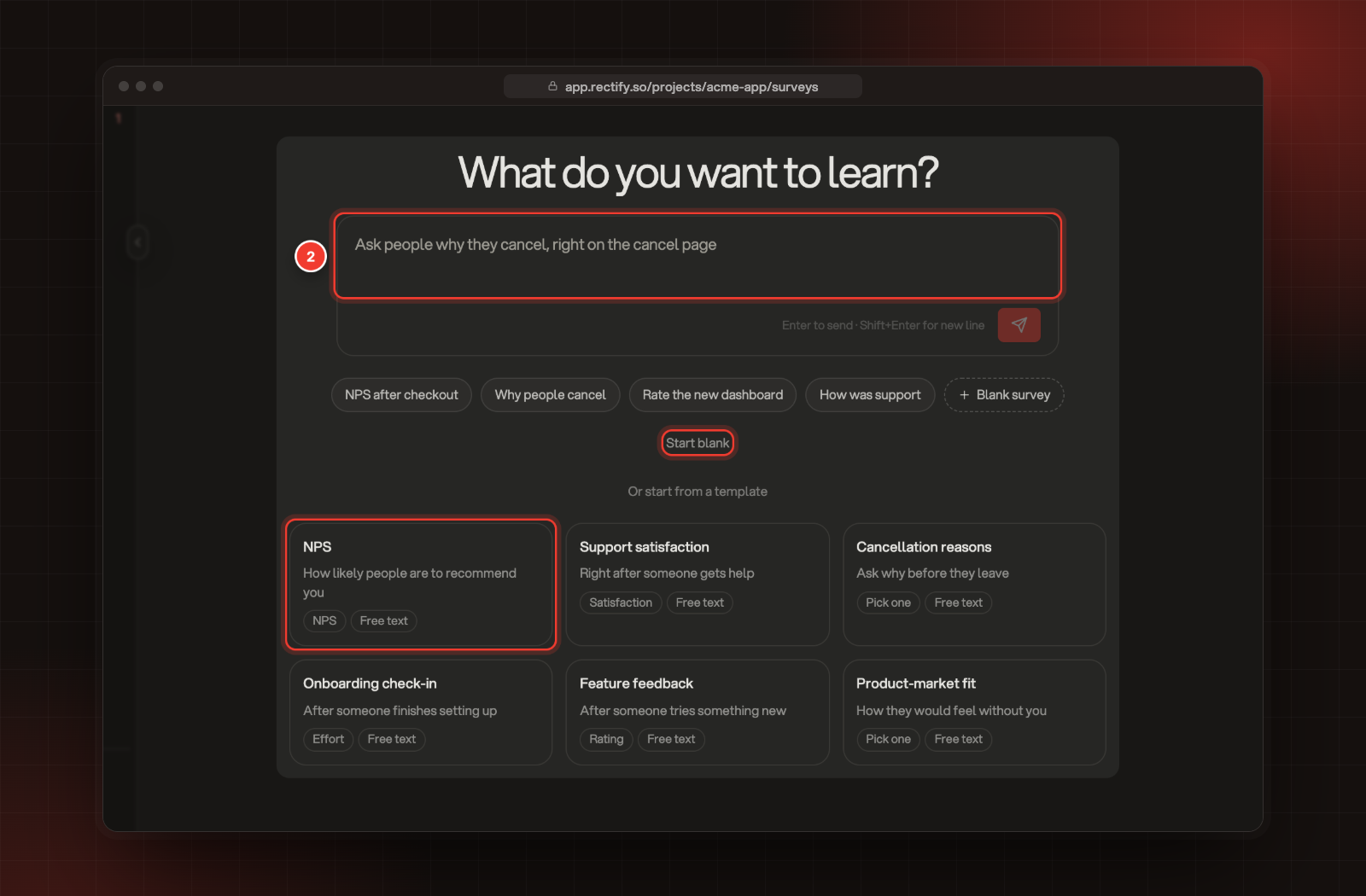
Describe what you want to learn and press Enter, for example "Ask people why they cancel, right on the cancel page". Quanta drafts the questions and where the survey shows. You can also pick a template under Or start from a template, or select Start blank.
2 Describe what you want to learn. The templates are below.
3.
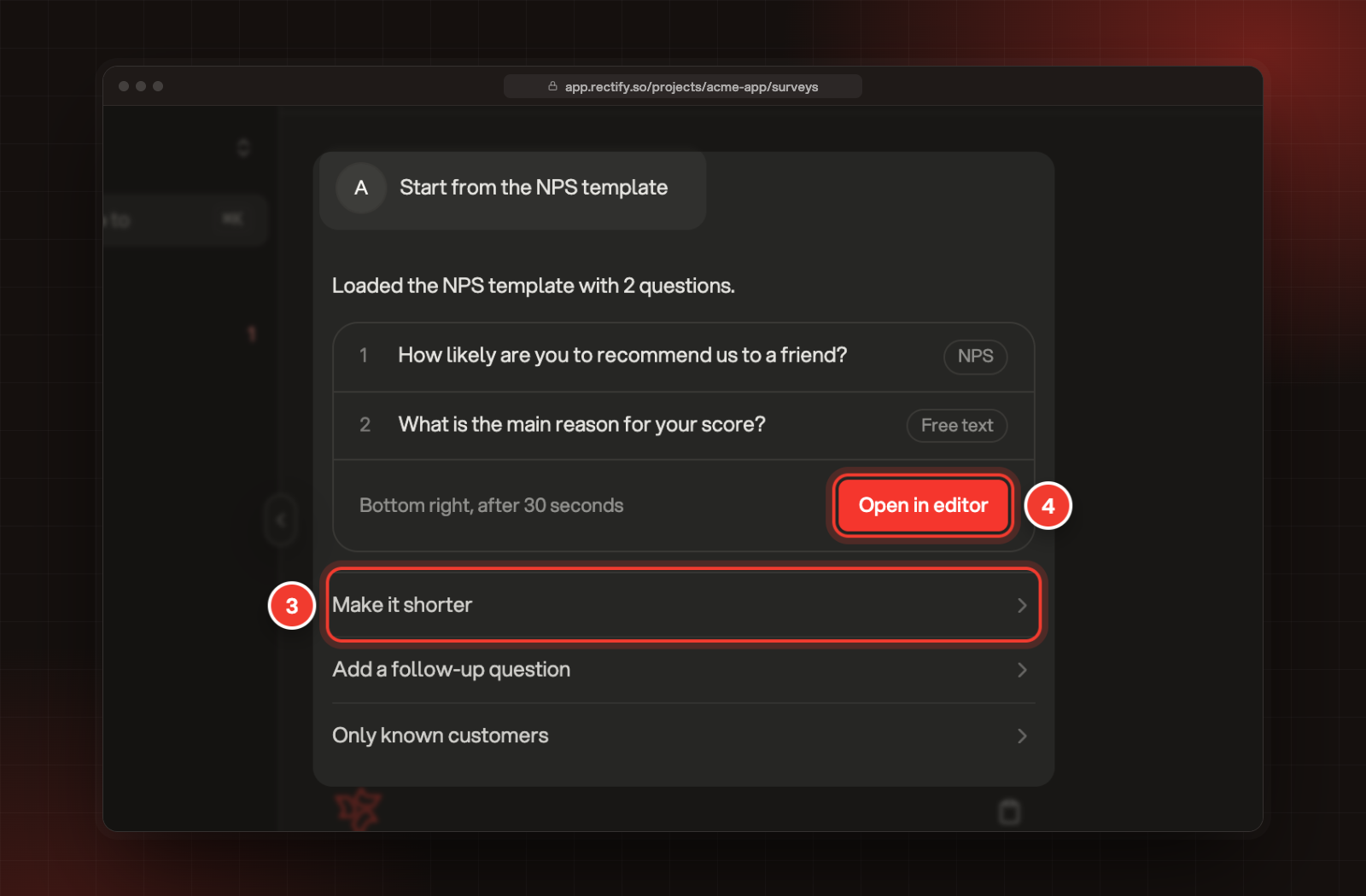
Check the draft. To change it, type what you want in the box, or select a suggestion such as Make it shorter, Add a follow-up question or Only known customers.
4.
Select Open in editor.
3 Make it shorter. 4 Open in editor.
The conversation isn't saved. If you leave the page before saving, Rectify asks whether to save the draft first.
Template
Questions
NPS
How likely people are to recommend you, from 0 to 10, then why
Support satisfaction
How the help was, with faces from 1 to 5, then what could be better
Cancellation reasons
Why they're cancelling, from four choices, then what would change their mind
Onboarding check-in
How easy setting up was, from 1 to 7, then what almost stopped them
Feature feedback
How useful a feature is, in stars, then what's missing
Product-market fit
How they'd feel without your product, then the main benefit
Name it and put it live
1.
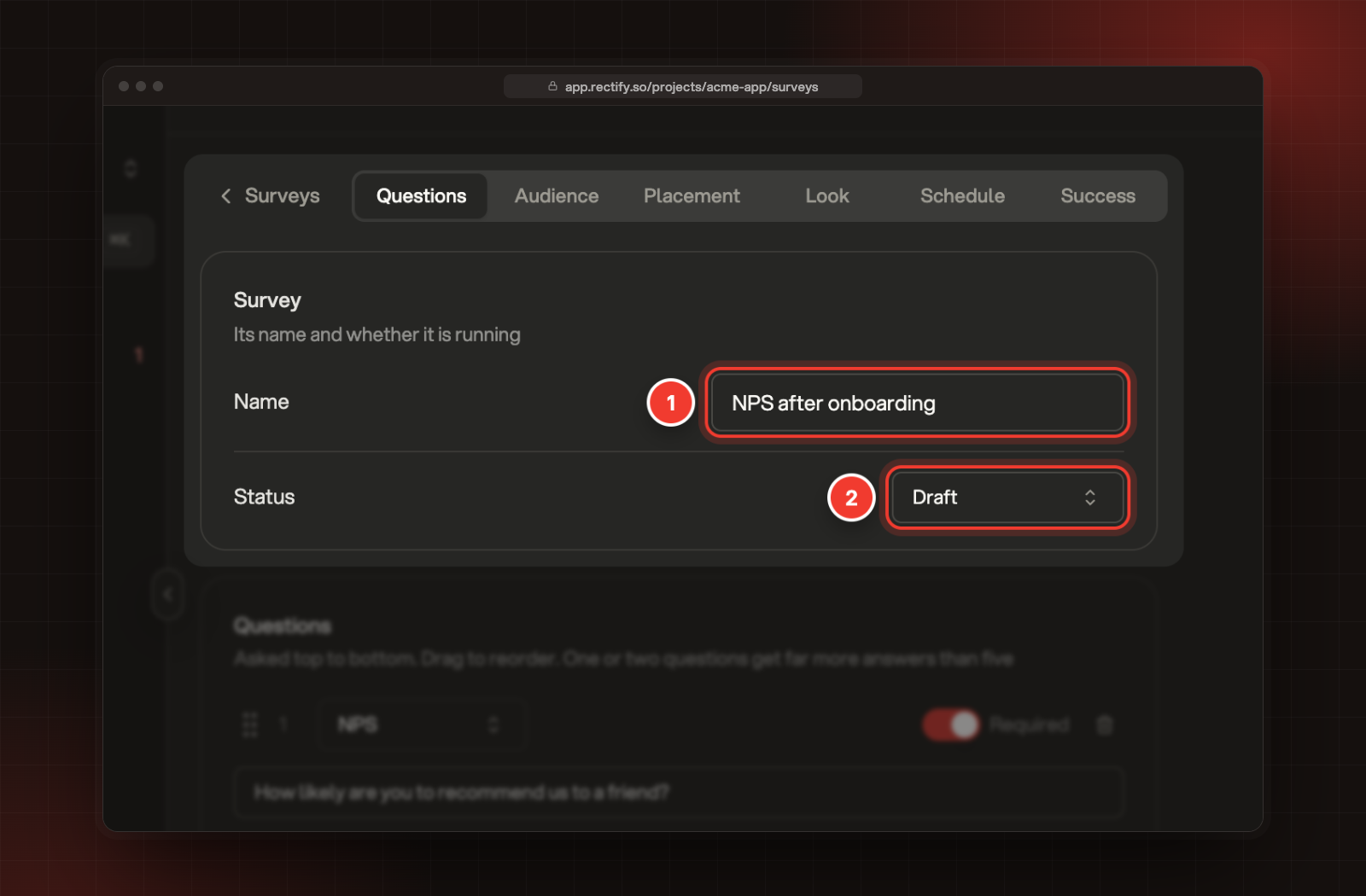
Enter a Name. Only your team sees it.
2.
Choose the Status: Draft keeps it off your site, Live shows it to visitors as soon as you save.
1 Name. 2 Status.
3.
Select Create survey in the bar at the bottom. To save it as a draft, leave the status on Draft.
A survey needs at least one question to go live. Before you save, go through the other tabs:
Everyone, known contacts or anonymous visitors, and segments.
Placement
Where on the screen it sits, which pages it shows on, and which devices.
Look
The Primary, Text and Background colours, the Corner radius, and Progress shown as a Bar, a Count or None.
Schedule
What makes it appear, how often, and the dates it runs.
Success
The thank-you screen: an icon, a Heading and a Message.
The preview next to the editor shows the survey as visitors will see it. Choose who sees a survey and when covers the Audience, Placement and Schedule tabs.
Hiding the "Powered by Rectify" line under the survey, on the Look tab, needs the Launch plan or higher.
Pause, change or delete a survey
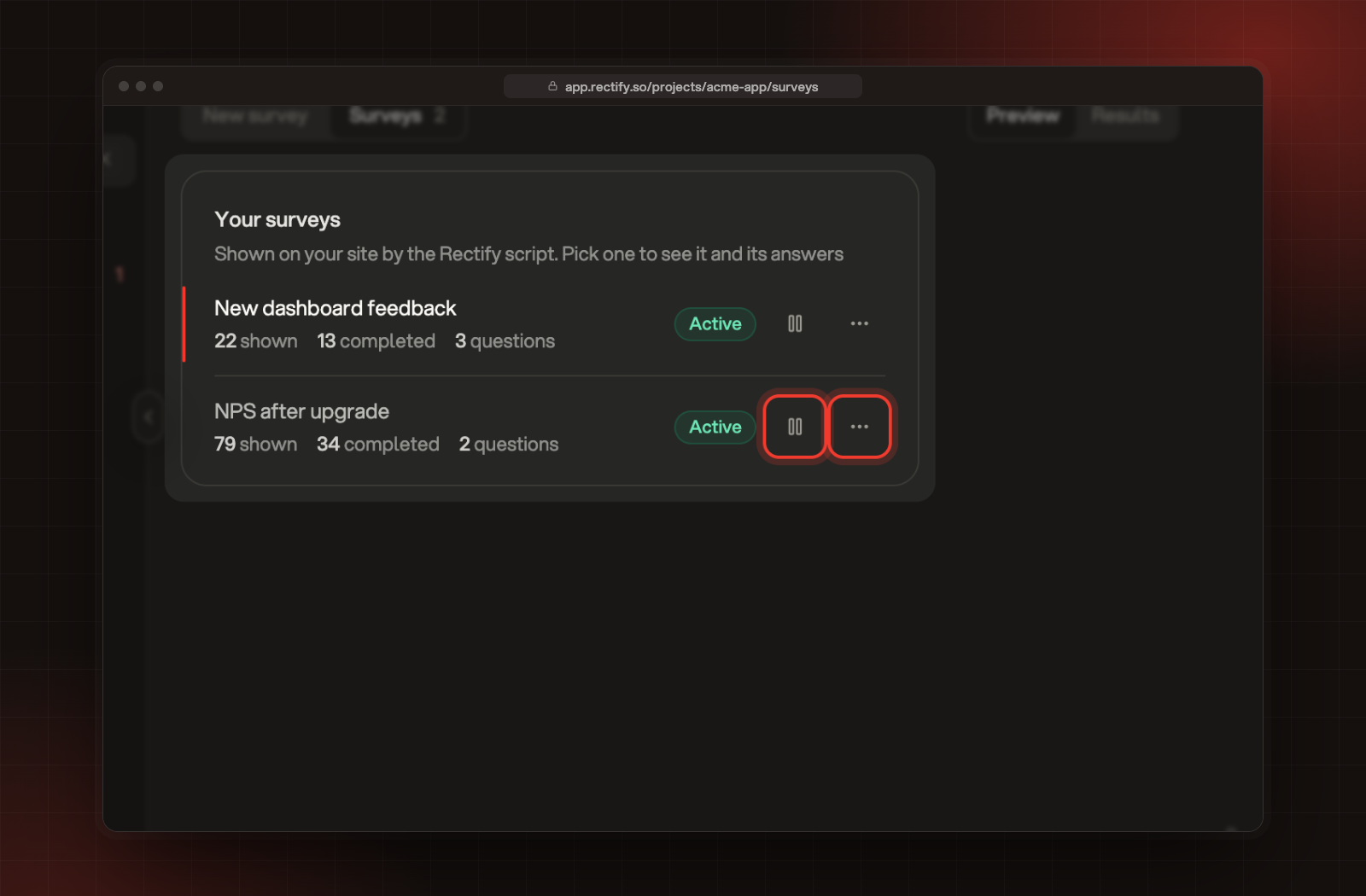
Open the Surveys tab to see every survey with how many times it was shown and completed.
Pause and More actions on a survey in the list.
•
To stop showing a live survey, select the pause button. Select it again to start showing it again.
•
To change a survey, open More actions and select Edit, change it, then select Save.
•
To delete a survey, open More actions and select Delete. Its answers are deleted with it, and this can't be undone.
Status
What it means
Draft
Not shown on your site.
Live
Shown to visitors who match. The list says Active.
Scheduled
Live, with a start date that hasn't come yet.
Paused
Not shown until you start it again.
Finished
Not shown any more. A live survey also shows as finished once its end date passes. The list says Completed.
Troubleshooting
It says "Add a question before this can go live"
Add at least one question on the Questions tab, or save it as a Draft.
It says "Add an AI provider key in Settings, or top up AI credits, before drafting a survey with Quanta"
Your organization has no AI key and no Rectify credits left. Pick a template or select Start blank instead, or ask an Owner or Admin to connect a provider under Organization settings, AI providers.
The survey doesn't show on my site
Check that the survey is Live, that the Rectify script is on the page, and that the page and device match the Placement tab. Someone who already answered it isn't asked again, so test in a private browser window.