Bring records from your own database, like subscriptions or orders, onto your contacts and segment on their fields.
4 min readUpdated 24 days ago
Before you start. Custom objects need the Build plan or higher. Each project can have 2 object types on Build, 5 on Launch, 20 on Accelerate and as many as you like on Enterprise. Everyone in the project can add and delete object types. Records are sent from your server with the project's write key.
A custom object is a kind of record from your own systems, such as a Subscription or an Order. You define its fields once, send records from your backend, and each record shows on the profile of the person it belongs to. Fields you mark for segments become conditions in the segment builder.
Define the object
1.
Open Contacts in the sidebar, under Customers, and select the Objects tab.
2.
Select Let's GO!, or New Object if you already have objects.
3.
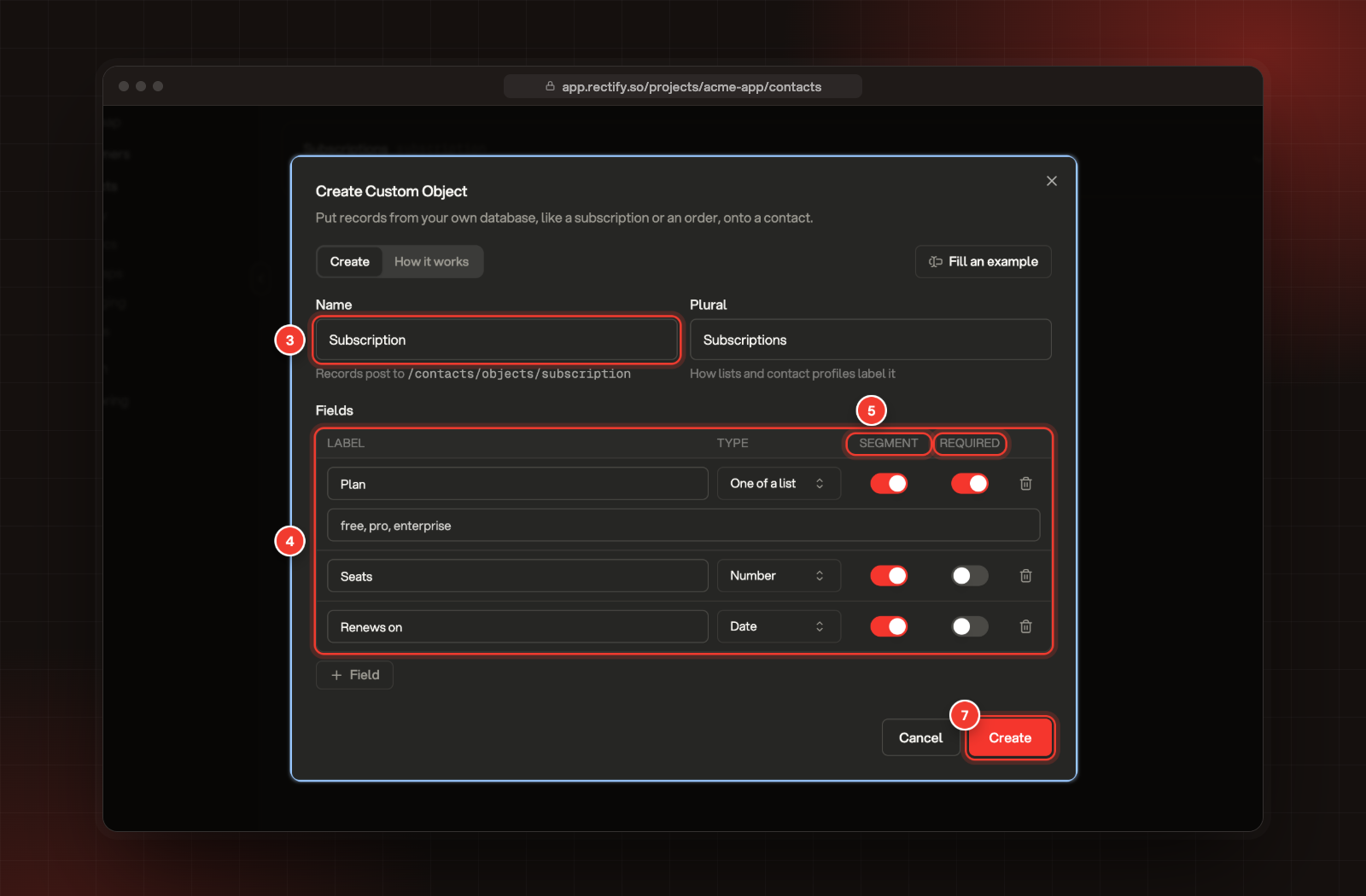
Enter a Name in the singular, such as "Subscription". Plural fills itself in.
4.
Under Fields, enter a Label and pick a Type for each field: Text, Number, Yes / no, Date or One of a list. For One of a list, enter the allowed values, separated by commas.
5.
Leave Segment on for fields you want to filter on, and switch on Required for fields every record must have.
6.
Select Field (the plus button) to add more, up to 50.
7.
Select Create.
3 Name. 4 Fields. 5 Segment and Required. 7 Create.
The first field becomes each record's title. Select Fill an example to see a finished Subscription object, and the How it works tab for a walk-through.
Send records from your server
Send each record to the object's address with your write key. Find the key in Analytics, Settings, Setup, under Write Key, or copy a ready-made command from the How it works tab, which already includes it.
externalId is your own ID for the record. Sending the same one again updates the record.
•
email or userId says which contact it belongs to. To attach it to a company instead, send companyId or companyDomain.
•
data holds the fields, by their keys: the label in lower case with spaces turned into underscores, such as renews_on for "Renews on".
To send many records at once, post { "records": [ ... ] } to the same address followed by /bulk, up to 500 per request. To remove a record, send a DELETE to the object's address followed by / and the record's externalId.
See the records
•
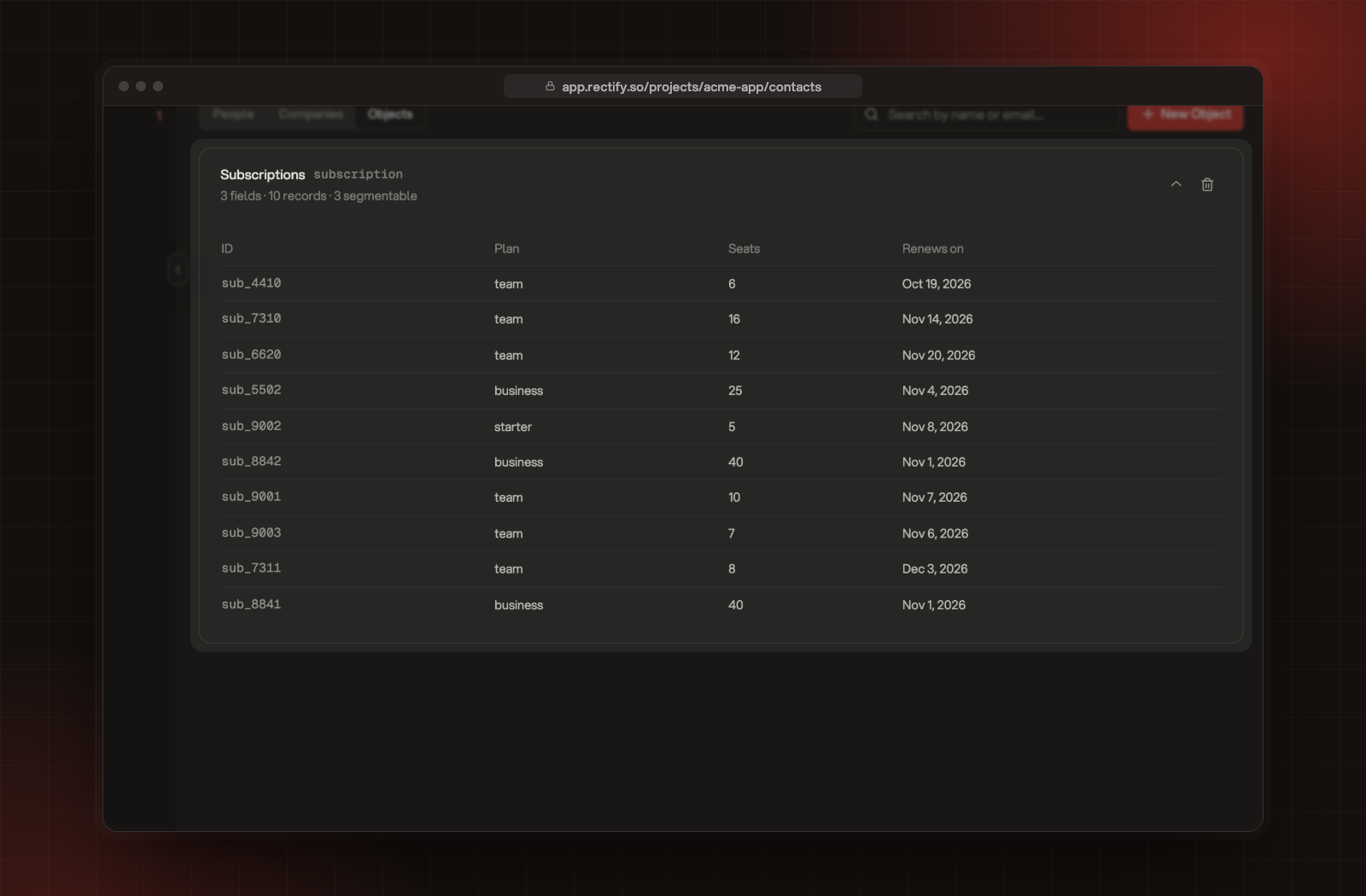
On the Objects tab, expand an object to see its latest records.
•
On a contact's profile, each object has its own section with the person's records.
•
In the segment builder, each object has its own group of fields.
An object's records on the Objects tab.
Delete an object
On the Objects tab, select the bin next to the object, then Delete. Every record attached to it is removed too, and this can't be undone. Objects can't be edited after they're created.
Check it worked
After you send a record, the object's count on the Objects tab goes up, for example 3 fields · 12 records · 3 segmentable, and the record shows on that person's profile.
It says "Custom objects are not available on your plan"
The free Idea plan doesn't include custom objects. Compare plans shows what each plan includes.
It says "Your plan allows 2 custom object types"
You've reached your plan's number of object types. Delete one you don't use, or move to a bigger plan.
The response says the record is "not attached to anyone"
No contact or company matched the email, userId or company you sent. The record is stored but doesn't show on a profile or in segments. Check the contact exists, then send the record again.
It says a field "is required" or "must be a number"
Every Required field needs a value, and each value must match its type: a number for Number, true or false for Yes / no, a date for Date, and one of the allowed values for One of a list.