Connect Twilio for phone calls and text messages, and Resend for email campaigns and email from your own domain.
5 min readUpdated 24 days ago
Before you start. You need your own Twilio account, your own Resend account, or both. Owners, Admins and Members who can open the project can connect Twilio. Only Owners and Admins can connect, pause or disconnect Resend. Integrations are on every plan, and each project connects its own accounts. Phone call and SMS alert channels in Monitoring need the Launch plan or higher.
Rectify doesn't make calls, send texts or send campaigns from an account of its own. These go through your Twilio and Resend accounts, so they come from your number and your domain, and you pay Twilio and Resend directly for what you send.
Account
What Rectify uses it for
Twilio
Quanta calling you about critical alerts, and calling you when you ask it to from a chat. Heartbeat calls and text messages. Phone call and SMS alert channels in Monitoring, Alerting. The Make Phone Call and Send SMS workflow steps. Calling Quanta from your phone.
Resend
Email campaigns, which always send through Resend. Emails Quanta sends for you to people outside your team. Your changelog updates and project emails, if you switch them over.
Connect Twilio
1.
Open Project settings, then Integrations.
2.
Select Twilio under Messages and alerts.
3.
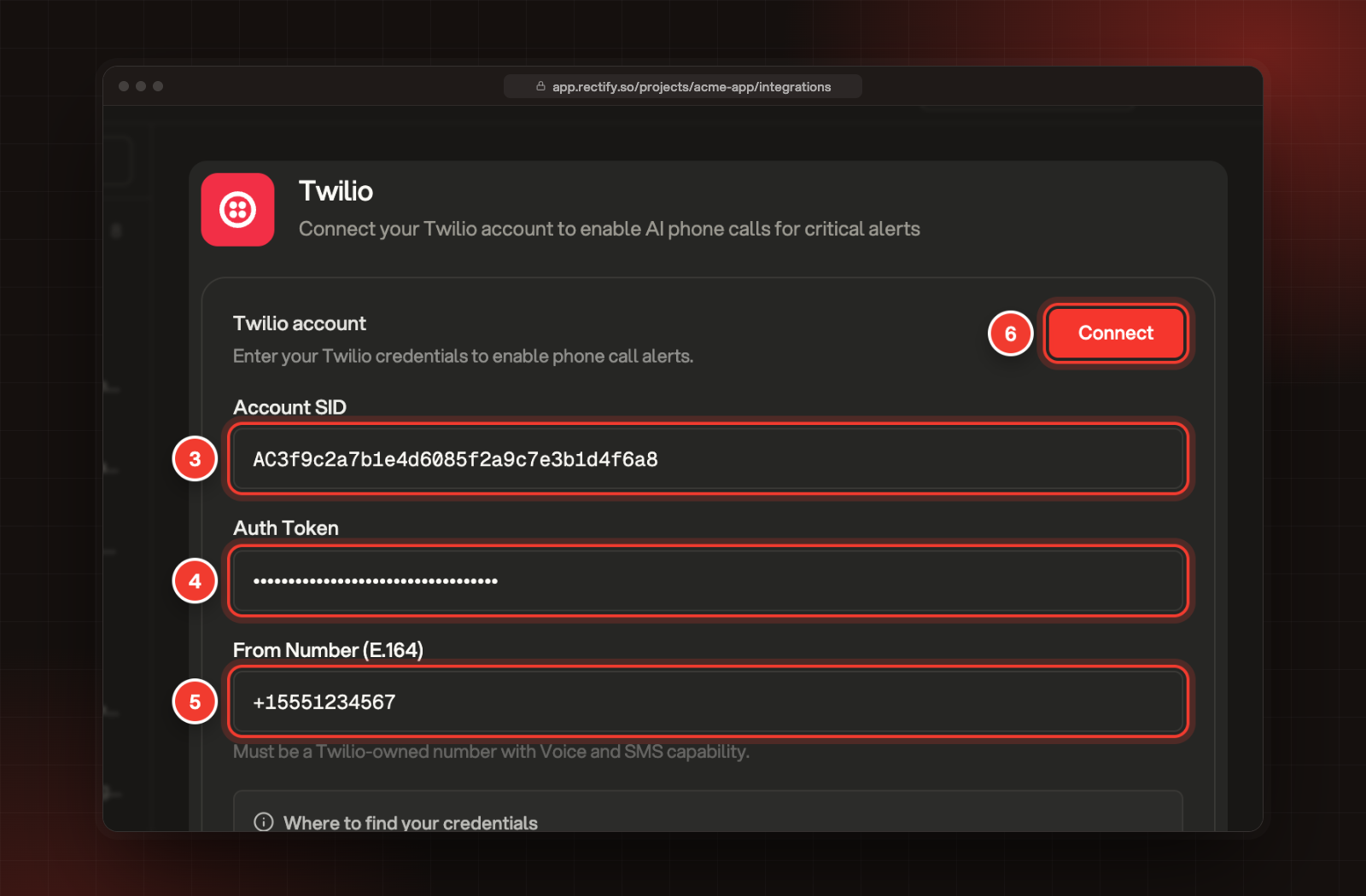
Enter your Account SID. It starts with AC and is on the home page of your Twilio Console.
4.
Enter your Auth Token, from the same page.
5.
Enter your Twilio phone number under From Number (E.164), with a plus and the country code, for example +15551234567. It must be a Twilio number that can make calls and send SMS. You'll find it in Twilio under Phone Numbers, Manage, Active Numbers.
6.
Select Connect.
3 Account SID. 4 Auth Token. 5 From Number (E.164). 6 Connect.
Twilio now shows Connected, with your Account SID and From Number. Rectify saves these details without testing them, so check them with a test call. Talk to Quanta with your voice shows how to add your own number and place one.
Let yourself call Quanta
This part is optional. To call Quanta from your phone, point your Twilio number at Rectify:
1.
In Twilio, open Phone Numbers, Manage, Active Numbers and select your number.
2.
Under Voice Configuration, set A call comes in to Webhook.
3.
Paste the address shown under Incoming call webhook on the Twilio page in Rectify, and choose HTTP POST.
4.
Select Save configuration.
Quanta only answers calls from the destination number saved in Quanta Settings, Phone & SMS, and only while Enable phone alerts is on there.
Connect Resend
Set up your sending domain in Resend first:
1.
In Resend, add your domain under Domains and finish verifying it.
2.
Under API Keys, create a key with Full access. Rectify uses it to track bounces and spam complaints on your campaigns. A sending-only key still sends, but those aren't tracked.
Then connect it to Rectify:
1.
Open Project settings, then Integrations.
2.
Select Resend under Messages and alerts.
3.
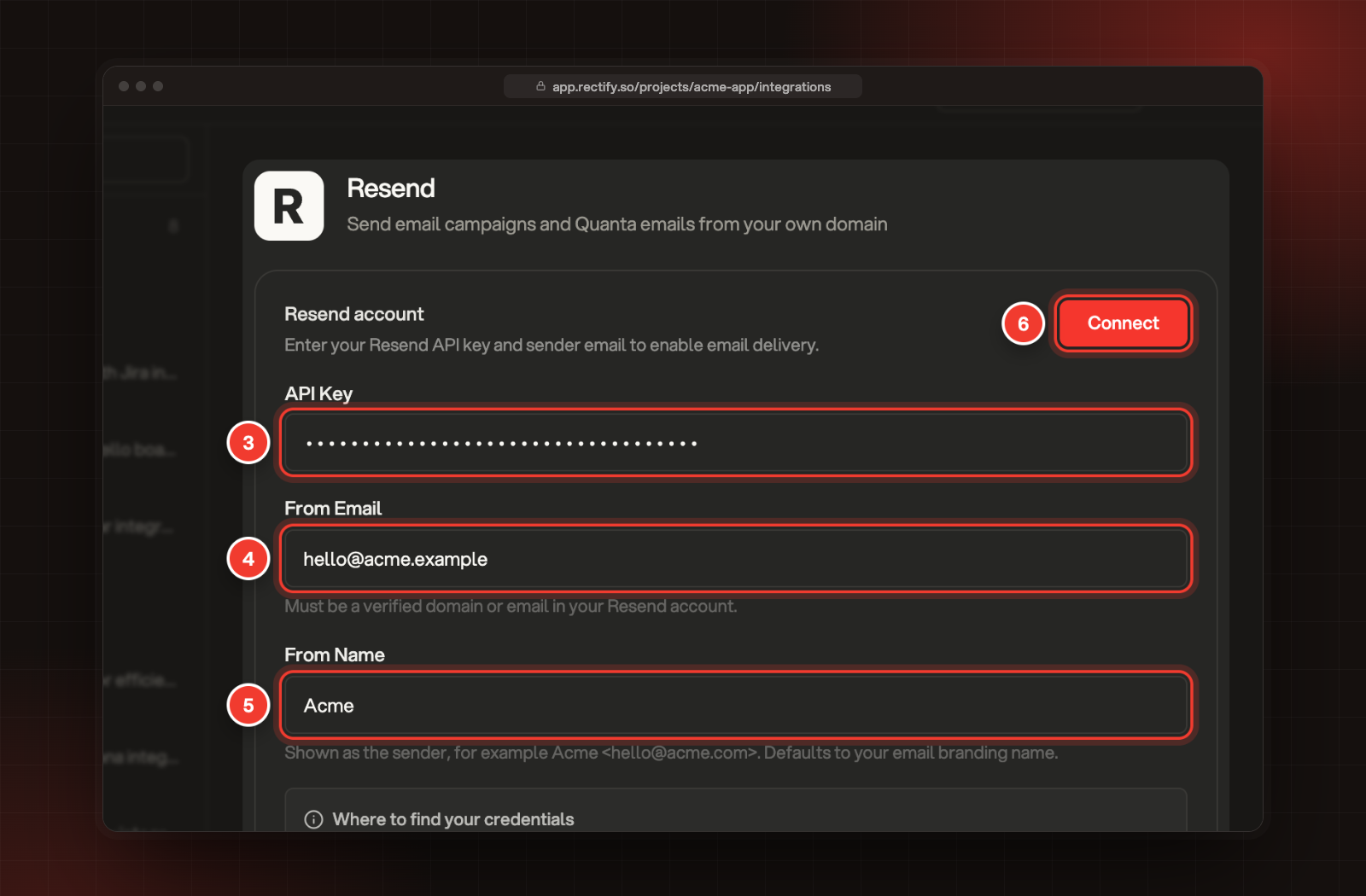
Paste your key under API Key. It starts with re_.
4.
Enter the address to send from under From Email, on the domain you verified, for example [email protected].
5.
Optionally, enter the sender name under From Name, for example Acme. Without one, Rectify uses the name from your email branding.
6.
Select Connect.
3 API Key. 4 From Email. 5 From Name. 6 Connect.
Rectify checks the key and the domain with Resend before it saves. Resend then shows Connected, with your From Email and From Name.
Choose which emails send from your domain
Email campaigns always send through Resend, so you can create them as soon as Resend is connected. For other emails, you choose:
1.
Open Project settings, then Email notifications, and select General.
2.
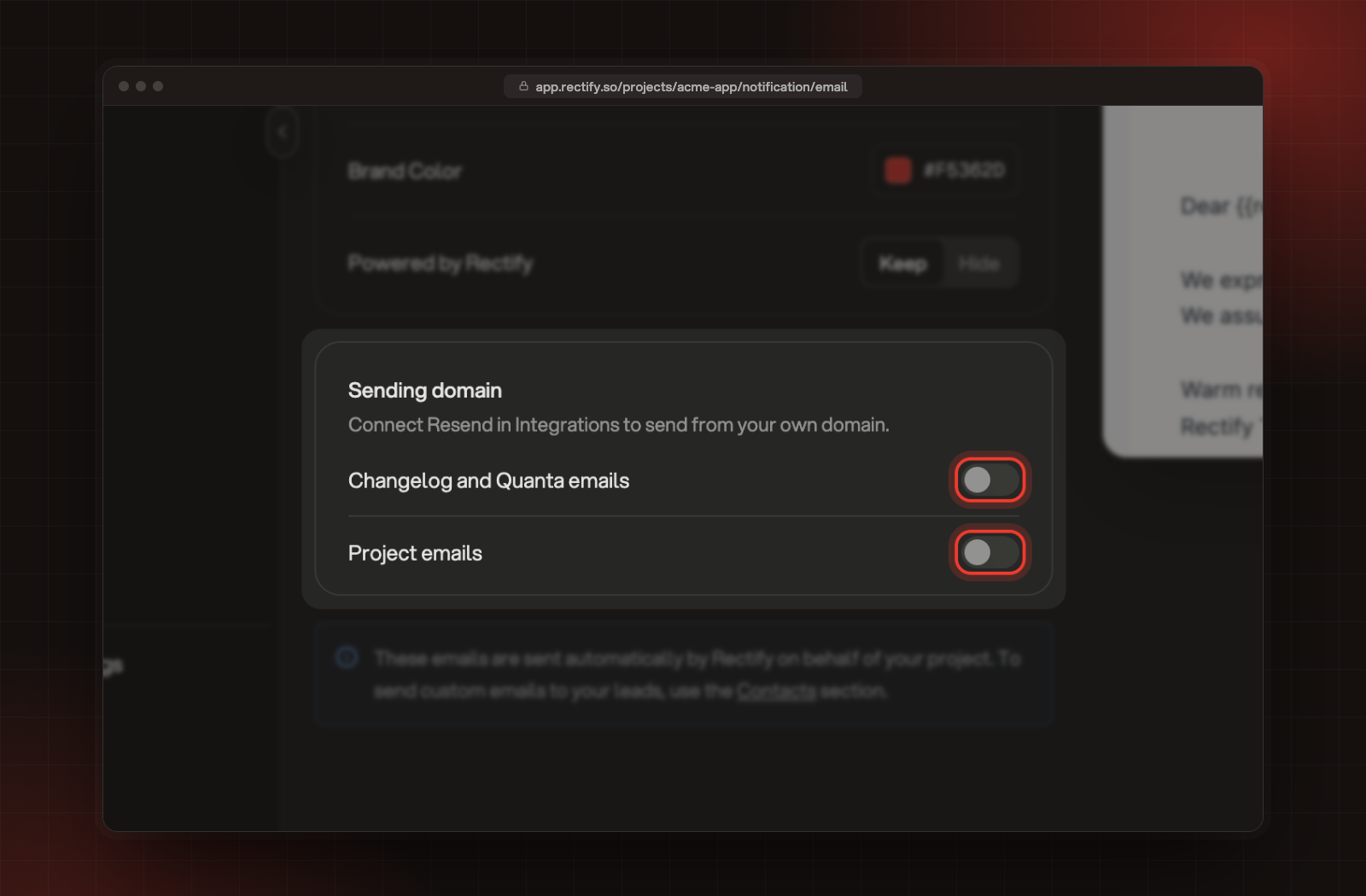
Under Sending domain, turn on what should send from your domain:
•
Changelog and Quanta emails: changelog updates to subscribers and emails Quanta sends for you.
•
Project emails: feedback, chat, mention and portal sign-in emails to your users.
3.
Select Save.
The two switches under Sending domain.
Emails you switch over aren't tracked for delivery and don't count in your email analytics. If Resend fails to send a project email, Rectify sends it instead, so sign-in codes keep arriving.
Pause or disconnect
•
Pause Resend: turn off the switch next to On at the top of the Resend settings. Campaigns can't send while it's off, and your changelog and project emails go out from Rectify again.
•
Disconnect Resend: select Disconnect under Disconnect Resend. Rectify removes your key and the tracking it added to your Resend account. Campaigns can't send until you connect it again.
•
Disconnect Twilio: select Disconnect under Disconnect Twilio. Rectify removes your Twilio details, and calls and texts stop.
It says "Account SID starts with AC followed by 32 characters"
Copy the Account SID again from the home page of your Twilio Console. It's AC followed by 32 letters and numbers.
It says "Use E.164 format, for example +15551234567"
Enter the number with a plus and the country code, and no spaces or dashes.
It says "Resend did not accept this API key. Check it and try again."
The key was deleted or mistyped. Create a new key in Resend under API Keys and paste it again.
It says the domain "is not added to your Resend account" or "is not verified in Resend yet"
The From Email must be on a domain you've added and verified in Resend. Finish verifying it under Domains in Resend, then select Connect again.
It says "Connect Resend in Integrations first, or turn it back on if it is off"
You're sending a campaign while Resend isn't connected, or while it's paused. Connect Resend, or turn its switch back on, then send again.
I can't type in the Resend fields
Only Owners and Admins can connect Resend. Ask one of them to set it up.