Track support performance

See how many chats you get, how many Quanta resolves on its own and how fast customers get a reply, by asking Quanta.
3 min readUpdated 2 days ago
Before you start. The support overview comes from Quanta, so your organization needs an AI provider or Rectify credits. Everyone on your team can ask for it.
Ask Quanta for the support overview
1.
Select Quanta at the top of the sidebar.
2.
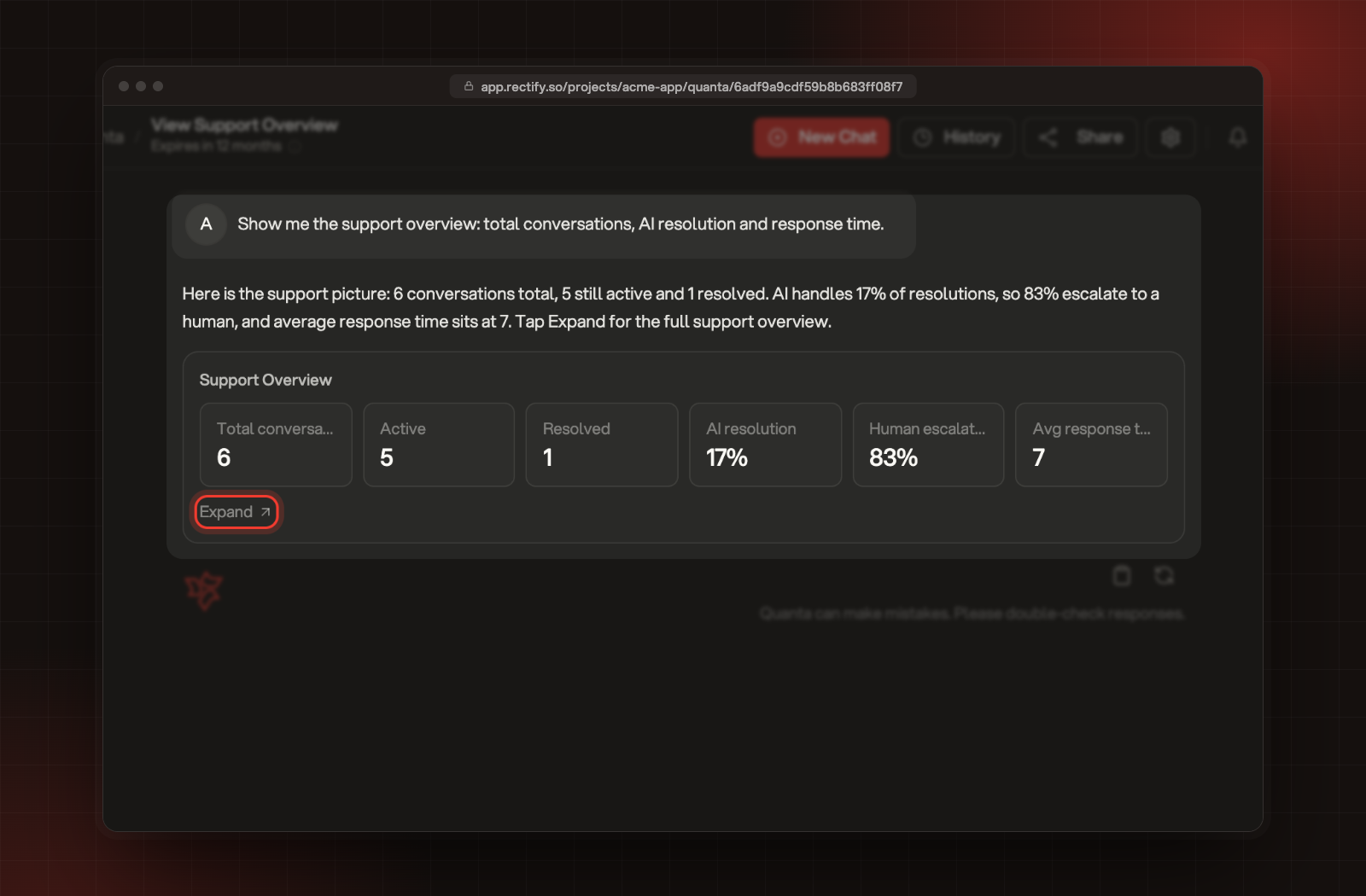
Ask for the support overview, for example "Show me the support overview: total conversations, AI resolution and response time."
3.
Quanta answers with the key numbers. Select Expand to open the full Support Overview next to the chat.
Quanta's answer, with Expand.
To narrow it down, name a period in your question, for example "this month". To come back to an overview later, open the chat from History and select Expand again. The overview counts chats from widget chat and from Discord together.
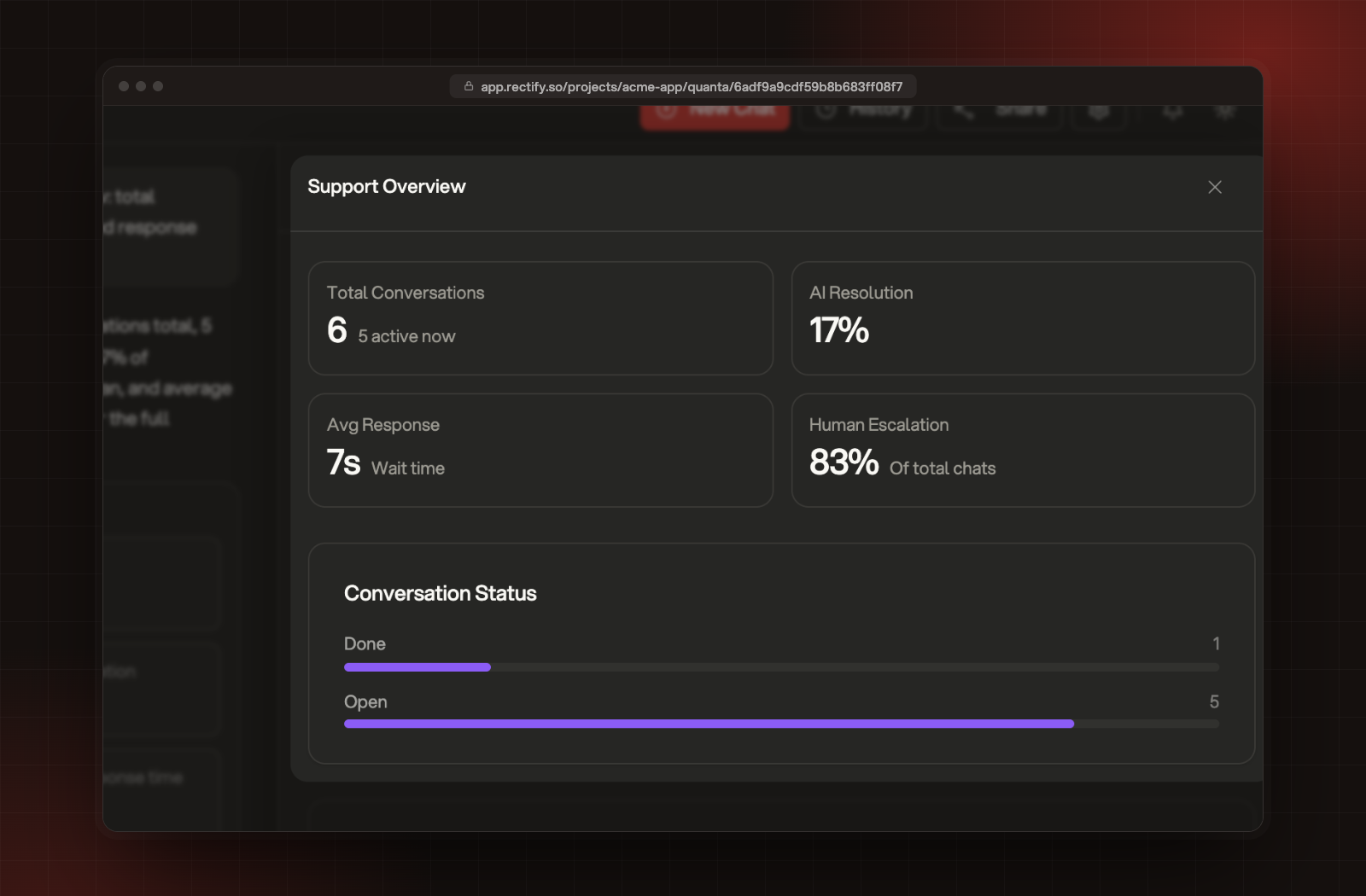
The Support Overview.
What the numbers mean
NumberWhat it counts
Total ConversationsConversations started in the period you asked about, or all of them if you didn't name one. It includes ones only Quanta answered. active now is how many of them are still open.
AI ResolutionThe share of conversations that never reached your team.
Avg ResponseThe average time from a customer's message to the next reply, from Quanta or your team. Quanta's replies count as instant, so the more Quanta answers, the lower it gets.
Human EscalationThe share of conversations that reached your team: handovers, chats you took over, and every chat started while Team only is on.
Conversation StatusHow many conversations are open, done or archived.
Priority BreakdownHow many conversations have each priority.
Conversation TrendNew conversations per day, for up to 14 of the days that had any.
Count the last 30 days
Open Inbox, then Channels. The Widget chat row shows how many conversations started in the last 30 days, next to who answers. If you've set up support chat in Discord, the Discord row shows the same for chats from your server.
See what's waiting each morning
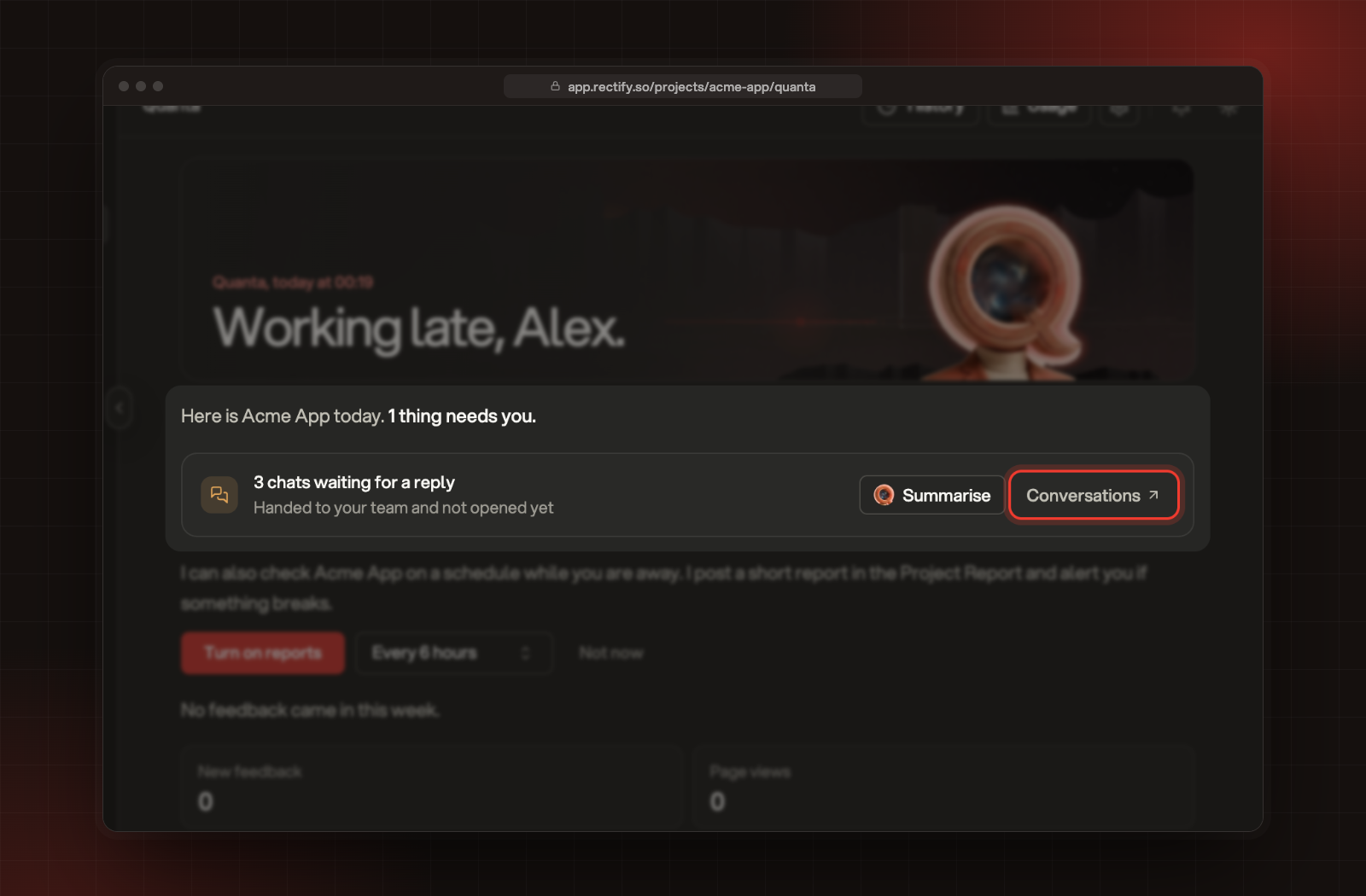
The Quanta page opens with a short briefing of what needs you. When a customer has written in a conversation handed to your team and nobody on your team has opened it since, the briefing says how many chats are waiting for a reply.
•
Select Conversations to go straight to them.
•
Select Summarise to have Quanta sum them up for you.
Chats waiting for a reply, in the Quanta briefing.
Opening a conversation in Conversations takes it off the count.
Troubleshooting
Quanta doesn't show the overview
Ask for it by name, for example "Show me the support overview".
It says "No AI provider is configured"
Your organization has no AI key connected and no Rectify credits left. Ask an Owner or Admin to connect a provider under Organization settings, AI providers.

Was this helpful?

Your feedback shapes what we write next.

Related articles