Ask Quanta from the Rectify app, open its canvas, approve the changes it prepares, talk instead of typing, and find your chats again.
7 min readUpdated 5 days ago
Before you start. Everyone who can open a project can chat with Quanta in the app. Quanta runs on your own AI provider key, or on the Rectify credits that come with paid plans. A few changes are for Owners and Admins only, and only the organization's Owner can change Quanta's settings.
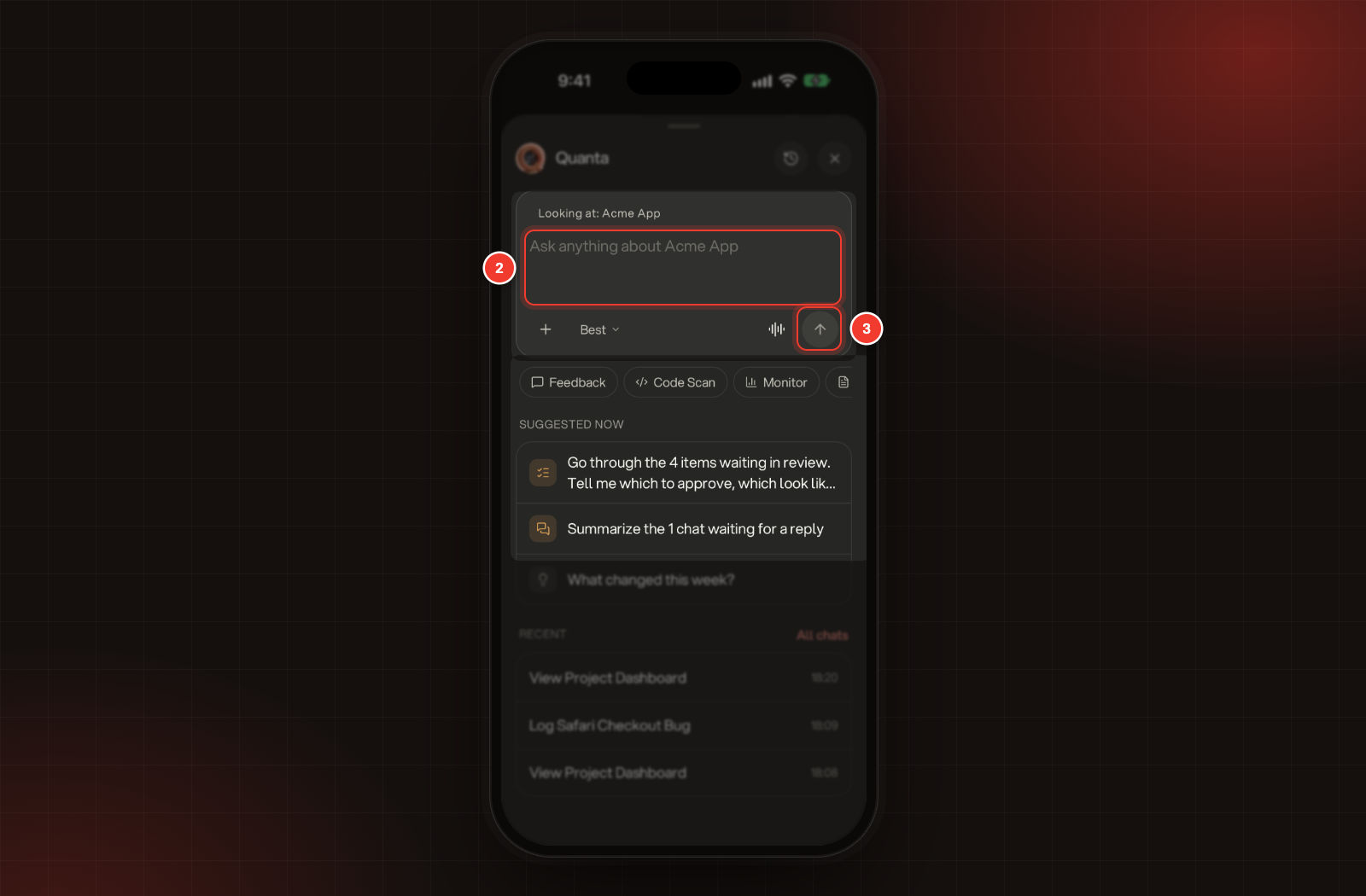
Tap the round Ask Quanta button at the bottom of Home or Inbox.
2.
Type your question where it says Ask anything about and your project's name.
3.
Tap the send arrow.
2 Ask anything about Acme App. 3 Send.
The chat opens and Quanta answers there. Quanta names the chat from your first message. To keep going, type a follow-up in the box at the bottom.
Not sure where to start?
•
Suggested now lists questions about what's happening in your project. Tap one to ask it straight away.
•
Feedback, Code Scan, Monitor, Report, Roadmap and General each open a list of questions. The one you pick goes into the box, so you can change it before you send.
The chip next to + shows the model. Best picks one for you. Tap it to choose a model from the AI providers your organization can use. In an open chat, tap +, then the Model line.
To add files, tap +, then Photo or PDF document. You can add up to 3 files to a message, up to 10 MB each. Type a message to send them with.
Open the canvas
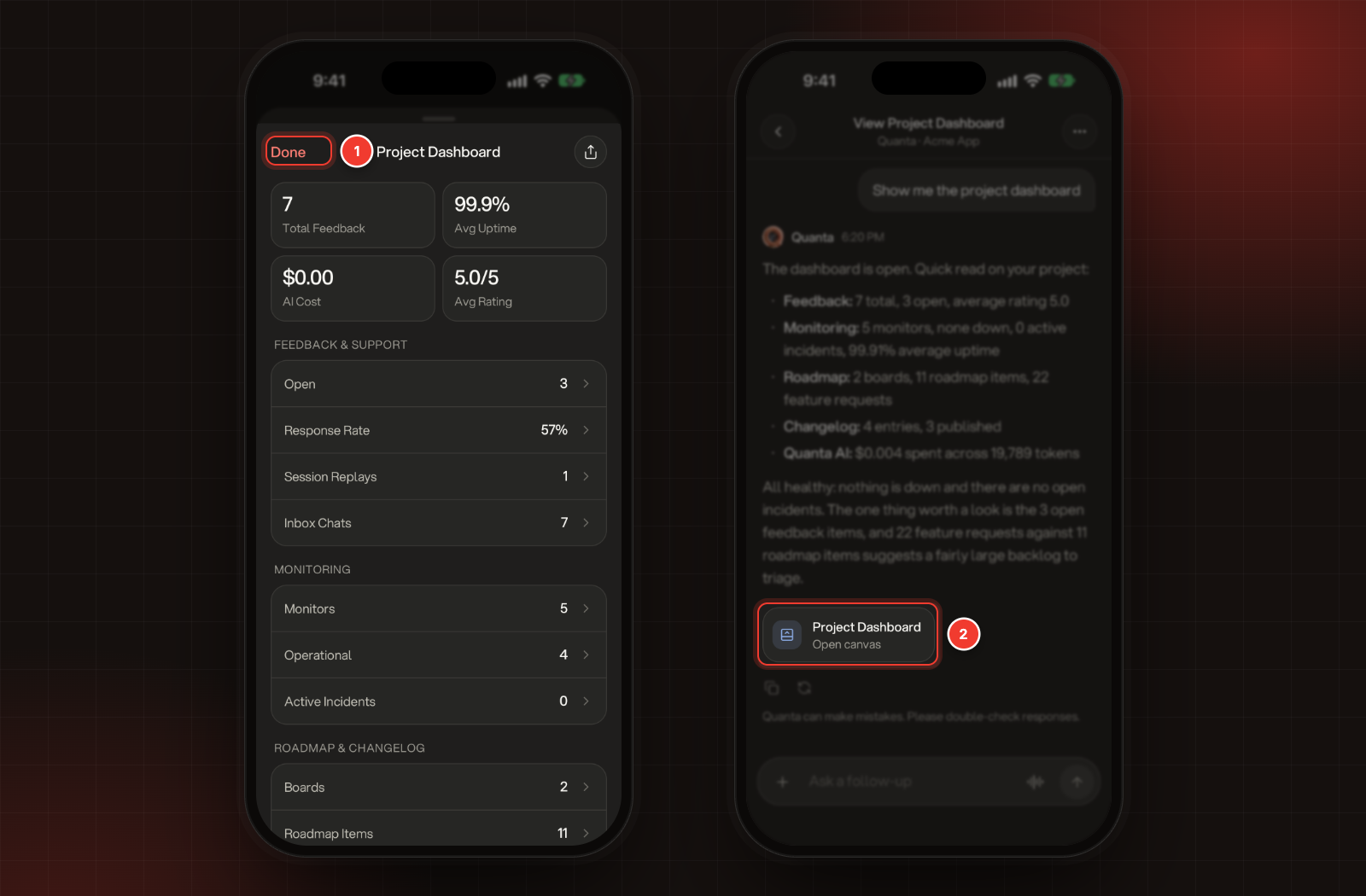
When you ask Quanta to show something, like your feedback, your roadmap or your monitors, it opens the full view in a canvas that slides up from the bottom of the screen.
•
To close the canvas, swipe it down or tap Done.
•
Under Quanta's reply, a card with the canvas's name brings it back. It says Open canvas or Close canvas.
•
Small cards inside a reply can have Open. Tap it and Quanta opens the full view in the canvas.
1 Done closes the canvas. 2 The card under Quanta's reply opens it again.
The app has its own canvas views for most of Rectify, from feedback and chats to campaigns, surveys and workflows. Anything else shows as a simple list of details.
Approve a change
Quanta never changes anything until you confirm it.
1.
Ask Quanta for a change, for example "Log a bug: the checkout button does nothing on Safari. High priority."
2.
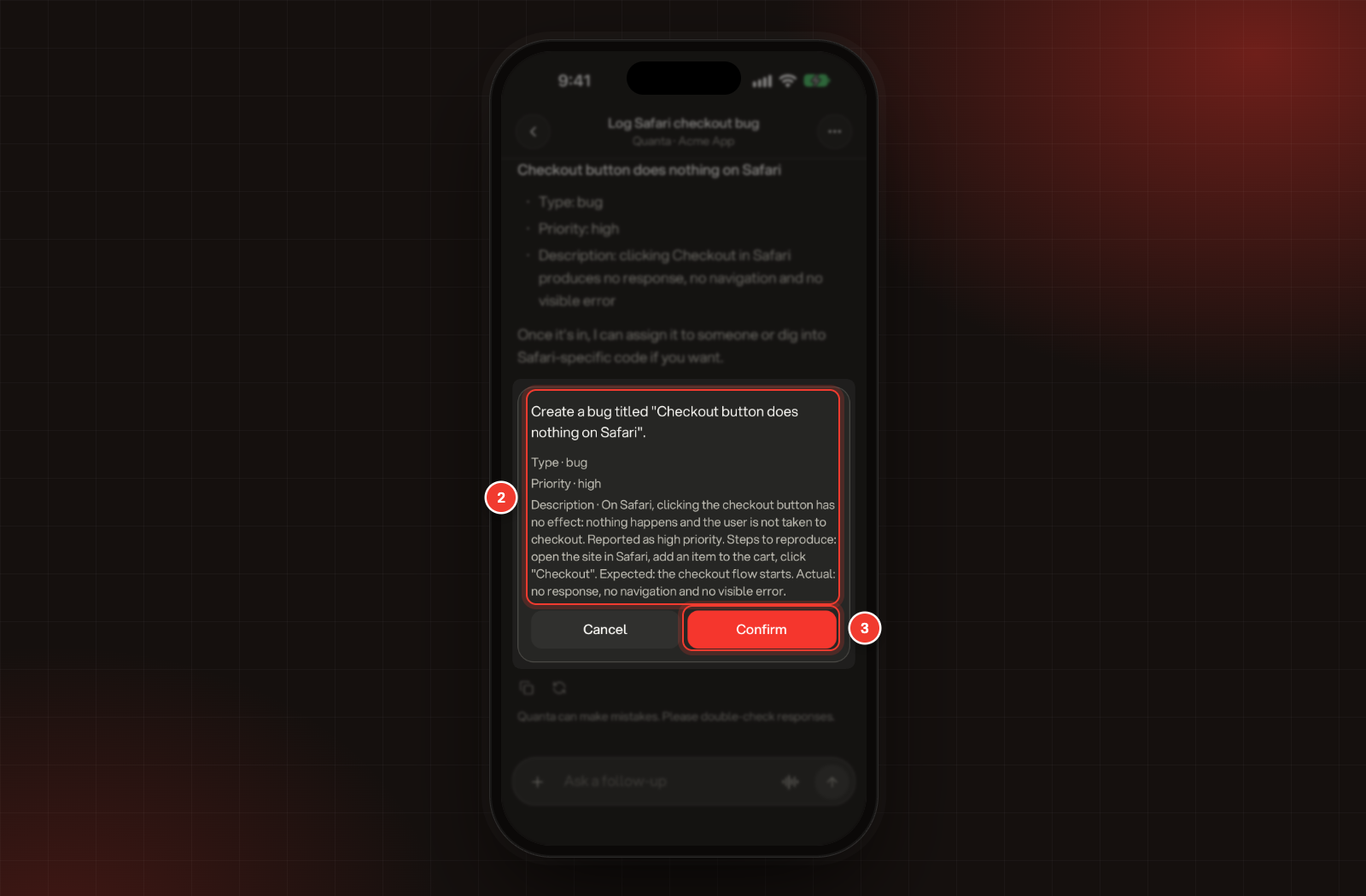
Check the card that appears in the chat. It sums up the change and lists what will be saved. A warning in red tells you when a change can't be undone.
3.
Tap Confirm.
2 The card that sums up the change. 3 Confirm.
The card then says Done or Failed, and a message tells you what happened. Not ready? Tap Cancel. Nothing is saved, and the card says Canceled.
A few things to know:
•
A change waits 30 minutes. After that, ask Quanta to prepare it again.
•
Only the person who asked can confirm a change.
Answer Quanta's questions
When Quanta needs details, it shows a short form above the message box instead of guessing.
1.
Tap an answer, or type your own.
2.
Tap Continue to go to the next question.
3.
On the last question, tap Send.
To skip the questions, tap the X on the form. The reply is then marked Canceled.
Copy or retry a reply
Under Quanta's replies, the copy icon copies the text, and the circular arrow asks again and replaces the reply. Quanta can make mistakes, so check anything important before you act on it.
Talk to Quanta
1.
Tap the waveform next to the message box. In Ask Quanta, this starts a new chat.
2.
Allow Rectify to use the microphone, if your phone asks.
3.
Talk once it says Listening.
4.
Tap the red X when you're done.
While you talk, the microphone button mutes you. The speech bubble button shows the chat, with a bar at the top that keeps the voice chat going; tap End on the bar to finish. Everything you both say is saved in the chat as text. Talk to Quanta with your voice covers voices and languages.
Find your chats again
1.
Tap Ask Quanta.
2.
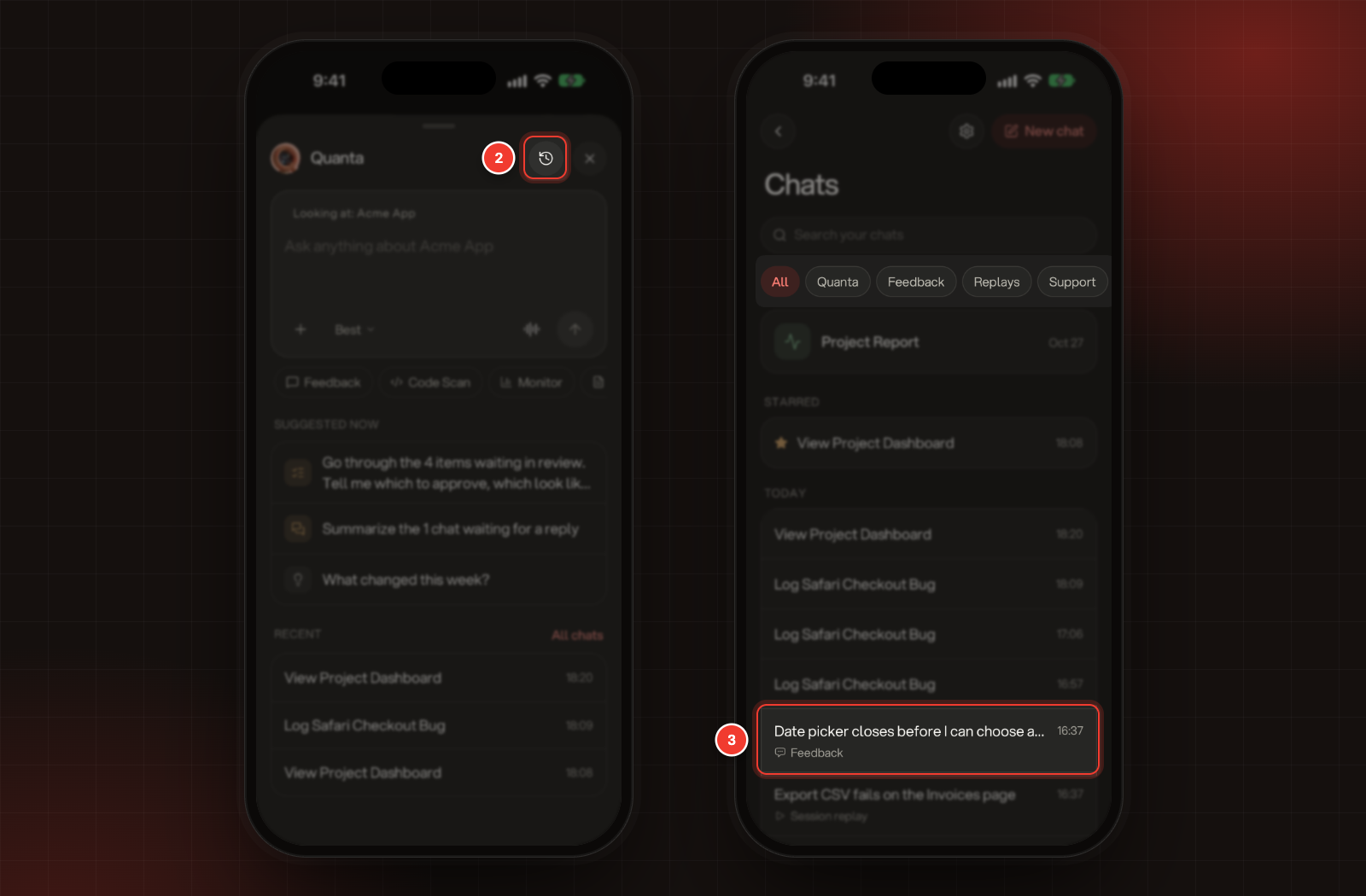
Tap the clock at the top, or All chats next to Recent.
3.
Tap a chat to open it.
2 The clock. 3 A chat in Chats.
Chats lists your chats in this project under Starred, Today, Yesterday, This week and Earlier, and older ones load as you scroll. Search your chats finds one by name. When you've also talked to Quanta about feedback, replays, support chats, analytics or extension sessions, chips at the top filter by where the chat started. The Project Report chat sits at the top.
Swipe a chat to the left to Star or Delete it, or press and hold it for Star, Rename, Share and Delete. In an open chat, tap ••• at the top right. For chats started somewhere else, like on a feedback report, Remove from history takes them off this list instead. Deleting a chat can't be undone.
Chats you don't touch for a while are deleted. Scroll to the top of a chat to see when; every new message starts the clock again. Ask Quanta and approve its changes lists how long each plan keeps a chat.
Quanta's settings
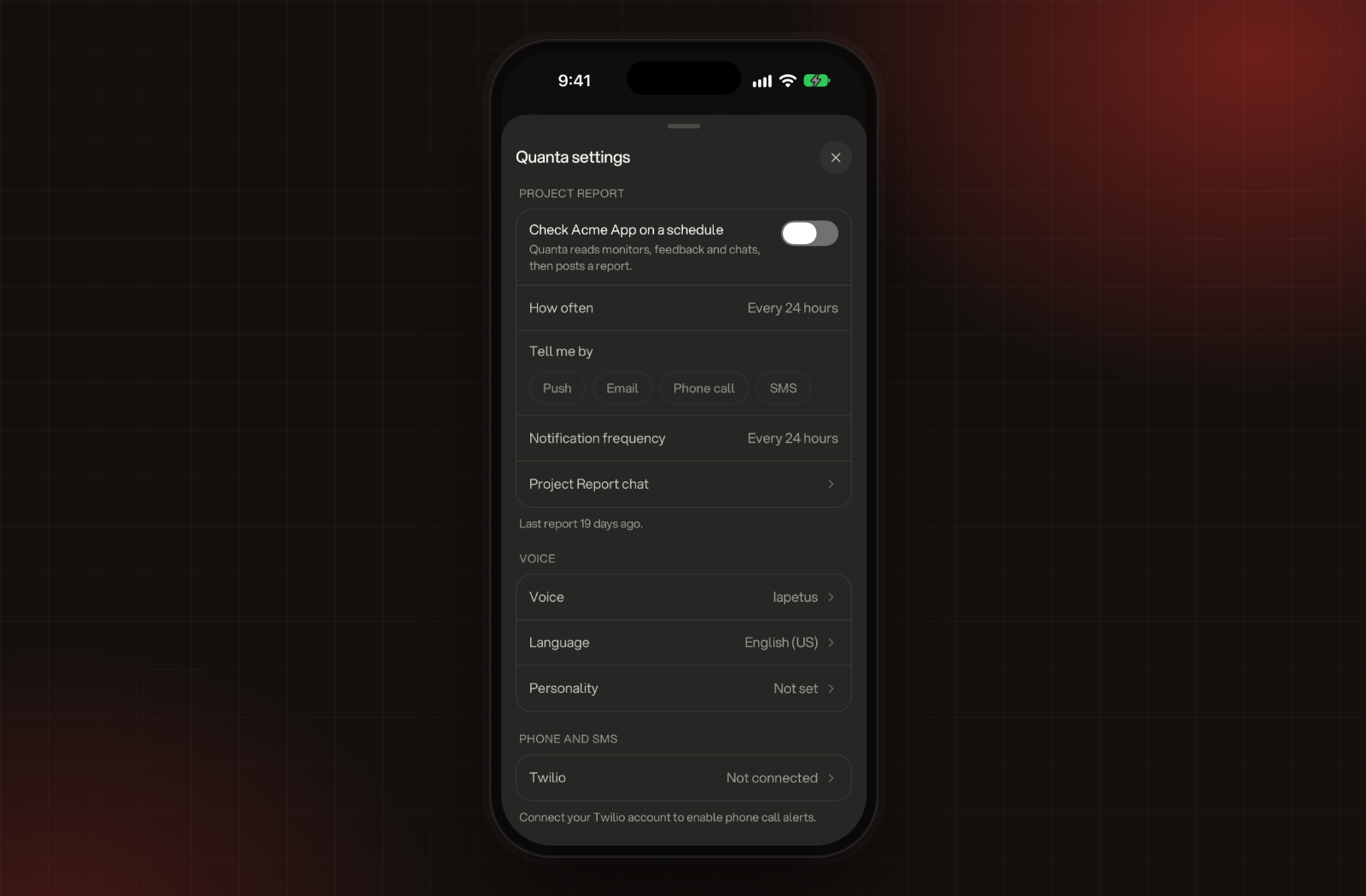
Tap the gear at the top of Chats, or tap your photo, then Quanta. Quanta settings has three parts:
•
Project report: Quanta's scheduled checks of your project. The switch at the top, for example Check Acme App on a schedule, turns them on. Pick How often, how Quanta tells you under Tell me by (Push, Email, Phone call or SMS), and the Notification frequency. Project Report chat opens the reports.
•
Voice: the Voice, Language and Personality Quanta uses when it talks.
•
Phone and SMS: phone calls from Quanta about critical problems. This needs Twilio, which you connect on the web.
Quanta settings: Project report, Voice, and Phone and SMS.
It says "Action not found or expired. Ask Quanta to prepare it again."
The change waited too long, usually more than 30 minutes. Ask Quanta for it again.
It says "This action does not belong to you."
Someone else asked for this change, so only they can confirm it. Ask Quanta for it in your own chat.
It says "Failed to access microphone. Please check permissions."
Rectify isn't allowed to use the microphone. On iPhone, open Settings, then Rectify, and turn on Microphone. On Android, open your phone's settings, find Rectify under your apps and allow the microphone. Then try again.
It says "Only the organization owner can change Quanta settings. You're viewing in read-only mode."
You can see Quanta's settings, but only the Owner can change them.
It says "Only the owner of this chat can ask Quanta here."
This Project Report chat belongs to a teammate. You can read it, but only they can write in it.
It says "You can only upload a maximum of 3 files."
Each message takes up to 3 files. Send the rest with your next message.
It says "Invalid file type. Only JPEG, PNG, WebP images and PDF are allowed."
Quanta takes photos in those formats and PDF documents. Save the file in one of them, or send a screenshot of it instead.