Dictate a message, hold a spoken conversation with Quanta, choose its voice and language, and set up phone calls through Twilio.
5 min readUpdated 24 days ago
Before you start. Everyone who can open a project can dictate and use voice chat there. Only the organization's Owner can change Quanta's voice settings, set up phone alerts and place a test call. Dictation on the free Idea plan is limited to 30 minutes a month; paid plans have no limit.
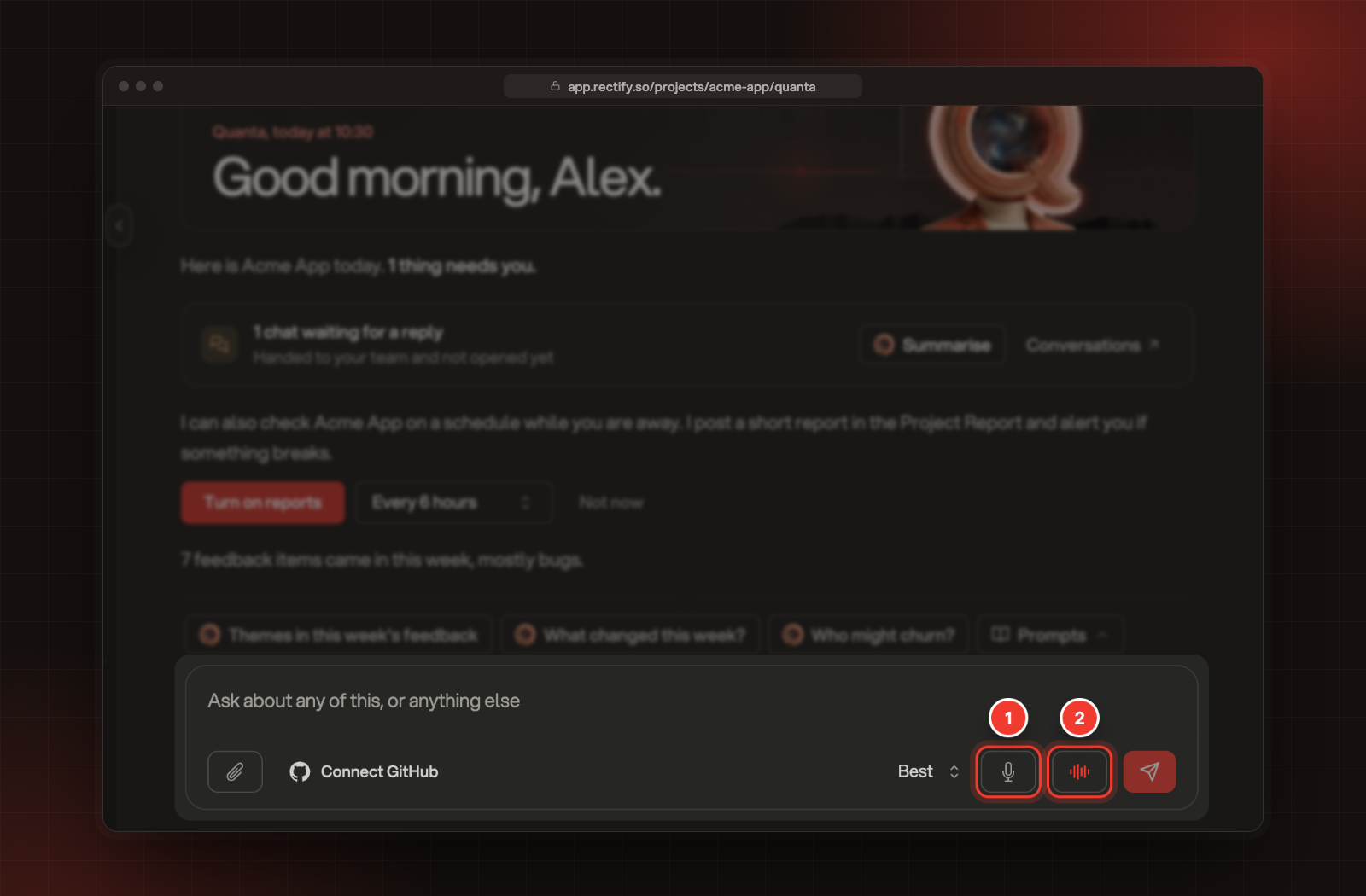
There are two buttons next to the message box:
•
The microphone types what you say into the message box, so you can check it before you send.
•
The waveform starts a spoken conversation. Quanta listens, answers out loud and keeps both sides in the chat.
1 Dictate a message. 2 Start a voice chat.
Dictate a message
1.
Select the microphone next to the message box.
2.
Allow your browser to use the microphone, if it asks.
3.
Speak. A timer shows how long you've been recording.
4.
Select the stop button when you're done.
5.
Check the text in the message box, then send it.
You can also start and stop with the keyboard when you're not typing in the box: hold Space while you speak, or press Ctrl+M (⌘M on a Mac) to start and again to stop.
A recording can be up to a minute long. The timer turns orange in the last ten seconds, so stop before it reaches 1:00. To throw a recording away, select the X next to the timer. Dictation works out which language you're speaking.
Have a voice chat
1.
Select the waveform next to the message box.
2.
Allow your browser to use the microphone, if it asks.
3.
Wait until the bar above the box says Listening.
4.
Talk. You can interrupt Quanta while it's speaking.
5.
Select End voice chat when you're done.
The bar shows what Quanta is doing: Connecting..., Listening, Thinking or Speaking. Everything you both say is saved in the chat as text, and the chat is named after the first thing you say. Starting from the Quanta page opens a new chat.
Voice chat and phone calls run on Gemini. If you've connected your own Gemini key under Organization settings, AI providers, they use that key and count toward its monthly spend limit.
Choose Quanta's voice and language
1.
Select the gear at the top of the Quanta page.
2.
Open the Voice tab.
3.
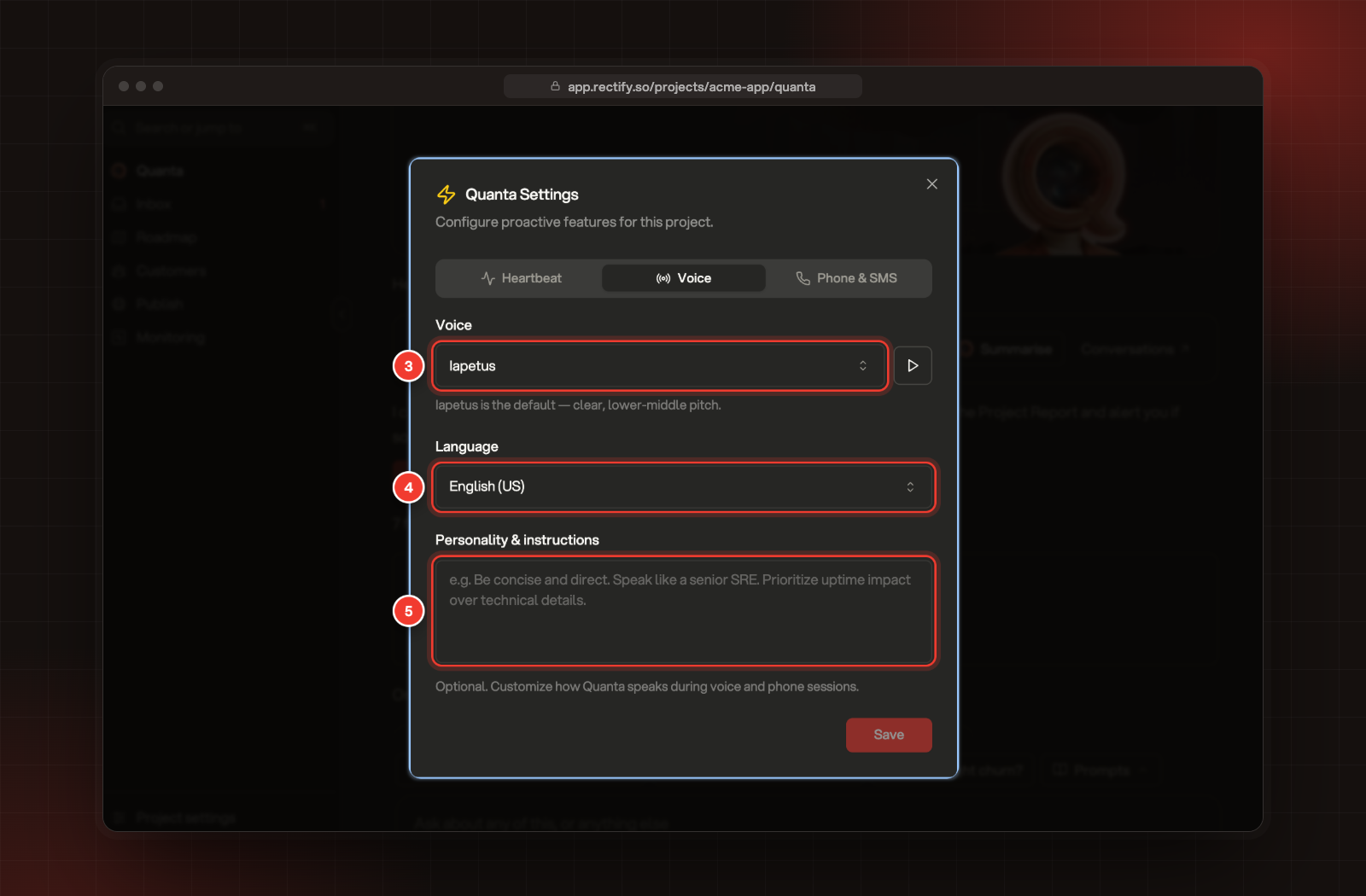
Pick a Voice. Select the play button next to it to hear a sample. Iapetus is the default.
4.
Pick a Language: English (US), English (UK), Spanish (Spain), French, German, Hindi, Portuguese (Brazil) or Japanese.
5.
Optionally, describe how Quanta should talk under Personality & instructions, for example "Be concise and lead with the impact on uptime."
The voice and language are used in voice chats and phone calls. Save stores all three tabs of Quanta Settings together.
Get phone calls from Quanta
Quanta can call you about critical problems and answer when you call it. Calls go through your own Twilio account, so connect Twilio first.
1.
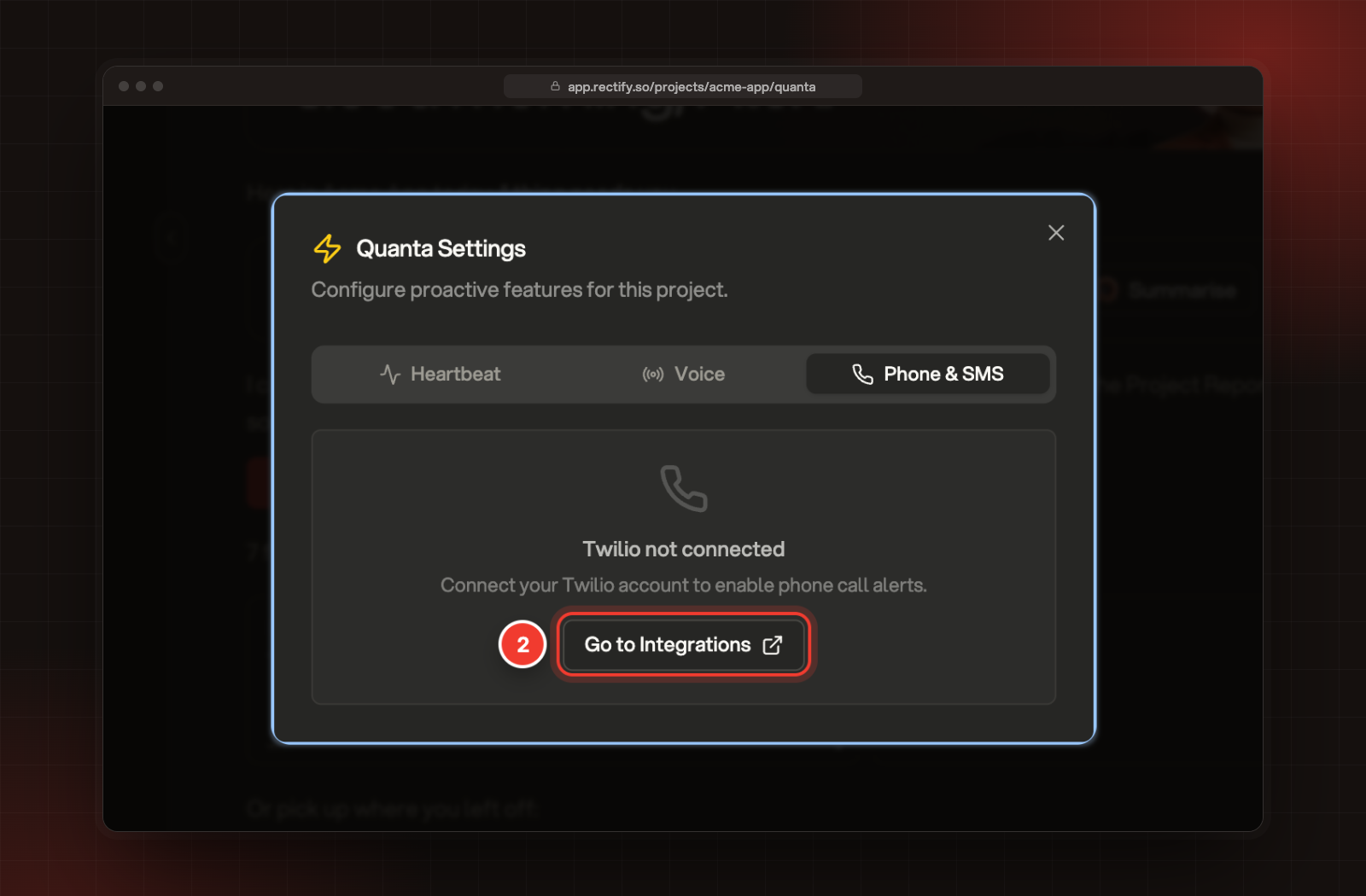
Select the gear on the Quanta page and open Phone & SMS.
2.
Select Go to Integrations.
2 Go to Integrations, when Twilio isn't connected yet.
3.
Open Twilio and enter your Account SID, Auth Token and From Number (E.164). The number must be a Twilio number that can make calls and send SMS.
4.
Select Connect.
5.
Back in Quanta Settings, open Phone & SMS and enter your Destination phone number with its country code, for example +44 for the UK.
6.
Turn on Enable phone alerts.
7.
Select Save.
8.
Select Test call. Your phone rings within about 10 seconds and Quanta says the setup works.
Once it's set up:
•
Quanta calls you when a critical alert comes in, such as a monitor going down with a critical incident. It makes at most one alert call an hour.
•
The Owner can ask Quanta to call them from any chat, for example "Call me about this".
•
Each call lasts up to 10 minutes and is saved as a chat. A call you asked for from a chat also leaves a short summary in that chat.
•
To phone Quanta yourself, follow the steps under Twilio in Integrations to point your Twilio number at Rectify. Then call your Twilio number from the destination number you saved.
It says "Failed to access microphone. Please check permissions."
Your browser blocked the microphone. Allow it for Rectify in your browser's site settings, then try again.
It says "Voice typing limit reached for this month. Please upgrade your plan."
You've used the 30 minutes of dictation included with the Idea plan this month. It resets on the 1st, or upgrade for unlimited dictation. Voice chat isn't affected.
Test call says "No destination phone number set"
The test call rings the number you saved. Enter it, select Save, then select Test call again.
I can't change anything in Quanta Settings
The settings say "Only the organization owner can change Quanta settings." Ask your organization's Owner to make the change.