
The widget doesn't show: what to check
Five checks that find why the Rectify widget isn't appearing on your site.
2 min readUpdated 5 days ago
Work through these checks in order. Most problems are solved by the first two.
1. Check the widget is switched on
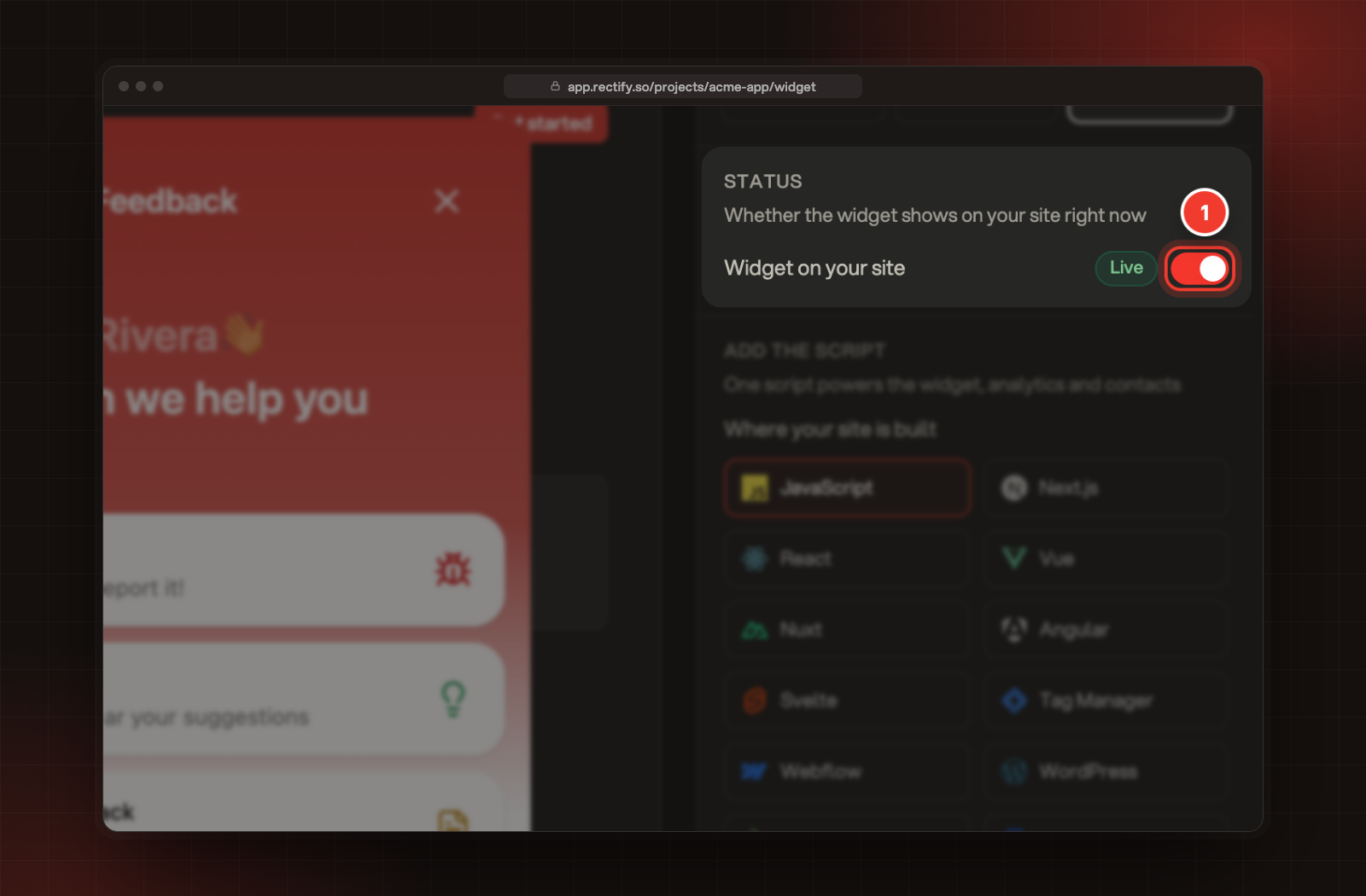
Open Publish, then Widget, and select Install. Widget on your site must show Live. When it shows Paused, the widget is hidden on every page, even though your script is still there.
2. Check the script is on the page
Open your site, open your browser's developer tools and search the Elements panel for
widget.umd.js. If it isn't there, the script was never added, or your site builder hasn't published it yet. Add it again with Install the Rectify widget on your site.3. Check the project ID
Find the line that starts with
projectId in the script on your site. It must match the one in the script under Install. If they differ, copy the script from Install again and replace the old one.If your browser console shows Project ID is required to initialize the widget, the
projectId line is missing from your script.Select Look on the Widget page and make sure Hide the launcher is off. Also check that your script doesn't set
hideLauncher: true, because the setting in your code wins. With the launcher hidden, the widget only opens from your own button through RectifyInstance.control('open').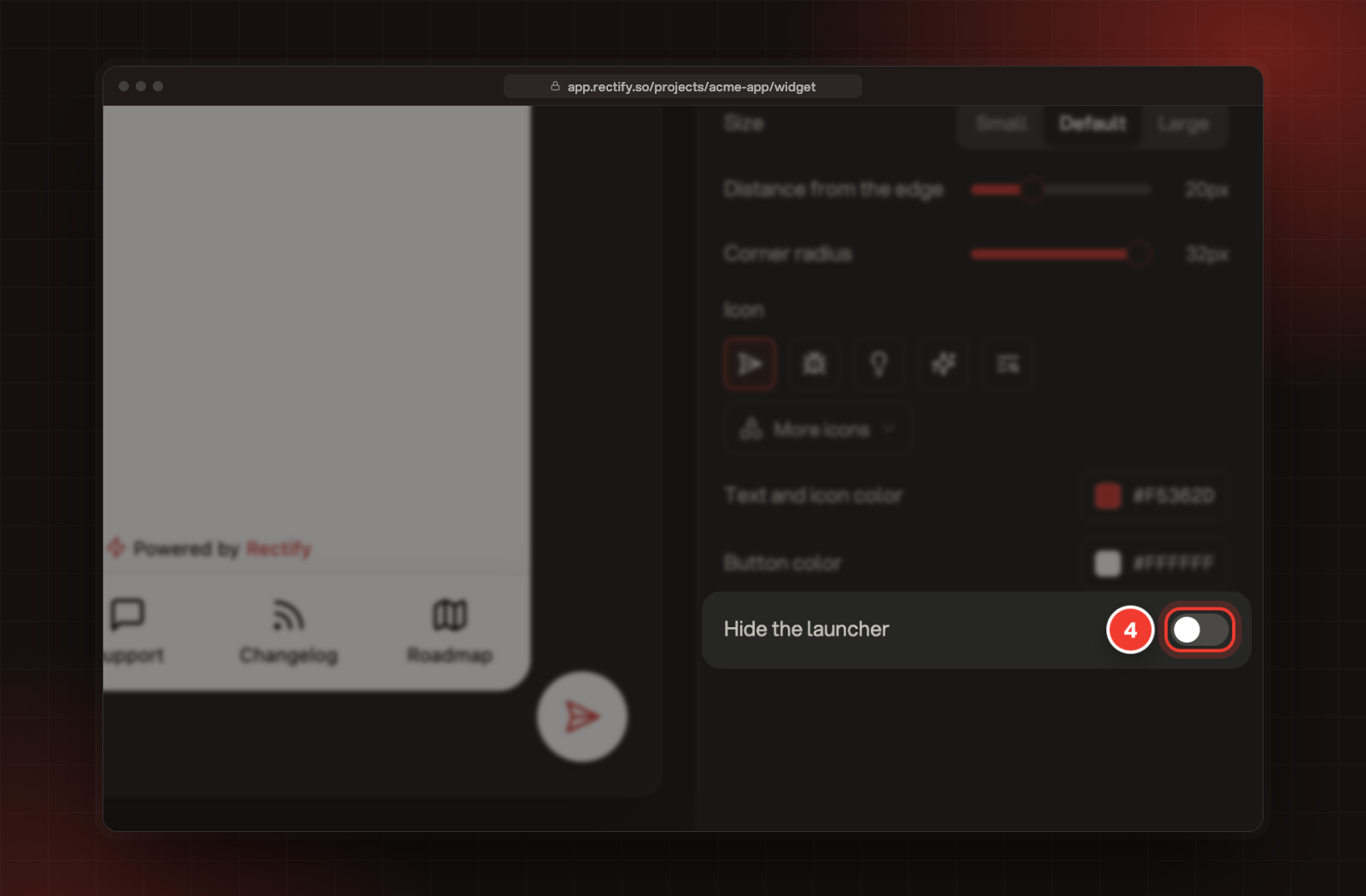
A site, or some pages on it, can also hide the launcher with settings of their own. Under Sites, each site's line sums up what it changes. Open the site, and any page settings under Pages, and check that Launcher is set to Show. See Give a site or page its own launcher.
5. Check nothing blocks the widget
Open your browser's developer tools, select Network and reload the page. Look for
widget.umd.js and for a request to api.rectify.so that ends in /widget. If either is blocked or fails:•
An ad blocker or privacy extension may be stopping it. Try a private window with extensions off.
•
Your site's Content Security Policy may not allow Rectify. Add
https://api.rectify.so to the scripts and connections it allows.The widget shows nothing at all when it can't load its settings, for example with a wrong project ID or a blocked request. Checks 3 and 5 find both.
Was this helpful?
Your feedback shapes what we write next.
Related articles
Install the Rectify widget on your site
Add one script to your site to turn on the widget, analytics and contacts.
Widget JavaScript API reference
Every method on the Rectify widget, with what it takes and a working example, from init and control to track, identify and revenue.
Set up widget chat, the live support channel
Turn on live chat in your widget's Support tab, choose its first message, and check that it's live on the Channels page.
Set up your first project with the setup wizard
Five short steps to brand your project, switch on what you need, bring in your team and add Rectify to your site.