Open your portal at an address on your own domain, such as feedback.yourcompany.com, with HTTPS set up for you.
4 min readUpdated 24 days ago
Before you start. Custom domains are included on Launch, Accelerate and Enterprise. Only Owners and Admins can add, verify or remove one. You'll also need access to your domain's DNS settings, at the company where you bought the domain or host its DNS.
One domain covers your whole organization. Each project's portal sits on its own path, so with feedback.yourcompany.com a portal opens at feedback.yourcompany.com/your-portal-address. Use a subdomain you don't use for anything else.
Add your domain
1.
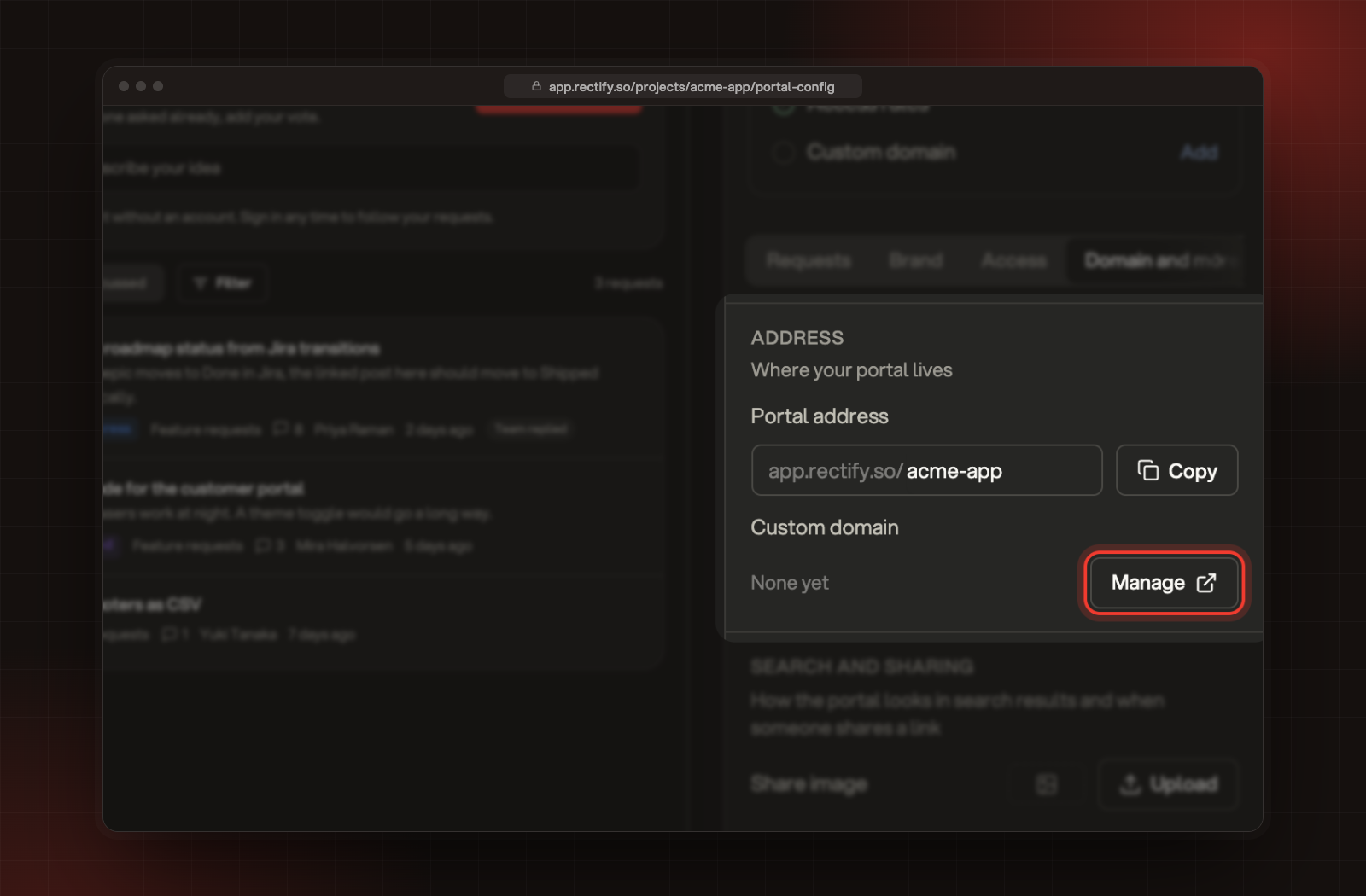
Open Organization settings, then Domain. You can also get there from your portal settings: open Domain and more and select Manage next to Custom domain.
2.
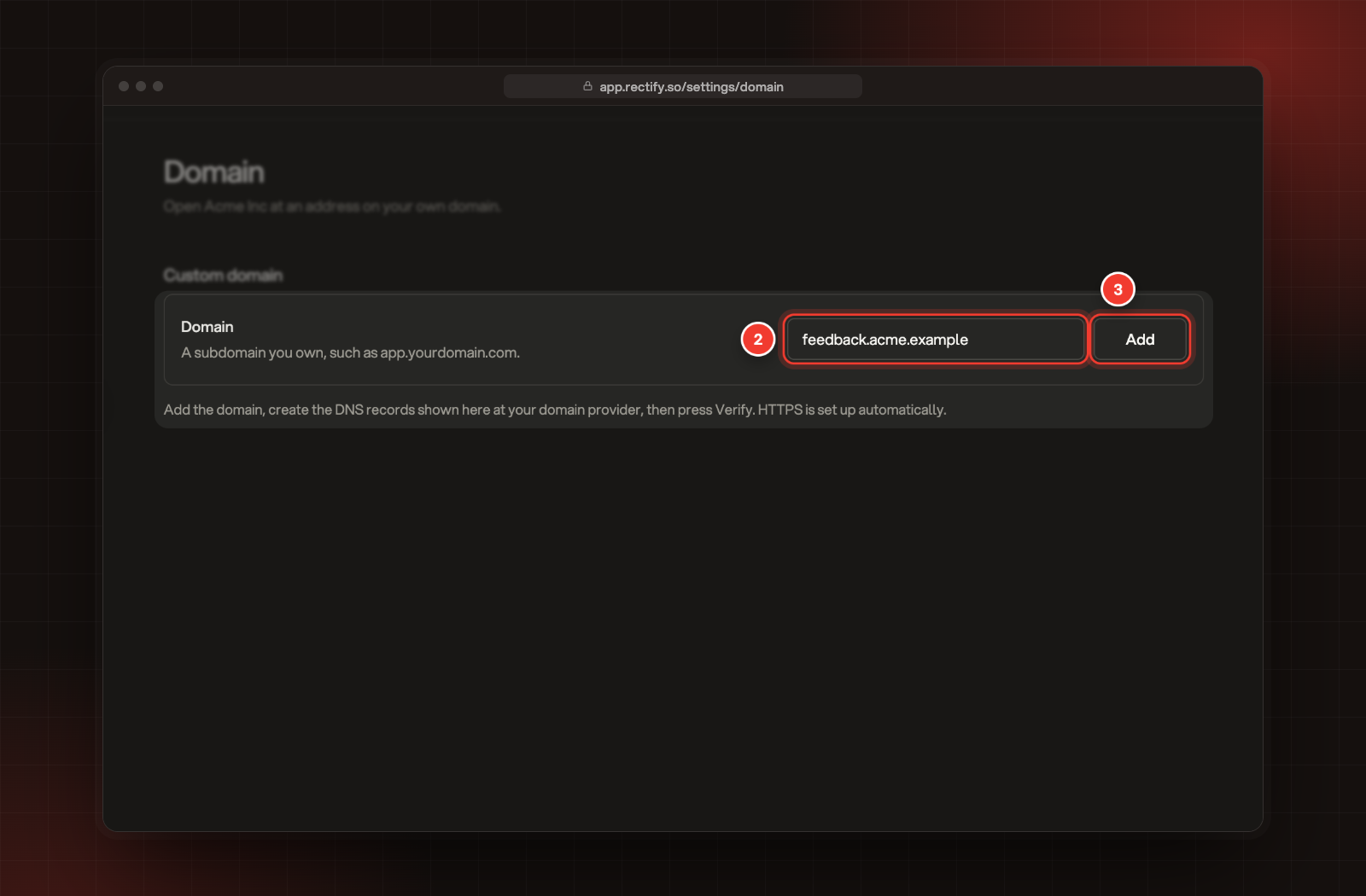
Under Domain, enter the subdomain you want, such as feedback.yourcompany.com. Leave out https://.
3.
Select Add.
2 Domain. 3 Add.
Rectify shows the domain with the status Waiting for DNS, and lists the DNS records to create under DNS records.
Create the DNS records
Rectify shows two records, each with a Type, a Host and a Value:
Type
What it does
CNAME
Points your subdomain at Rectify. Its host is the first part of your domain, such as feedback.
TXT
Proves you own the domain, so Rectify can set up HTTPS for it.
1.
Sign in to your domain provider and open the DNS settings for your domain.
2.
Add a CNAME record with the Host and Value Rectify shows. Use the copy button next to each value so nothing is mistyped.
3.
Add the TXT record the same way.
4.
Save the records at your provider.
Some providers add your domain to the end of the host by themselves. If yours does, enter only the part Rectify shows, such as feedback.
Verify the domain
1.
Go back to Organization settings, Domain.
2.
Select Verify.
When everything checks out, the status changes to Verified and HTTPS is set up for you. DNS changes can take up to 48 hours to reach everyone, so if it still says Waiting for DNS, wait a while and select Verify again. The status only updates when you select Verify.
What changes once it's verified
•
Your portals open at your domain followed by their portal address. In your portal settings, Domain and more shows the new address.
•
Opening the domain on its own takes visitors straight to your portal. If your organization has several public portals, visitors pick one from a list. Private portals, and portals limited to segments, aren't listed.
•
Your app.rectify.so portal links keep working, so links you've already shared don't break.
•
Signing in on a custom domain may not work in incognito or private browsing windows. The public portal works as normal.
Custom domain, with Manage, in your portal settings.
Change or remove the domain
•
Change it: enter a new domain under Domain, select Update, then create the new DNS records and verify again.
•
Remove it: under Remove domain, select Remove domain, then Remove to confirm. Your organization stops opening at that address, and your portals stay at their app.rectify.so address.
Check it worked
When the status says Verified, select the open icon next to it, or go to your domain followed by your portal address. Your portal should open with a padlock in the browser's address bar.
It says "Please enter a valid domain"
Enter the domain only, such as feedback.yourcompany.com, without https://, www. or a path.
It says "Domain already in use"
Another Rectify organization is using that domain. Pick another subdomain, or remove it from the other organization first.
It still says "Waiting for DNS" after a day
Check both records at your provider against the ones Rectify shows, character by character. Make sure the CNAME host isn't doubled, such as feedback.yourcompany.com.yourcompany.com, and that no other record uses the same host. Then select Verify again. If there's a problem with the records, Rectify shows it in red under them.