Add posts for your customers, keep their status and details up to date, add or remove votes, and tidy up many posts at once.
5 min readUpdated 24 days ago
Before you start. Owners, Admins and Members can add and edit posts, change their status, reply, and add or remove votes. Only Owners and Admins can delete and restore posts, change many posts at once, merge posts, and remove comments.
Add a post
Use this to log a request you heard on a call, in an email or in a chat.
1.
Open a roadmap, or All posts, and select Add post at the top. To add a post straight into a column, select + next to the column's name instead.
2.
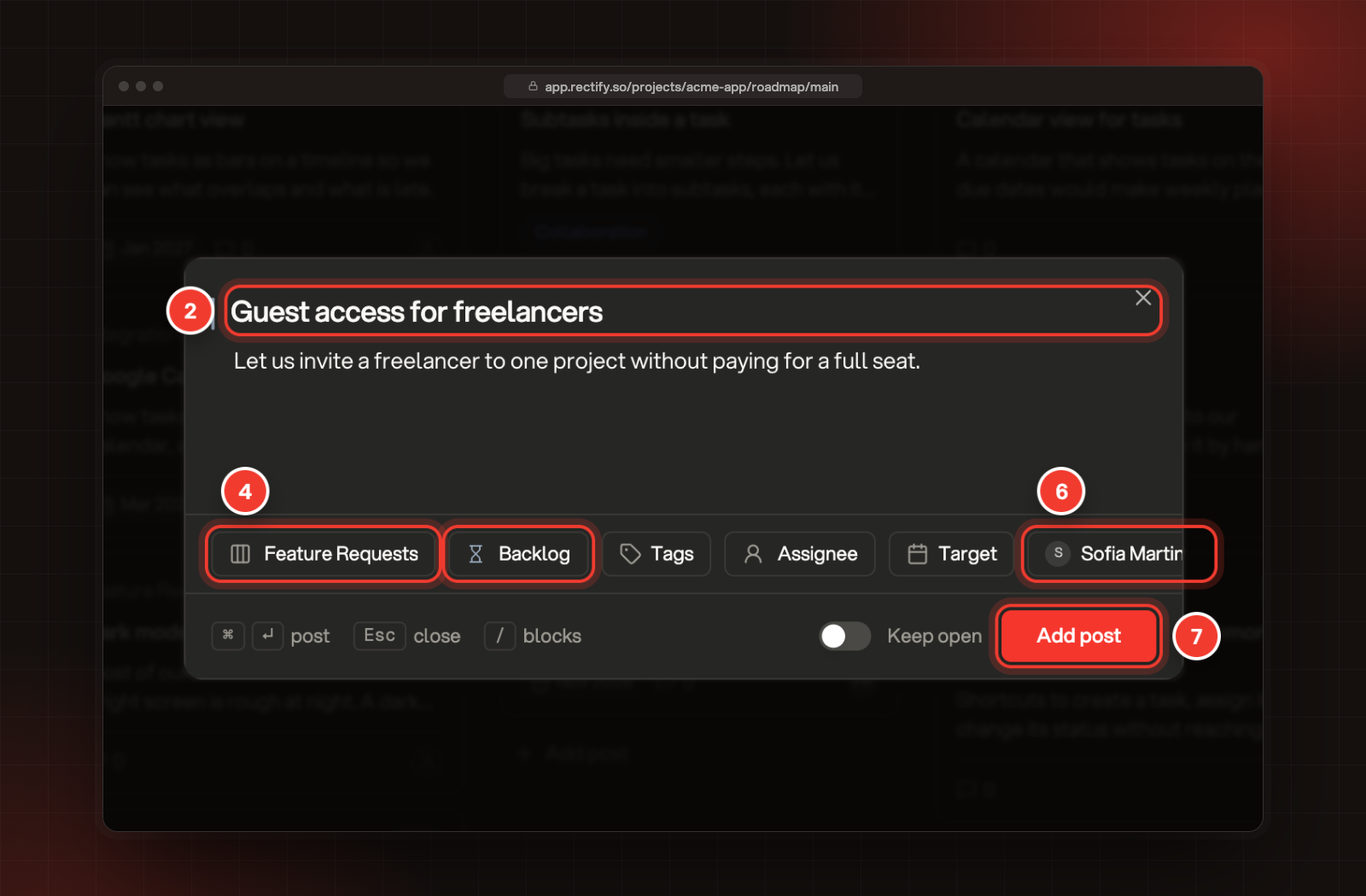
Enter a title.
3.
Add more detail below it. Type / to add other blocks, and @ to mention a teammate.
4.
Pick the board and the status. New posts start on your default status.
5.
If you like, add Tags, an Assignee and a Target date.
6.
To log it for a customer, select You, search for them under Who is asking? and pick them. They become the author, get the first vote and follow the post, so they hear about updates instead of you.
7.
Select Add post.
2 Title. 4 Board and status. 6 Who is asking. 7 Add post.
While you type the title, Rectify lists posts that already look similar. Select one to open it and add a vote there instead of posting twice. Switch on Keep open to add several posts in a row.
Posts your team adds go live straight away, without review. The customer isn't emailed when you log a post for them.
Change a post's details
1.
Select a card on a roadmap, or a row in All posts, to open the post.
2.
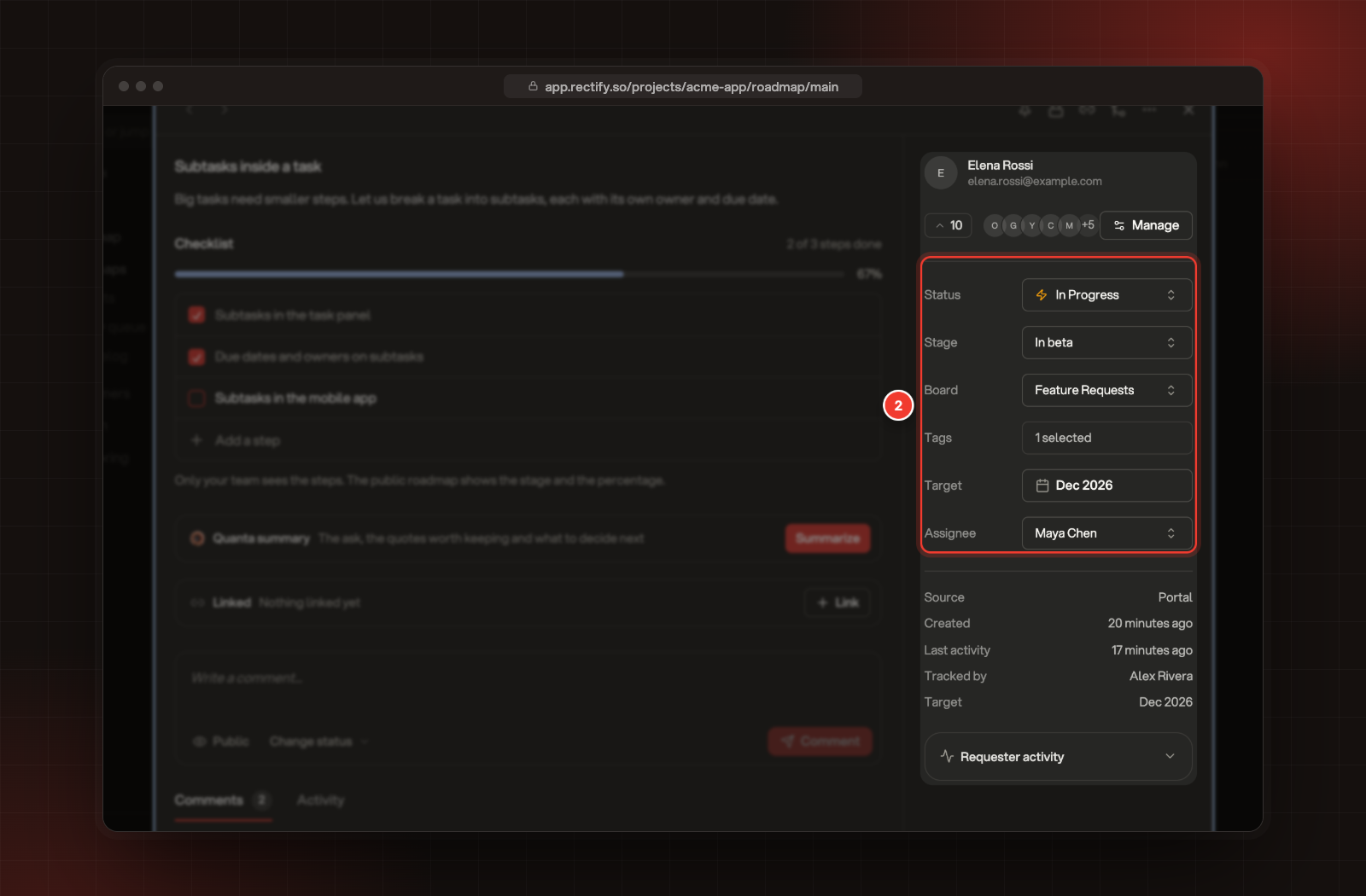
In the right-hand panel, change its Status, Stage, Board, Tags, Target or Assignee. Each change saves straight away.
2 Status, Stage, Board, Tags, Target and Assignee.
Stage shows only while the post is in an Active status, such as In Progress. The target date shows as a month on your roadmap. Moving a post to another board means that board's rules decide who can see it and vote on it.
When you change the status, Rectify asks whether to send an update to the post's followers. Nothing is sent unless you choose to. Notify followers when you ship explains the update and who gets it. On a roadmap with status columns, you can also drag a card to another column.
To change the title or description, select More (…) at the top of the post, then Edit post, and select Save changes when you're done.
Pin, lock or share a post
The icons at the top of an open post:
•
Pin to the top of the board puts the post first under Most votes, on your roadmaps and on your portal.
•
Lock the thread stops customers from commenting. Your team can still reply.
•
Copy link copies a link that opens this post in Rectify.
Add or remove a vote
Add a vote for a customer who asked for something by email, chat or call.
1.
Open the post and select Manage next to the votes.
2.
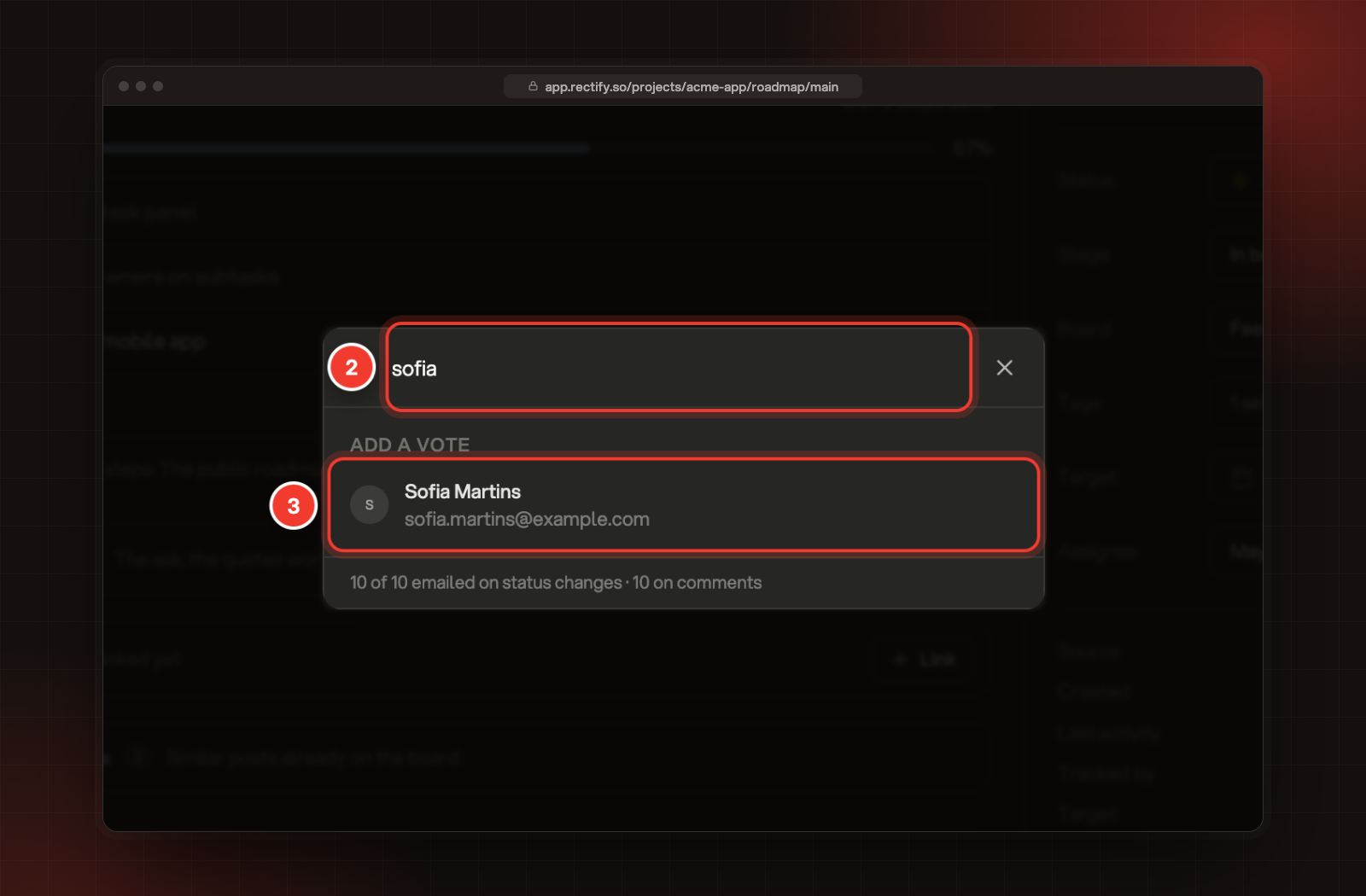
Search for the customer by name or email.
3.
Select them under Add a vote.
2 Search. 3 The customer to add.
If they aren't a contact yet, type their name, select Create "…" as a new contact, enter their Name and Email, and select Create & add vote. To take a vote back, point at a voter and select Remove vote. The arrow button next to the vote count adds or removes your own vote.
People you add a vote for follow the post. Nobody is emailed when you add or remove a vote. The menu next to each voter sets what they hear about this post: All activity, Status changes or Unsubscribe. Voters without an email address show No email.
Reply to a post
Write in the comment box under the post and select Comment. Before you send:
•
Public or Team only: public comments show on your portal and email followers who chose All activity. Team-only comments stay inside Rectify and notify nobody.
•
Change status: pick a status to change it with your comment. The button becomes, for example, Comment & mark In Progress.
Delete or restore a post
1.
Open the post, select More (…), then Delete post.
2.
Select Delete to confirm.
The post leaves your portal straight away. For 30 days you can bring it back: in All posts, select Filter, then Deleted only, open the post and select Restore. After 30 days it's removed for good, with its uploads.
Change many posts at once
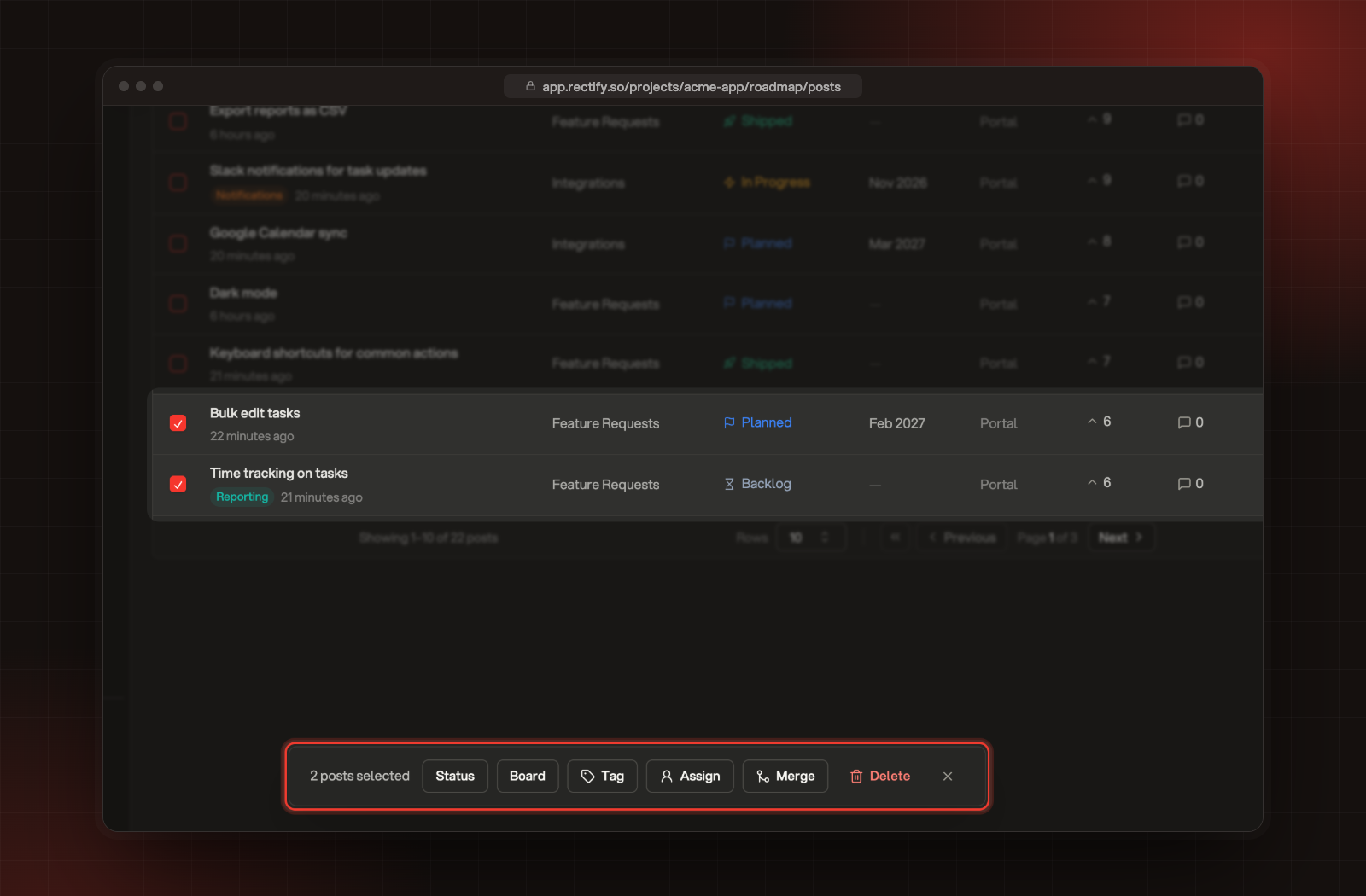
In All posts, tick the posts you want to change. A bar appears at the bottom with Status, Board, Tag, Assign and Delete, plus Merge when exactly two posts are ticked. Rectify asks you to confirm each change, and there's no bulk undo.
The bar that appears when posts are ticked.
Check it worked
The post shows its new details on every roadmap it matches and, for public boards, on your portal. Open the Activity tab under the post to see each change and who made it.
I can't find Delete post or the bar for many posts
Only Owners and Admins can delete posts and change many posts at once. Ask one of them.
The customer I'm looking for isn't listed
The search lists contacts that have an email address. Type their full name, select Create "…" as a new contact, and add their email.
Stage is missing
The post isn't in an Active status. Move it to one, such as In Progress, and Stage appears.