How the Rectify credits on paid plans work, which AI providers you can connect on each plan, how to choose the provider for each feature, and where to see what's used.
5 min readUpdated 24 days ago
Before you start. Owners and Admins can connect, change and remove AI providers. Members can open AI providers to see what's connected, but can't save changes. Credits and keys belong to the organization, so every project in it uses them.
Quanta and the other AI features in Rectify run on an AI model. That model comes from your own key with an AI provider, or from the Rectify credits included with paid plans.
Rectify credits
Build, Launch and Accelerate include Rectify credits, so AI features work before you connect a key. Credits run on Deepseek V4 Flash.
Plan
Rectify credits
Idea
None
Build
$5
Launch
$10
Accelerate
$15
•
Credits are a one-time amount. They don't renew each month or when your plan renews.
•
Each AI request uses a little of them, based on how much text the model reads and writes.
•
When you move between Build, Launch and Accelerate, your credits change to the new plan's amount. What you've already used still counts.
•
If your paid plan ends, any credits left end with it.
•
Credits cover text. Features that look at screenshots, images or session replays need a Gemini key of your own.
To see what's left:
1.
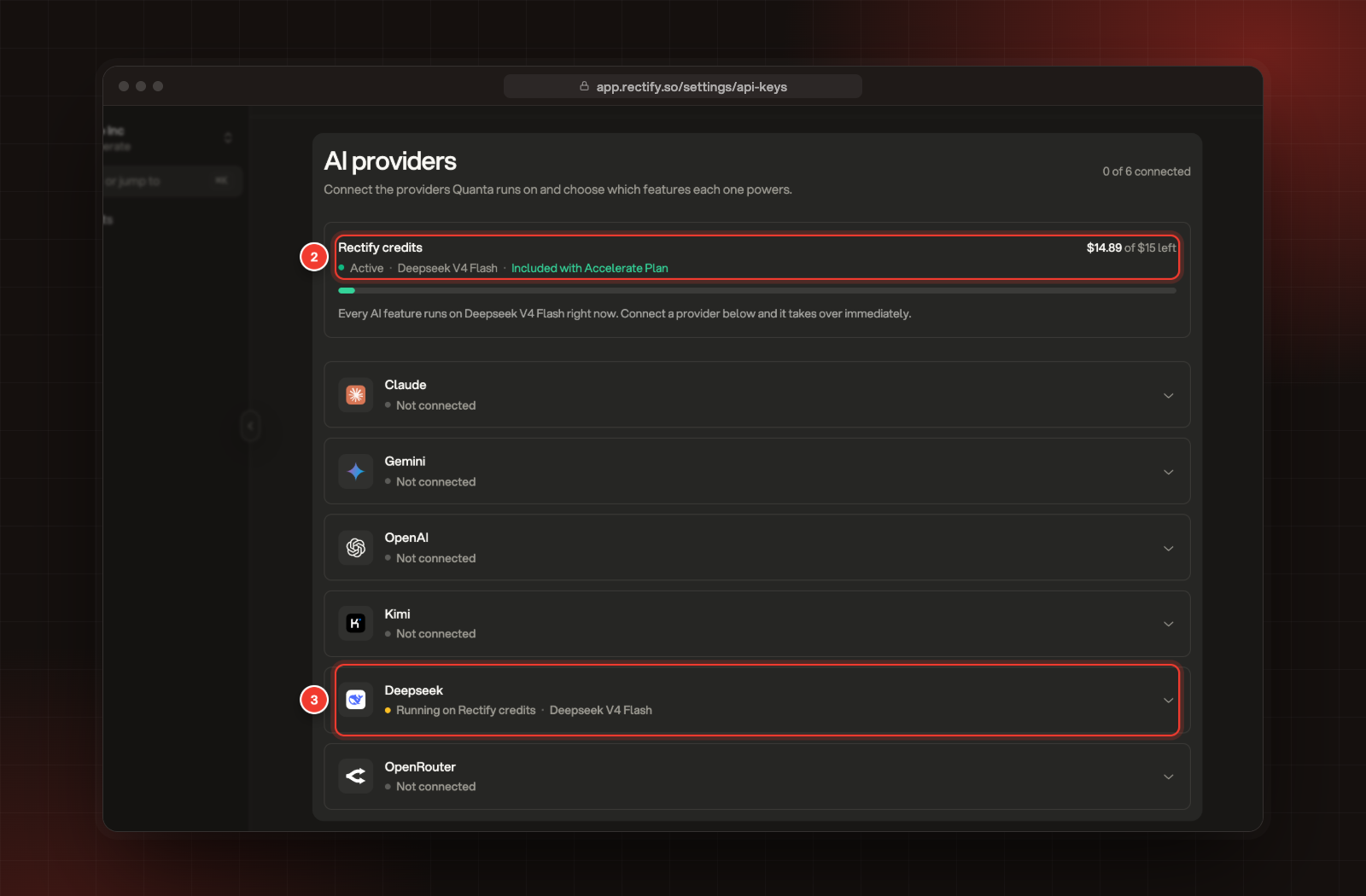
Open Organization settings, then AI providers.
2.
The Rectify credits card at the top shows what's left, for example $14.89 of $15 left.
3.
The provider your credits run on says Running on Rectify credits.
2 Rectify credits. 3 The provider your credits run on.
How credits and your keys work together
•
Your keys come first. Once you connect a key, it takes over straight away. Credits only step in when none of your keys can answer, for example after a key reaches its monthly spend limit.
•
Your own Deepseek key replaces the credits. While it's connected, AI features use your key and your credits aren't used. Remove the key to go back to the credits.
•
When credits run out, the card says Used up. AI features keep running on any key you've connected. With no key, they stop until you connect one.
Providers you can connect on each plan
Provider
Idea
Build, Launch, Accelerate and Enterprise
Gemini
Yes
Yes
Deepseek
Yes
Yes
Claude
No
Yes
OpenAI
No
Yes
OpenRouter
No
Yes
Kimi
No
Yes
On Idea there are no credits, so connect a Gemini or Deepseek key to use AI features.
Connect your own key
1.
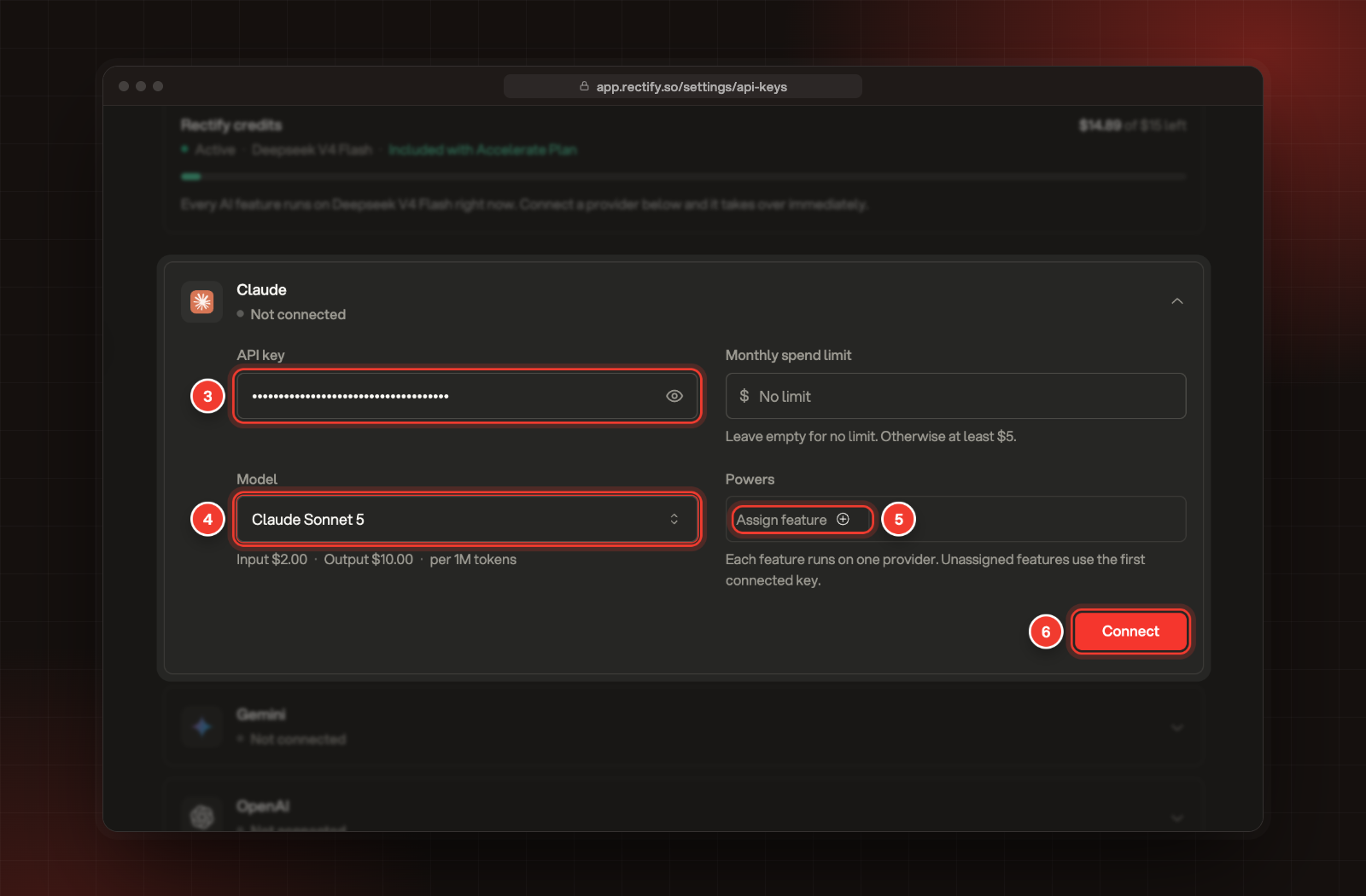
Open Organization settings, then AI providers.
2.
Select a provider to open it, for example Claude.
3.
Paste your key under API key.
4.
Choose a Model. Its price per 1M tokens shows under it.
5.
Optional: under Powers, select Assign feature and tick the features this provider should run.
To change a key later, open the provider, make your changes and select Save changes. To remove it, select Remove key, then Remove. Features assigned to that provider move to your other connected providers.
Choose which provider runs each feature
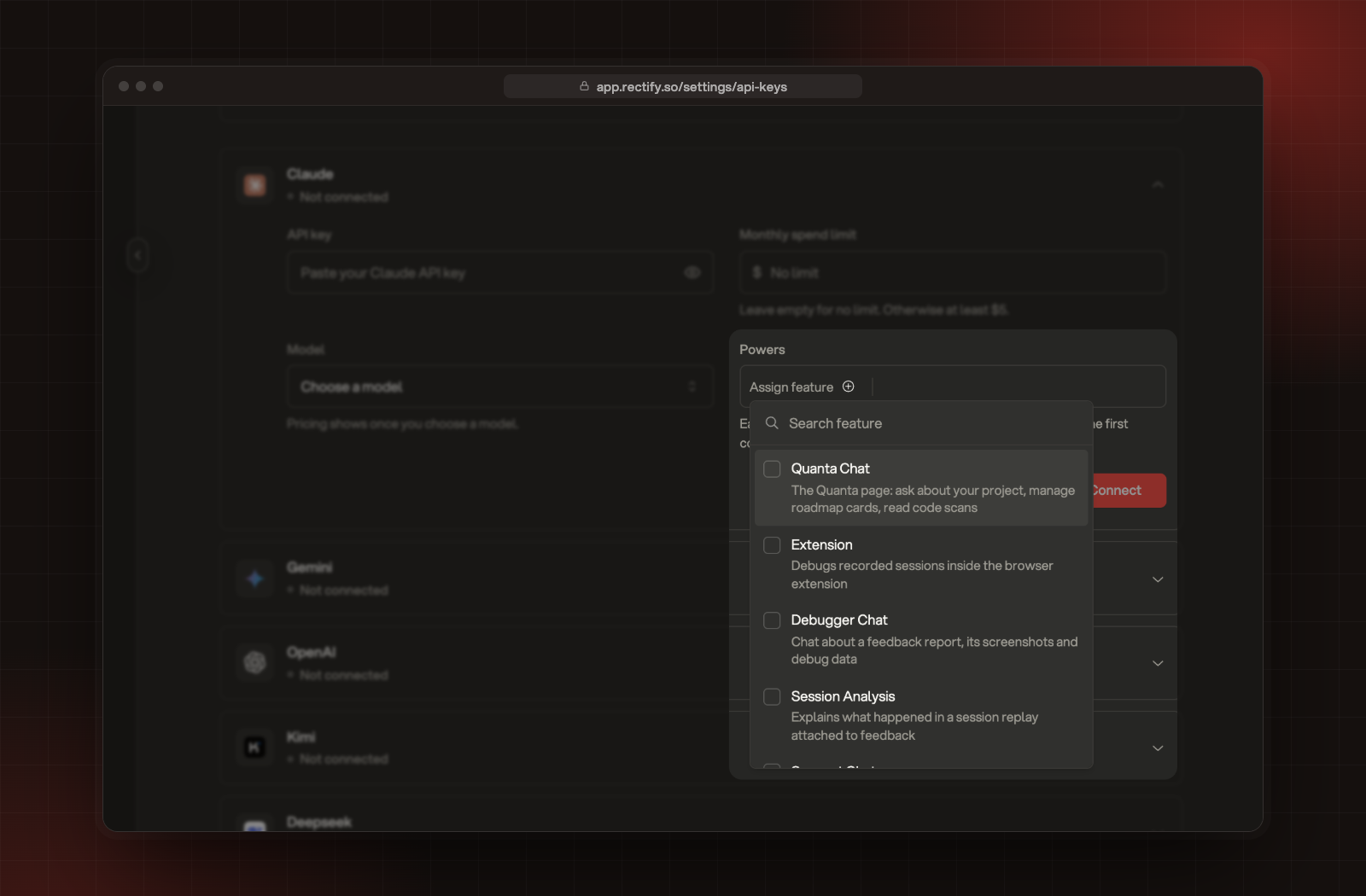
Powers decides which of your providers runs which feature. Open a provider, select Assign feature and tick a feature. Each one has a short line on what it does, for example Quanta Chat, Support Chat or Feedback Triage. Then select Save changes, or Connect for a new key.
The features you can assign under Powers.
•
Each feature runs on one provider. Once you assign a feature to one provider, it no longer shows in the list for the others.
•
Features you don't assign use your first connected key, in this order: Deepseek, Claude, OpenAI, Gemini, OpenRouter, Kimi. Your Rectify credits come last.
•
Powers apply to your own keys. You can't assign features to your credits.
Best in Quanta's model picker
On the Quanta page, the menu next to the microphone shows Best until you pick a model. With Best, Quanta uses the provider that has Quanta Chat under Powers. If none has it, Quanta uses your first connected key, and your credits come last. What Quanta can do for your team covers the rest of the picker.
Where to see what's used
•
AI providers: the Rectify credits card shows what's left of your credits.
•
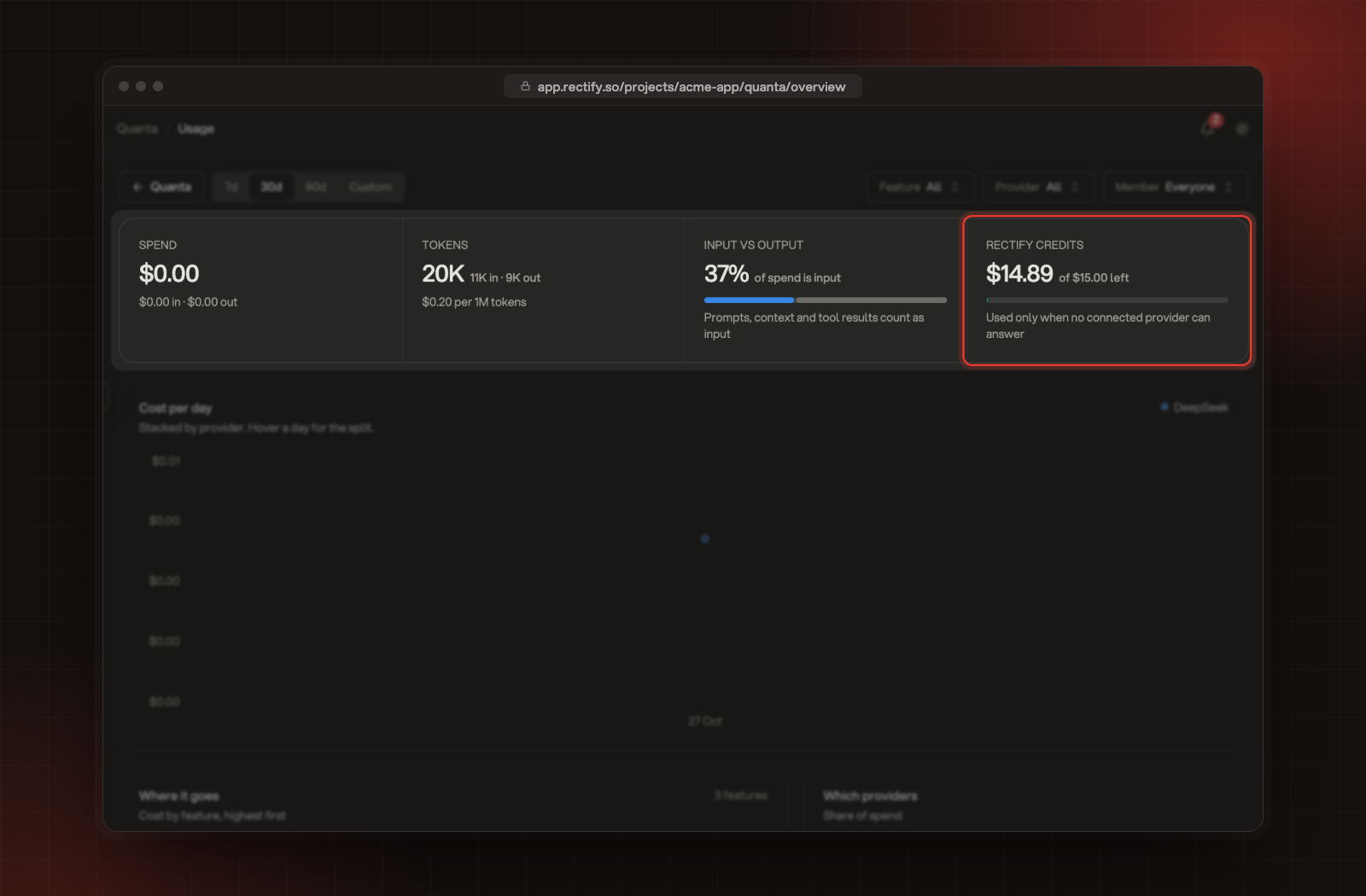
Quanta, Usage: on the Quanta page, select Usage to see spend and tokens for that project, with filters for Feature, Provider and Member. The Rectify credits box shows what's left, and Which providers marks each provider's spend as Rectify credits or Your key.
Rectify credits on the Usage page.
•
Billing: Owners and Admins can open Organization settings, Billing, select View all limits and look for AI Credits.
Troubleshooting
It says "Upgrade your plan to use Claude"
Claude, OpenAI, OpenRouter and Kimi start on the Build plan. Compare plans and what each one includes lists what each plan has. On Idea, connect a Gemini or Deepseek key.
It says "This organization's plan does not have access to kimi"
Kimi starts on the Build plan. Upgrade, or connect a Gemini or Deepseek key instead.
It says "Invalid API key"
The provider turned the key down. Check you copied the whole key, that it's still active in your provider's account, and that the account has funds.
The card says "Credits are used up"
Your one-time credits are spent. Connect a provider to keep AI features running.
I don't see Connect or Save changes
Only Owners and Admins can change AI providers. Ask one of them to connect the key.