Pick who gets your email, send it now or at a set time, and test two subject lines before everyone gets the winner.
5 min readUpdated 24 days ago
Before you start. Only Owners and Admins can send or schedule a campaign. Your project needs a connected email provider (Send from your own domain), and your email needs a subject line and a postal address in its footer. Subject line tests and sending in each person's time zone need the Launch plan or higher.
Choose who gets it
1.
Open your email and select Audience and send in the steps at the top, or Choose audience after the preview.
2.
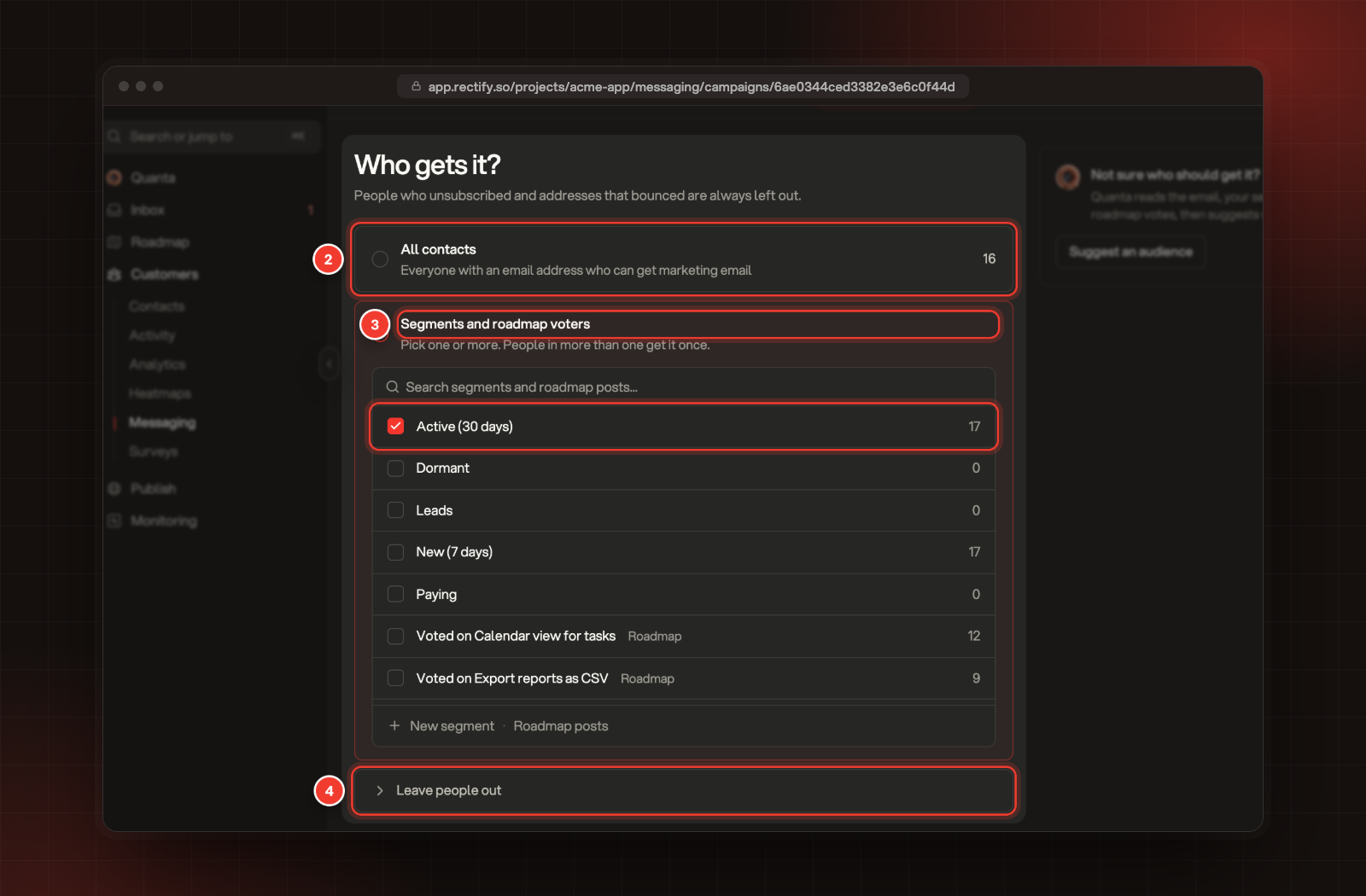
To send to everyone, select All contacts. That's everyone with an email address who can get marketing email.
3.
To send to some people, select Segments and roadmap voters and tick one or more groups. Someone in more than one group gets the email once.
4.
Optional: open Leave people out and tick the segments that shouldn't get it.
2 All contacts. 3 Segments and roadmap voters, with Active (30 days) ticked. 4 Leave people out.
The line under the page shows how many people it sends to, and how many are left out. Not sure who to pick? Select Suggest an audience and Quanta suggests groups from the email, your segments and your roadmap votes. Select Use this audience to take them.
Rectify always leaves these people out:
•
People who unsubscribed from marketing emails.
•
Addresses that bounced or marked an earlier email as spam, and addresses your team added to Suppressions.
•
People who already got three marketing or product emails from this project in the last 24 hours.
•
With Skip people emailed in the last 3 days on in the email's settings, people who got another campaign in the last three days.
Choose when it goes out
1.
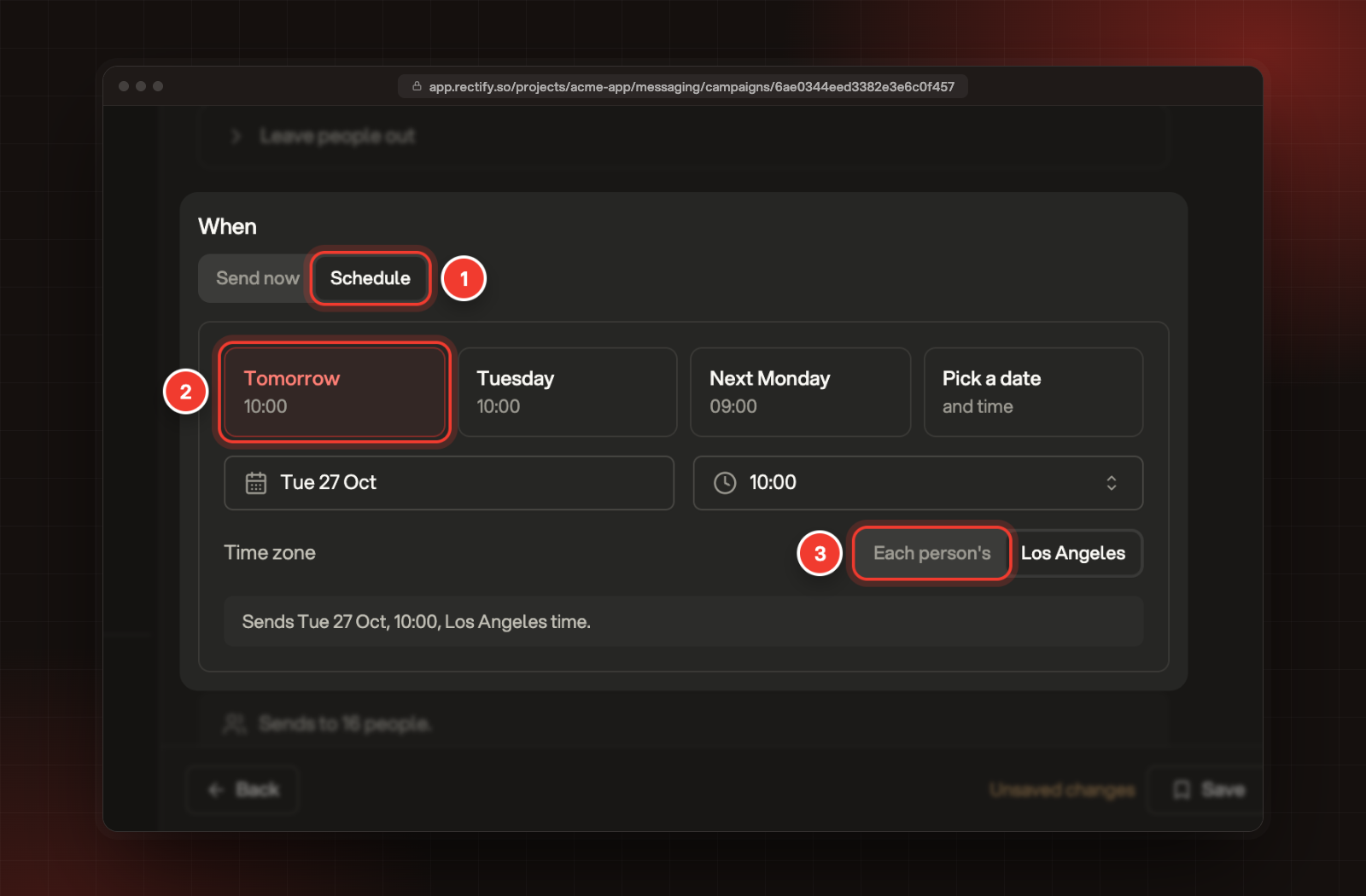
Under When, select Schedule. To send right away, leave it on Send now.
2.
Pick a time: Tomorrow, Tuesday, Next Monday, or Pick a date and a time. When Rectify knows when your contacts click most, it suggests that day instead of Tuesday, marked most clicks.
3.
Choose the Time zone: your project's time zone, or Each person's.
1 Schedule. 2 Tomorrow at 10:00. 3 Each person's time zone.
Your project's time zone comes from Time zone on the Email settings tab. With Each person's, everyone gets it at that time where they are. People with no known time zone get it at that time in your project's time zone, and anyone whose time has already passed gets it straight away. A scheduled time must be at least a minute ahead and within the next year.
Test two subject lines
A subject line test sends two subject lines to small groups first, then sends the winner to everyone else.
To turn it on, switch on Test a second subject line when you create the email, or in Email settings above the email, and write Subject line B. The test then shows on the audience page:
1.
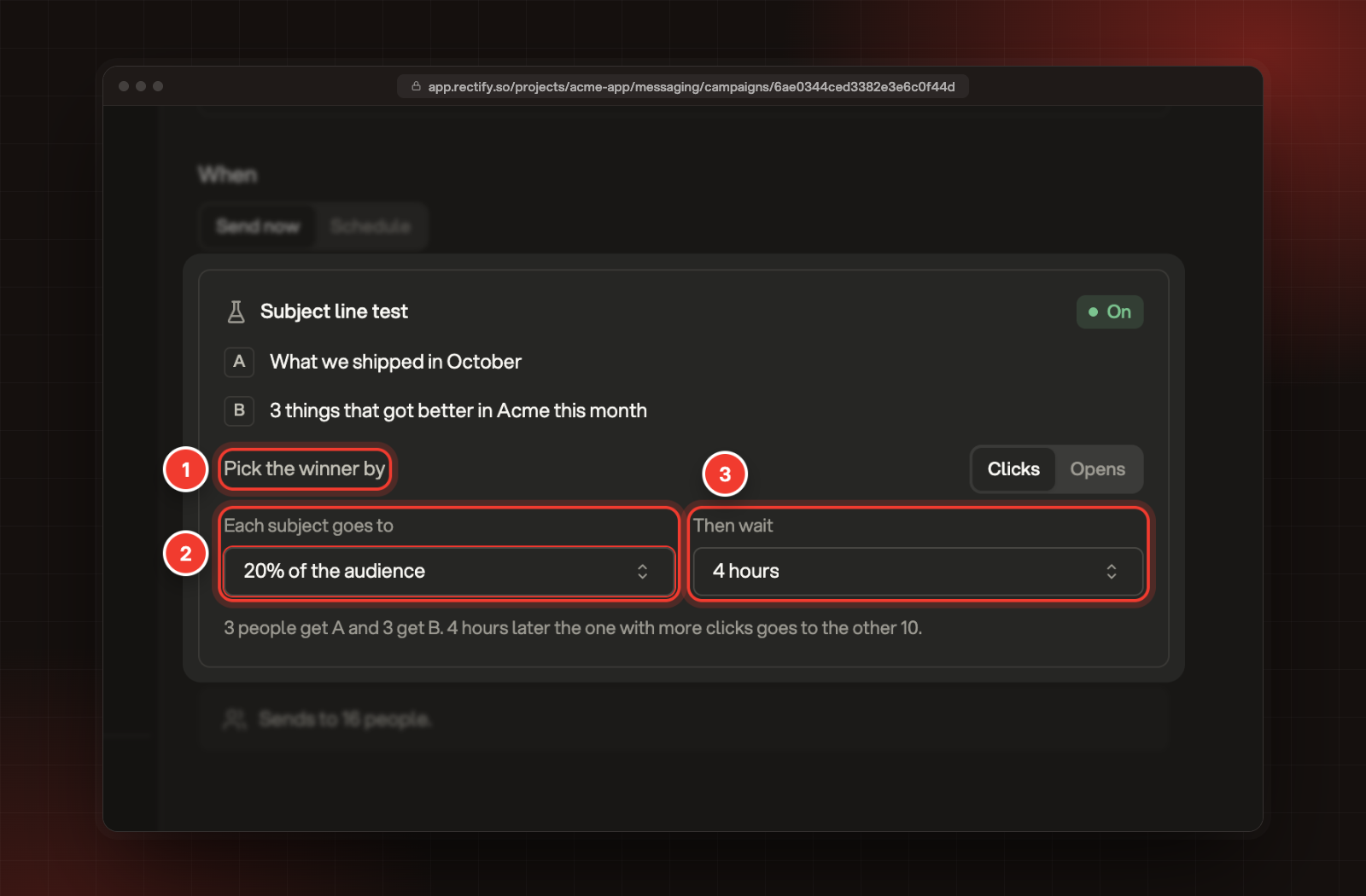
Under Pick the winner by, choose Clicks or Opens.
2.
Under Each subject goes to, pick 5%, 10%, 15%, 20% or 25% of the audience. It starts at 10%.
3.
Under Then wait, pick how long to wait before choosing: 1, 2, 4, 8, 12 or 24 hours. It starts at 4.
1 Pick the winner by. 2 Each subject goes to. 3 Then wait.
The line under the test says how many people get each subject and how many get the winner. A subject line test can't send in each person's time zone, and it needs open or click tracking on, whichever picks the winner.
Send it
1.
Select Send now, or Schedule for and the time, at the bottom right.
2.
Check the Subject, From, To and When.
3.
Select Send now or Schedule.
If you haven't sent yourself a test of this version, Rectify reminds you and offers Send a test first.
A scheduled campaign shows as Scheduled under Campaigns. To change it, open the menu on its row and select Cancel schedule. It goes back to being a draft and nothing is sent. While a campaign sends, you can pause it or select Stop sending from its report. Emails already sent stay sent.
Troubleshooting
The Send now button is greyed out
Point at it to see why. The most common reasons:
•
"Only owners and admins can send campaigns. Ask one to send it."
•
"Connect an email provider in Email settings first. Campaigns send from your own account."
•
"Add a subject line first." or "Write subject line B, or turn the test off."
•
"Pick who gets it first." or "Nobody in this audience can get email."
•
"Pick a time in the future."
It says "A subject line test cannot send in each person's time zone"
Pick your project's time zone, or turn the subject line test off.
It says "Subject line tests are on the Launch plan and above"
Subject line tests and sending in each person's time zone need the Launch plan or higher. Upgrade, change or cancel your plan explains how to move up.
Sending stops with a message about the postal address or another check
Rectify runs the same checks as Preview and test before it sends. Open Preview and test, select Fix next to the problem, and try again.